> ## Documentation Index
> Fetch the complete documentation index at: https://zuperinc-section23.mintlify.site/llms.txt
> Use this file to discover all available pages before exploring further.
# Using Connect on Mobile
As a field technician, you'll be constantly on the move—traveling from one job site to another, coordinating with customers, and staying in touch with team members. In such a fast-paced environment, having a reliable and easy-to-use communication tool is essential.
That's why Zuper Phone on mobile enables you (technicians) to seamlessly make and receive calls directly from the Zuper mobile app. Whether they need to confirm a service appointment with a customer or get quick clarification from a fellow technician, Zuper Phone ensures they stay connected and efficient on the go.
You can choose between two calling options:
1. **Zuper Phone**: Use the in-app phone to make VoIP calls over data or Wi-Fi. Recommended for **tracking, recording, and logging** call history within the app.
2. **Native Phone**: Use the device’s default phone for traditional cellular calls. Calls placed via this option will not be logged in Zuper Phone’s call history.
**Prerequisites**
To use Zuper Phone on mobile, ensure:
* You have the necessary [**permissions enabled**](https://docs.zuper.co/Zuper_Connect/Setup-Zuper-Connect/User_permissions) in settings.
* Your device has an **active internet connection** for Zuper Phone to function.
* You are **logged into the Zuper mobile app**; otherwise, incoming calls will not be received.
**Note:** For detailed permission setup, refer to [How to Manage User Permissions](https://docs.zuper.co/Zuper_Connect/Setup-Zuper-Connect/User_permissions).
# Accessing Zuper Phone on Mobile
You (Technicians) can access Zuper Phone from multiple locations within the mobile app to ensure efficient communication:
## 1. From the Dashboard
The Dashboard acts as a quick-access hub for all call-related actions.
### Steps to Access Calls from the Dashboard
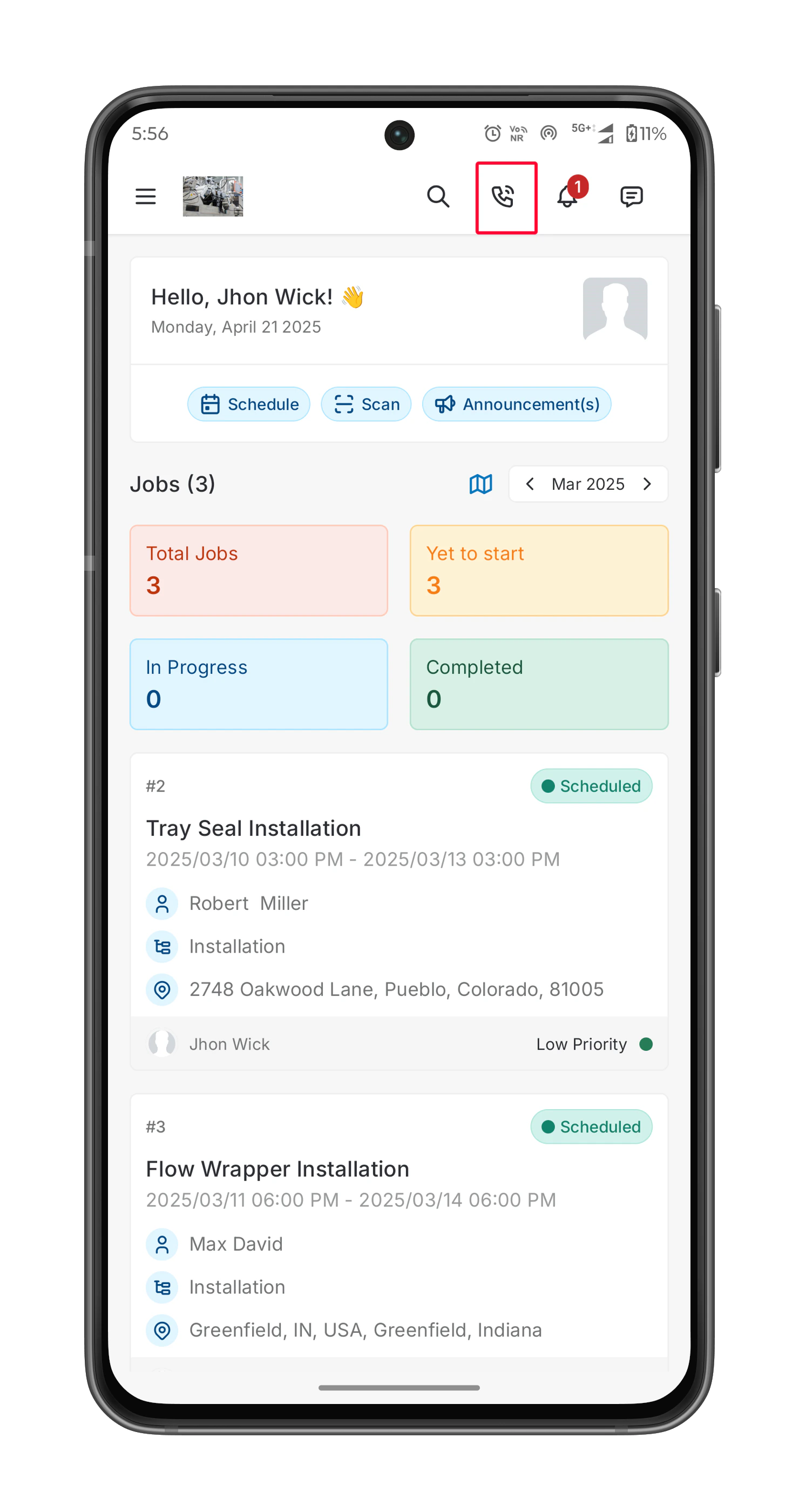
* Open the **Zuper mobile app** and navigate to the **Dashboard**.
* Tap the icon to open the **Call Log**.
 * Select from:
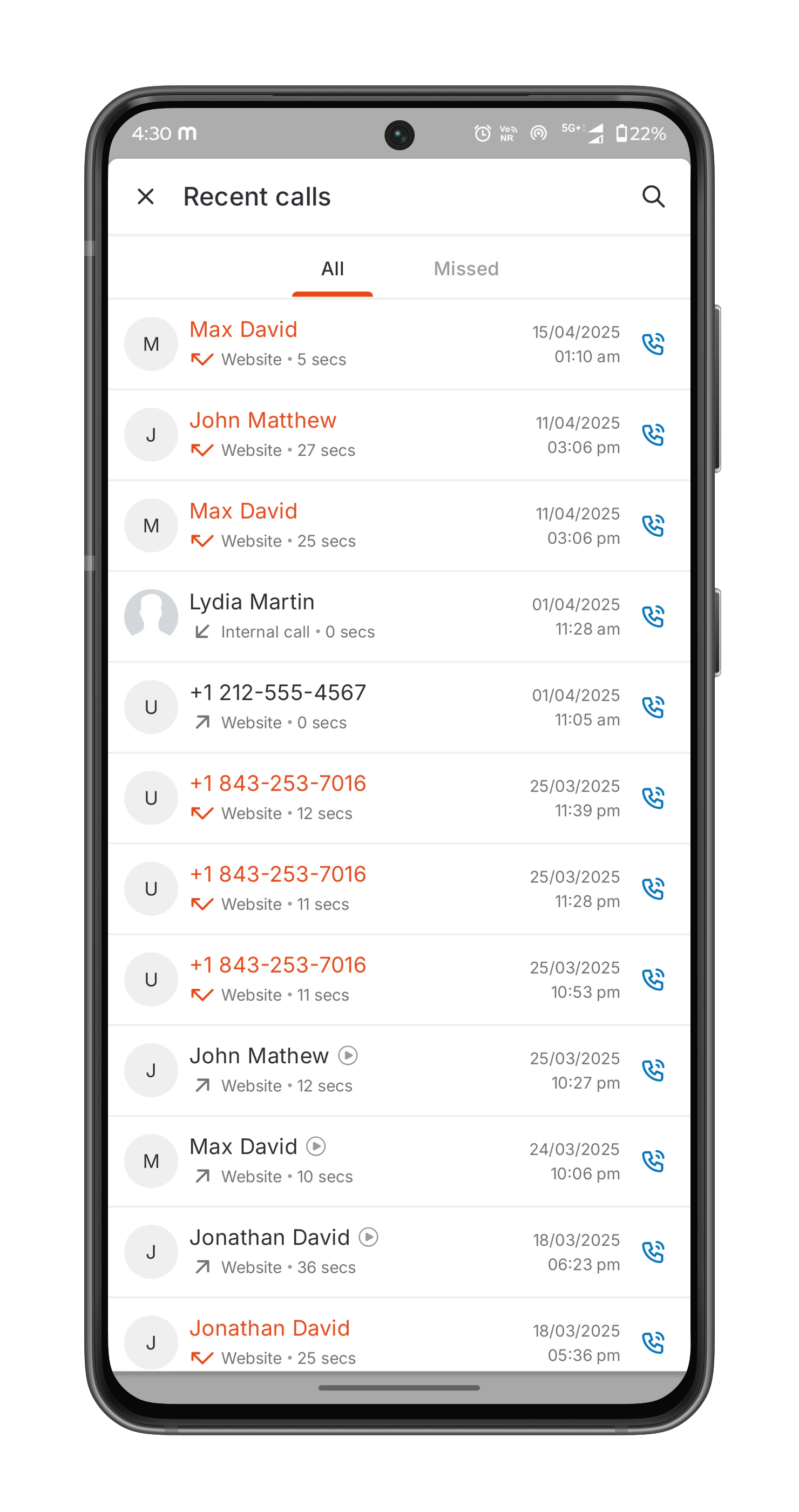
1. **All Calls** – View complete call history, including voicemails and call recordings.
2. **Missed Calls** – Check unanswered calls.
* Select from:
1. **All Calls** – View complete call history, including voicemails and call recordings.
2. **Missed Calls** – Check unanswered calls.
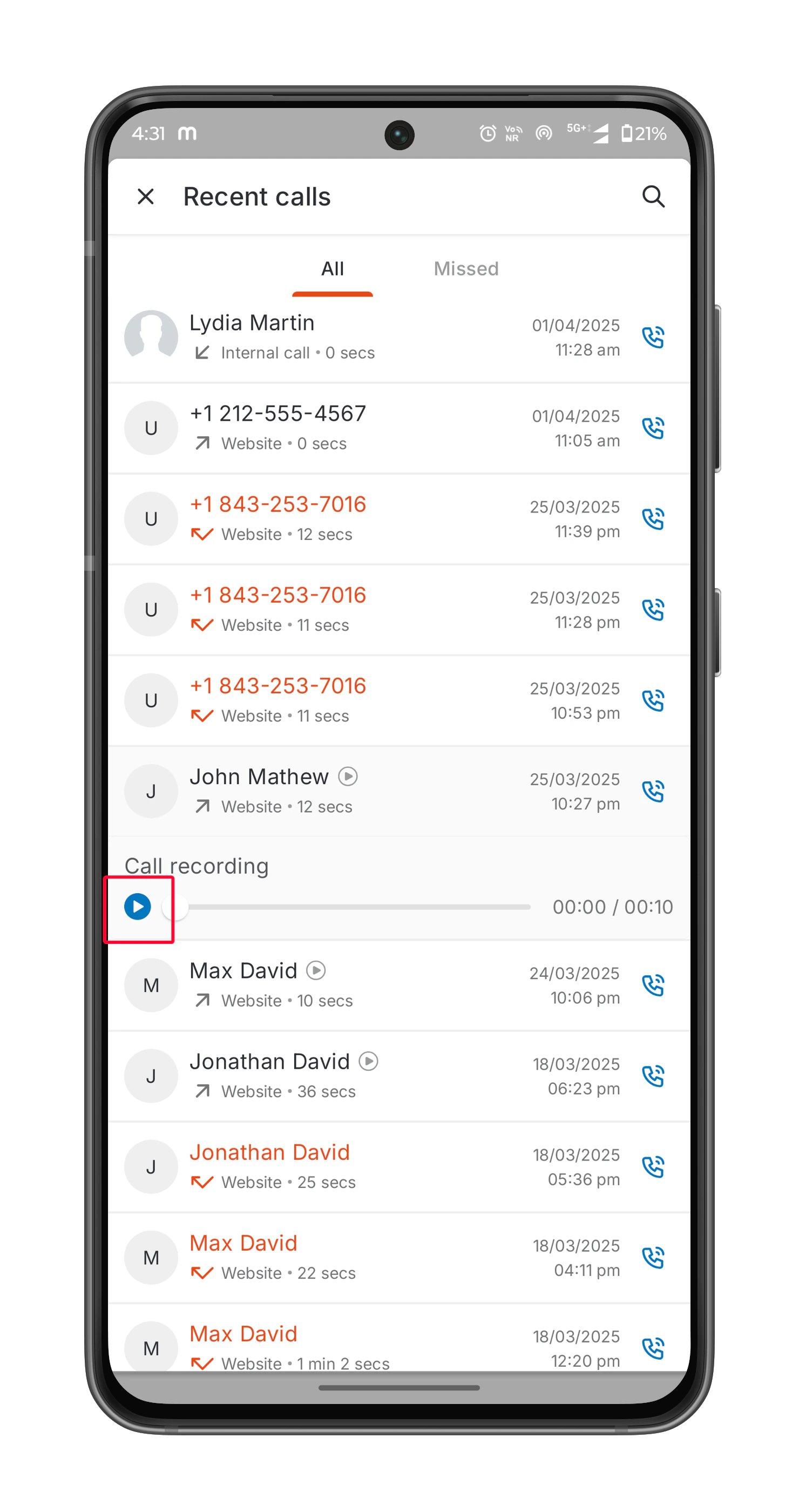
 * Tap the button to listen to call recordings or voicemails.
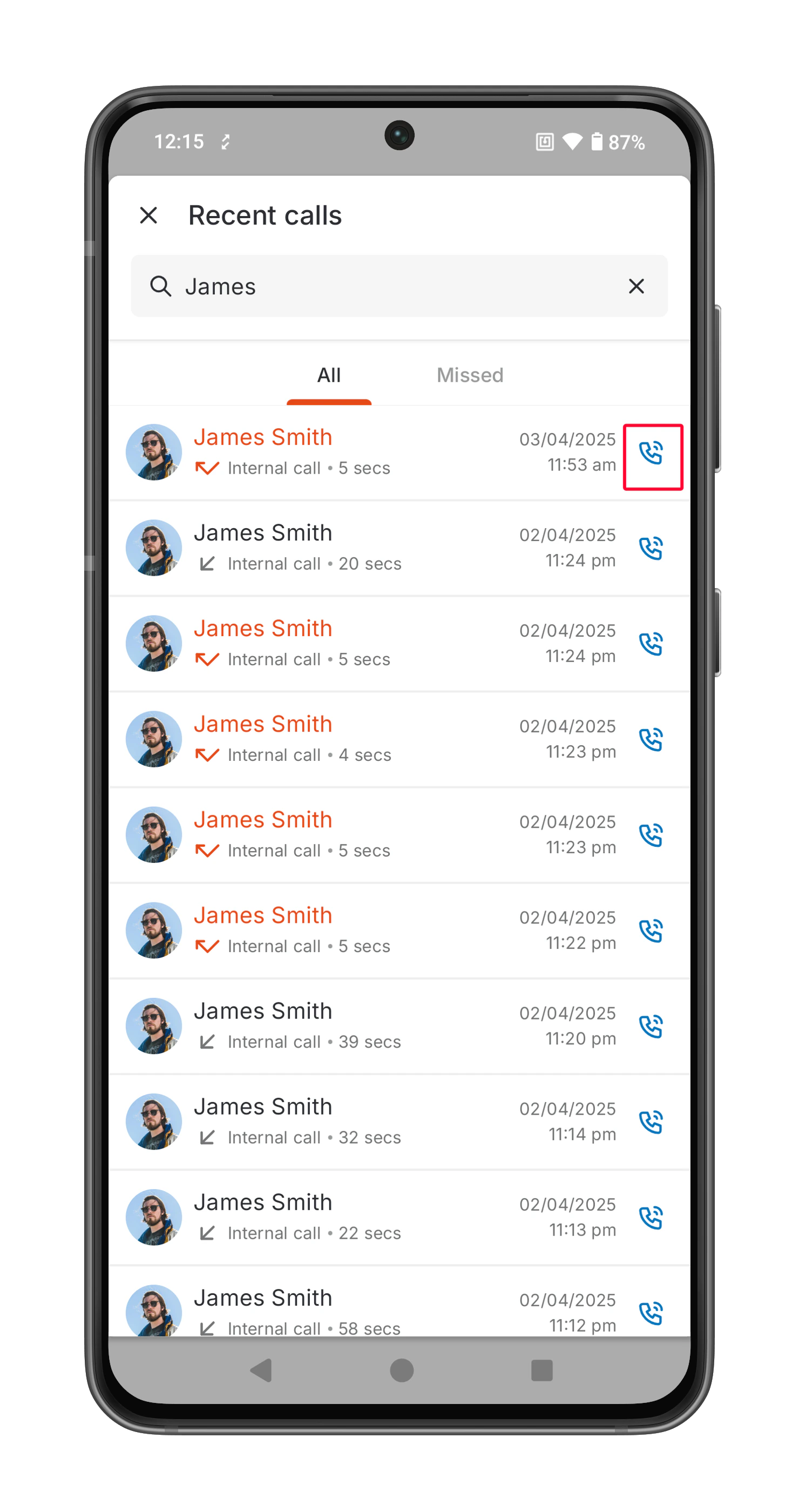
 * Tap the icon next to a contact to initiate a call instantly.
 Note: You must have call permissions enabled to initiate or receive calls.
## 2. From the Jobs Page
You can make calls directly from the **Job Details Page** for faster coordination and issue resolution.
### Steps to Make an Outbound Call from the Jobs Page
* Tap the **Hamburger**(☰) icon at the top left corner of your Zuper mobile app.
* Select **Jobs** to open the **Jobs Listing Page**.
* Choose a job from the list to open its details.
Note: You must have call permissions enabled to initiate or receive calls.
## 2. From the Jobs Page
You can make calls directly from the **Job Details Page** for faster coordination and issue resolution.
### Steps to Make an Outbound Call from the Jobs Page
* Tap the **Hamburger**(☰) icon at the top left corner of your Zuper mobile app.
* Select **Jobs** to open the **Jobs Listing Page**.
* Choose a job from the list to open its details.
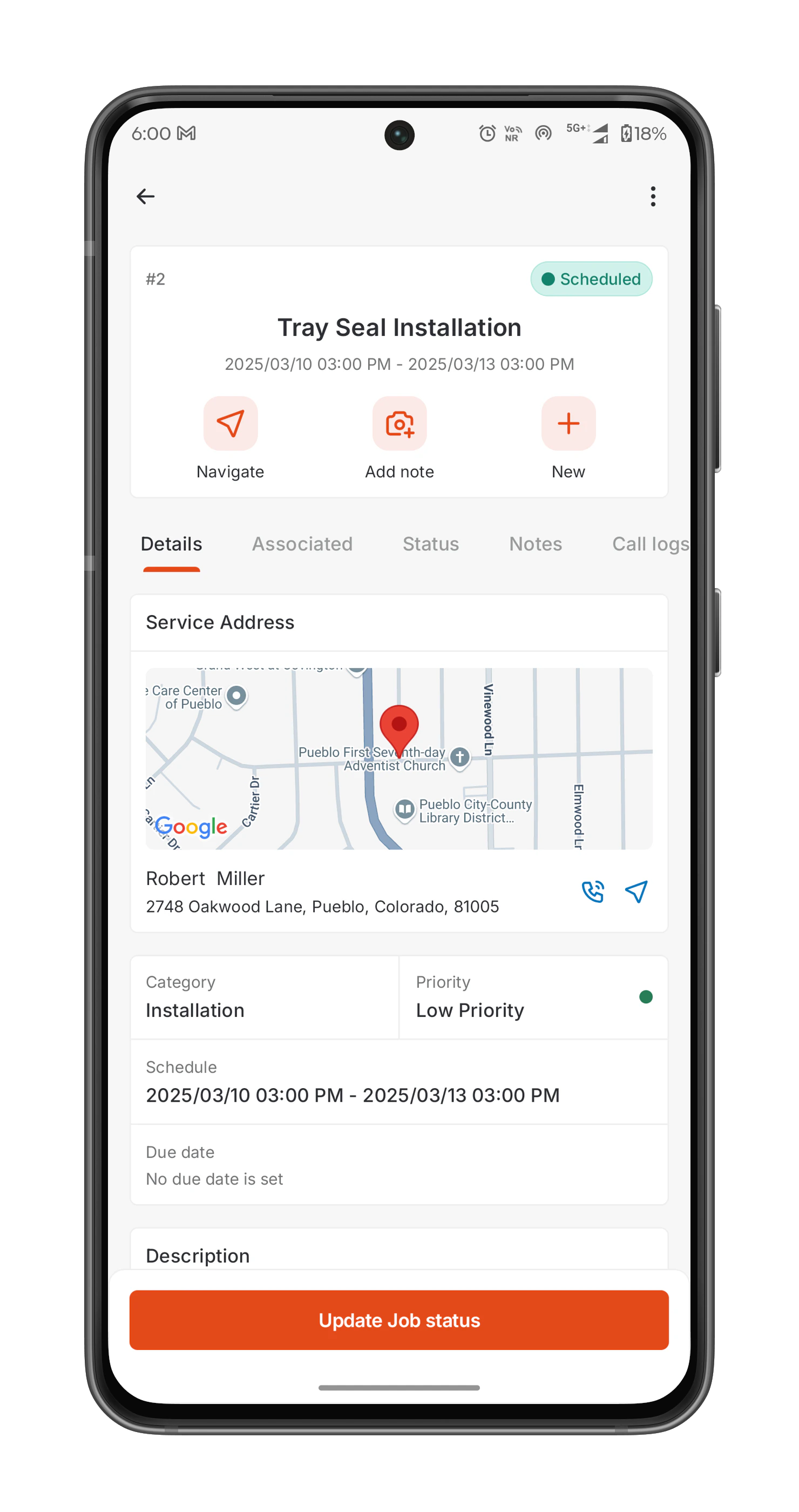 * Locate the icon next to:
1. **Customer’s Service Address** (if a phone number is added).
2. **Customer Contact Name** (if a phone number is added).
3. **Assigned Technician/User**
* Locate the icon next to:
1. **Customer’s Service Address** (if a phone number is added).
2. **Customer Contact Name** (if a phone number is added).
3. **Assigned Technician/User**
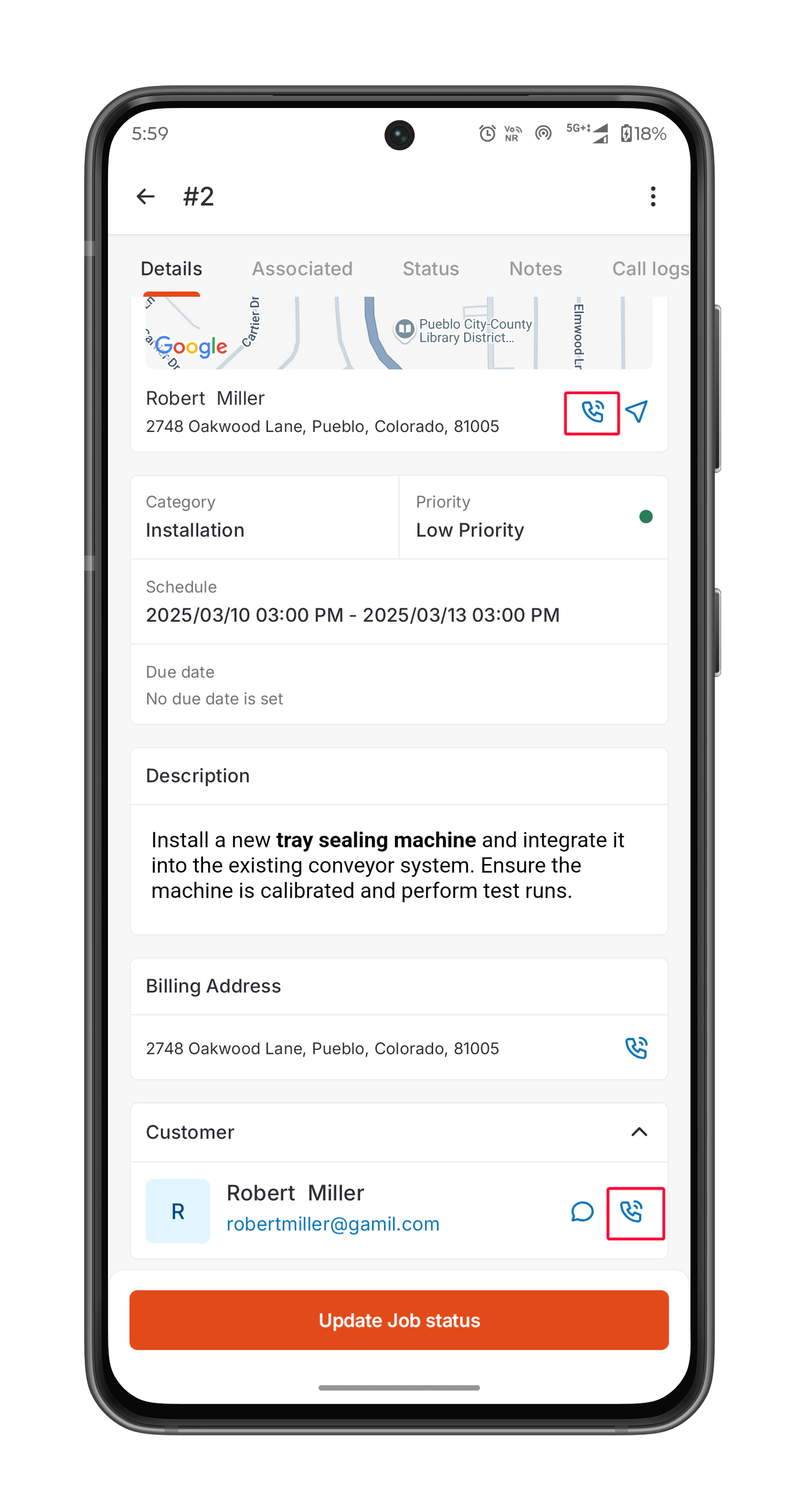 * Tap the icon to display available numbers:
**1. For Customers:** Home, Work, or Mobile numbers (if available).
* Tap the icon to display available numbers:
**1. For Customers:** Home, Work, or Mobile numbers (if available).
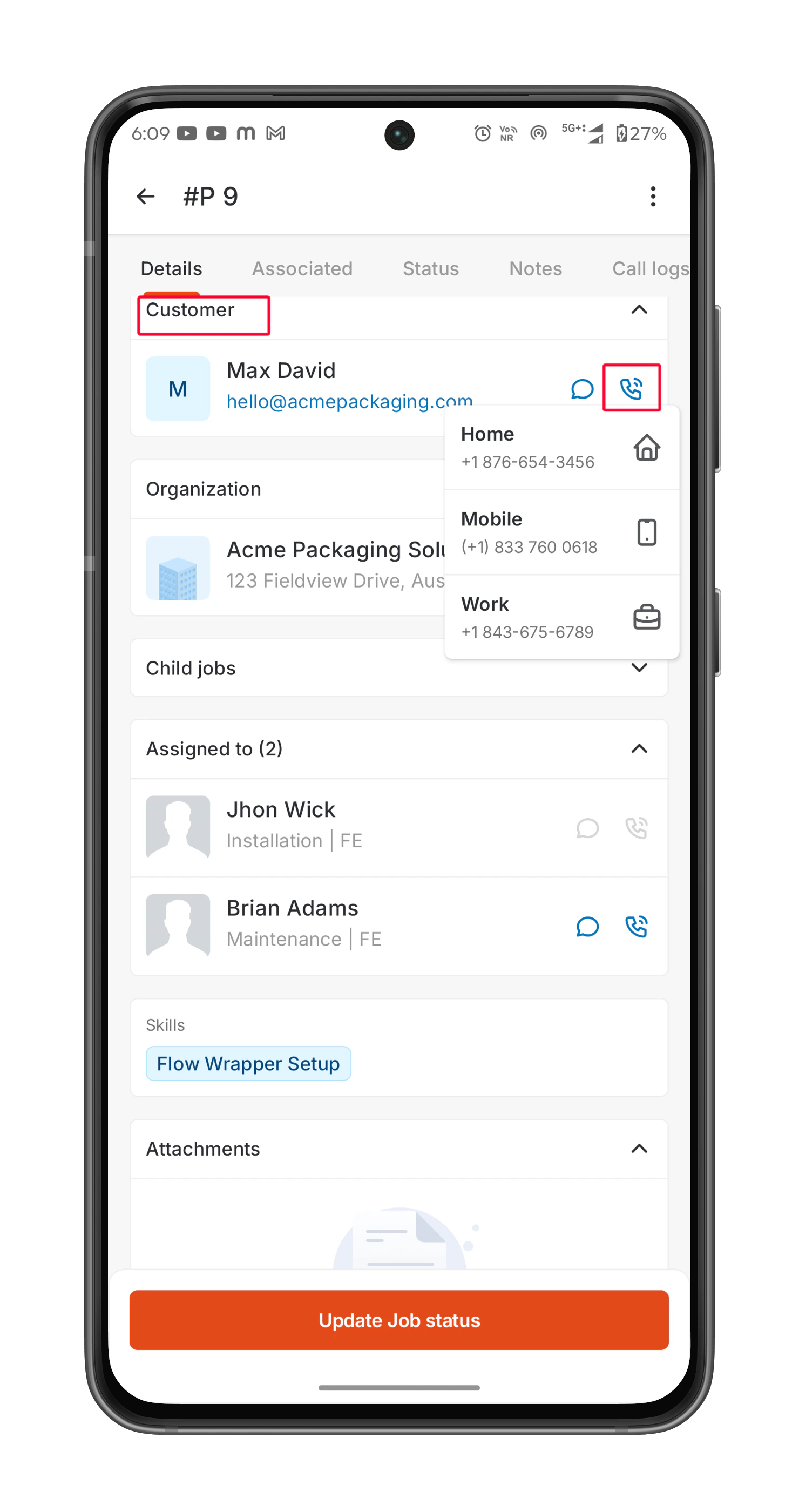 **2. For Field Technicians:** Home and Work (if available).
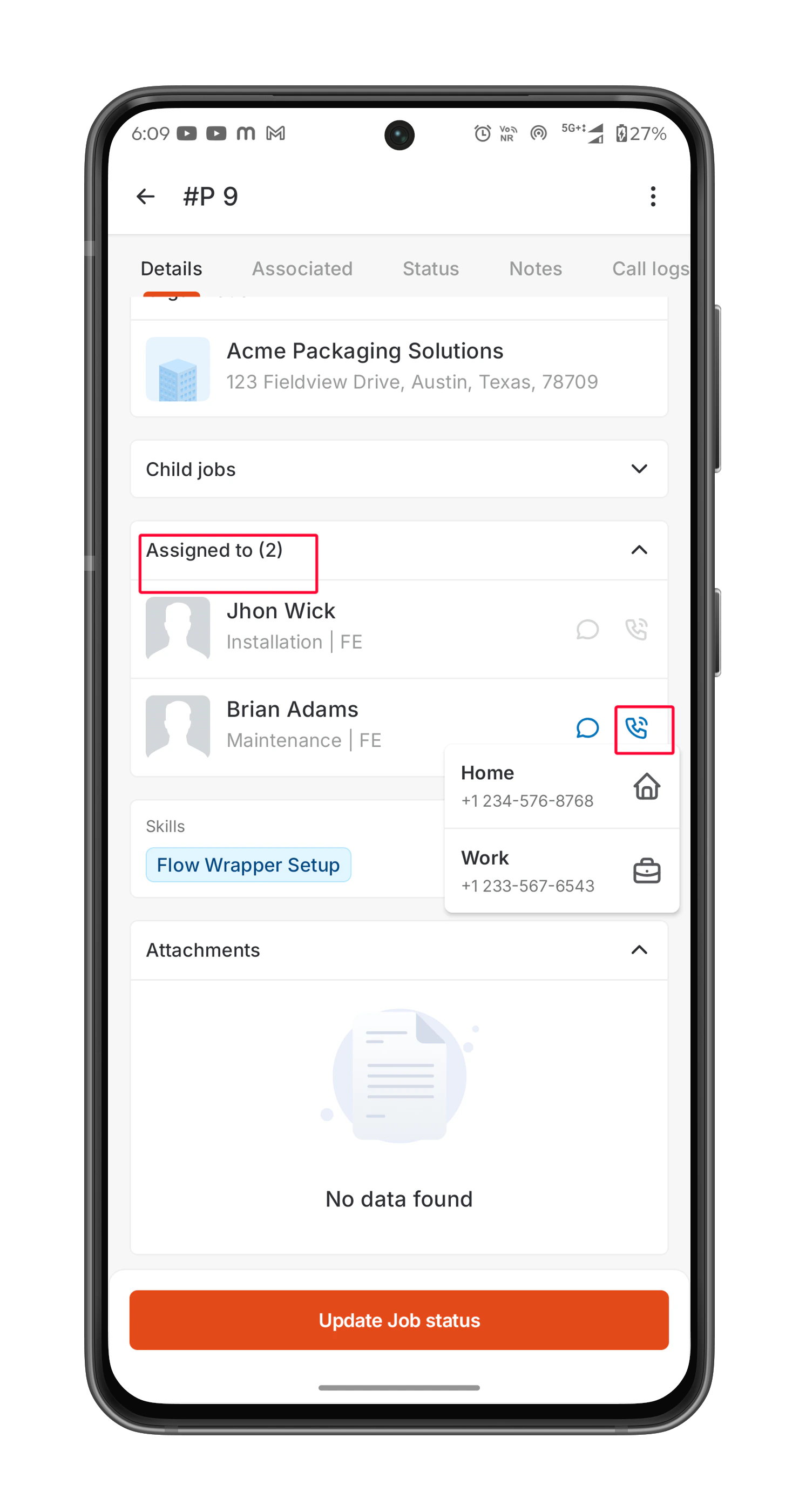 * Select the desired phone number and choose:
1. **Zuper Phone (Recommended)** – Ensures call logging and recording.
2. **Device’s Native Phone App** – No call tracking in Zuper Phone history.
* Select the desired phone number and choose:
1. **Zuper Phone (Recommended)** – Ensures call logging and recording.
2. **Device’s Native Phone App** – No call tracking in Zuper Phone history.
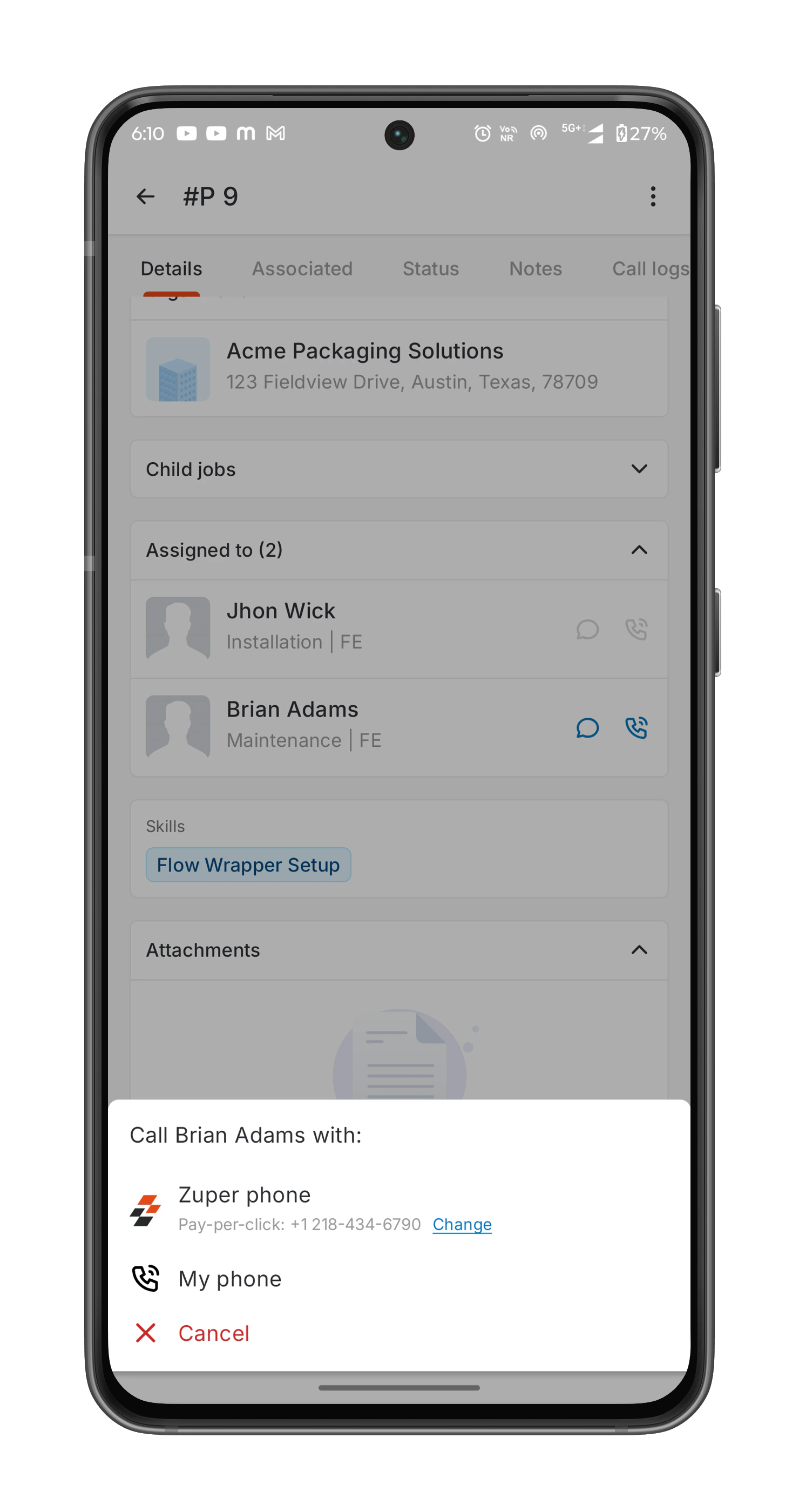 **Important:** Calls made via the **native phone app** will **not** be recorded or logged in the Zuper app call history.
### Viewing Call History for a Job
Every call made from a job page is automatically logged. To review call history:
* Navigate to the **Job Details Page**.
* Tap **Call Logs** to view records of:
1. **Outgoing Calls** – Calls placed by the technician.
2. **Incoming Calls** – Calls received from the customer.
3. **Missed Calls** – Calls that were not answered.
**Important:** Calls made via the **native phone app** will **not** be recorded or logged in the Zuper app call history.
### Viewing Call History for a Job
Every call made from a job page is automatically logged. To review call history:
* Navigate to the **Job Details Page**.
* Tap **Call Logs** to view records of:
1. **Outgoing Calls** – Calls placed by the technician.
2. **Incoming Calls** – Calls received from the customer.
3. **Missed Calls** – Calls that were not answered.
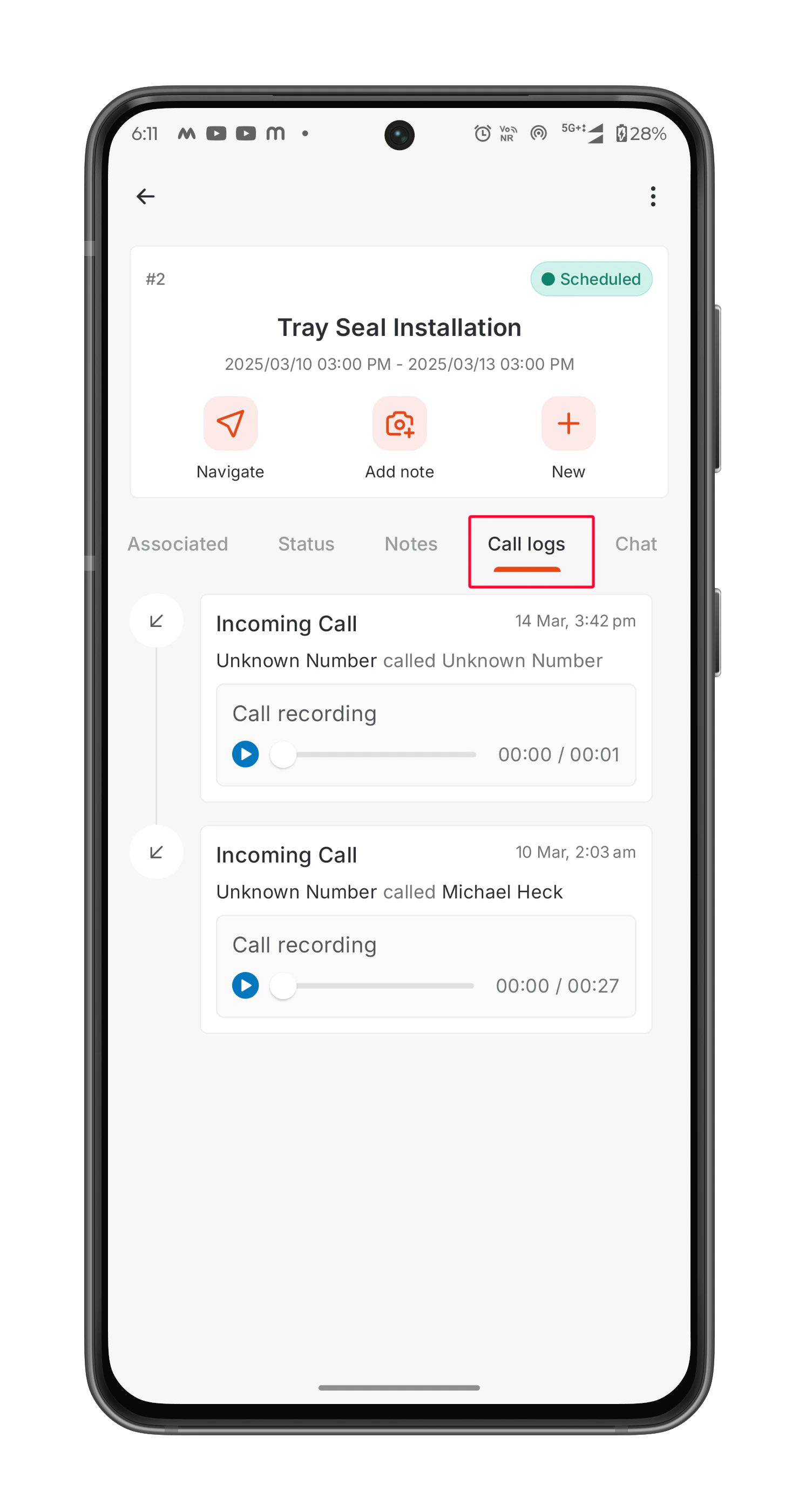 This ensures all job-related communication is **tracked and accessible**.
## 3. From the Customers Page
You can connect with customers directly to **discuss job updates, service requirements, or follow-ups**.
Note: To view customer details, your organization must enable the necessary permissions in Settings -> Customers/Contacts -> Customer/Contact General Settings -> Access/Permissions -> Set "**Can Field Executive view all Customers/Contacts?**" to "**Yes**".
### Steps to Make an Outbound Call from the Customer's Page:
* Tap the **Hamburger** (☰) icon at the top left corner of your Zuper mobile app.
* Select **Clients** and then tap **Customers**.
* Browse or search for the customer you want to call.
* Tap the customer’s name to open their profile.
* Tap the icon in the quick action bar.
This ensures all job-related communication is **tracked and accessible**.
## 3. From the Customers Page
You can connect with customers directly to **discuss job updates, service requirements, or follow-ups**.
Note: To view customer details, your organization must enable the necessary permissions in Settings -> Customers/Contacts -> Customer/Contact General Settings -> Access/Permissions -> Set "**Can Field Executive view all Customers/Contacts?**" to "**Yes**".
### Steps to Make an Outbound Call from the Customer's Page:
* Tap the **Hamburger** (☰) icon at the top left corner of your Zuper mobile app.
* Select **Clients** and then tap **Customers**.
* Browse or search for the customer you want to call.
* Tap the customer’s name to open their profile.
* Tap the icon in the quick action bar.
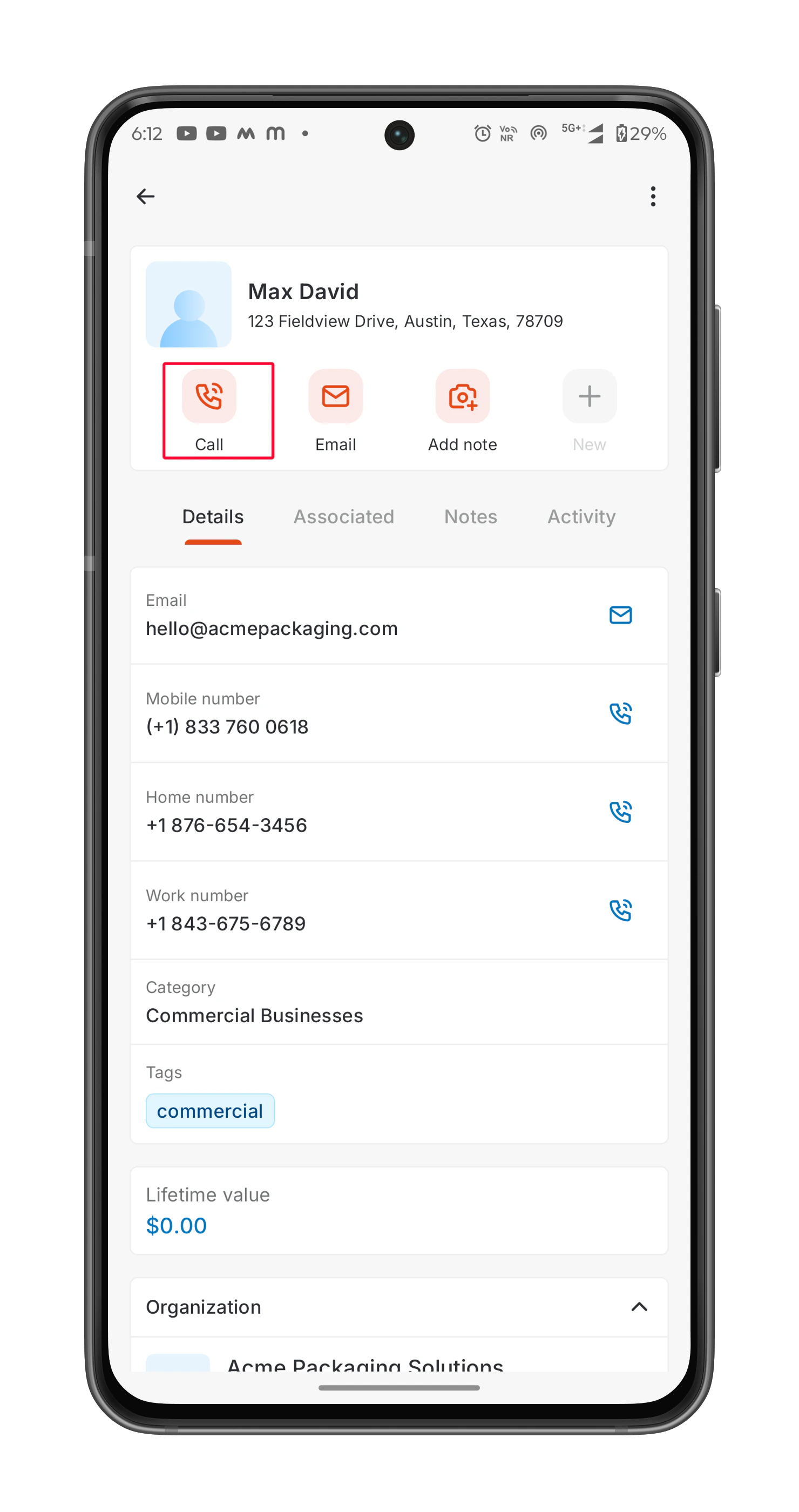 * Choose the desired number from the list:
1. Home
2. Work
3. Mobile
* Choose the desired number from the list:
1. Home
2. Work
3. Mobile
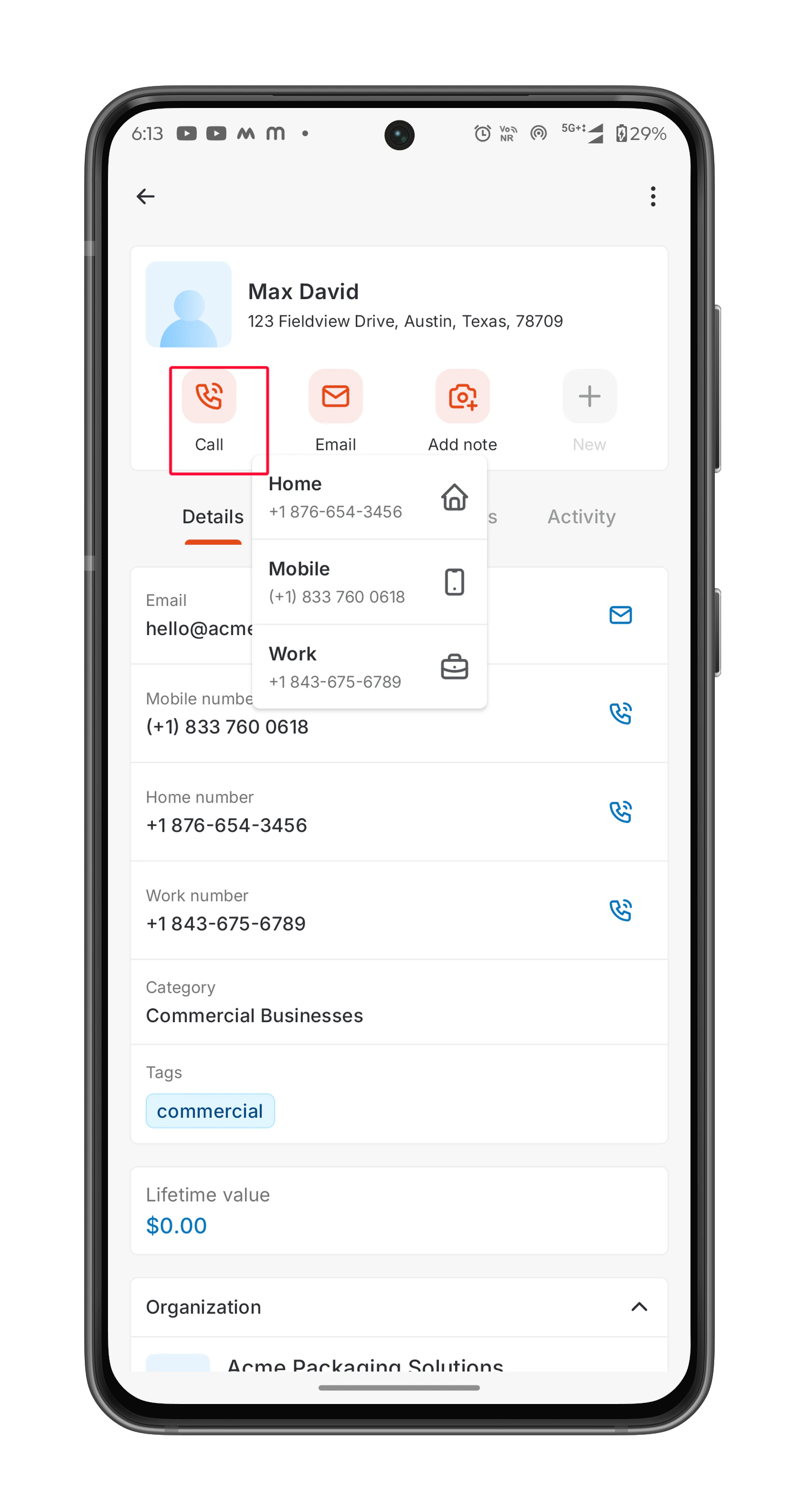 * Select:
1. **Zuper Phone (Recommended)** – To log the call history.
2. **Device’s Native Phone App** – No call tracking.
* Select:
1. **Zuper Phone (Recommended)** – To log the call history.
2. **Device’s Native Phone App** – No call tracking.
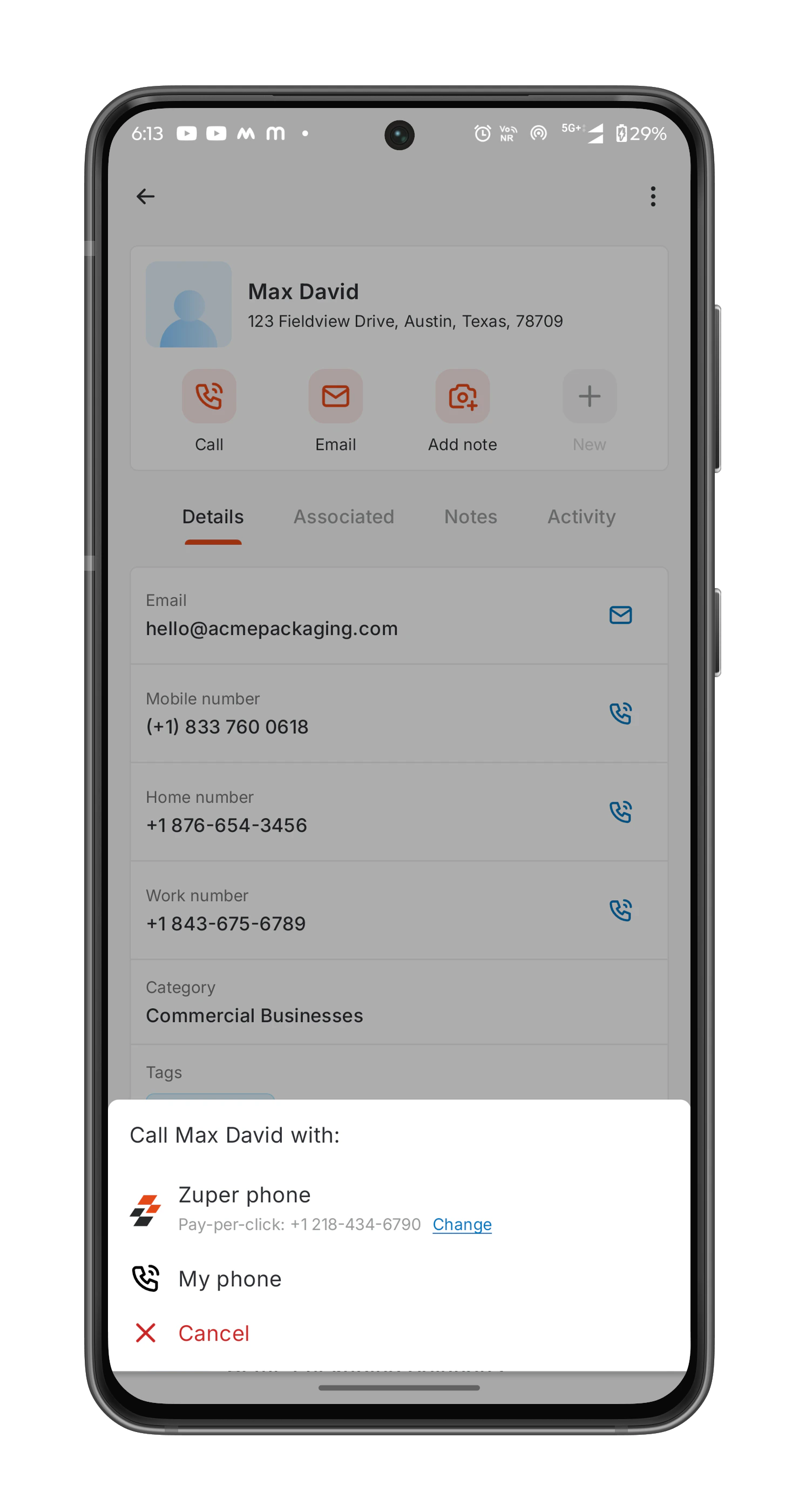 Note: To view and manage recorded call logs, always use Zuper Phone.
## Receiving an Inbound Call on Mobile
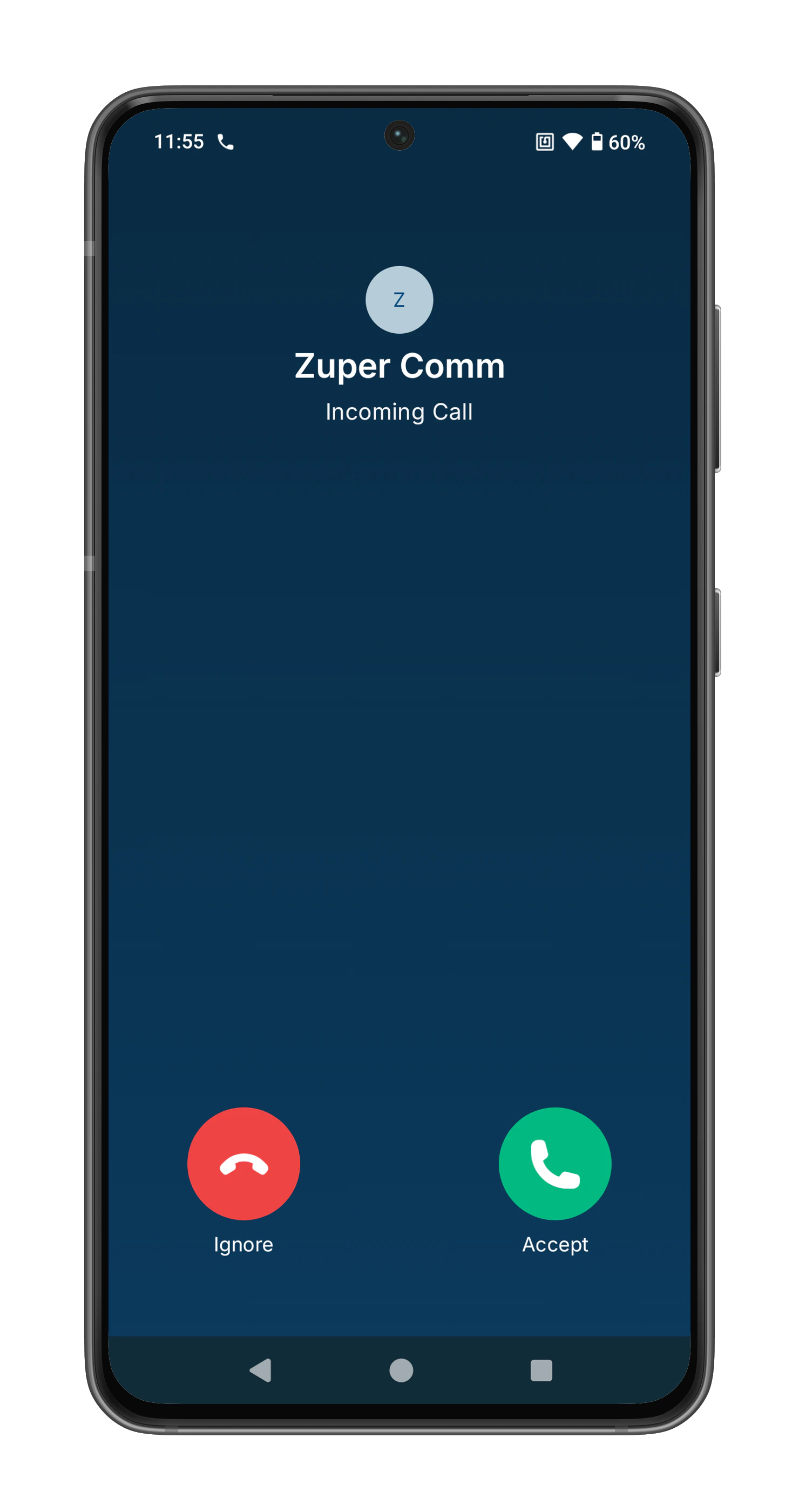
When a customer or team member calls your Zuper Phone number:
1. A **call notification** will appear on your mobile screen.
2. If the number is **linked to an existing customer**, their **name** will be displayed. Otherwise, only the **phone number** will appear.
3. Tap **Accept** to receive the call or **Ignore** to decline.
Note: To view and manage recorded call logs, always use Zuper Phone.
## Receiving an Inbound Call on Mobile
When a customer or team member calls your Zuper Phone number:
1. A **call notification** will appear on your mobile screen.
2. If the number is **linked to an existing customer**, their **name** will be displayed. Otherwise, only the **phone number** will appear.
3. Tap **Accept** to receive the call or **Ignore** to decline.
 **Important:** If you are **logged out** of Zuper app, calls will **not** be received in real-time. However, **missed calls will appear as notifications** upon your next login.
### In-Call Actions
During an active Zuper Phone call, you can:
* **Minimize the Call Screen** – Perform in-app tasks while on the call.
* **Mute the Call** – Temporarily silence your microphone.
* **Record the Call** – If call recording is enabled.
* **Put the Call on Hold** – Pause the call when necessary.
* **Decline the Call** – End the call instantly.
## Best Practices
* ️**Use Zuper Phone** for tracking and managing customer calls efficiently.
* **Ensure Permissions** – Without the correct settings, you may not be able to access call logs or initiate calls.
* **Stay Logged In** – Inbound calls will only be received if you're logged into the Zuper mobile app.
* **Review Call History** – Always check logs for missed calls, voicemails, and follow-ups.
By leveraging Zuper Phone, you can **enhance communication, improve response times, and streamline service interactions** with customers and teams.
**Important:** If you are **logged out** of Zuper app, calls will **not** be received in real-time. However, **missed calls will appear as notifications** upon your next login.
### In-Call Actions
During an active Zuper Phone call, you can:
* **Minimize the Call Screen** – Perform in-app tasks while on the call.
* **Mute the Call** – Temporarily silence your microphone.
* **Record the Call** – If call recording is enabled.
* **Put the Call on Hold** – Pause the call when necessary.
* **Decline the Call** – End the call instantly.
## Best Practices
* ️**Use Zuper Phone** for tracking and managing customer calls efficiently.
* **Ensure Permissions** – Without the correct settings, you may not be able to access call logs or initiate calls.
* **Stay Logged In** – Inbound calls will only be received if you're logged into the Zuper mobile app.
* **Review Call History** – Always check logs for missed calls, voicemails, and follow-ups.
By leveraging Zuper Phone, you can **enhance communication, improve response times, and streamline service interactions** with customers and teams.