> ## Documentation Index
> Fetch the complete documentation index at: https://zuperinc-section23.mintlify.site/llms.txt
> Use this file to discover all available pages before exploring further.
# Inbox & Conversations
The Zuper Connect inbox, in other words, called Conversations, is where all call and text communications associated with a specific Zuper number come together. Instead of navigating through multiple menus for calls, messages, and voicemails, you can access everything in one place—right here in your inbox.
**Why Inboxes/Conversations Are Useful**
Inboxes may seem straightforward, but they provide significant advantages for managing daily communications:
* **A Unified View of Conversations**: Here, you can see all your messages, calls, voicemails, and call recordings. This gives you a 360-degree view of customer interactions.
* **Simplified Organization**: Assign custom names to Zuper numbers, making it easier to categorize notifications and sort conversations. If you're managing dispatch and service teams, you’ll be able to switch contexts seamlessly and quickly identify which notifications require immediate attention.
* **Enhanced Team Visibility**: A shared inbox ensures that everyone on your team knows who is communicating with customers. Whether it's a job booking or a service-related inquiry, having a centralized inbox keeps your team aligned and working efficiently.
# Accessing Conversations on Web
Admins can access Inboxes/Conversations, but they must have the necessary permissions enabled in the settings. For detailed steps, refer to "[How to Manage User Permissions](https://docs.zuper.co/Zuper_Connect/Setup-Zuper-Connect/User_permissions)."
Once the required permissions are granted, admin(s) gain a 360-degree view of customer interactions, including messages, calls, voicemails, call recordings, and internal comments.
**a. Navigating to the All Inboxes Page**
* Click **Inboxes** from the left navigation menu to open the **All Inboxes** listing page.
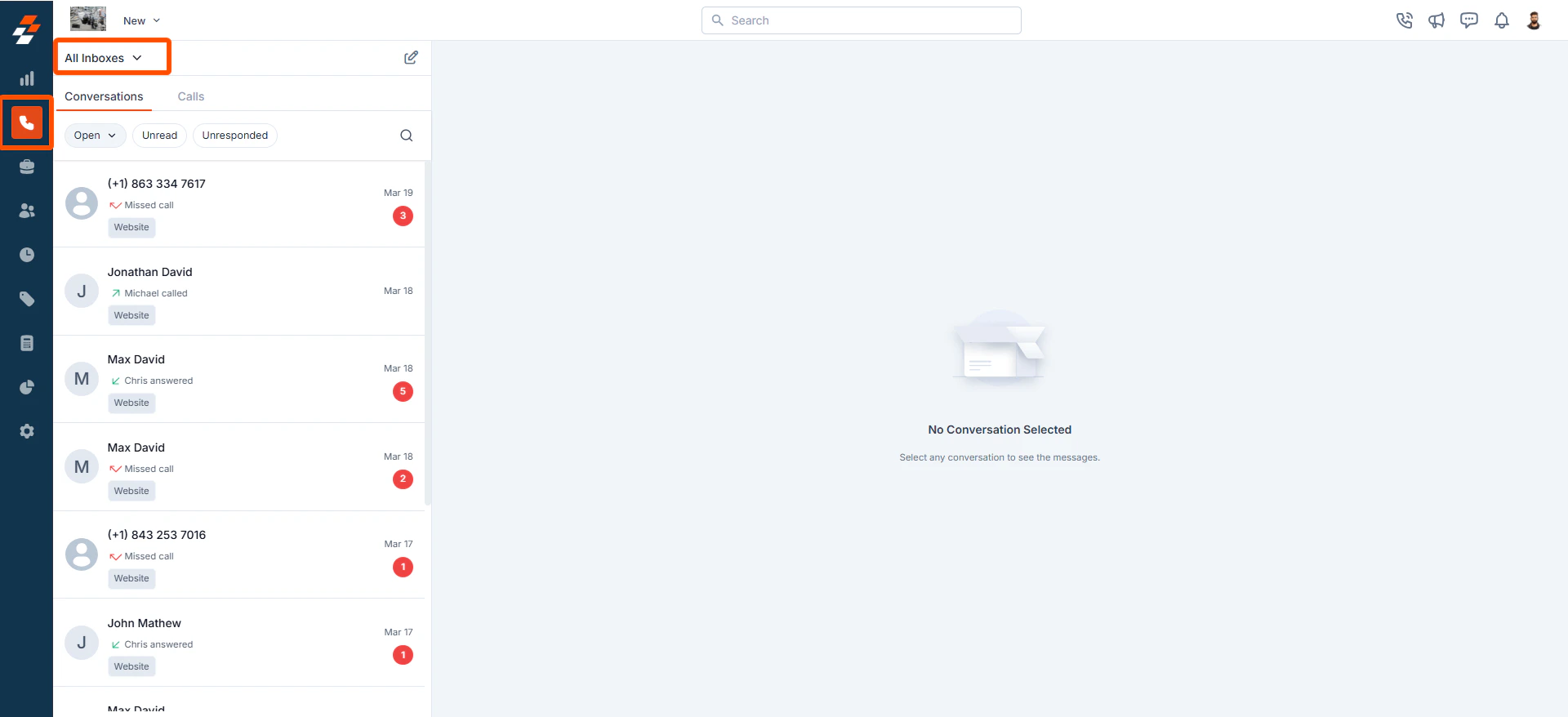 * On the All Inboxes listing page, you can track and manage all customer interactions across different Zuper phone numbers, sorted from **latest to oldest**.
**b. Key Information Displayed in Conversations**
* **Customer Information** – Displays the customer’s name or number (if not saved).
* **Last Action Taken** – Shows whether a call or message was received or sent by the customer or user.
* On the All Inboxes listing page, you can track and manage all customer interactions across different Zuper phone numbers, sorted from **latest to oldest**.
**b. Key Information Displayed in Conversations**
* **Customer Information** – Displays the customer’s name or number (if not saved).
* **Last Action Taken** – Shows whether a call or message was received or sent by the customer or user.
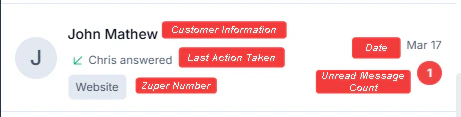 * **Zuper Phone Number Used** – Identifies the number through which the call or message was made.
* **Date and Time** – Records when the interaction occurred.
* **Unread Message Count** – Displays the number of unread messages for each conversation.
# Managing Conversations Efficiently
Effective conversation management is crucial for delivering a seamless customer experience. The Conversations/Inboxes section in the Zuper Web App allows you to **organize, filter, and navigate customer interactions** effortlessly. With powerful filtering and search capabilities, you can quickly locate specific messages, track interactions by phone number, and switch between conversations without hassle.
The following sections outline key functionalities to help you efficiently manage conversations in the web app.
**a. Filtering Conversations by Zuper Phone Number**
To streamline conversation management, you can filter the list based on a specific **Zuper Phone number**. This helps focus on customer interactions associated with a particular business line or department.
1. Click the **dropdown menu** next to **"All Inboxes."**
2. Select the desired Zuper Phone number from the list.
3. The conversation list will update to display only customer interactions associated with the selected number.
* **Zuper Phone Number Used** – Identifies the number through which the call or message was made.
* **Date and Time** – Records when the interaction occurred.
* **Unread Message Count** – Displays the number of unread messages for each conversation.
# Managing Conversations Efficiently
Effective conversation management is crucial for delivering a seamless customer experience. The Conversations/Inboxes section in the Zuper Web App allows you to **organize, filter, and navigate customer interactions** effortlessly. With powerful filtering and search capabilities, you can quickly locate specific messages, track interactions by phone number, and switch between conversations without hassle.
The following sections outline key functionalities to help you efficiently manage conversations in the web app.
**a. Filtering Conversations by Zuper Phone Number**
To streamline conversation management, you can filter the list based on a specific **Zuper Phone number**. This helps focus on customer interactions associated with a particular business line or department.
1. Click the **dropdown menu** next to **"All Inboxes."**
2. Select the desired Zuper Phone number from the list.
3. The conversation list will update to display only customer interactions associated with the selected number.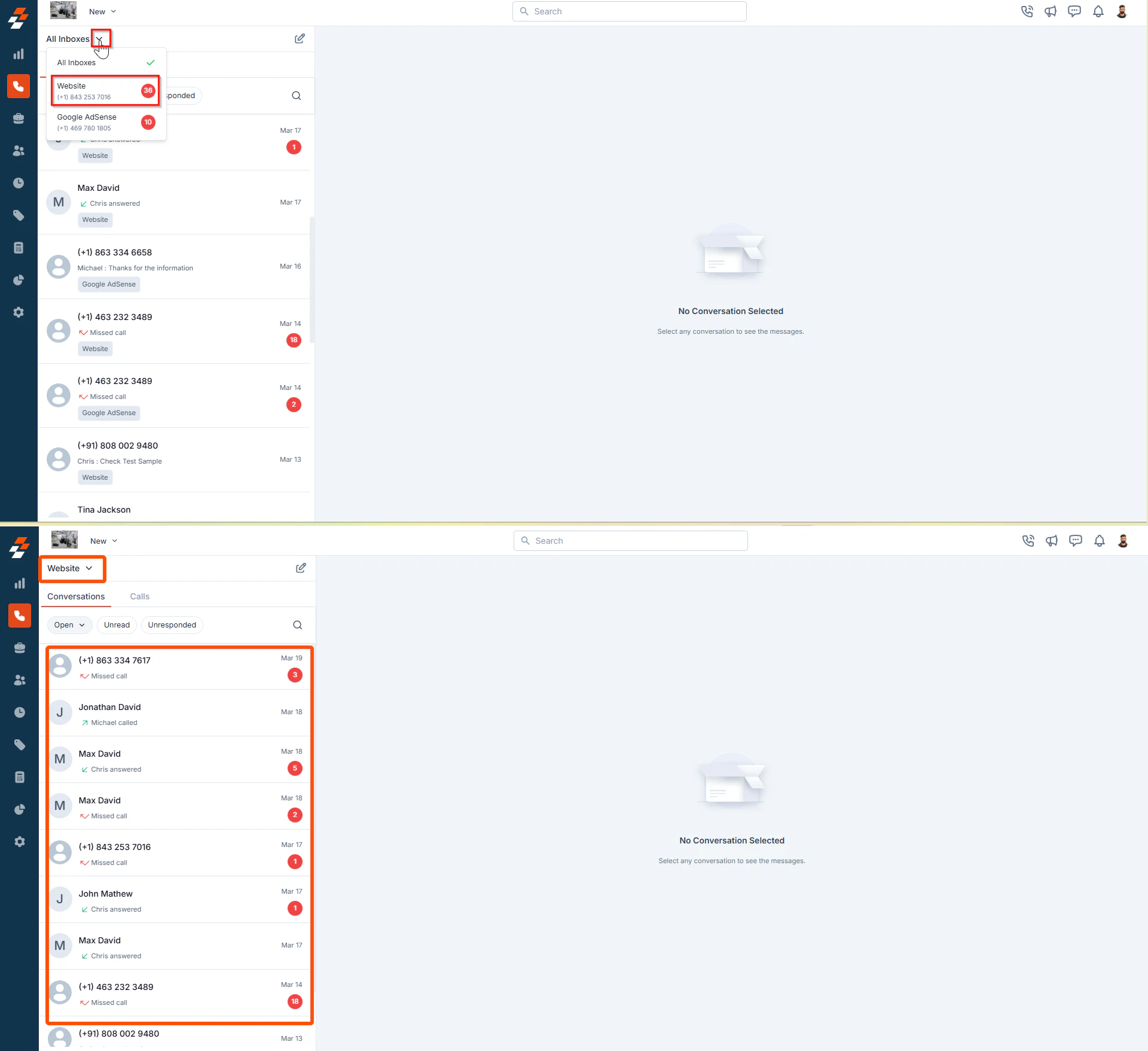 Note: Since you've filtered by a specific Zuper Phone number, the phone number itself will not be displayed in the conversation listing.
**b. Searching for Contacts and Messages**
Finding a specific conversation is easier with the search functionality. Instead of scrolling through multiple interactions, you can quickly locate a contact or message.
1. Click the **Search** icon in the Conversations section.
2. Enter the contact name or phone number.
3. The relevant conversations will be displayed instantly.
Note: Since you've filtered by a specific Zuper Phone number, the phone number itself will not be displayed in the conversation listing.
**b. Searching for Contacts and Messages**
Finding a specific conversation is easier with the search functionality. Instead of scrolling through multiple interactions, you can quickly locate a contact or message.
1. Click the **Search** icon in the Conversations section.
2. Enter the contact name or phone number.
3. The relevant conversations will be displayed instantly.
 **c. Seamless Navigation Between Conversations**
The Zuper Web App allows you to switch between conversations smoothly, ensuring efficient customer engagement without disrupting workflow.
1. Click on any conversation in the list to open it.
2. Select another conversation without leaving the page.
3. The chat panel will update instantly, allowing for quick and efficient communication.
# Conversation Views and its Filters
The **Conversations** section in the Zuper Web App provides different views and filters to help admins efficiently manage customer interactions. Conversations are categorized into two main views:
* **Open View:** Displays ongoing conversations that require action.
* **Closed View:** Lists resolved conversations that no longer need follow-up.
Each view includes filters to help users quickly identify unread, unresponded, and reopened conversations.
##
**c. Seamless Navigation Between Conversations**
The Zuper Web App allows you to switch between conversations smoothly, ensuring efficient customer engagement without disrupting workflow.
1. Click on any conversation in the list to open it.
2. Select another conversation without leaving the page.
3. The chat panel will update instantly, allowing for quick and efficient communication.
# Conversation Views and its Filters
The **Conversations** section in the Zuper Web App provides different views and filters to help admins efficiently manage customer interactions. Conversations are categorized into two main views:
* **Open View:** Displays ongoing conversations that require action.
* **Closed View:** Lists resolved conversations that no longer need follow-up.
Each view includes filters to help users quickly identify unread, unresponded, and reopened conversations.
## 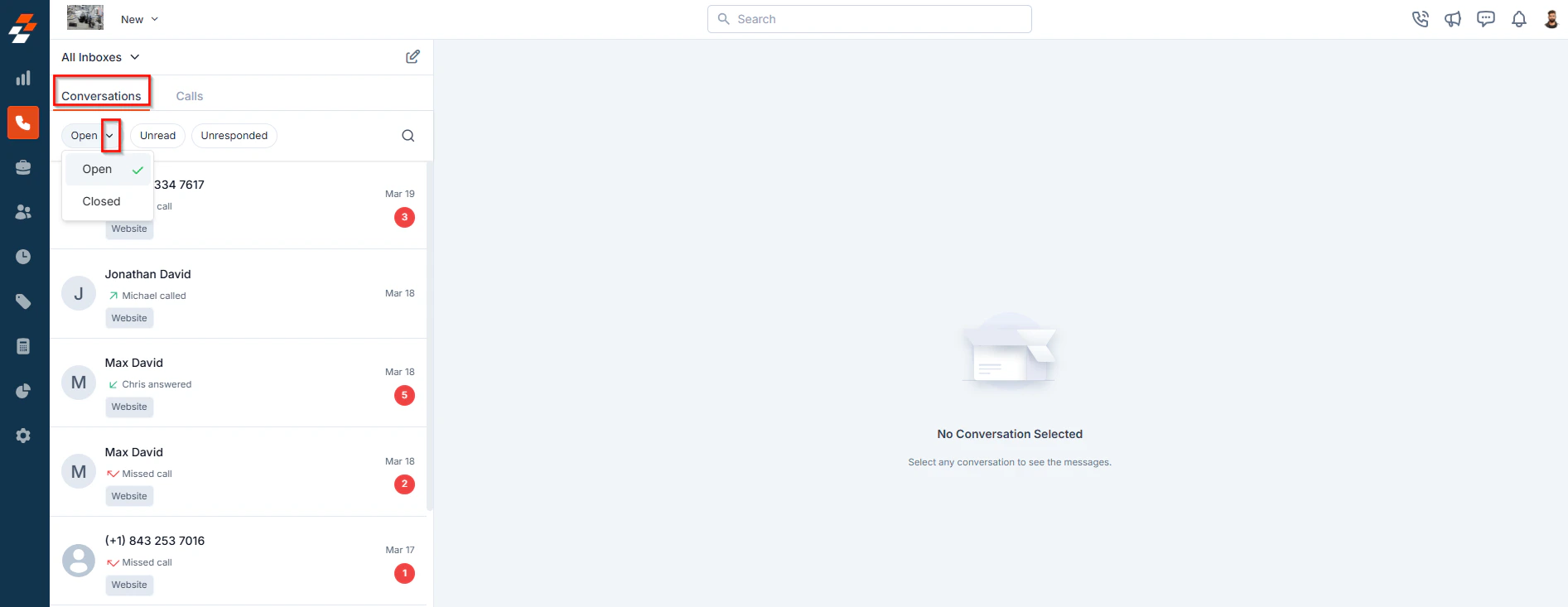 ### **Open View: Managing Active Conversations**
The **Open View** displays all active conversations that require attention. Within this view, conversations can be further categorized based on their status:
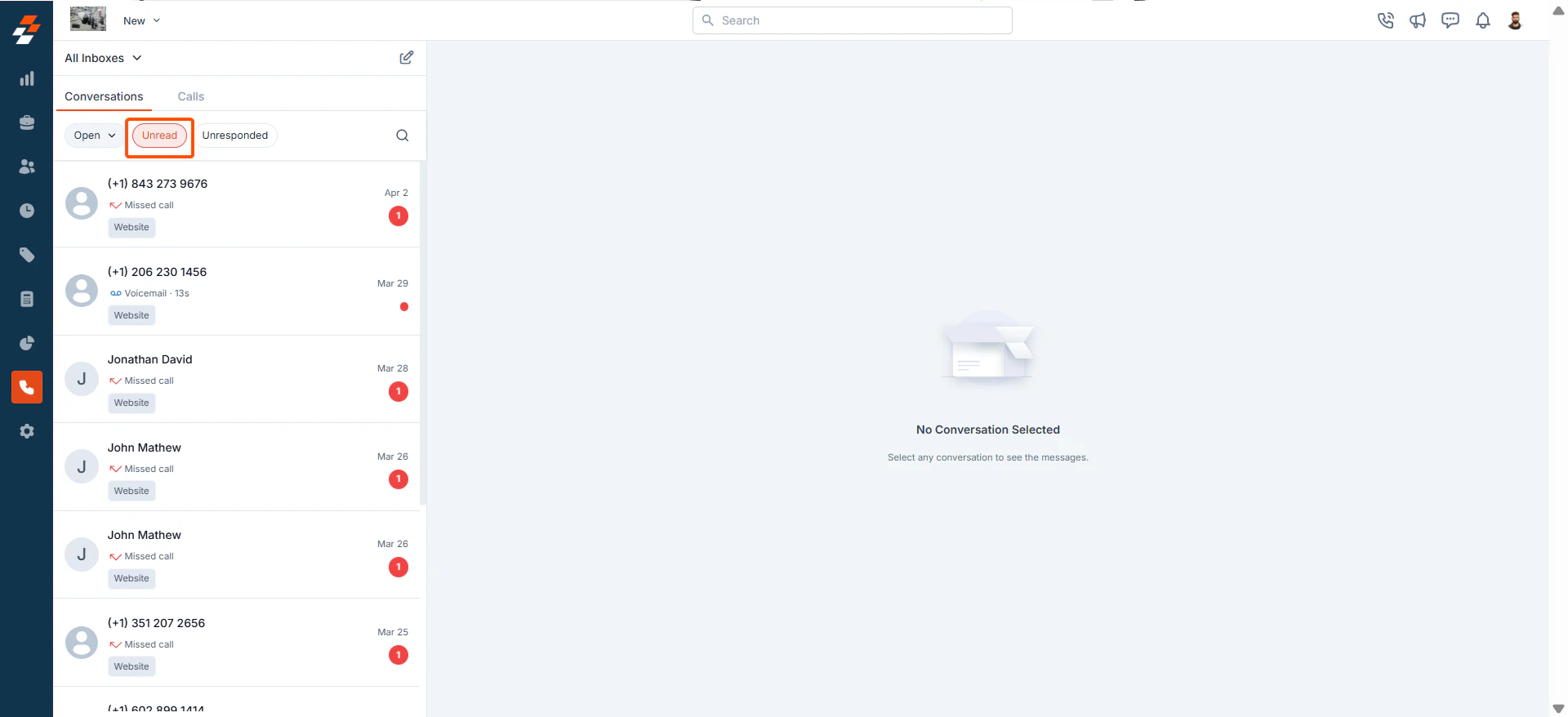
1. **Unread Conversations**
This filter displays conversations that contain **unread messages**. It helps users prioritize messages that have not been seen or acknowledged yet.
### **Open View: Managing Active Conversations**
The **Open View** displays all active conversations that require attention. Within this view, conversations can be further categorized based on their status:
1. **Unread Conversations**
This filter displays conversations that contain **unread messages**. It helps users prioritize messages that have not been seen or acknowledged yet.
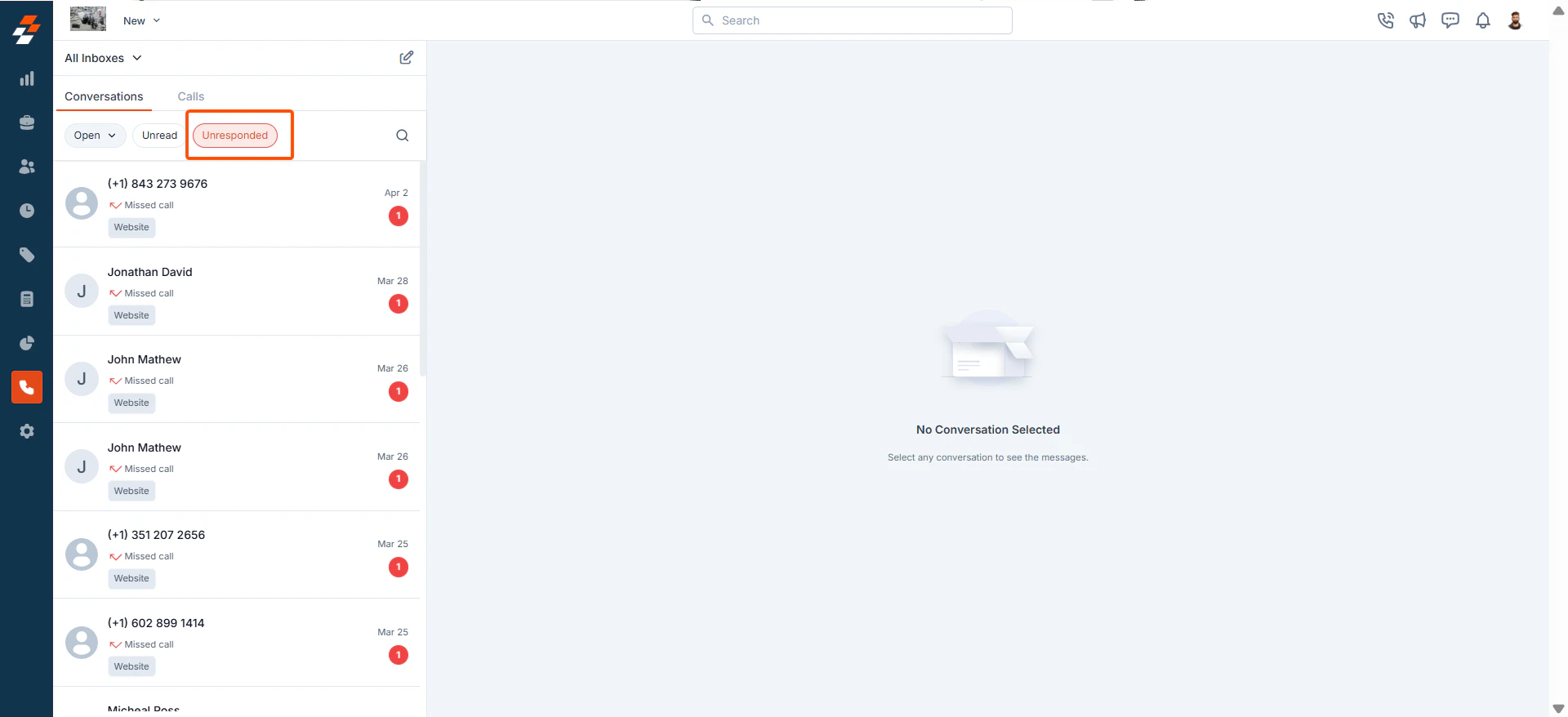
 1. **Unresponded Conversations**
This filter lists **open conversations where the user has not yet responded** via message or call. It ensures that no customer query goes unanswered, improving response times.
1. **Unresponded Conversations**
This filter lists **open conversations where the user has not yet responded** via message or call. It ensures that no customer query goes unanswered, improving response times.
 ### **Closed View: Handling Resolved Conversations**
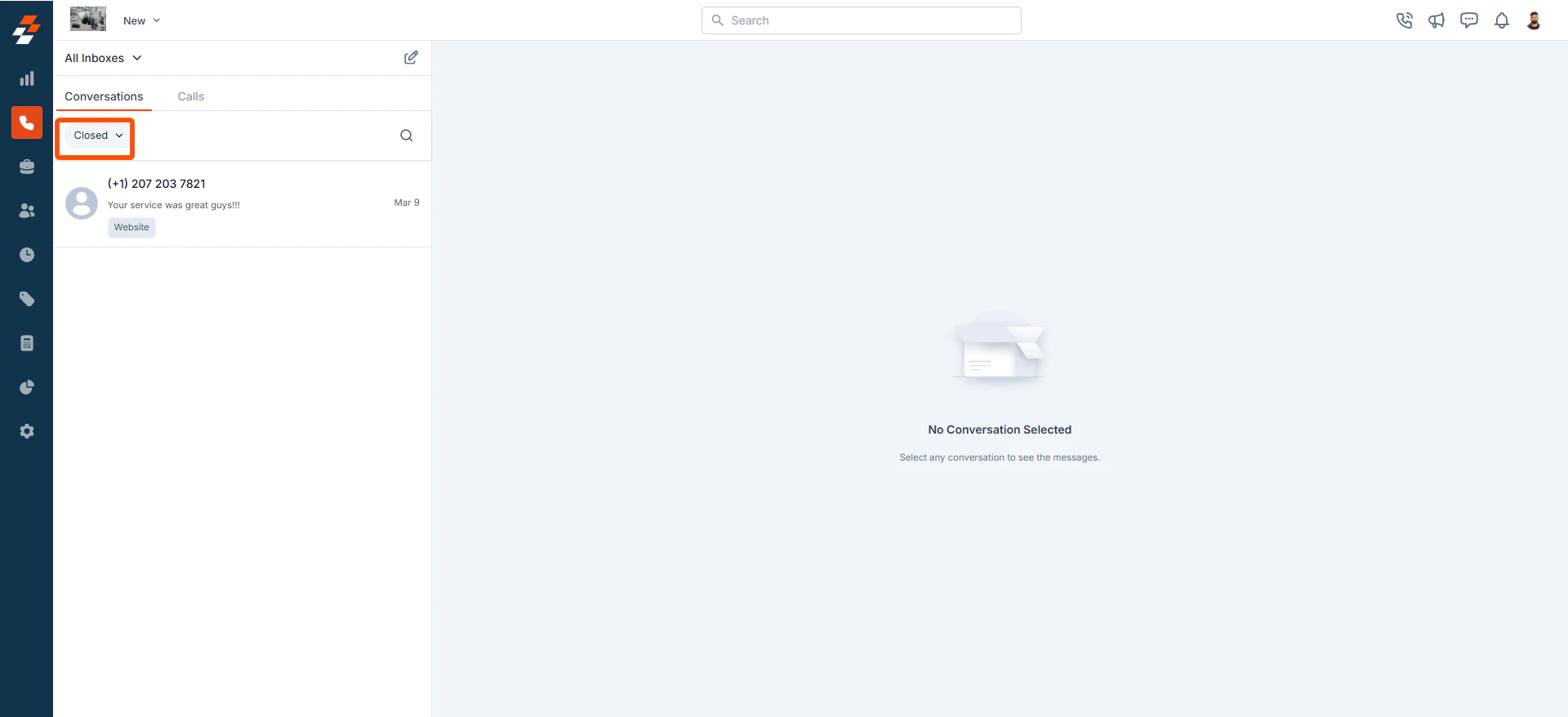
The **Closed View** contains all conversations that have been resolved and no longer require follow-up. These conversations remain archived unless a new interaction reopens them.
### **Closed View: Handling Resolved Conversations**
The **Closed View** contains all conversations that have been resolved and no longer require follow-up. These conversations remain archived unless a new interaction reopens them.
 1. When a Conversation Reopens Automatically
* A **user** sends a message or makes a call within the conversation.
* A **customer** initiates a new message or call in a previously closed conversation.
This ensures that no new interaction is missed, even in conversations marked as resolved.
# Marking Conversations as Read, Unread, or Closed
In Zuper Connect, conversations can be marked as **Read, Unread, or Closed** to help teams efficiently manage customer interactions. This feature allows users to prioritize responses, track pending messages, and resolve completed discussions.
**a. When Will a Conversation Be Marked as:**
**1. Read**
* When the user sends a message.
* When the user places a call in an unread conversation.
* When the user manually marks the conversation as Read.
**2. Unread**
* When it remains unresponded.
* When a user manually marks the conversation as Unread.
**3. Closed**
* The issue is resolved and no longer requires follow-up.
* A user manually marks the conversation as Closed.
**4. When Will a Closed Conversation Reopen?**
* A new message or call is received from the customer.
* A user sends a new message or places a call to the customer.
**b. How to Change a Conversation's Status?**
Zuper Connect allows you to change the status of a conversation by marking it as **Read, Unread, or Closed** to keep your inbox organized.
1. Select any unread conversation from the Open View.
2. Click the **box icon** to mark the conversation as "**Read**."
1. When a Conversation Reopens Automatically
* A **user** sends a message or makes a call within the conversation.
* A **customer** initiates a new message or call in a previously closed conversation.
This ensures that no new interaction is missed, even in conversations marked as resolved.
# Marking Conversations as Read, Unread, or Closed
In Zuper Connect, conversations can be marked as **Read, Unread, or Closed** to help teams efficiently manage customer interactions. This feature allows users to prioritize responses, track pending messages, and resolve completed discussions.
**a. When Will a Conversation Be Marked as:**
**1. Read**
* When the user sends a message.
* When the user places a call in an unread conversation.
* When the user manually marks the conversation as Read.
**2. Unread**
* When it remains unresponded.
* When a user manually marks the conversation as Unread.
**3. Closed**
* The issue is resolved and no longer requires follow-up.
* A user manually marks the conversation as Closed.
**4. When Will a Closed Conversation Reopen?**
* A new message or call is received from the customer.
* A user sends a new message or places a call to the customer.
**b. How to Change a Conversation's Status?**
Zuper Connect allows you to change the status of a conversation by marking it as **Read, Unread, or Closed** to keep your inbox organized.
1. Select any unread conversation from the Open View.
2. Click the **box icon** to mark the conversation as "**Read**."
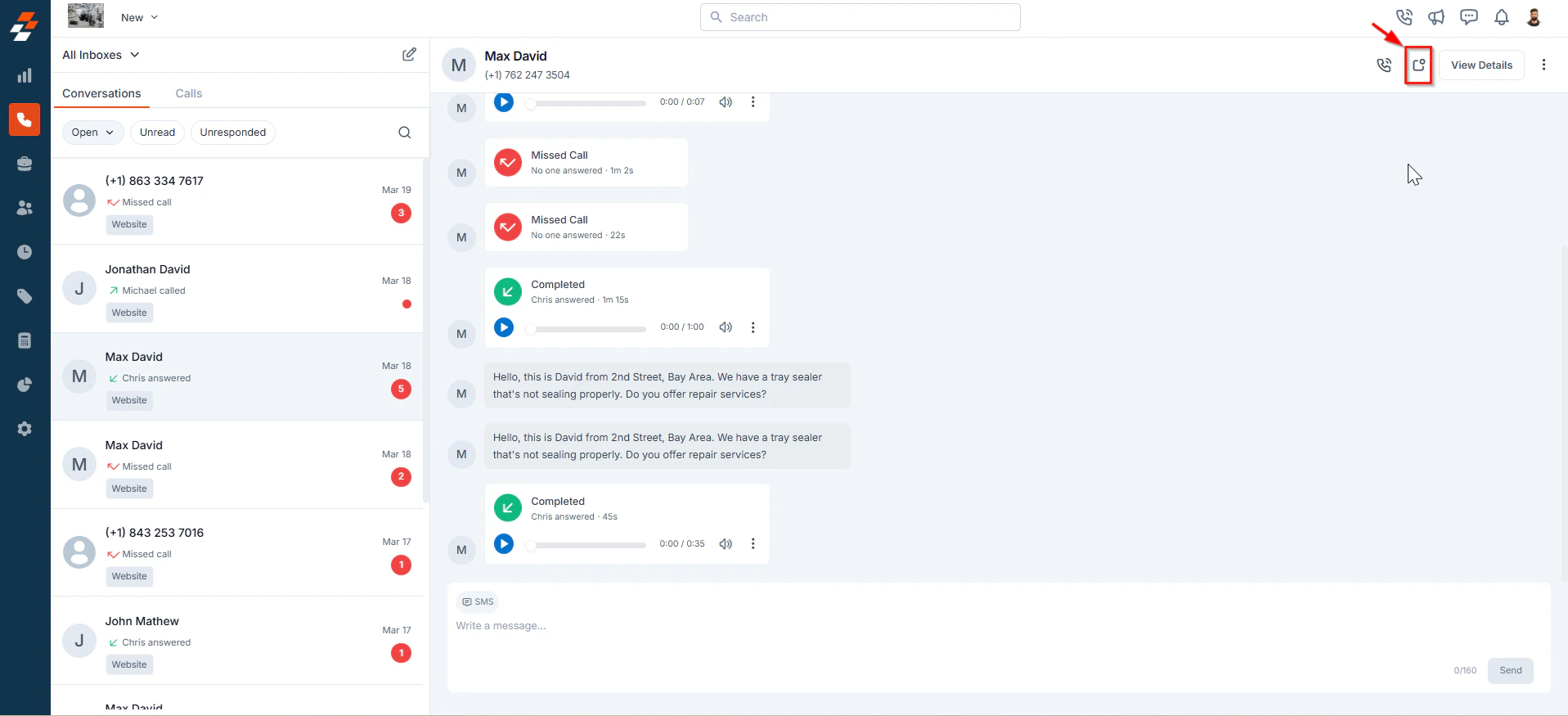 **Note**: Since it is a shared inbox, marking a conversation as read will clear the notification for other users.
1. Select any active conversation from the Open View.
2. Click theicon and choose **"Mark as Unread"**.
**Note**: Since it is a shared inbox, marking a conversation as read will clear the notification for other users.
1. Select any active conversation from the Open View.
2. Click theicon and choose **"Mark as Unread"**.
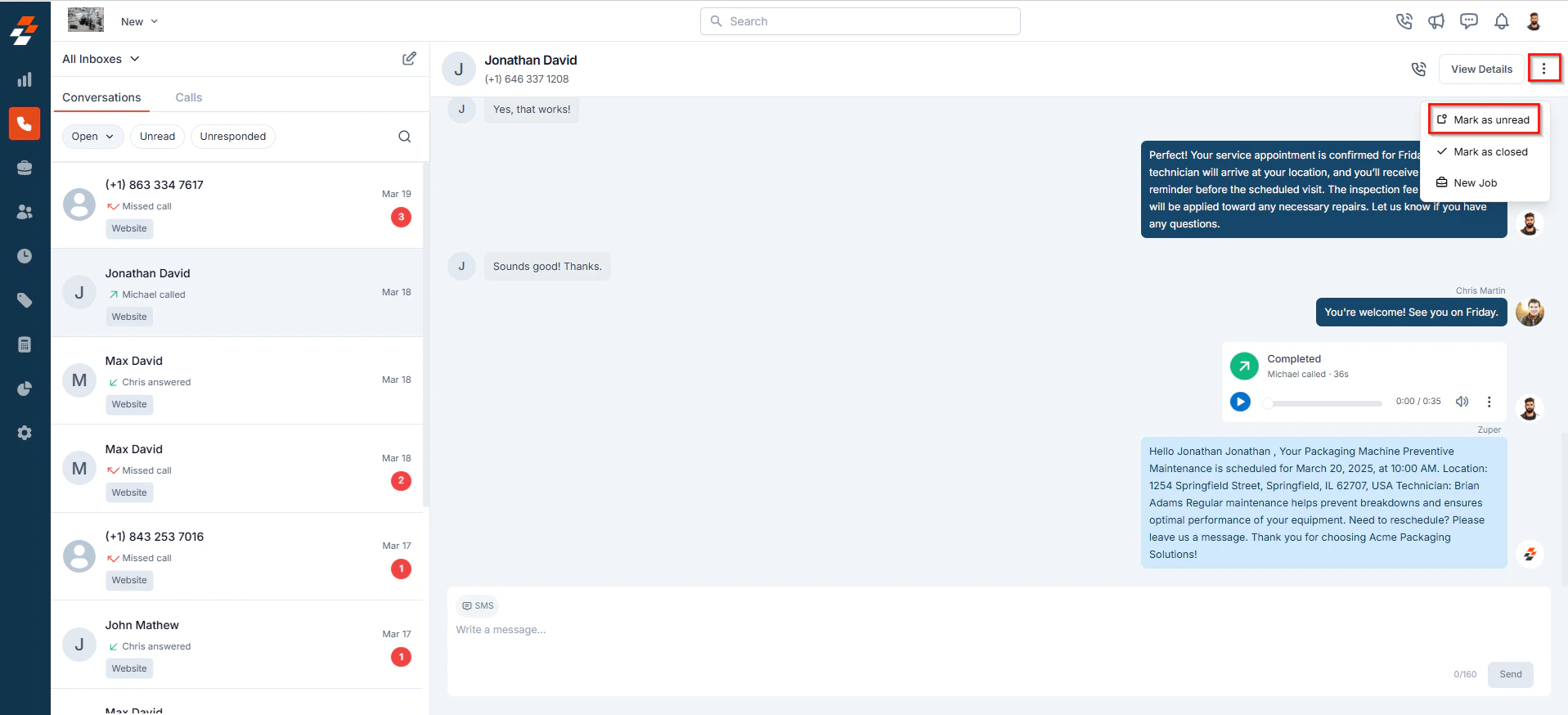 **Note:** Since it is a shared inbox, marking a conversation as Unread will update its status for all users. Additionally:
* If another Zuper Phone user responds to the conversation (via message or call), it will automatically be marked as Read.
* Marking a conversation as Unread does not reset any prior responses but helps highlight it for follow-up.
1. Select any active conversation from the **Open View**.
2. Click theicon and choose **"Mark as Closed"**.
**Note:** Since it is a shared inbox, marking a conversation as Unread will update its status for all users. Additionally:
* If another Zuper Phone user responds to the conversation (via message or call), it will automatically be marked as Read.
* Marking a conversation as Unread does not reset any prior responses but helps highlight it for follow-up.
1. Select any active conversation from the **Open View**.
2. Click theicon and choose **"Mark as Closed"**.
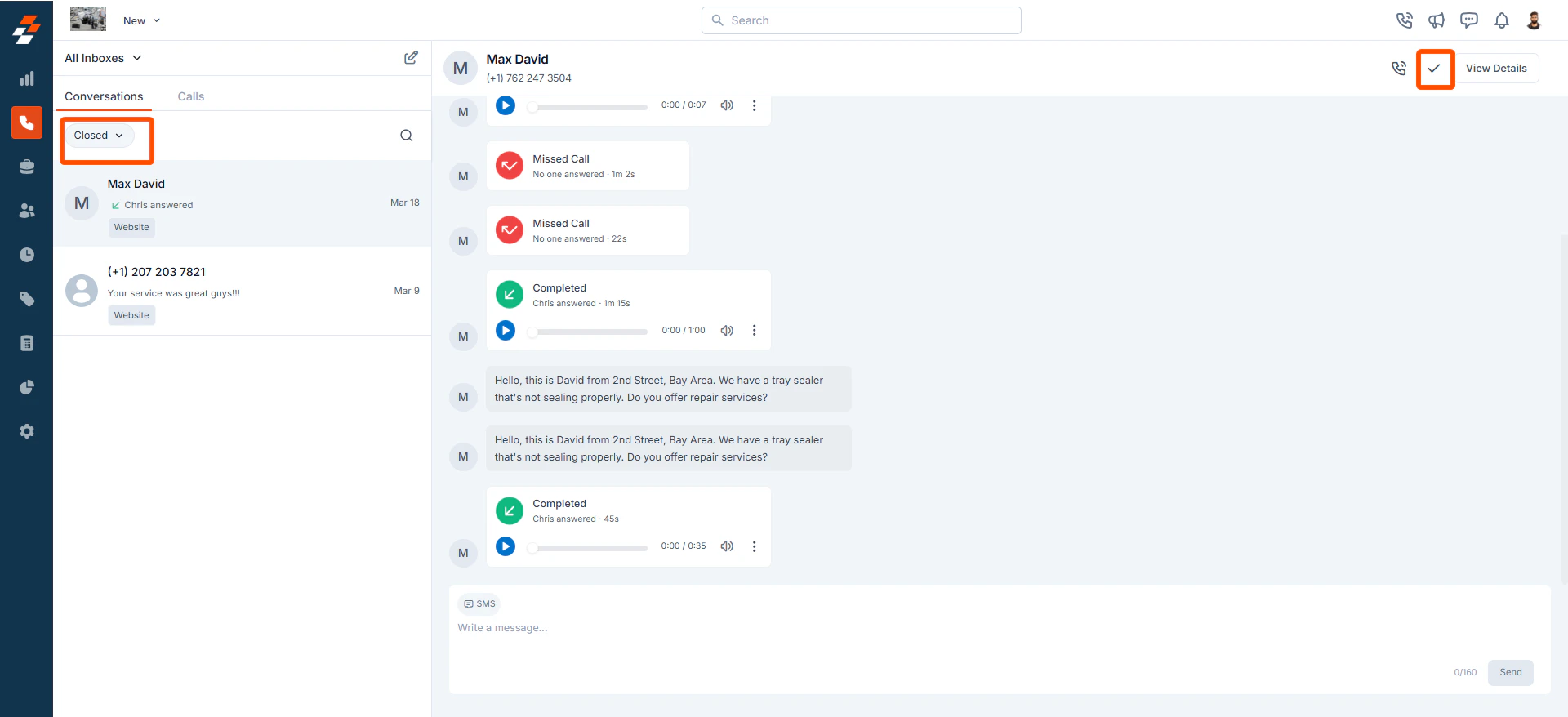
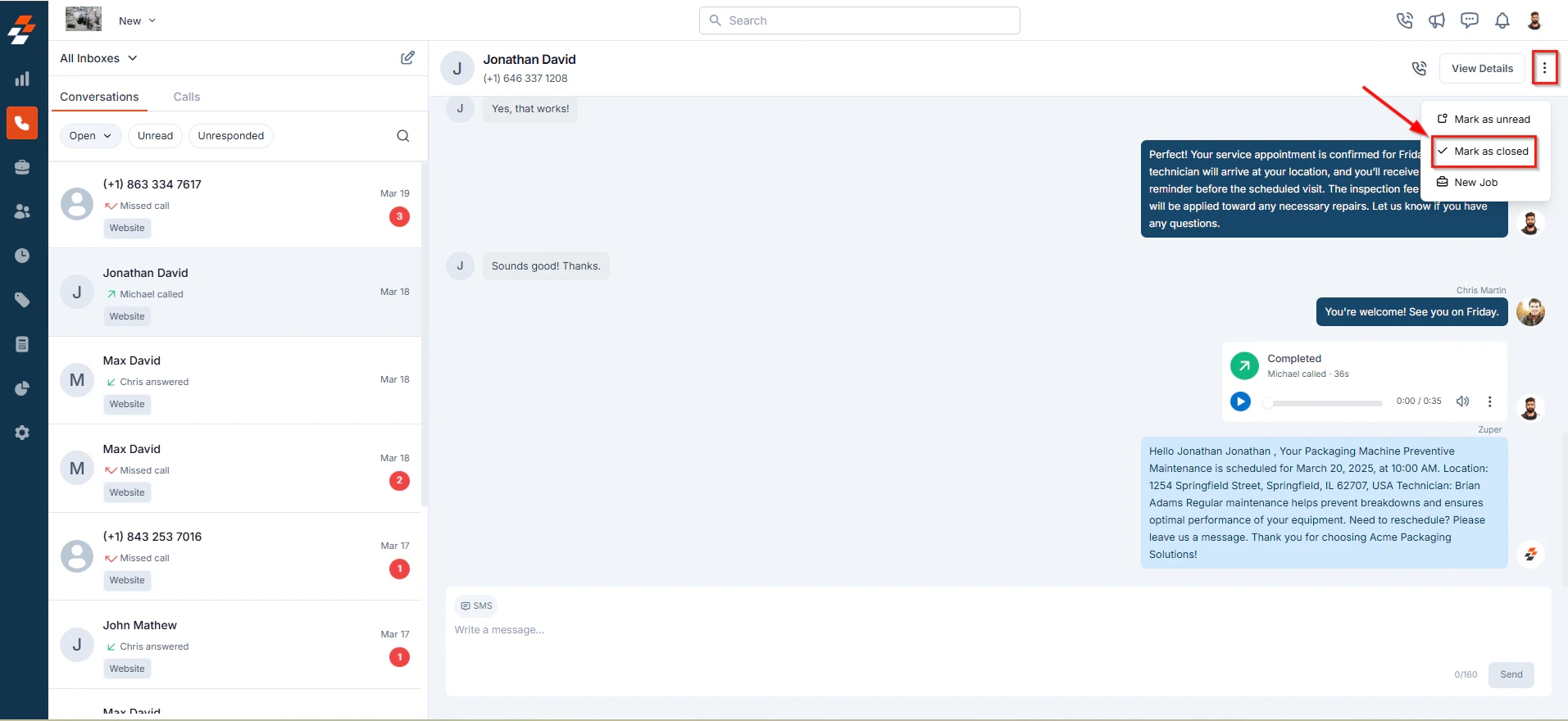 To reopen a closed conversation:
1. Switch to the **Closed View**.
2. Select the conversation entry you want to mark as open from the listing.
3. Click the **icon** to mark it as **Open**.
To reopen a closed conversation:
1. Switch to the **Closed View**.
2. Select the conversation entry you want to mark as open from the listing.
3. Click the **icon** to mark it as **Open**.
 # Viewing and Managing Conversation Details
The Conversations page provides a **centralized view** of ongoing and past customer interactions, ensuring efficient communication management. Users can access detailed conversation history, messages, voicemails, and call records from this screen.
### **Accessing Customer Interactions**
To access conversation details:
1. Navigate to the **Conversations** listing page.
2. Click on a conversation to open its details.
3. The **Conversation Details** screen will display key customer interactions.
### **Key Details in the Conversation View**
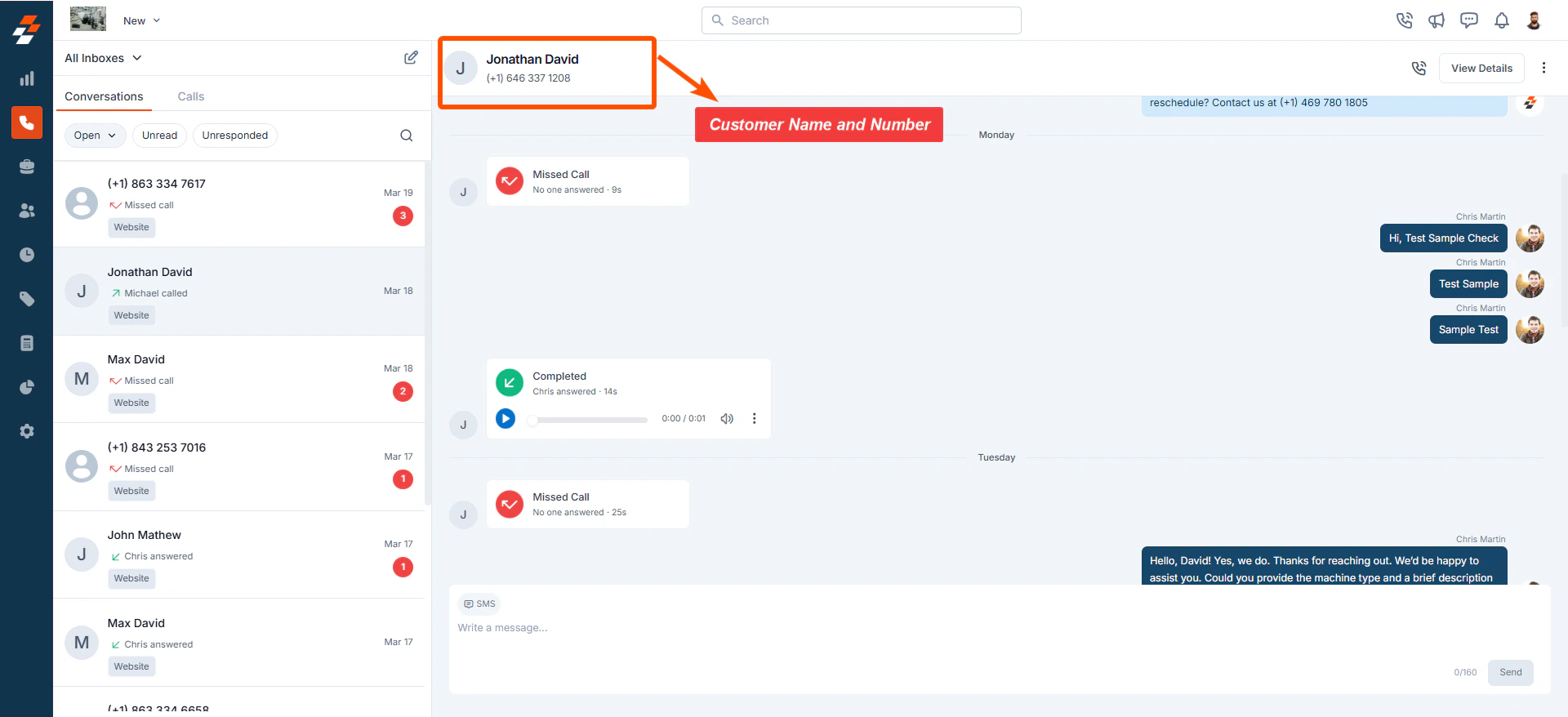
**1. Customer Information**
Displays essential details like the customer’s **name and phone number** for easy reference.
# Viewing and Managing Conversation Details
The Conversations page provides a **centralized view** of ongoing and past customer interactions, ensuring efficient communication management. Users can access detailed conversation history, messages, voicemails, and call records from this screen.
### **Accessing Customer Interactions**
To access conversation details:
1. Navigate to the **Conversations** listing page.
2. Click on a conversation to open its details.
3. The **Conversation Details** screen will display key customer interactions.
### **Key Details in the Conversation View**
**1. Customer Information**
Displays essential details like the customer’s **name and phone number** for easy reference.
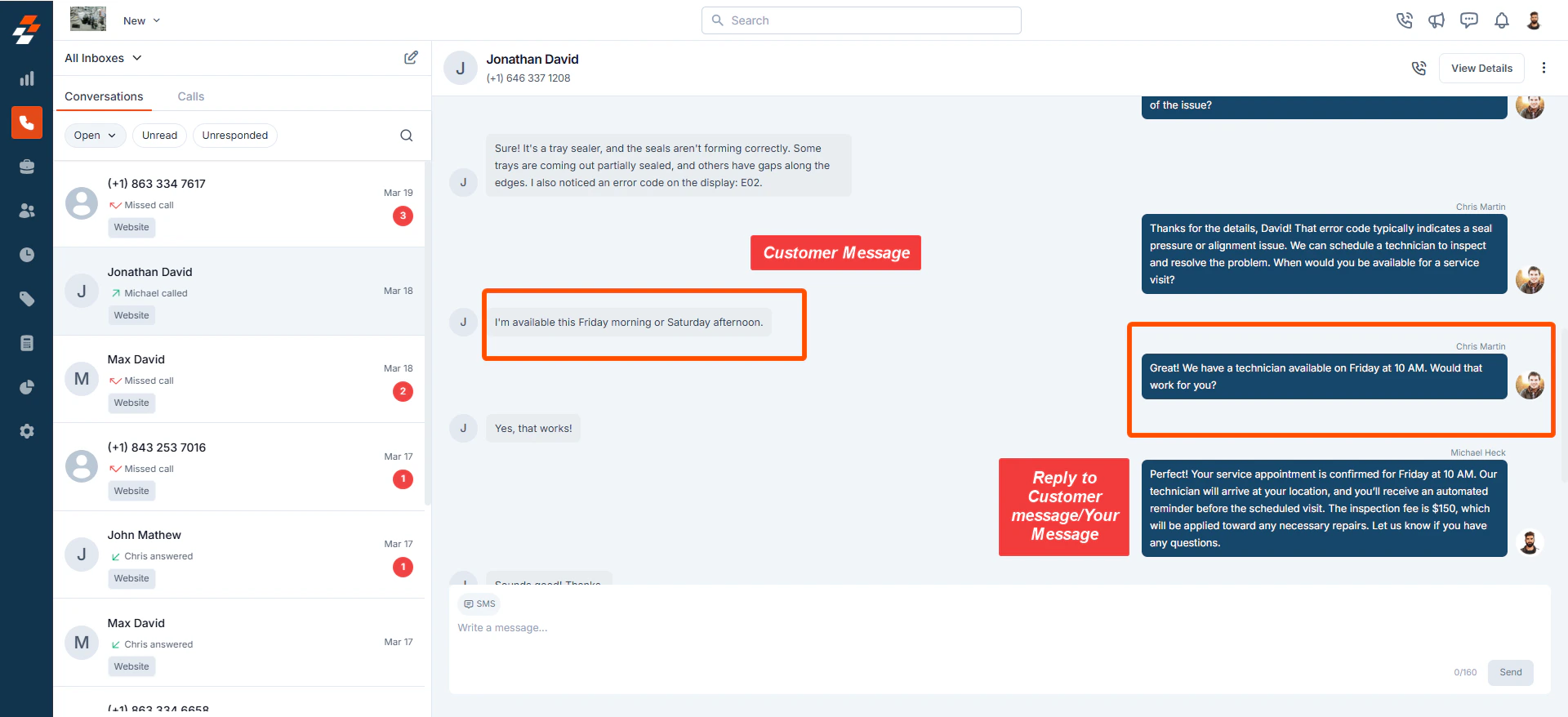
 **2. Message History & Bubbles**
* Shows text messages exchanged between the user and the customer.
* **Your messages** appear on the **right**, and **customer messages** appear on the **left**.
**2. Message History & Bubbles**
* Shows text messages exchanged between the user and the customer.
* **Your messages** appear on the **right**, and **customer messages** appear on the **left**.
 **3. Call Status & Recordings**
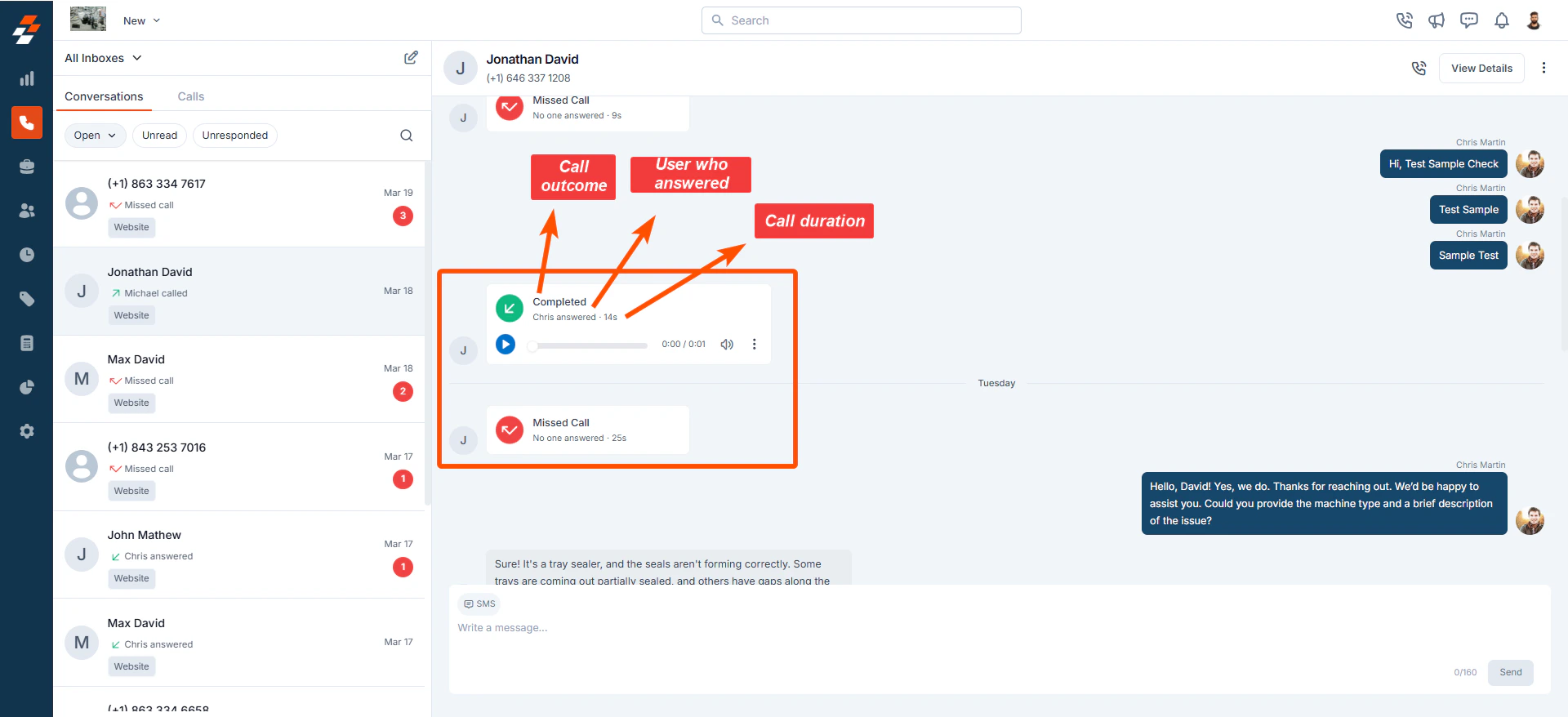
**Call Status**
Tracks call outcomes, including:
* **Missed**
* **Completed**
* **Failed**
* **Canceled**
Displays additional call details such as:
* **Call duration**
* **Timestamps**
* **The user who made or answered the call**
**3. Call Status & Recordings**
**Call Status**
Tracks call outcomes, including:
* **Missed**
* **Completed**
* **Failed**
* **Canceled**
Displays additional call details such as:
* **Call duration**
* **Timestamps**
* **The user who made or answered the call**
 **4. Call Recordings**
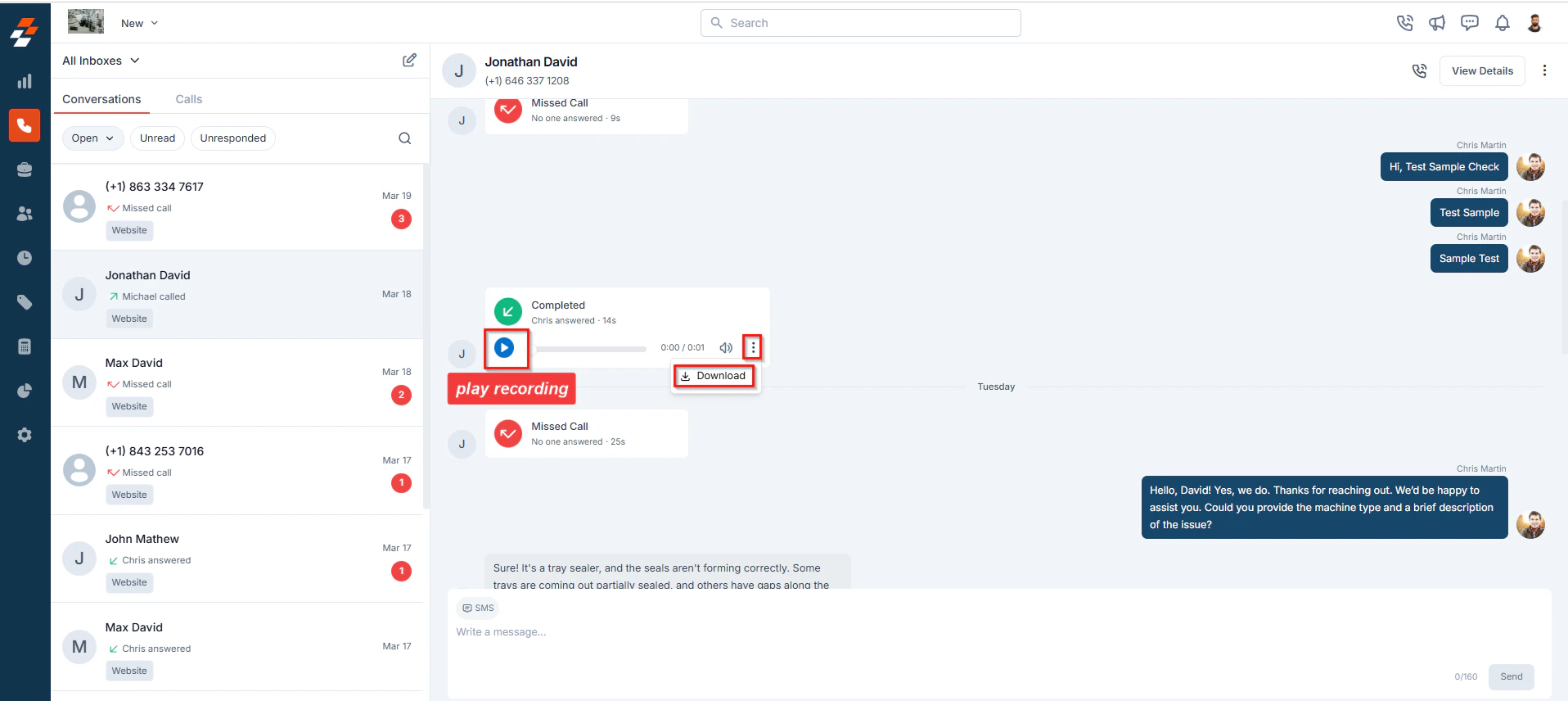
* Listen to or download call recordings for reference.
* Click the **button** to play the recording.
* Click the**icon** and select **Download** to save the recording.
**4. Call Recordings**
* Listen to or download call recordings for reference.
* Click the **button** to play the recording.
* Click the**icon** and select **Download** to save the recording.
 **5. Replying to Messages**
Users can reply to messages directly from the Conversation Details screen.
**5. Replying to Messages**
Users can reply to messages directly from the Conversation Details screen.
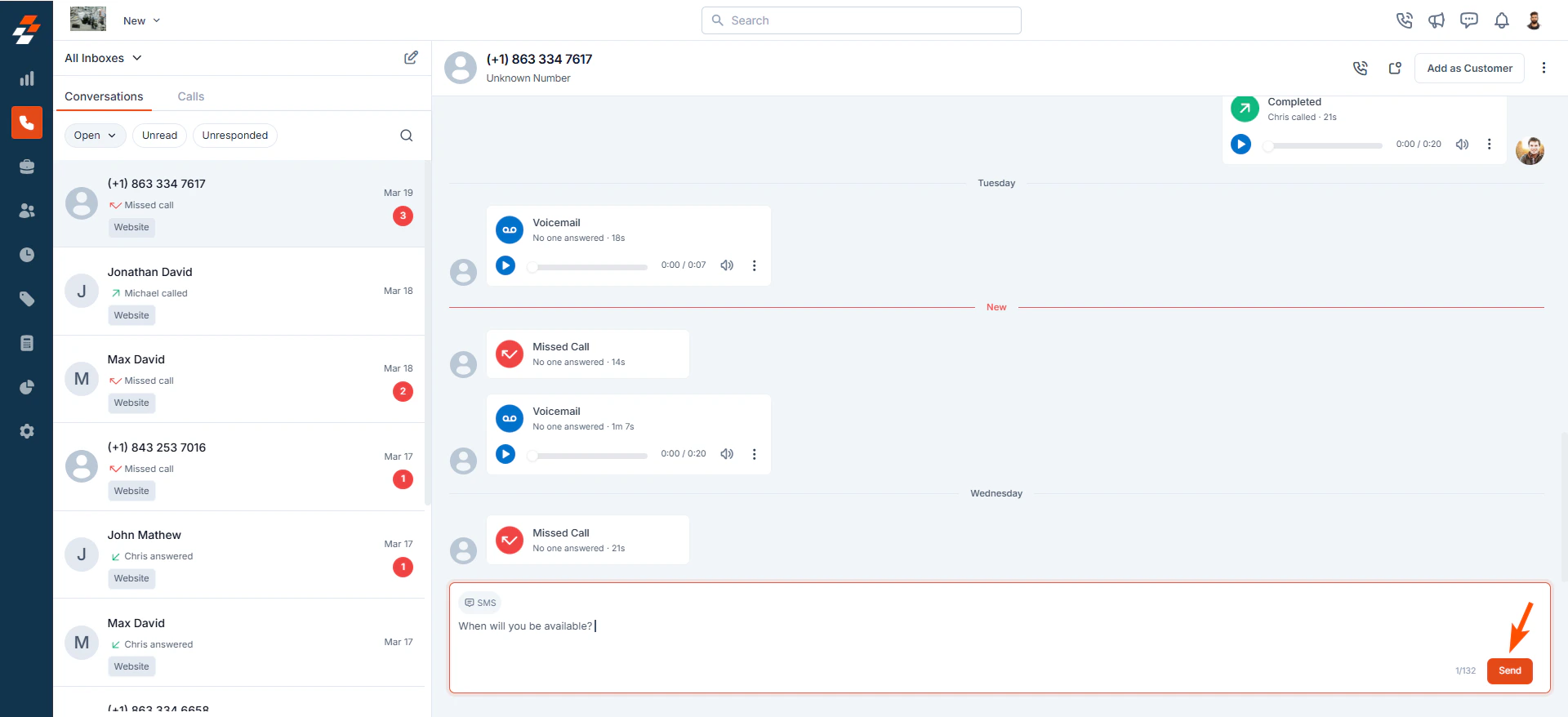 Note: You can respond to messages from both saved and unknown numbers.
# How to Make a Call in Your Inbox/Conversation
Zuper Connect allows users to initiate calls to customers directly from the Conversations screen without switching to another interface.
To make a call:
* Navigate to the **Conversations listing page** and select a conversation.
* Click the icon at the top.
Note: You can respond to messages from both saved and unknown numbers.
# How to Make a Call in Your Inbox/Conversation
Zuper Connect allows users to initiate calls to customers directly from the Conversations screen without switching to another interface.
To make a call:
* Navigate to the **Conversations listing page** and select a conversation.
* Click the icon at the top.
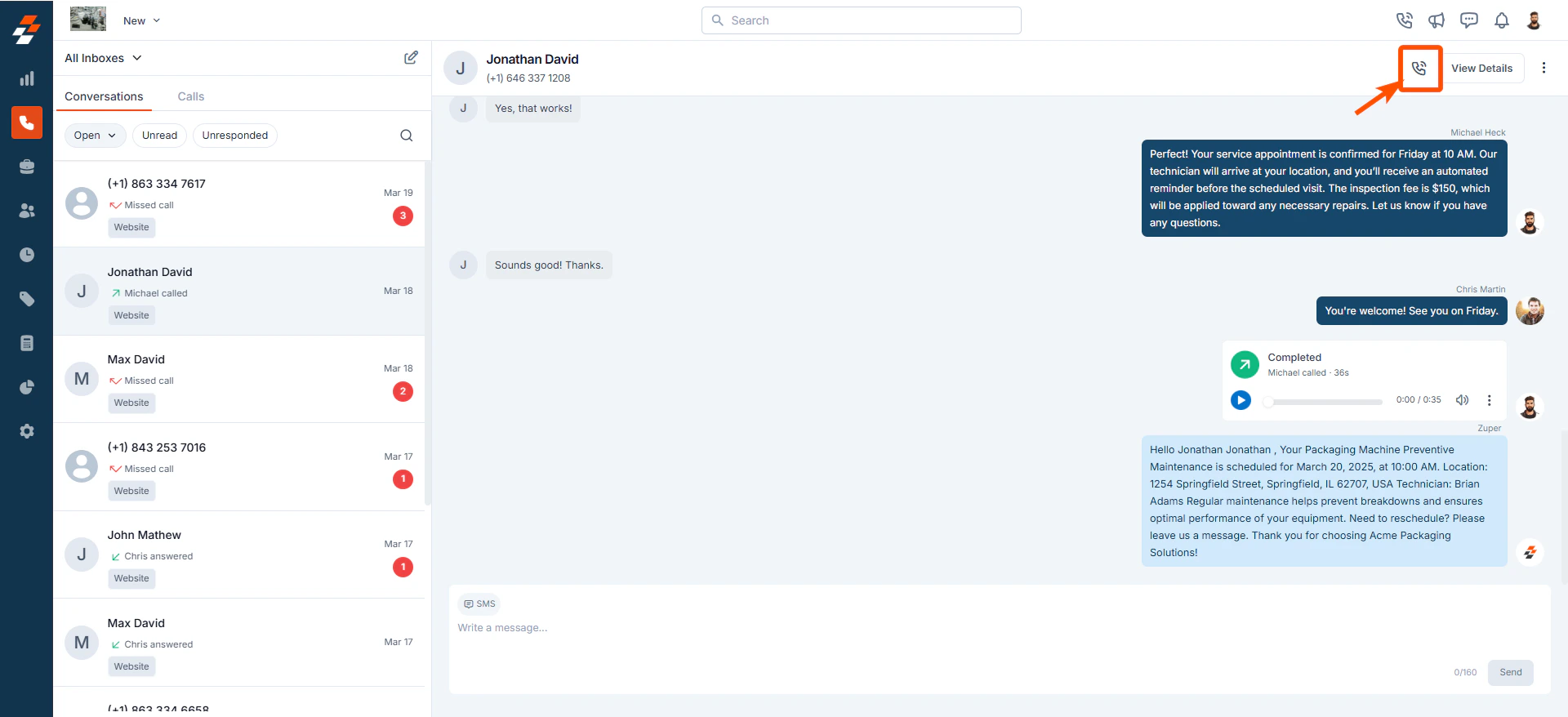 * The call will be placed using the assigned Zuper Phone number.
This feature enables **quick follow-ups**, helping resolve customer queries efficiently.
# **How to Send a Message in Your Inbox/Conversation**
To send a new message:
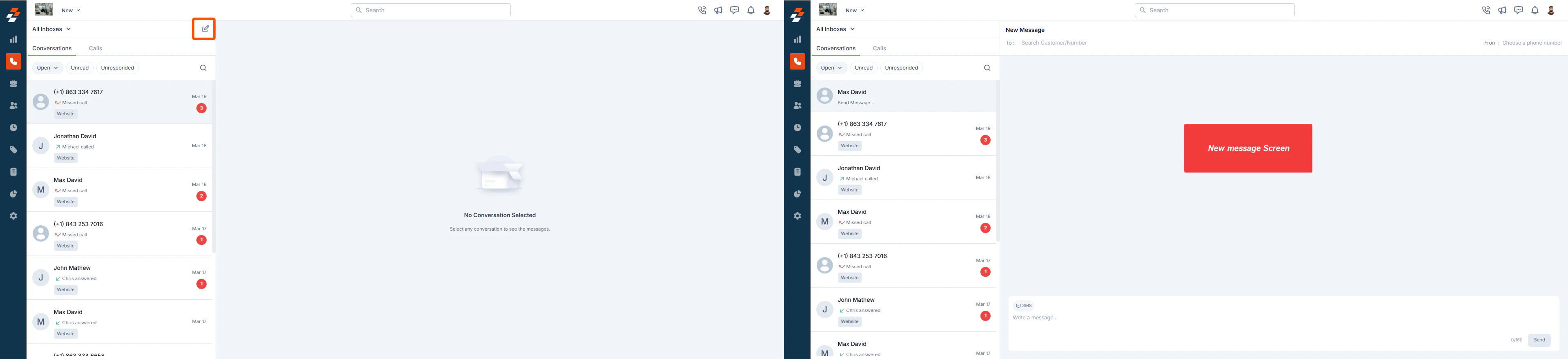
1. Navigate to the **Conversations listing page** and click the **pencil icon**.
2. The **New Message** screen will appear.
**Composing & Sending the Message**
* In the **"To"** field, search for and select the customer.
* In the **"From"** field, choose the Zuper Phone number.
* Type the message in the message field.
* Click **Send** to deliver the message.
* The call will be placed using the assigned Zuper Phone number.
This feature enables **quick follow-ups**, helping resolve customer queries efficiently.
# **How to Send a Message in Your Inbox/Conversation**
To send a new message:
1. Navigate to the **Conversations listing page** and click the **pencil icon**.
2. The **New Message** screen will appear.
**Composing & Sending the Message**
* In the **"To"** field, search for and select the customer.
* In the **"From"** field, choose the Zuper Phone number.
* Type the message in the message field.
* Click **Send** to deliver the message.
 Note: You cannot send a new message to an unknown number, but you can reply to an existing conversation with an unknown number.
# **Additional Actions in Conversation Management**
Beyond basic conversation handling, users can take additional actions like creating a new job, viewing customer details, and adding new customers directly from the **Conversations** screen.
**a. Creating a New Job from a Conversation**
You can create a new job for a customer directly from the **Conversation Details** screen.
**Steps to Create a Job:**
1. Open the **Conversations listing page.**
2. Click the conversation of the customer for whom you want to create a job.
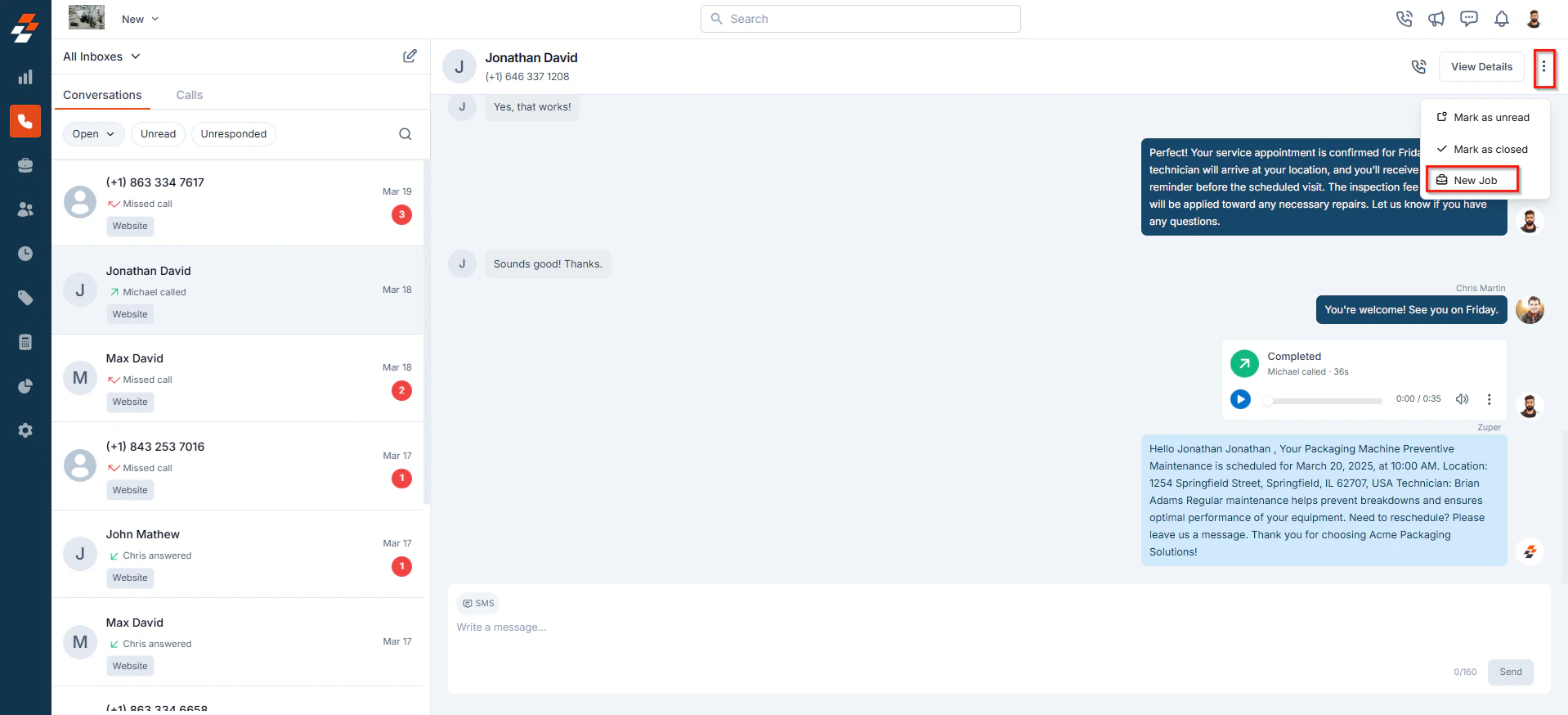
3. Click theicon at the top.
4. Select **New Job** from the dropdown.
Note: You cannot send a new message to an unknown number, but you can reply to an existing conversation with an unknown number.
# **Additional Actions in Conversation Management**
Beyond basic conversation handling, users can take additional actions like creating a new job, viewing customer details, and adding new customers directly from the **Conversations** screen.
**a. Creating a New Job from a Conversation**
You can create a new job for a customer directly from the **Conversation Details** screen.
**Steps to Create a Job:**
1. Open the **Conversations listing page.**
2. Click the conversation of the customer for whom you want to create a job.
3. Click theicon at the top.
4. Select **New Job** from the dropdown.
 Note: A job can only be created for a saved customer. If the number is unsaved, add it as a customer first.
**b. Viewing Detailed Customer Information**
Users can \*\*view \*\*and **update** customer details directly from the Conversations screen.
**Steps to View Customer Information:**
1. Open the **Conversations listing page** and select a conversation.
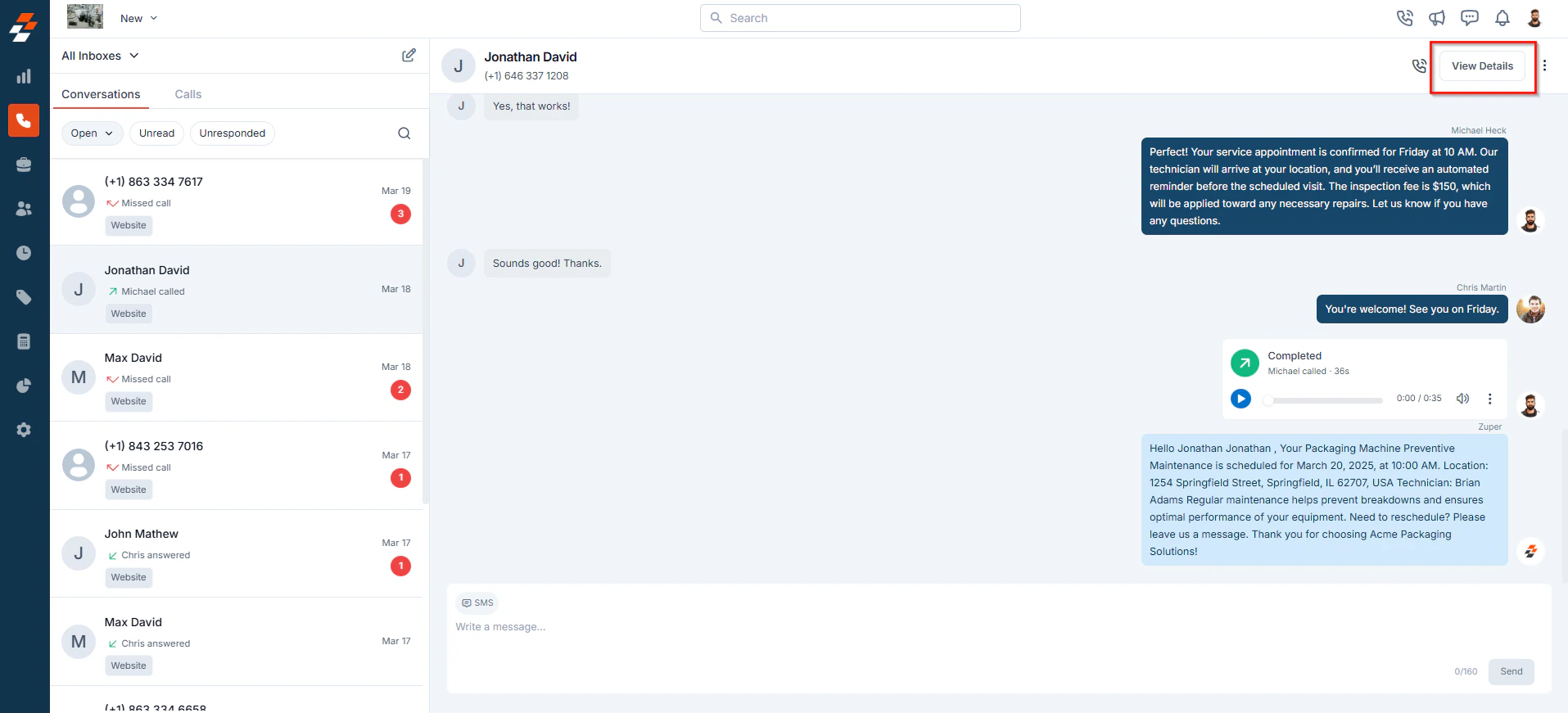
2. Click **View Details** at the top.
Note: A job can only be created for a saved customer. If the number is unsaved, add it as a customer first.
**b. Viewing Detailed Customer Information**
Users can \*\*view \*\*and **update** customer details directly from the Conversations screen.
**Steps to View Customer Information:**
1. Open the **Conversations listing page** and select a conversation.
2. Click **View Details** at the top.
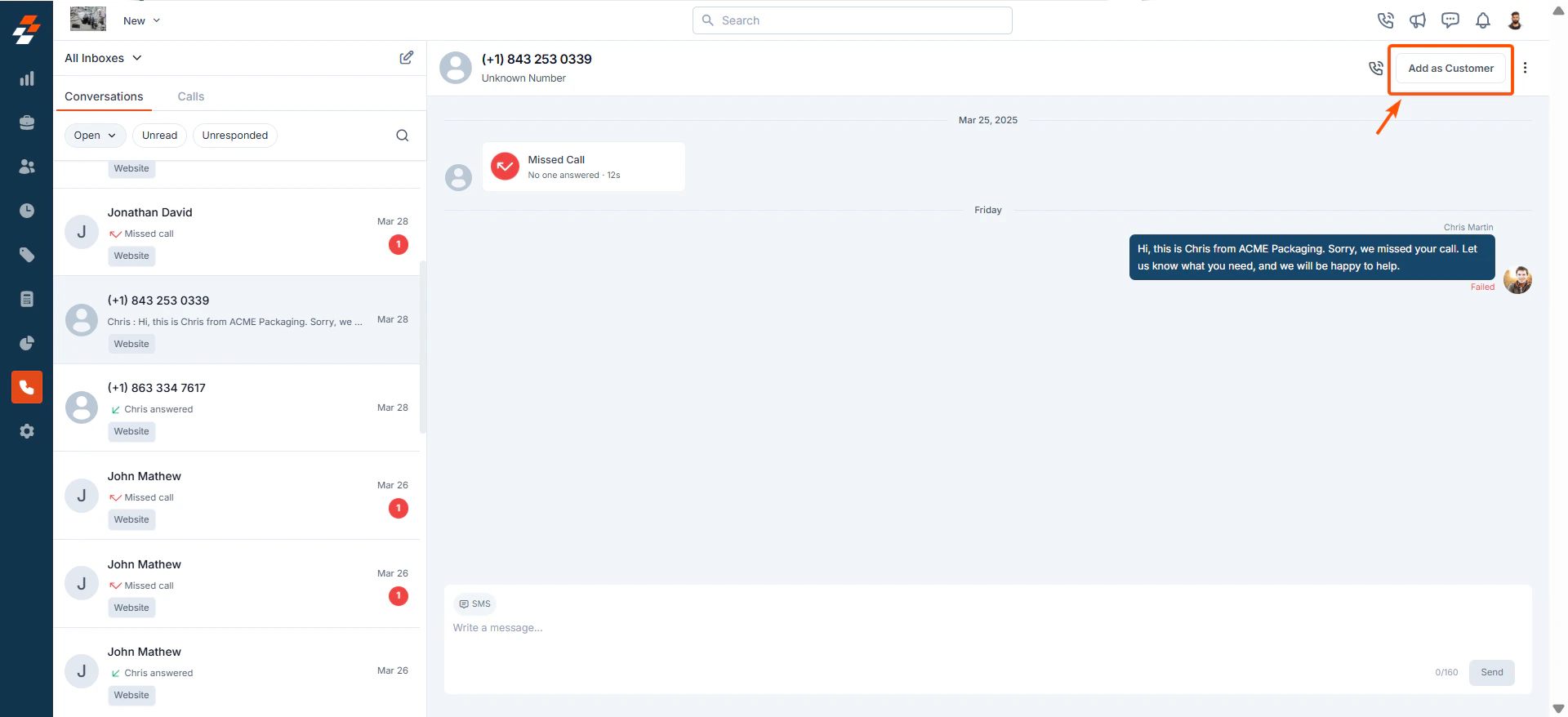
 If the contact is **only a phone number** and not saved as a customer, you will see an **"Add as Customer"** button.
**c. Creating a New Customer from a Conversation**
If a customer is not already in the system, you can add them directly from a conversation.
**Steps to Add a New Customer:**
* Open the **Conversations listing page** and select a conversation.
* Click the **"Add as Customer"** button.
If the contact is **only a phone number** and not saved as a customer, you will see an **"Add as Customer"** button.
**c. Creating a New Customer from a Conversation**
If a customer is not already in the system, you can add them directly from a conversation.
**Steps to Add a New Customer:**
* Open the **Conversations listing page** and select a conversation.
* Click the **"Add as Customer"** button.
 * Enter the required details.
* Click **Save** to create the customer profile.
This allows future messages, calls, and job assignments to be associated with the correct customer.
* Enter the required details.
* Click **Save** to create the customer profile.
This allows future messages, calls, and job assignments to be associated with the correct customer.