> ## Documentation Index
> Fetch the complete documentation index at: https://zuperinc-section23.mintlify.site/llms.txt
> Use this file to discover all available pages before exploring further.
# Zuper Connect Dialer in HubSpot
## **Overview**
The Zuper Connect dialer works seamlessly inside HubSpot, so you can make and receive calls without switching apps. This lets you stay focused on your contacts, deals, and other HubSpot tasks while handling calls.
Zuper Connect – HubSpot Integration: [Call Activities Sync](https://docs.zuper.co/Zuper_Connect/Zuperconnect-HubSpot-Integration)
## **Key Capabilities**
* Make calls to customers or other Zuper Connect agents.
* Receive incoming calls with alerts.
* Check your recent call history.
* Initiate calls directly from customer or user profiles within HubSpot.
* Use basic call tools like **hold**, **mute**, **transfer**, **warm**, and **cold** call transfers.
## **Prerequisites**
Before starting, ensure these are set up:
1. **HubSpot Account**: You need an active HubSpot account.
2. **Zuper-HubSpot Integration**: Connect your [Zuper account to HubSpot](https://docs.zuper.co/Integrations/CRM/Zuper_HubSpot_Integration).
3. **Active Zuper Connect Subscription**: You must have a valid subscription.
## **Accessing the Dialer**
To open the Zuper Connect dialer from HubSpot:
1. Click the HubSpot calling icon.
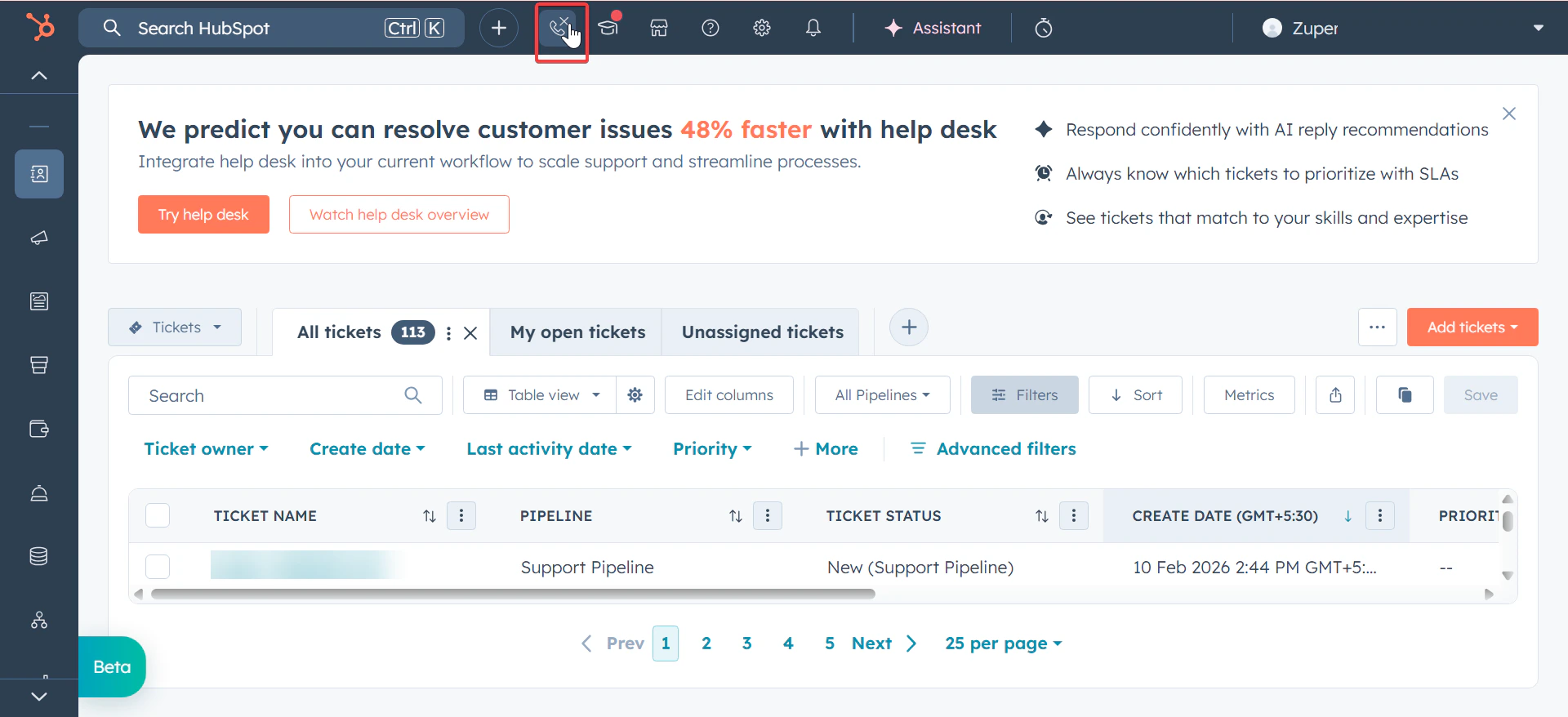 2. Choose Zuper Connect, with the connect dialer opens as a dialog window.
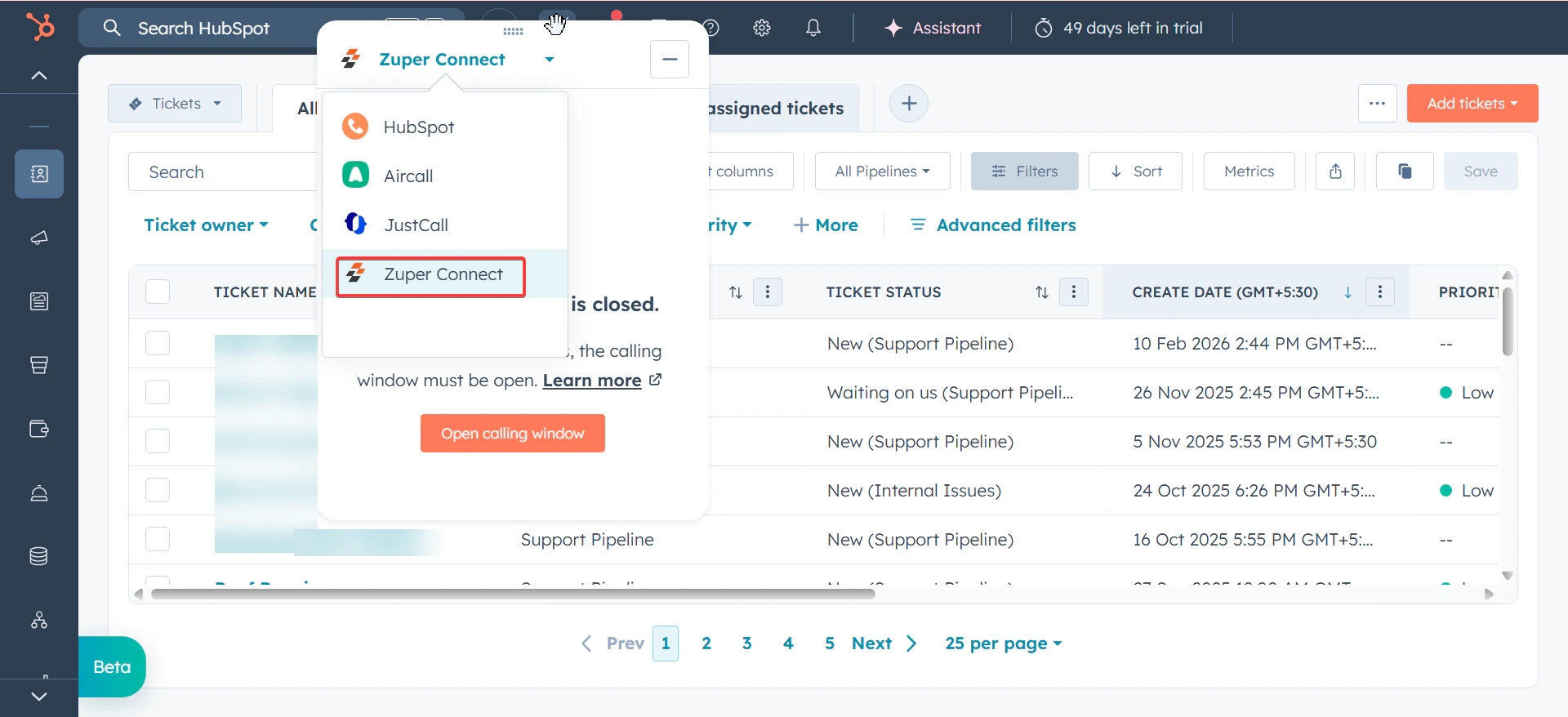
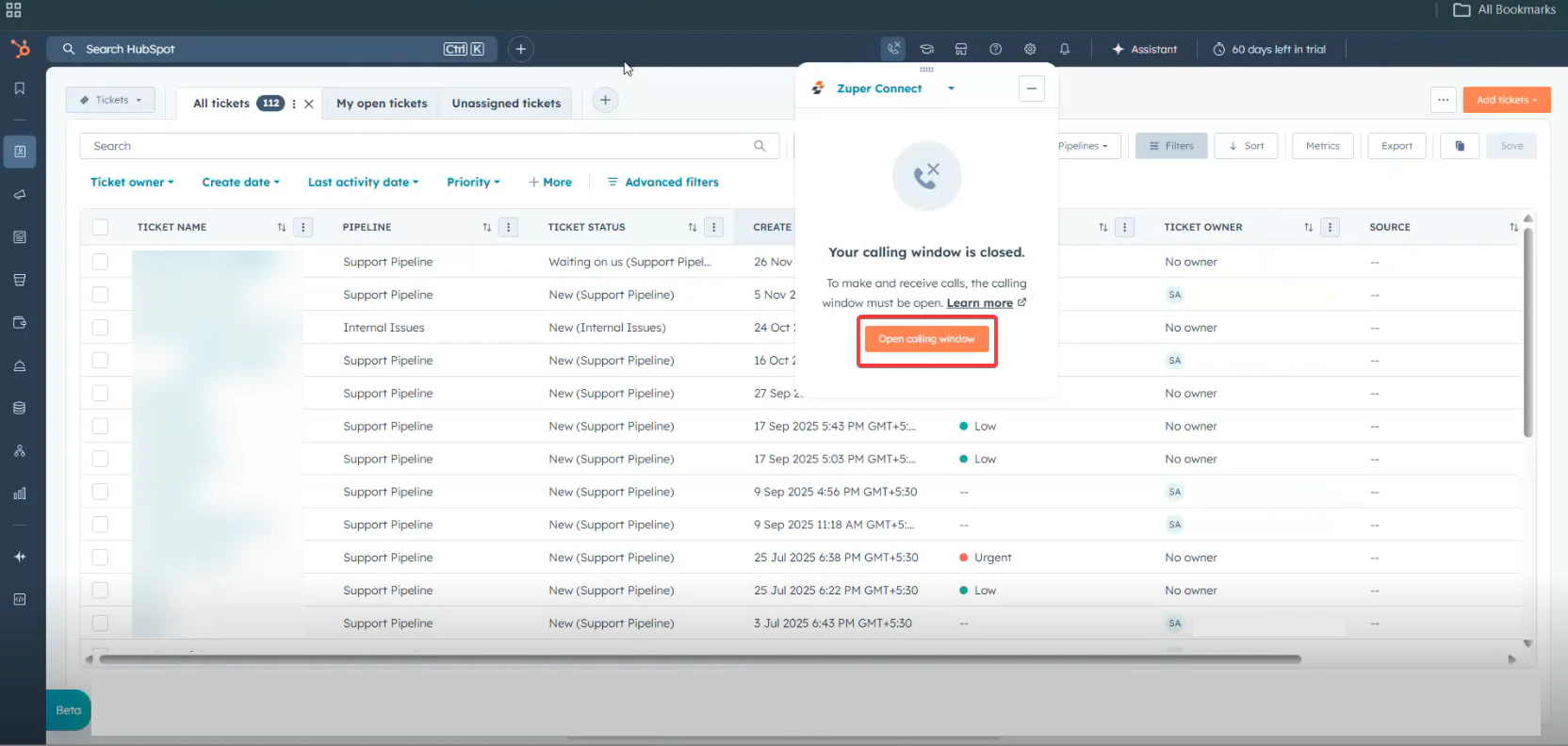
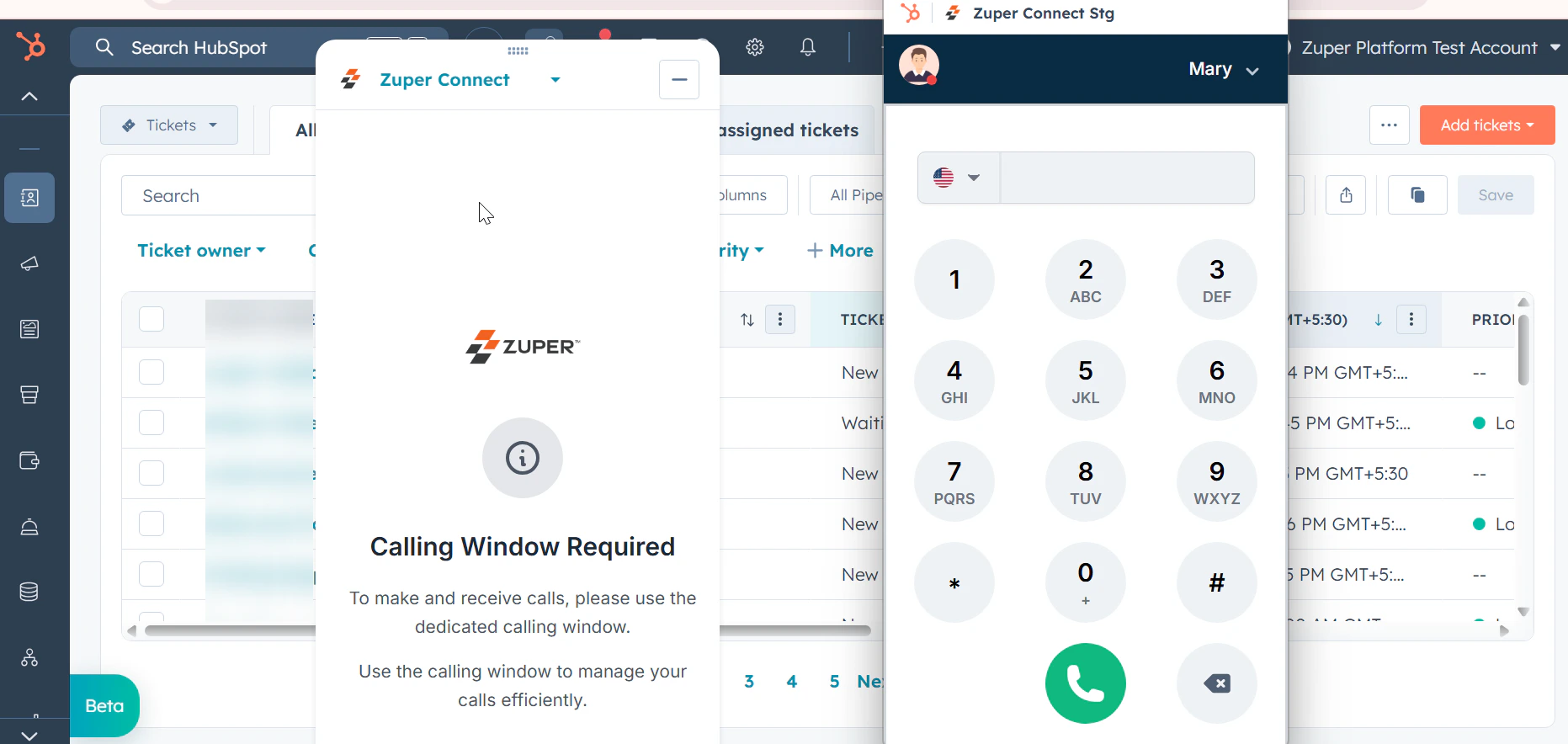 **Important:** The "**Open calling window**" button appears only when the dialer window is closed
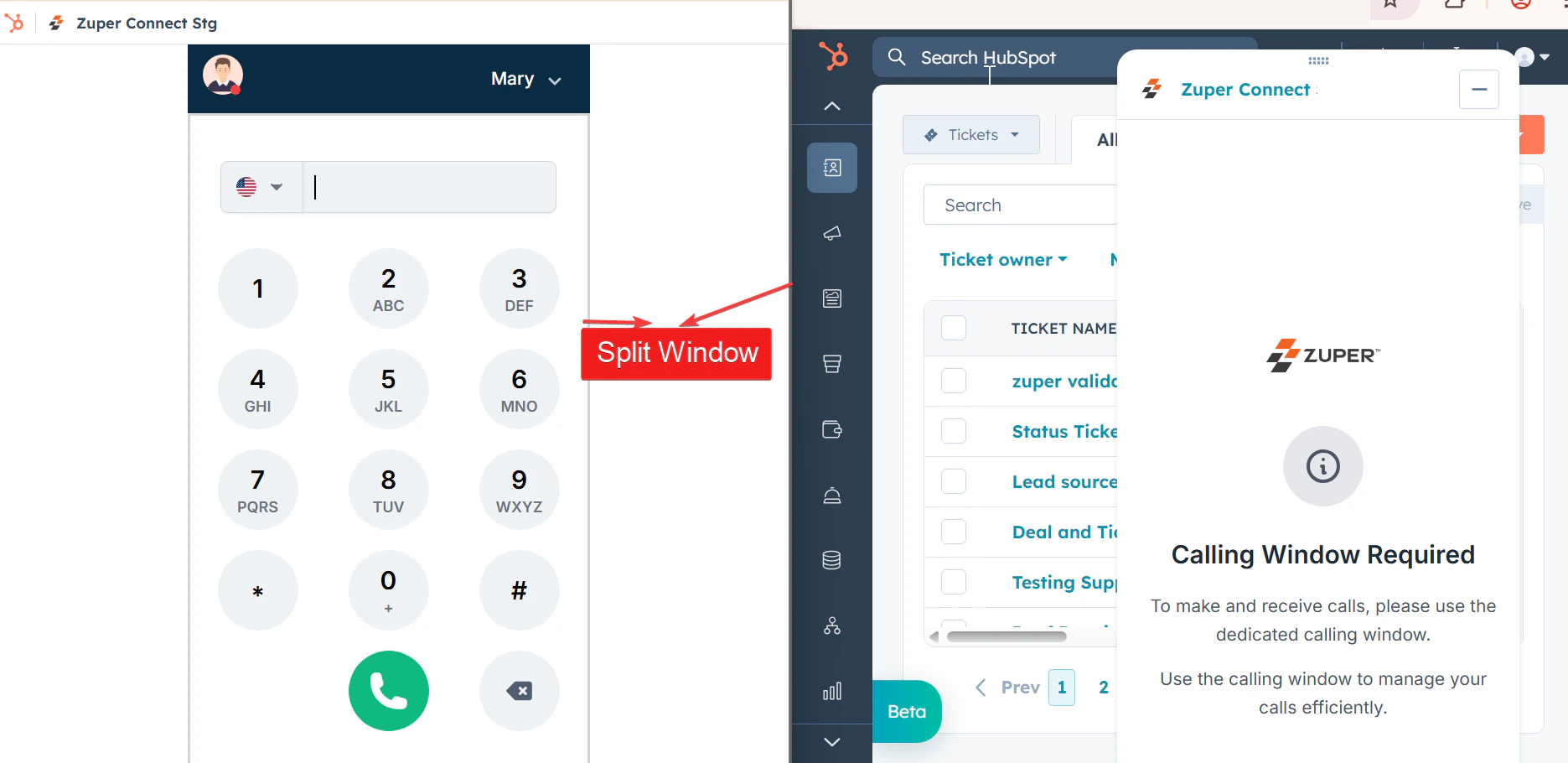
 Using Split Screen keeps the dialer visible, helping you avoid missed calls and work more efficiently in HubSpot.
## **Set up split screen**
1. Open the **Zuper Connect Dialer** window.
Right-click on the maximize button and select **Split Screen Window**.
Using Split Screen keeps the dialer visible, helping you avoid missed calls and work more efficiently in HubSpot.
## **Set up split screen**
1. Open the **Zuper Connect Dialer** window.
Right-click on the maximize button and select **Split Screen Window**.
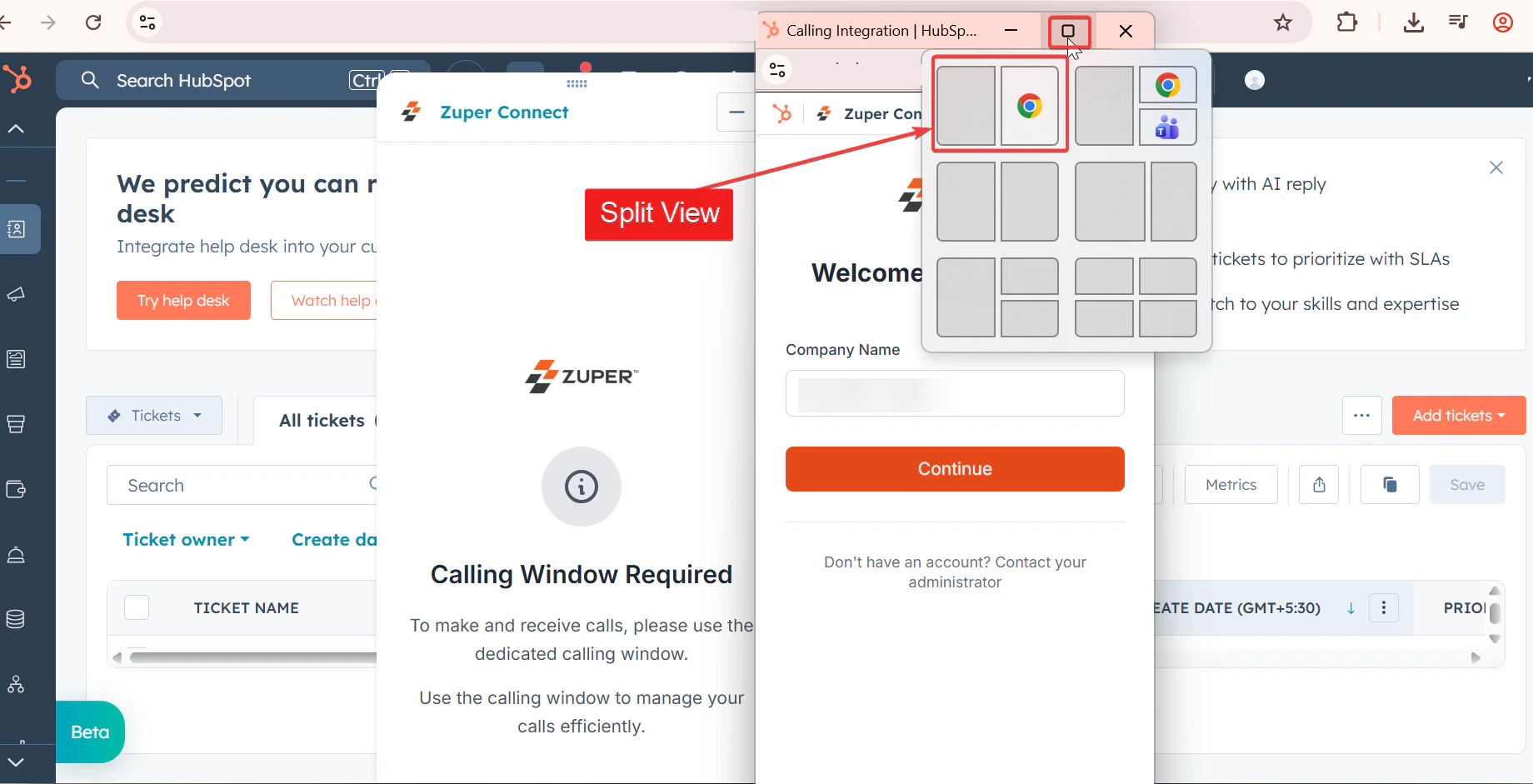 2. Keep **HubSpot** open on the other side of the screen to manage contacts, deals, and activities while handling calls.
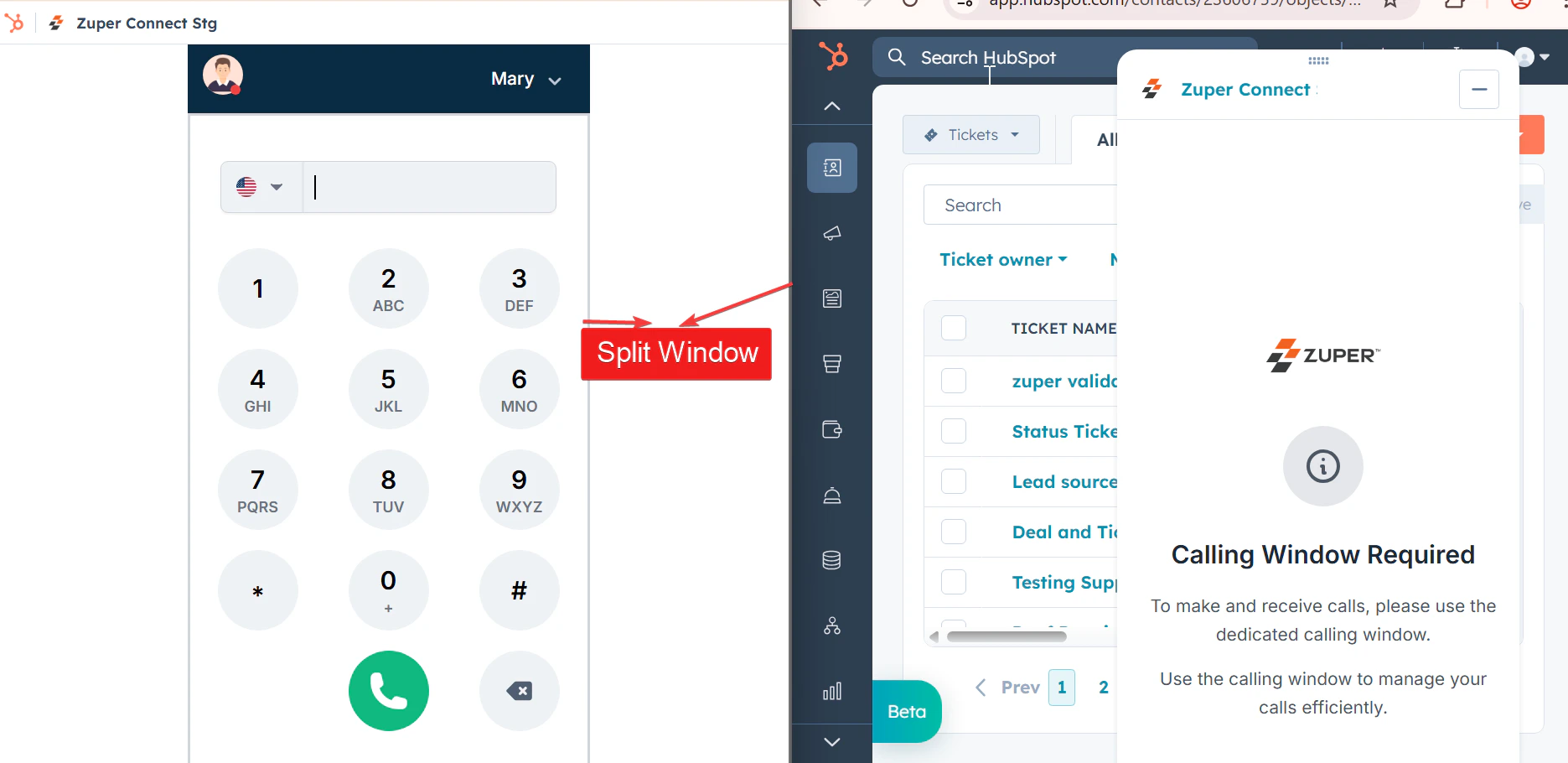 ## **Logging into Zuper from HubSpot**
### **Accessing the Dialer**
To open the Zuper Connect dialer from HubSpot:
1. Click the HubSpot calling icon.
2. Choose Zuper Connect, with the connect dialer opens as a dialog window.
3. Enter your **Company Name**.
## **Logging into Zuper from HubSpot**
### **Accessing the Dialer**
To open the Zuper Connect dialer from HubSpot:
1. Click the HubSpot calling icon.
2. Choose Zuper Connect, with the connect dialer opens as a dialog window.
3. Enter your **Company Name**.
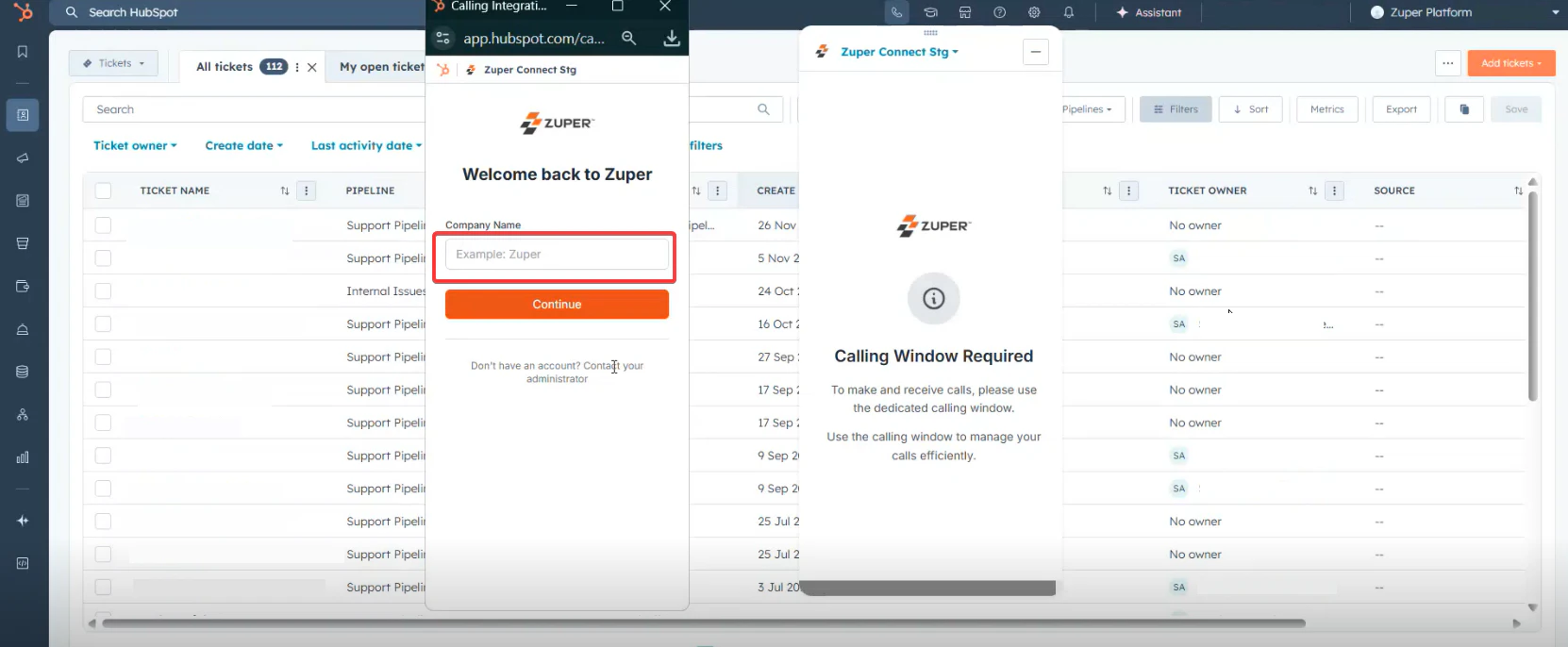 4. Enter your Email Address.
5. Enter your Password.
6. Click Login.
4. Enter your Email Address.
5. Enter your Password.
6. Click Login.
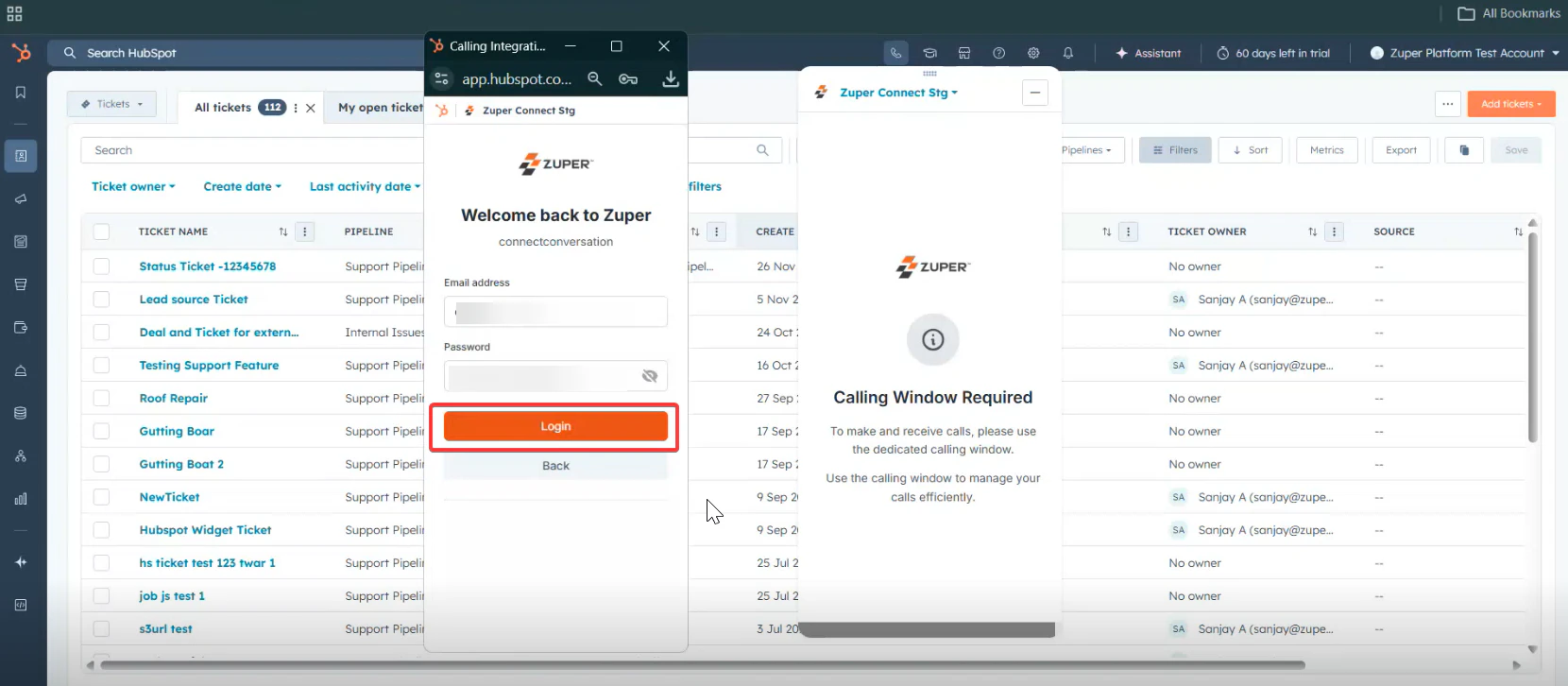 After successful authentication, you will be redirected to the dialer interface, where you can start making and receiving calls.
## **Best Practices: Window Management**
### **Understanding the Window Setup**
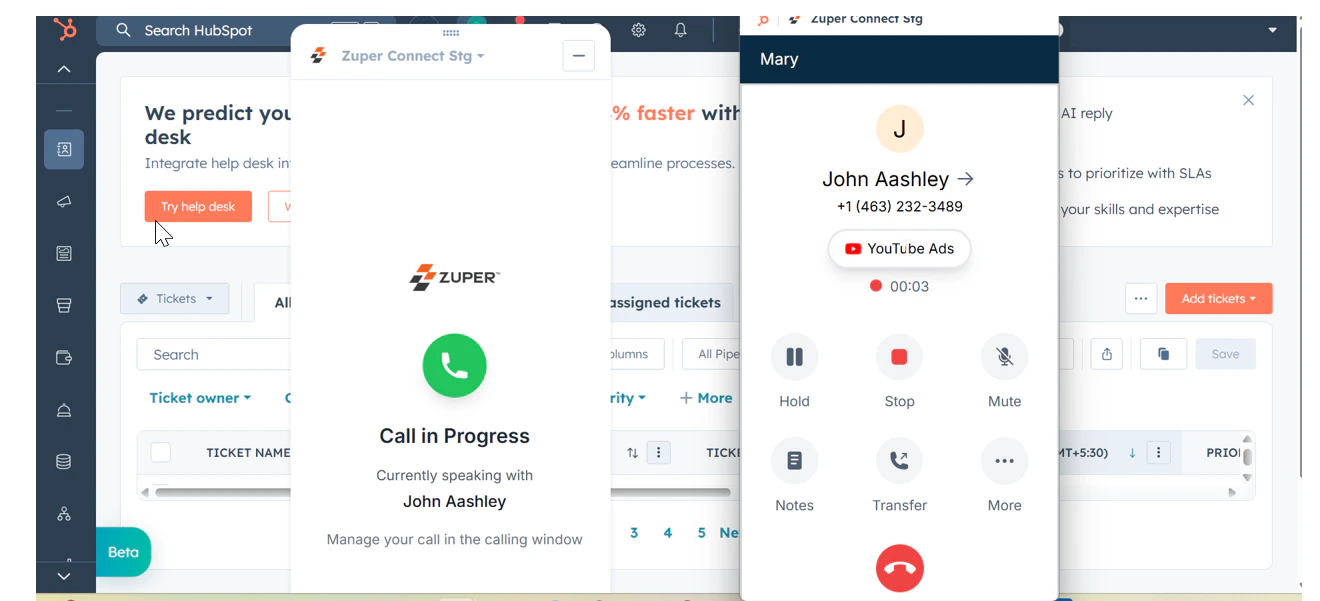
The Zuper Connect dialer runs in a **separate browser window** from HubSpot. This allows you to:
* Keep the dialer visible while working in HubSpot.
* Receive call notifications while multitasking.
* Manage calls independently of HubSpot navigation.
After successful authentication, you will be redirected to the dialer interface, where you can start making and receiving calls.
## **Best Practices: Window Management**
### **Understanding the Window Setup**
The Zuper Connect dialer runs in a **separate browser window** from HubSpot. This allows you to:
* Keep the dialer visible while working in HubSpot.
* Receive call notifications while multitasking.
* Manage calls independently of HubSpot navigation.
 ## **Handling Incoming Calls**
### **When the Dialer Window Is Open**
1. You will hear an audio notification.
2. The dialer window does **not** automatically come into focus.
3. Manually click the dialer window.
4. Click **Answer** to accept the call.
## **Handling Incoming Calls**
### **When the Dialer Window Is Open**
1. You will hear an audio notification.
2. The dialer window does **not** automatically come into focus.
3. Manually click the dialer window.
4. Click **Answer** to accept the call.
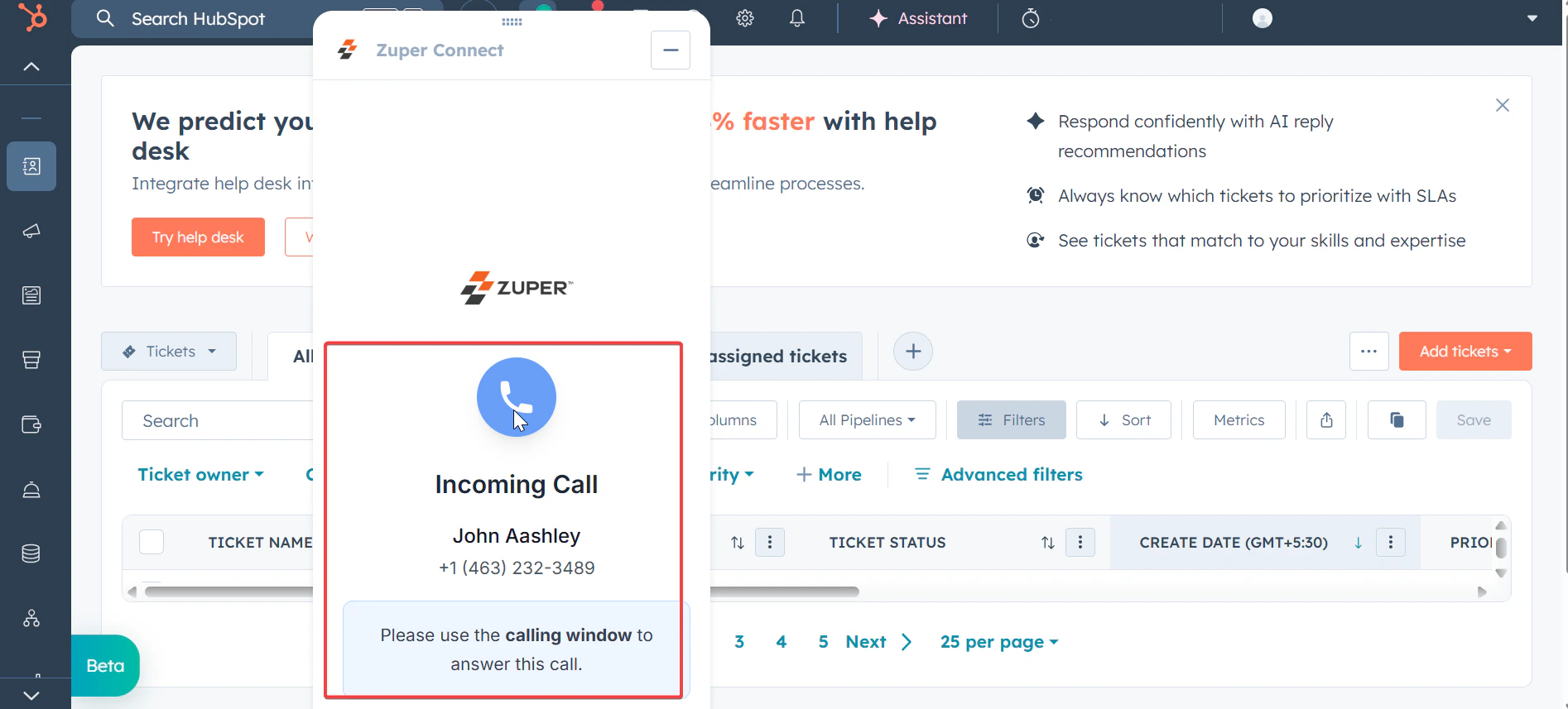
 ### **When the Dialer Window Is Closed**
Using split screen helps avoid missed calls and improves efficiency.
1. A notification appears in the HubSpot widget.
2. Message shown: *"Please use the calling window to answer this call."*
### **When the Dialer Window Is Closed**
Using split screen helps avoid missed calls and improves efficiency.
1. A notification appears in the HubSpot widget.
2. Message shown: *"Please use the calling window to answer this call."*
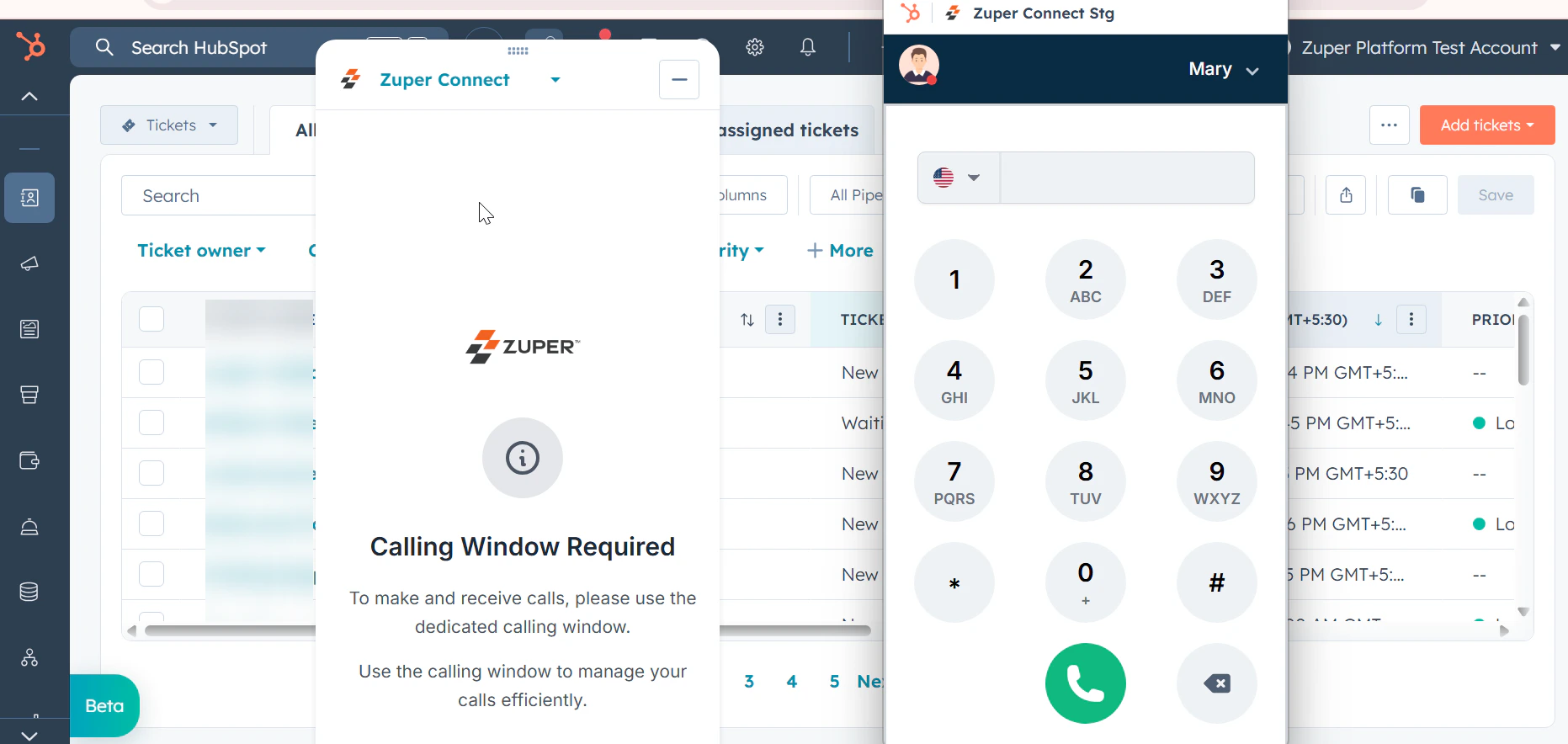
 3. Click **Open calling window**.
4. Log in if required and answer the call.
When a call is active, the widget displays **Call in progress**.
### **Reopening the Dialer**
If the dialer window is closed:
1. The widget returns to its default state.
2. **Open calling window** becomes available again.
3. Click to reopen the dialer.
4. Log in again if the session has expired.
## **Best Practices**
### **Split Screen Setup (Recommended)**
Using split screen helps avoid missed calls and improves efficiency.
**Benefits**
* Dialer always visible
* Instant access to call controls
* Easy multitasking in HubSpot
**How to Set Up**
1. Open the **Zuper Connect Dialer** window.
Right-click on the maximize button and select **Split Screen Window**.
## **Key points**
* Keep the dialer window open during working hours
* Set a default phone number
* Ensure your status is **Available** when ready to receive calls
Avoid logging into Zuper Connect on multiple platforms at the same time, and you will be able to use it only on one screen with the same login.
## **Troubleshooting**
### **Cannot see the Dialer Icon**
* Confirm Zuper Connect is integrated with HubSpot
* Check user permissions
* Refresh HubSpot
* Clear browser cache
### **Login Issues**
* Verify company name, email, and password
* Ensure Zuper Connect subscription is active
* Contact your admin if credentials are forgotten
### **Unable to Make or Receive Calls**
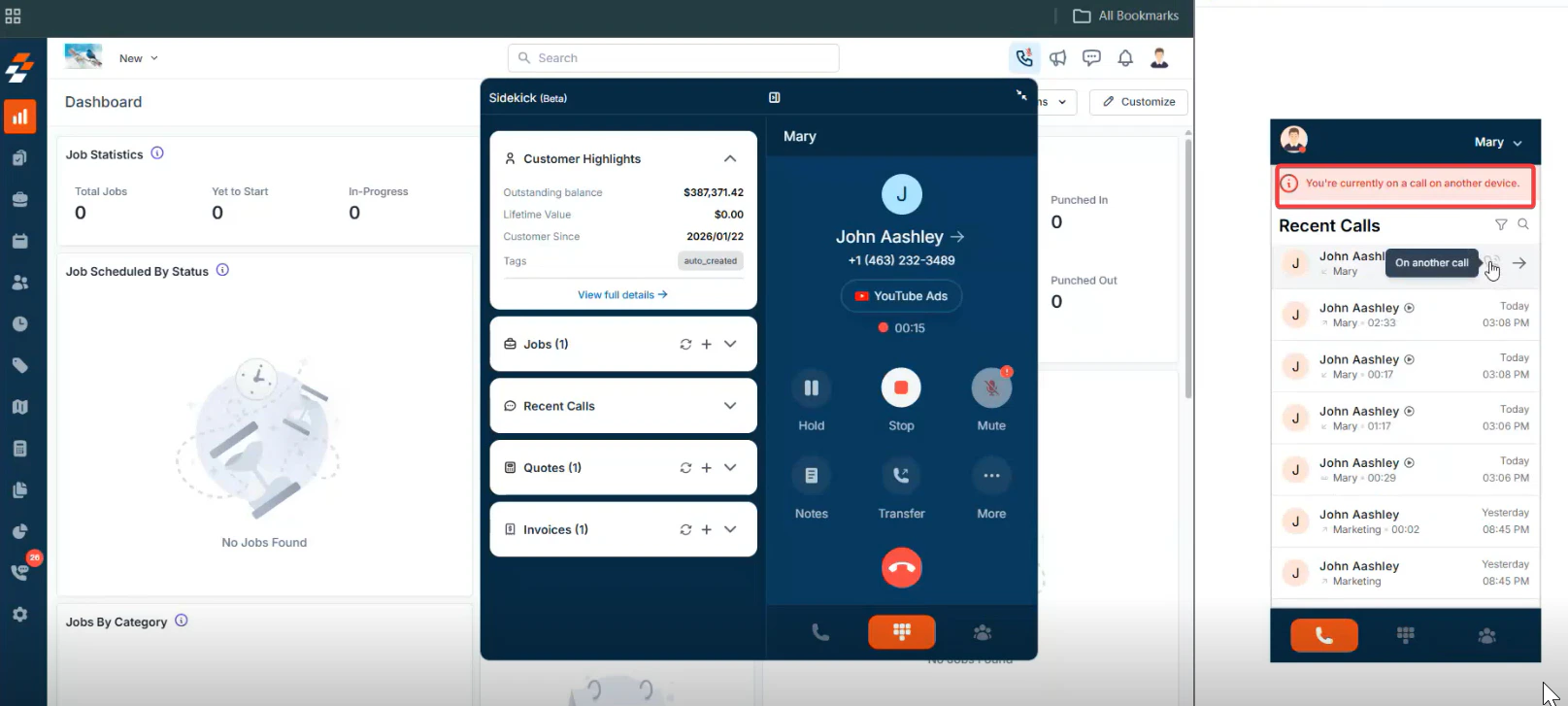
### **One Call at a Time Limitation**
You can only be active on **one call at a time** across all Zuper Connect instances.
**Scenario**
* If you are on a call in the native Zuper app, the HubSpot dialer cannot be used
* You may see: *"You are on another call."*
3. Click **Open calling window**.
4. Log in if required and answer the call.
When a call is active, the widget displays **Call in progress**.
### **Reopening the Dialer**
If the dialer window is closed:
1. The widget returns to its default state.
2. **Open calling window** becomes available again.
3. Click to reopen the dialer.
4. Log in again if the session has expired.
## **Best Practices**
### **Split Screen Setup (Recommended)**
Using split screen helps avoid missed calls and improves efficiency.
**Benefits**
* Dialer always visible
* Instant access to call controls
* Easy multitasking in HubSpot
**How to Set Up**
1. Open the **Zuper Connect Dialer** window.
Right-click on the maximize button and select **Split Screen Window**.
## **Key points**
* Keep the dialer window open during working hours
* Set a default phone number
* Ensure your status is **Available** when ready to receive calls
Avoid logging into Zuper Connect on multiple platforms at the same time, and you will be able to use it only on one screen with the same login.
## **Troubleshooting**
### **Cannot see the Dialer Icon**
* Confirm Zuper Connect is integrated with HubSpot
* Check user permissions
* Refresh HubSpot
* Clear browser cache
### **Login Issues**
* Verify company name, email, and password
* Ensure Zuper Connect subscription is active
* Contact your admin if credentials are forgotten
### **Unable to Make or Receive Calls**
### **One Call at a Time Limitation**
You can only be active on **one call at a time** across all Zuper Connect instances.
**Scenario**
* If you are on a call in the native Zuper app, the HubSpot dialer cannot be used
* You may see: *"You are on another call."*
 ### **Solution**
* End the active call first.
* Use only one Zuper Connect instance at a time.
**Dialer Window Not Responding**
* Close and reopen the dialer.
* Hard refresh (Ctrl+Shift+R / Cmd+Shift+R).
* Try a different browser.
* Check internet connectivity.
## **Support**
**Before Contacting Support**
Please verify:
* Active HubSpot account
* Zuper–HubSpot integration is complete
* Active Zuper Connect subscription
* Correct login credentials
* Updated browser
* Not logged into Zuper Connect on multiple platforms with the same account
If the issue persists, contact [**Zuper Support**](mailto:support@zuper.co) for further assistance.
## Frequently Asked Questions (FAQs)
**1. What exactly is the Zuper Connect Dialer, and what are its main features in HubSpot?**
It's a fully integrated calling tool inside HubSpot that lets you make and receive calls without switching apps. Key features: Outgoing calls to customers or internal Zuper users, incoming call notifications, recent call history, direct dialing from contact/deal records, and in-call controls (hold, mute, transfer, conference).
**2. What do I need before I can start using the Zuper Connect Dialer in HubSpot?**
You must have:
* An active HubSpot account (any plan works).
* Zuper account successfully connected to HubSpot.
* Active Zuper Connect subscription. If subscription is inactive, you'll get a "Contact Support" prompt during login.
**3. How do I log in to the Zuper Connect Dialer directly from HubSpot?**
Click the HubSpot dialer and choose ZuperConnect. Simply enter your Company Name → Email Address → Password → Click **Login**. You'll be taken straight to the dialer interface.
**4. How do I open the Zuper Connect Dialer from inside HubSpot?**
* Click the HubSpot dialer icon and Zuper Connect opens a dialog box.
* Open the widget.
* Click **Open calling window**. A new browser window launches for login. The button only appears when the dialer is closed (to prevent multiple windows).
**5. How do I control whether I can receive incoming calls?**
Set your status:
* **Available (Green)** → Ready to receive calls.
* **Unavailable** → No incoming calls will come through.
**6. How do I make an outgoing call using the dialer?**
* Go to Dialer tab → Select country code → Enter number on dial pad → Click **Call** icon.
* Use backspace to correct mistakes.
**7. What are the best practices to avoid missing calls and work efficiently?**
* Use split-screen (snap dialer to the right side, HubSpot to the other).
* Keep dialer open during working hours.
* Set a default phone number.
* Stay **Available** when ready.
* Never log in with the same account on multiple devices simultaneously.
**8. Why can't I make or receive calls, and what does "You are on another call" mean?**
* You can only be on one active call at a time across all Zuper Connect apps. If you're on a call in the native Zuper app, HubSpot dialer is blocked.
* Solution: End the other call first or use separate user accounts.
**9.** **I can't see the dialer icon, or I'm having login problems—what should I check?**
* No icon: Confirm integration, permissions, refresh HubSpot, and clear different browser → Check the ar cache. Login issues: Double-check company name/email/password, active subscription; contact admin for forgotten credentials.
**10. The dialer window is frozen or not responding—what do I do?**
* Close & reopen window → Hard refresh (Ctrl+Shift+R / Cmd+Shift+R) → Try different browser → Check internet.
**11. How do I access settings or log out?**
* Settings: Click settings icon in top bar. Logout: Click **Logout** → Confirm → Returns to login screen.
### **Solution**
* End the active call first.
* Use only one Zuper Connect instance at a time.
**Dialer Window Not Responding**
* Close and reopen the dialer.
* Hard refresh (Ctrl+Shift+R / Cmd+Shift+R).
* Try a different browser.
* Check internet connectivity.
## **Support**
**Before Contacting Support**
Please verify:
* Active HubSpot account
* Zuper–HubSpot integration is complete
* Active Zuper Connect subscription
* Correct login credentials
* Updated browser
* Not logged into Zuper Connect on multiple platforms with the same account
If the issue persists, contact [**Zuper Support**](mailto:support@zuper.co) for further assistance.
## Frequently Asked Questions (FAQs)
**1. What exactly is the Zuper Connect Dialer, and what are its main features in HubSpot?**
It's a fully integrated calling tool inside HubSpot that lets you make and receive calls without switching apps. Key features: Outgoing calls to customers or internal Zuper users, incoming call notifications, recent call history, direct dialing from contact/deal records, and in-call controls (hold, mute, transfer, conference).
**2. What do I need before I can start using the Zuper Connect Dialer in HubSpot?**
You must have:
* An active HubSpot account (any plan works).
* Zuper account successfully connected to HubSpot.
* Active Zuper Connect subscription. If subscription is inactive, you'll get a "Contact Support" prompt during login.
**3. How do I log in to the Zuper Connect Dialer directly from HubSpot?**
Click the HubSpot dialer and choose ZuperConnect. Simply enter your Company Name → Email Address → Password → Click **Login**. You'll be taken straight to the dialer interface.
**4. How do I open the Zuper Connect Dialer from inside HubSpot?**
* Click the HubSpot dialer icon and Zuper Connect opens a dialog box.
* Open the widget.
* Click **Open calling window**. A new browser window launches for login. The button only appears when the dialer is closed (to prevent multiple windows).
**5. How do I control whether I can receive incoming calls?**
Set your status:
* **Available (Green)** → Ready to receive calls.
* **Unavailable** → No incoming calls will come through.
**6. How do I make an outgoing call using the dialer?**
* Go to Dialer tab → Select country code → Enter number on dial pad → Click **Call** icon.
* Use backspace to correct mistakes.
**7. What are the best practices to avoid missing calls and work efficiently?**
* Use split-screen (snap dialer to the right side, HubSpot to the other).
* Keep dialer open during working hours.
* Set a default phone number.
* Stay **Available** when ready.
* Never log in with the same account on multiple devices simultaneously.
**8. Why can't I make or receive calls, and what does "You are on another call" mean?**
* You can only be on one active call at a time across all Zuper Connect apps. If you're on a call in the native Zuper app, HubSpot dialer is blocked.
* Solution: End the other call first or use separate user accounts.
**9.** **I can't see the dialer icon, or I'm having login problems—what should I check?**
* No icon: Confirm integration, permissions, refresh HubSpot, and clear different browser → Check the ar cache. Login issues: Double-check company name/email/password, active subscription; contact admin for forgotten credentials.
**10. The dialer window is frozen or not responding—what do I do?**
* Close & reopen window → Hard refresh (Ctrl+Shift+R / Cmd+Shift+R) → Try different browser → Check internet.
**11. How do I access settings or log out?**
* Settings: Click settings icon in top bar. Logout: Click **Logout** → Confirm → Returns to login screen.