> ## Documentation Index
> Fetch the complete documentation index at: https://zuperinc-section23.mintlify.site/llms.txt
> Use this file to discover all available pages before exploring further.
# Call logs & History
Calls is the central hub for tracking and reviewing all incoming and outgoing calls in Zuper. Whether you're following up on past interactions, monitoring performance, or retrieving call details, the Calls feature offers an organized and user-friendly record of every call.
This guide walks you through how to effectively view and manage calls, helping you streamline communication and ensure no important call is missed.
# 1. Accessing Calls on the Web
Admins can access Calls on the web, but must have **permissions enabled** in the settings. For detailed steps, refer to "[How to Manage User Permissions](https://docs.zuper.co/Zuper_Connect/Setup-Zuper-Connect/User_permissions)."
## Navigating to the Calls Page
* Click **Inboxes** from the left navigation menu.
* You will be directed to the **All Inboxes** listing page.
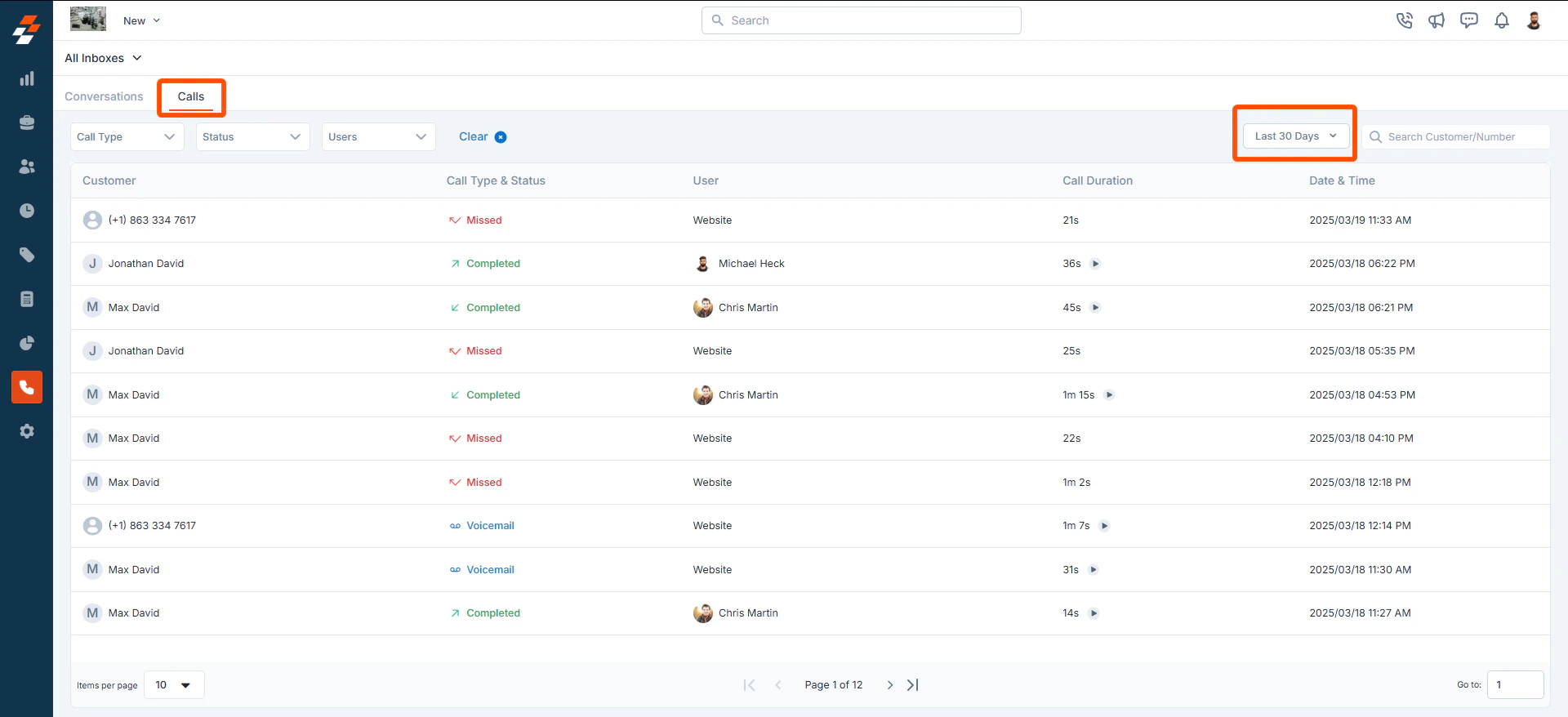
* Navigate to the **Calls** tab to access all call records. Calls are displayed based on the selected date range (e.g., **Today, Last 7 Days, This Month**).
 ### **Understanding Call Details**
The Calls page displays a structured list of all call entries with the following details:
* **Customer Name**: Displays the name of the customer associated with the call. If the number is not saved in the system, the phone number will be shown instead.
* **Call Type & Status**: Shows if the call was **Incoming** or **Outgoing**, along with its status (e.g., **Completed, Missed, Failed, Ongoing**).
### **Understanding Call Details**
The Calls page displays a structured list of all call entries with the following details:
* **Customer Name**: Displays the name of the customer associated with the call. If the number is not saved in the system, the phone number will be shown instead.
* **Call Type & Status**: Shows if the call was **Incoming** or **Outgoing**, along with its status (e.g., **Completed, Missed, Failed, Ongoing**).
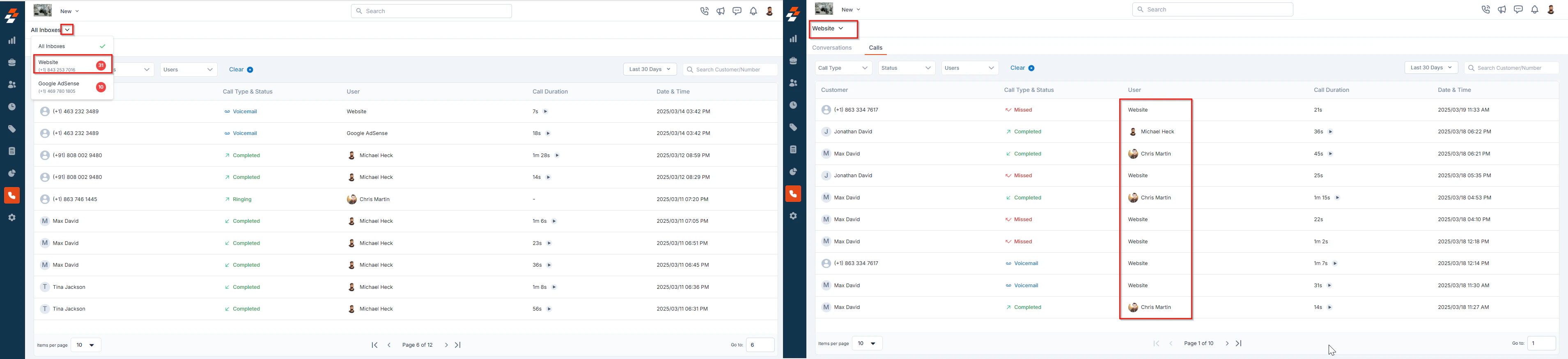
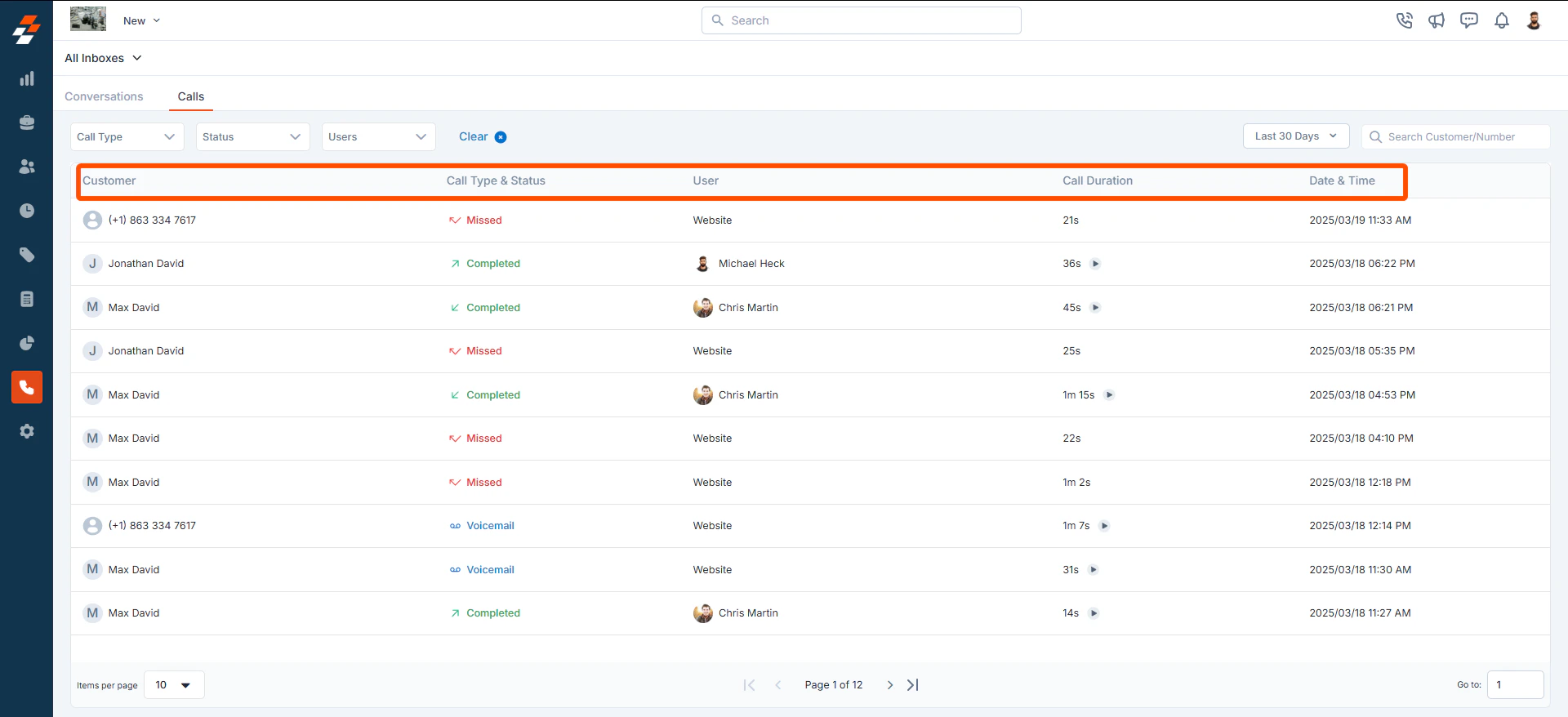 * **User Details**: Shows the team member who made or answered the call. For missed calls, the Zuper Phone number the call was made to is displayed.
* **Call Duration**: Indicates the length of the call.
* **Date & Time**: Records when the call was made or received.
**Tip**: By default, calls from all inboxes are displayed. You can filter by a specific Zuper Phone number for focused tracking.\\
* **User Details**: Shows the team member who made or answered the call. For missed calls, the Zuper Phone number the call was made to is displayed.
* **Call Duration**: Indicates the length of the call.
* **Date & Time**: Records when the call was made or received.
**Tip**: By default, calls from all inboxes are displayed. You can filter by a specific Zuper Phone number for focused tracking.\\
 ### Filtering Calls
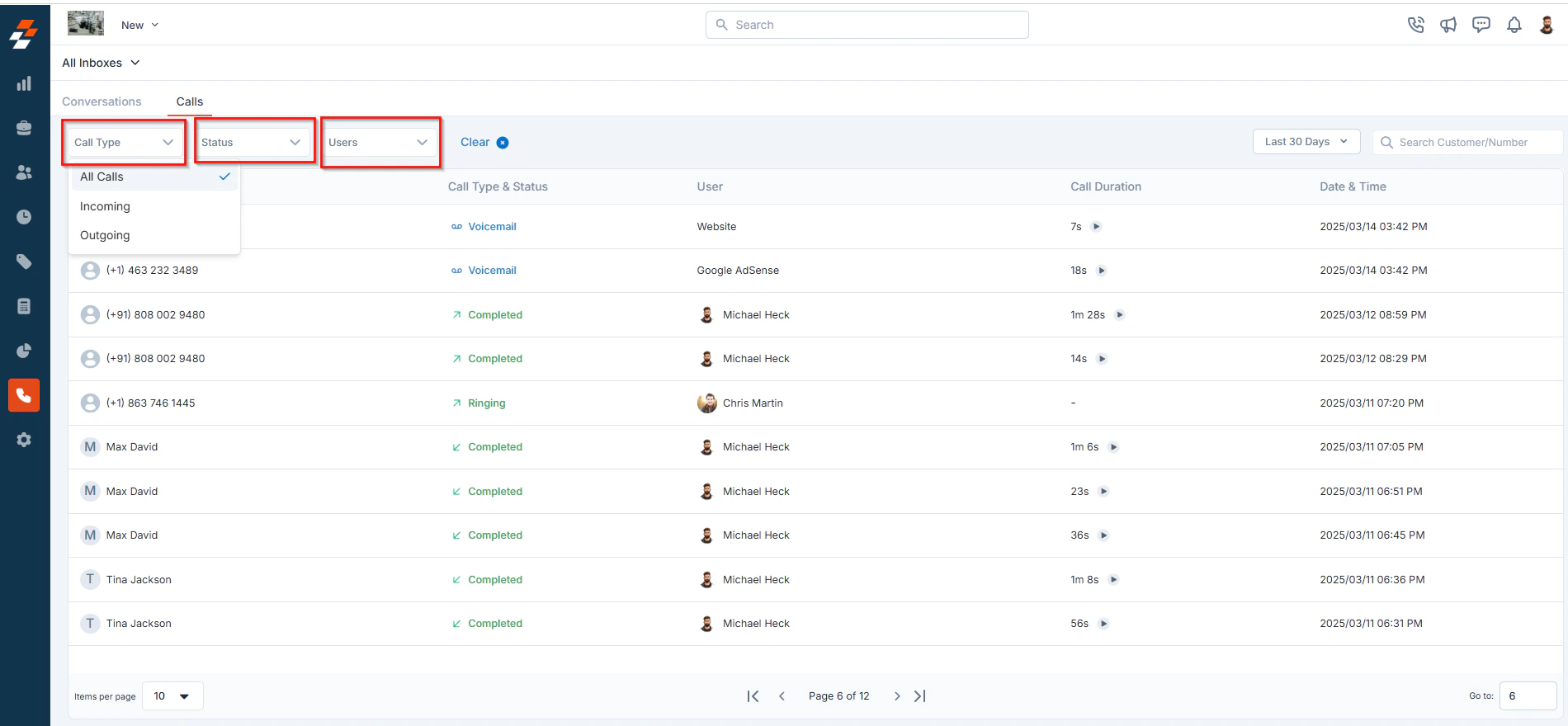
To refine your view, you can filter calls based on:
* **Call Type** – Choose between incoming and outgoing calls.
* **Status** – Filter by call completion status (**completed**, **failed**, **missed**, **voicemails**, **canceled**, ****ongoing, etc.****)
* **Users** – View calls made or answered by specific team members.
### Filtering Calls
To refine your view, you can filter calls based on:
* **Call Type** – Choose between incoming and outgoing calls.
* **Status** – Filter by call completion status (**completed**, **failed**, **missed**, **voicemails**, **canceled**, ****ongoing, etc.****)
* **Users** – View calls made or answered by specific team members.
 # 2. Viewing Call Log
To view call history:
1. Click a call entry on the **Calls** page.
2. A **Quick View** panel opens with the following details:
* **Call Status** – Indicates whether the call was **Incoming, Outgoing, Missed**, etc.
* **User** – Displays the team member who made or answered the call.
* **Zuper number** – Displays the number through which the call was made.
* **Call Duration** – Shows the total length of the call.
# 2. Viewing Call Log
To view call history:
1. Click a call entry on the **Calls** page.
2. A **Quick View** panel opens with the following details:
* **Call Status** – Indicates whether the call was **Incoming, Outgoing, Missed**, etc.
* **User** – Displays the team member who made or answered the call.
* **Zuper number** – Displays the number through which the call was made.
* **Call Duration** – Shows the total length of the call.
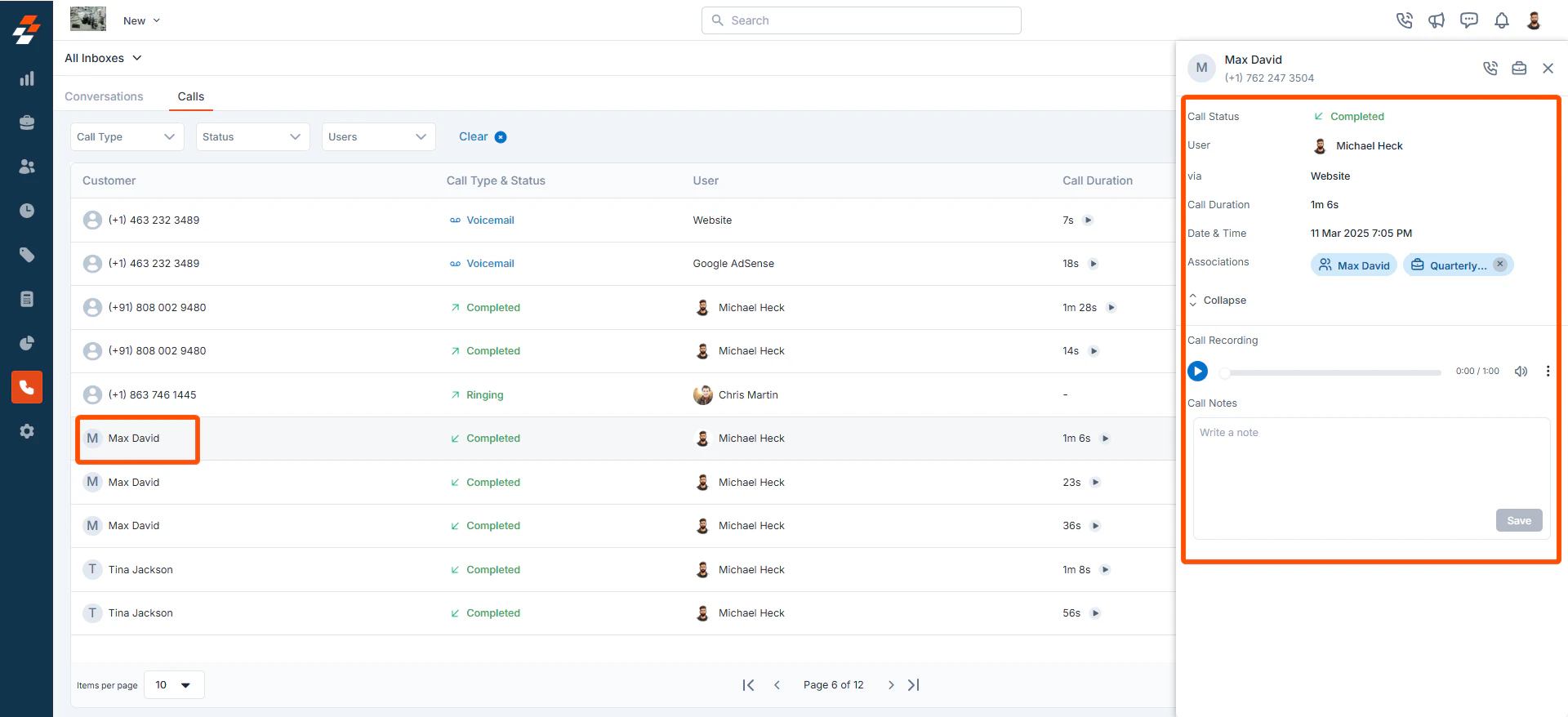 * **Date & Time** – Records when the call was initiated or received.
* **Associations** – Displays the associated customer and any job created for the customer.
* **Call Recording** – Provides access to the recorded call (if available).
* **Call Notes** – Displays any notes associated with the call for future reference.
# 3. Listening and Downloading Call Recordings
Zuper Connect automatically records calls if the call recording feature is enabled in your settings. All call recordings and voicemails will appear on the call log Quick View.
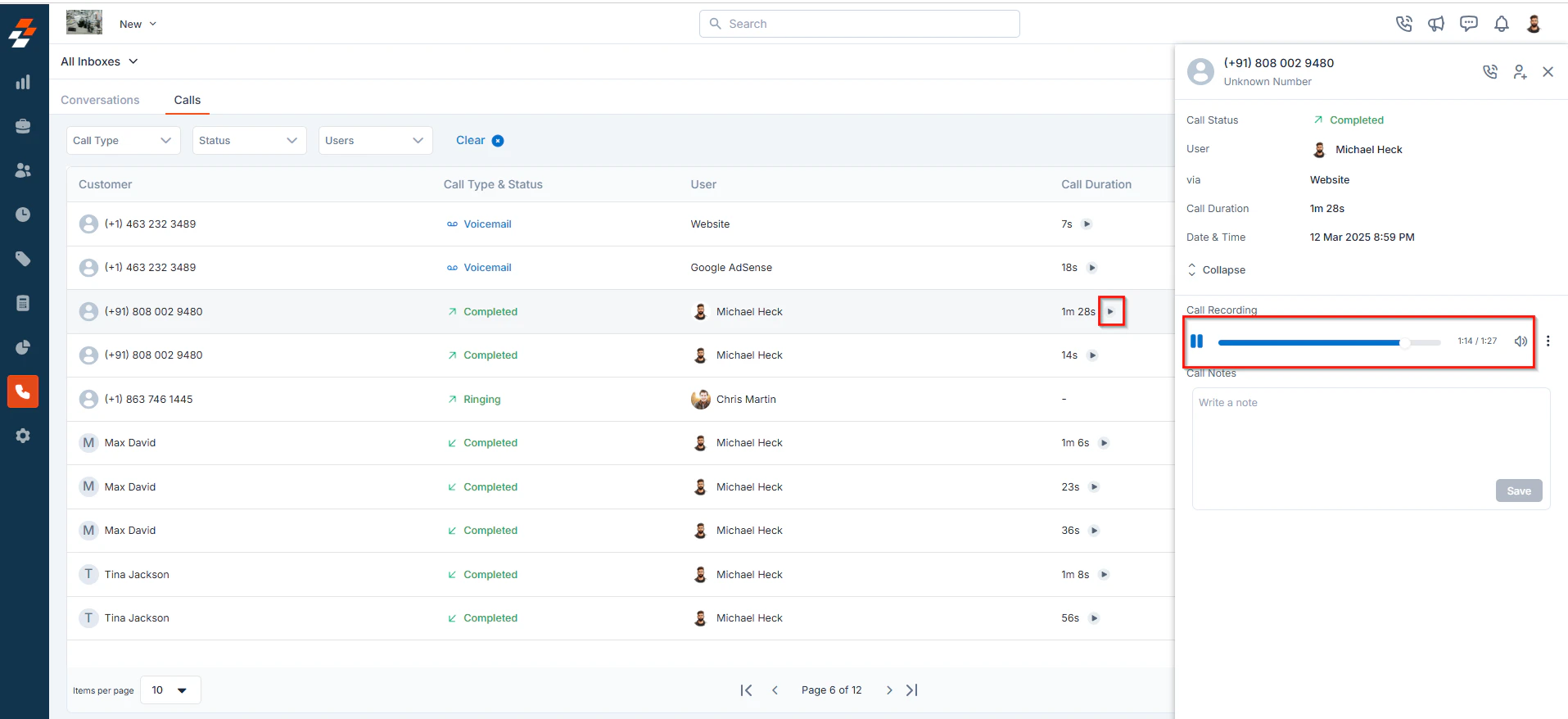
**To listen to recordings,**
* Locate the call in the Calls tab.
* Click the button to listen.
* **Date & Time** – Records when the call was initiated or received.
* **Associations** – Displays the associated customer and any job created for the customer.
* **Call Recording** – Provides access to the recorded call (if available).
* **Call Notes** – Displays any notes associated with the call for future reference.
# 3. Listening and Downloading Call Recordings
Zuper Connect automatically records calls if the call recording feature is enabled in your settings. All call recordings and voicemails will appear on the call log Quick View.
**To listen to recordings,**
* Locate the call in the Calls tab.
* Click the button to listen.
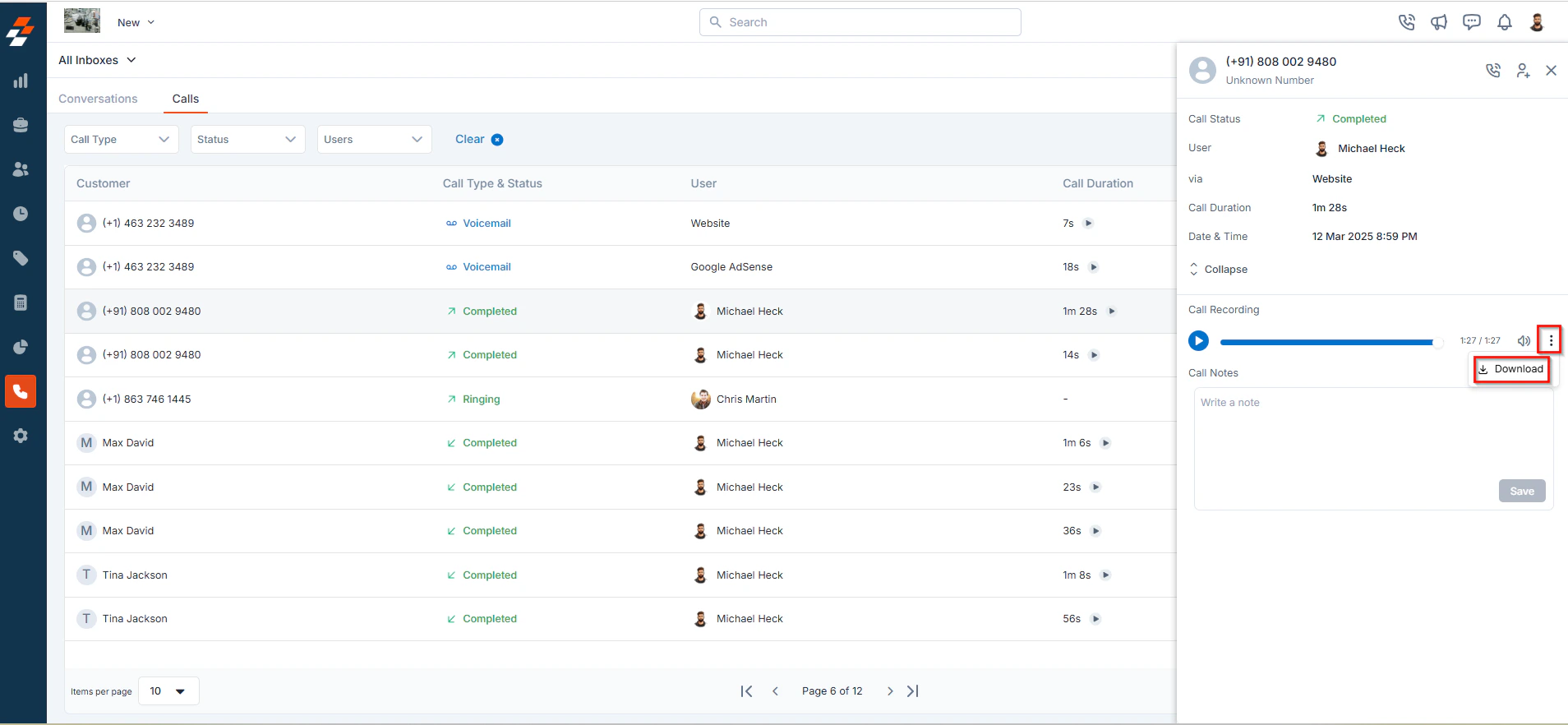
 **To download a recording**:
* Click the icon next to the recording in the quick view panel.
* Select **Download** to save the file to your device for future reference.
**To download a recording**:
* Click the icon next to the recording in the quick view panel.
* Select **Download** to save the file to your device for future reference.
 # 4. Calling Back a Customer
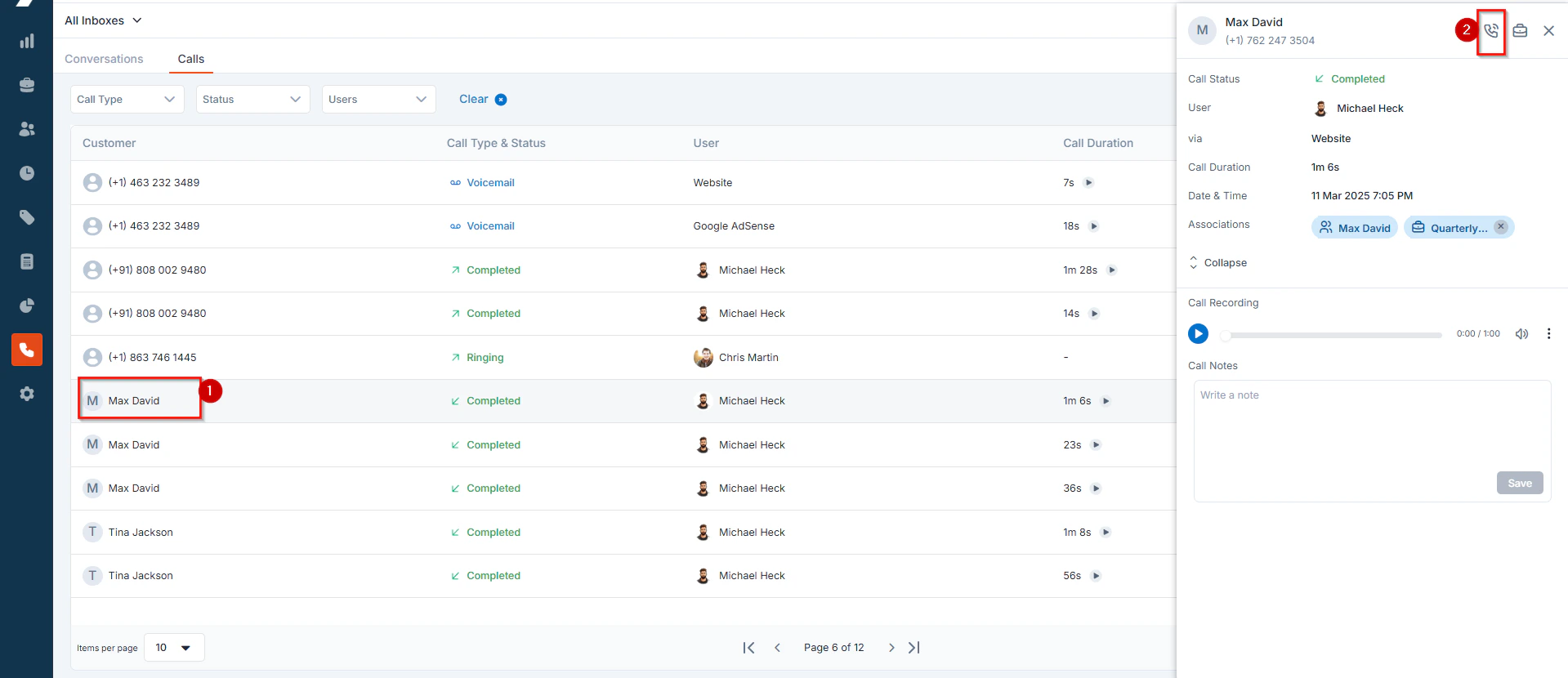
To quickly return a customer’s call:
1. Select the desired call entry. A quick view panel will appear.
2. Click the icon at the top of the quick view panel to redial the customer instantly.
# 4. Calling Back a Customer
To quickly return a customer’s call:
1. Select the desired call entry. A quick view panel will appear.
2. Click the icon at the top of the quick view panel to redial the customer instantly.
 # 5. Adding Notes to Calls
To add important details related to customer interactions:
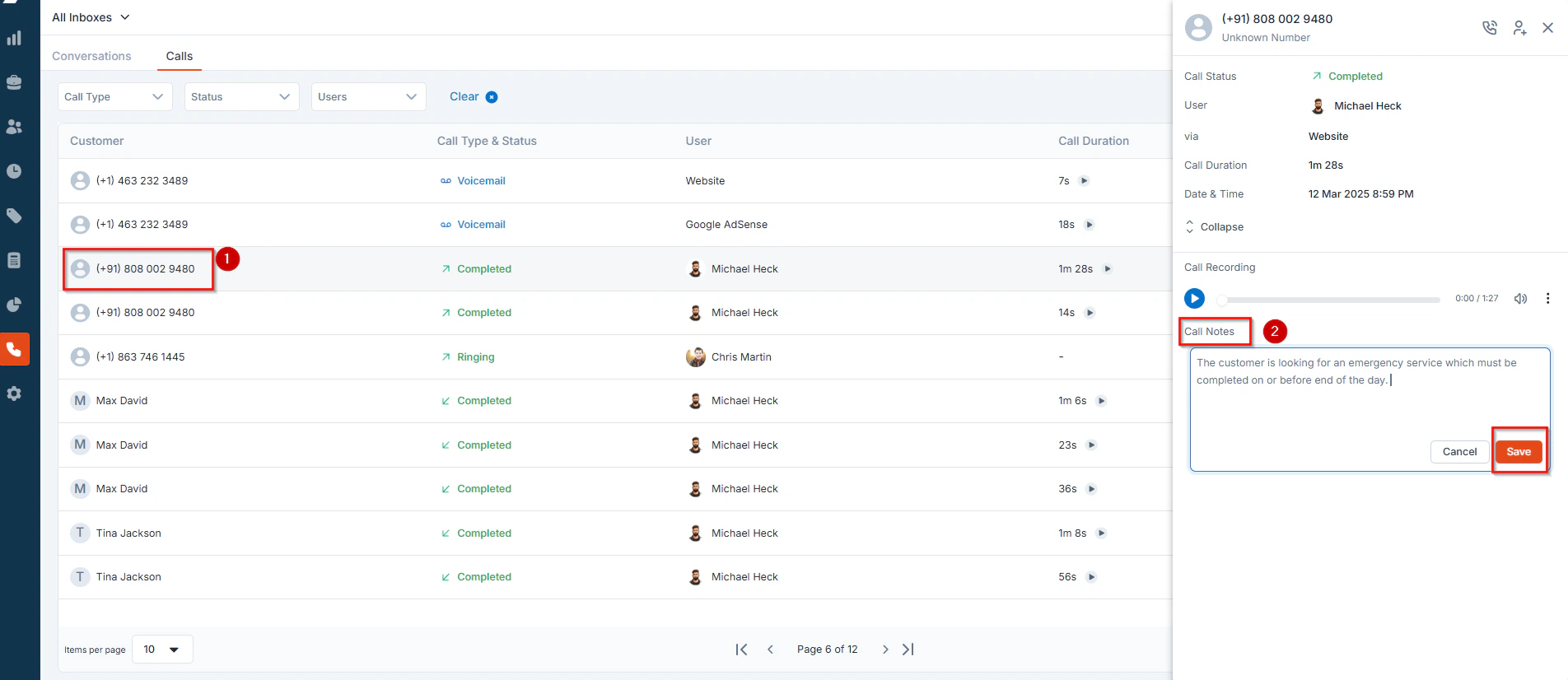
1. Select a call entry on the Calls tab. The quick view panel will appear.
2. Scroll down to the **Call Notes** section.
3. Enter any additional details or notes about the conversation. This can include follow-up actions, special requests, or any other relevant information to ensure proper handling in future interactions.
# 5. Adding Notes to Calls
To add important details related to customer interactions:
1. Select a call entry on the Calls tab. The quick view panel will appear.
2. Scroll down to the **Call Notes** section.
3. Enter any additional details or notes about the conversation. This can include follow-up actions, special requests, or any other relevant information to ensure proper handling in future interactions.
 # 6. Creating a Job for the Customer
To create a job for a customer directly from a call entry:
1. Select a call entry you want to create a job for. The quick view panel will appear.
2. Click the “**New Job**” icon at the top of the quick view screen to create a new job.
# 6. Creating a Job for the Customer
To create a job for a customer directly from a call entry:
1. Select a call entry you want to create a job for. The quick view panel will appear.
2. Click the “**New Job**” icon at the top of the quick view screen to create a new job.
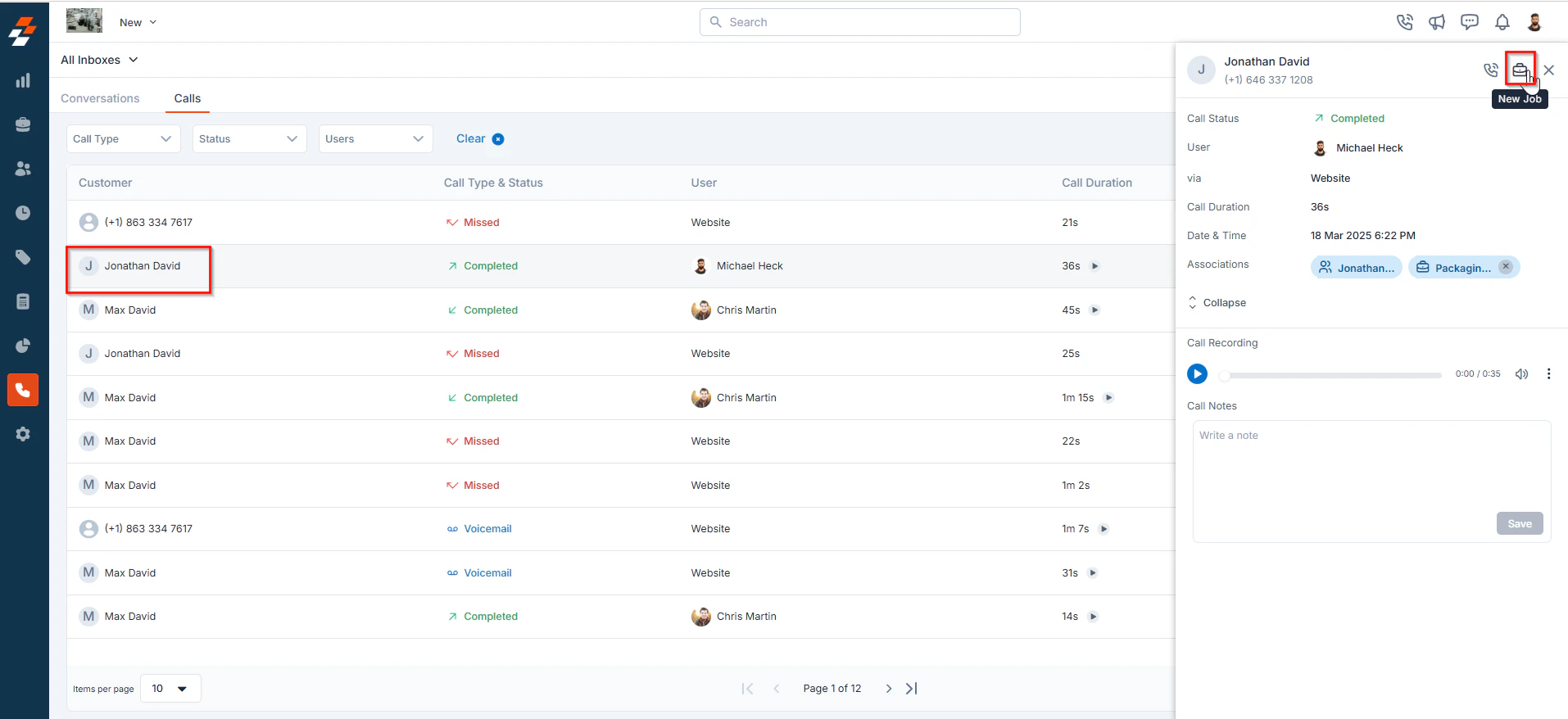 This will create a new job associated with that customer, making it easy to manage the service request or task.
Note: You can only create a job for a saved customer. If the call log is associated with an unsaved number, you must first add the number as a customer before creating a job.
# 7. Saving a New Customer
If the calls page shows an unsaved number, you can save their details for future interactions:
1. Select the call entry.
2. Click the **Add as Customer** icon at the top of the quick view panel.
3. Fill in the customer details and save.
This will create a new job associated with that customer, making it easy to manage the service request or task.
Note: You can only create a job for a saved customer. If the call log is associated with an unsaved number, you must first add the number as a customer before creating a job.
# 7. Saving a New Customer
If the calls page shows an unsaved number, you can save their details for future interactions:
1. Select the call entry.
2. Click the **Add as Customer** icon at the top of the quick view panel.
3. Fill in the customer details and save.
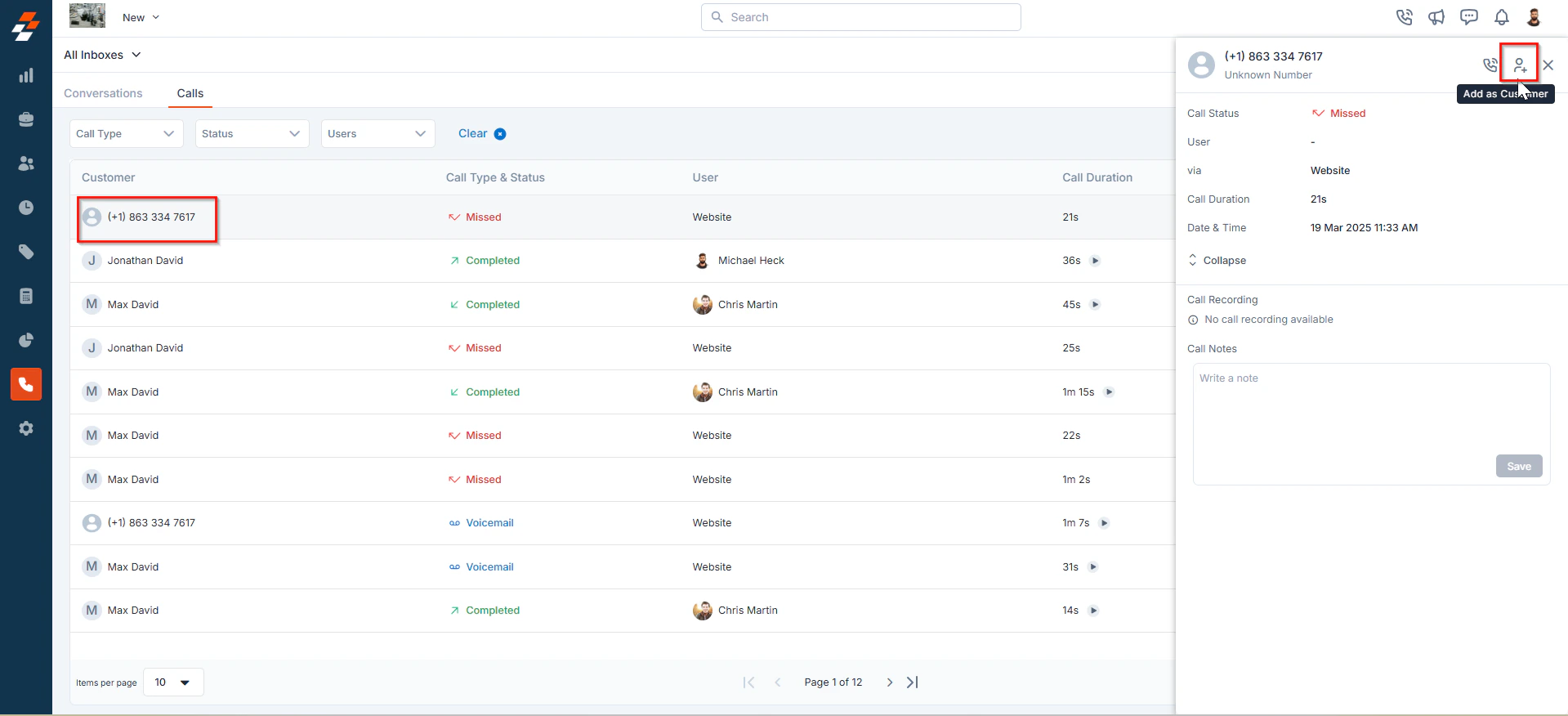 Once saved, you will be able to create a job for them directly. This helps ensure your customer list remains organized.