> ## Documentation Index
> Fetch the complete documentation index at: https://zuperinc-section23.mintlify.site/llms.txt
> Use this file to discover all available pages before exploring further.
# Update Service Tasks
As a field technician in the roofing industry, Zuper empowers you to manage jobs efficiently on the go. From site preparation to final inspections, updating tasks ensures accurate progress tracking, team coordination, and seamless invoicing. This article walks you through the process of accessing, viewing, and updating service tasks directly from your mobile device. All updates are automatically synced to the Web app, keeping your team and clients informed in real-time.
**Navigation:** Jobs --> Job --> Tasks
## Update Service Tasks
1. Open the Zuper app on your mobile device.
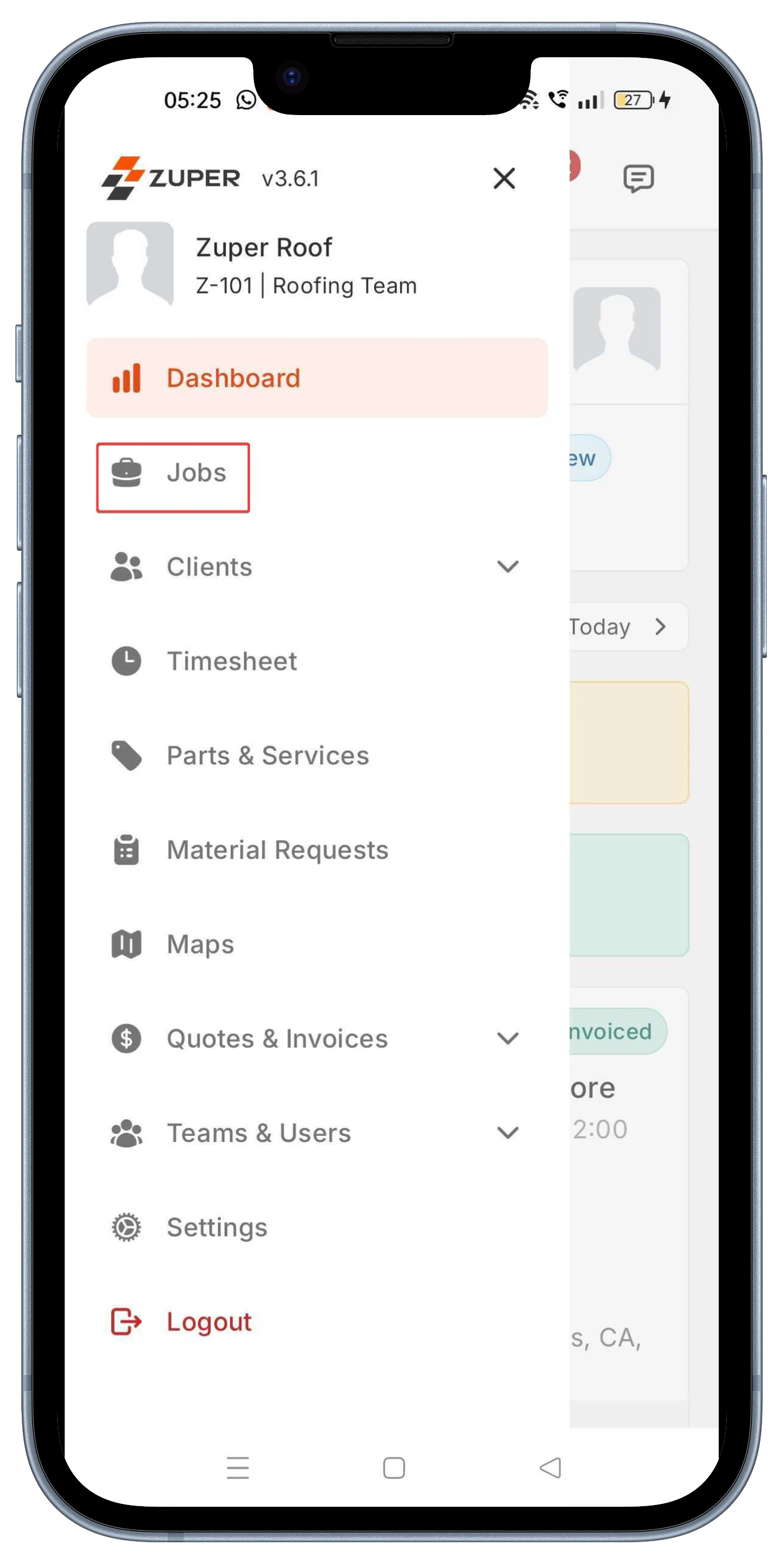 2. From the main dashboard, select **Jobs** in the left-hand menu. This displays your active job queue.
3. In the Job Details screen, tap "**Tasks**" at the top to expand the list.
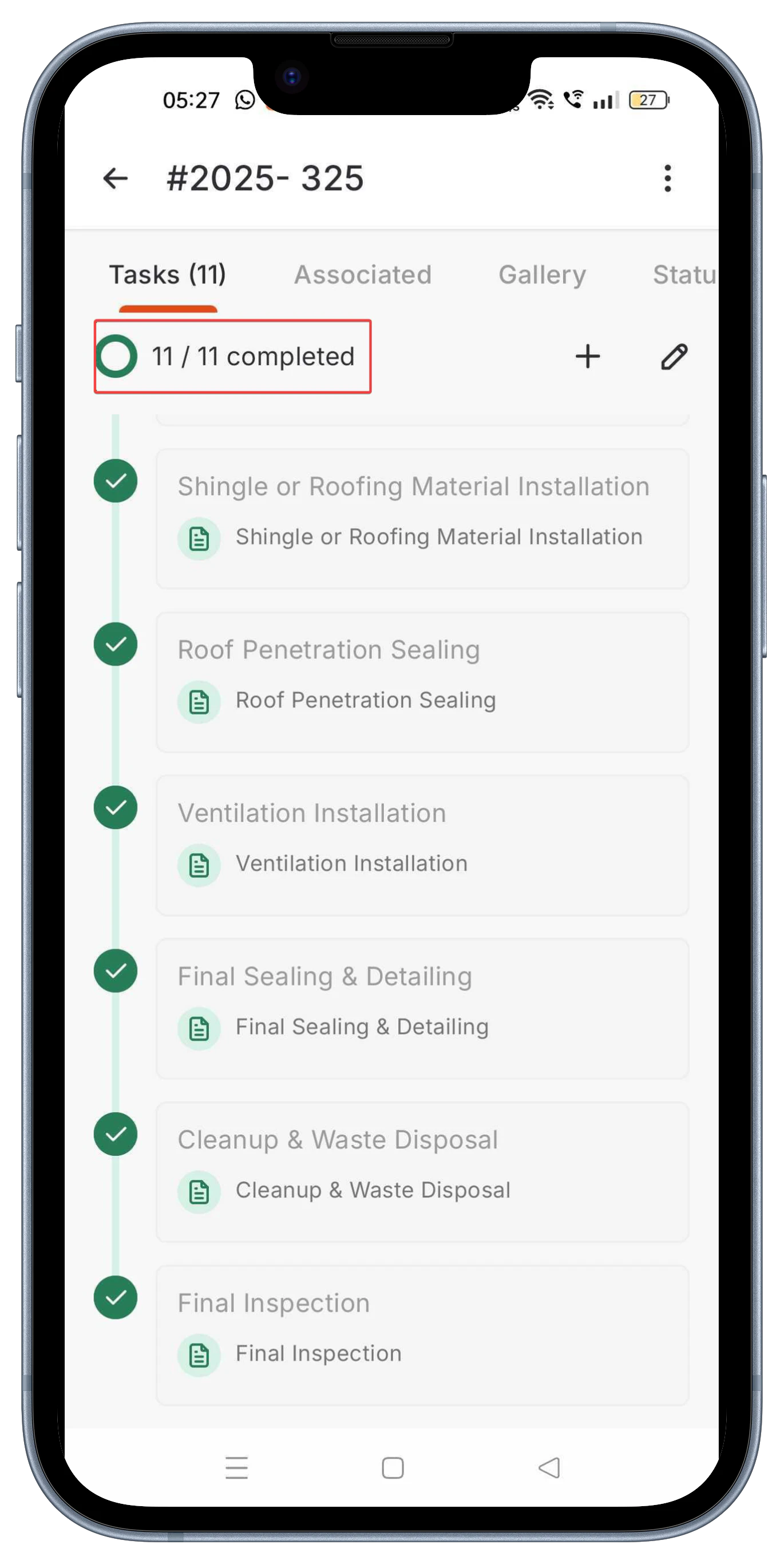
4. You will see:
* Progress indicator: A circular gauge showing completed tasks ("0/11 completed" at start, updating to "11/11 completed").
* Task sequence: Tasks are listed in order, such as:
* Site Preparation
* Tear-Off (Removal of Old Roof)
* Decking Inspection & Repair
* Underlayment Installation
* Shingle or Roofing Material Installation
* Roof Penetration Sealing
* Ventilation Installation
* Final Sealing & Detailing
* Cleanup & Waste Disposal
* Final Inspection
5. Each task may include attached inspection forms.
2. From the main dashboard, select **Jobs** in the left-hand menu. This displays your active job queue.
3. In the Job Details screen, tap "**Tasks**" at the top to expand the list.
4. You will see:
* Progress indicator: A circular gauge showing completed tasks ("0/11 completed" at start, updating to "11/11 completed").
* Task sequence: Tasks are listed in order, such as:
* Site Preparation
* Tear-Off (Removal of Old Roof)
* Decking Inspection & Repair
* Underlayment Installation
* Shingle or Roofing Material Installation
* Roof Penetration Sealing
* Ventilation Installation
* Final Sealing & Detailing
* Cleanup & Waste Disposal
* Final Inspection
5. Each task may include attached inspection forms.
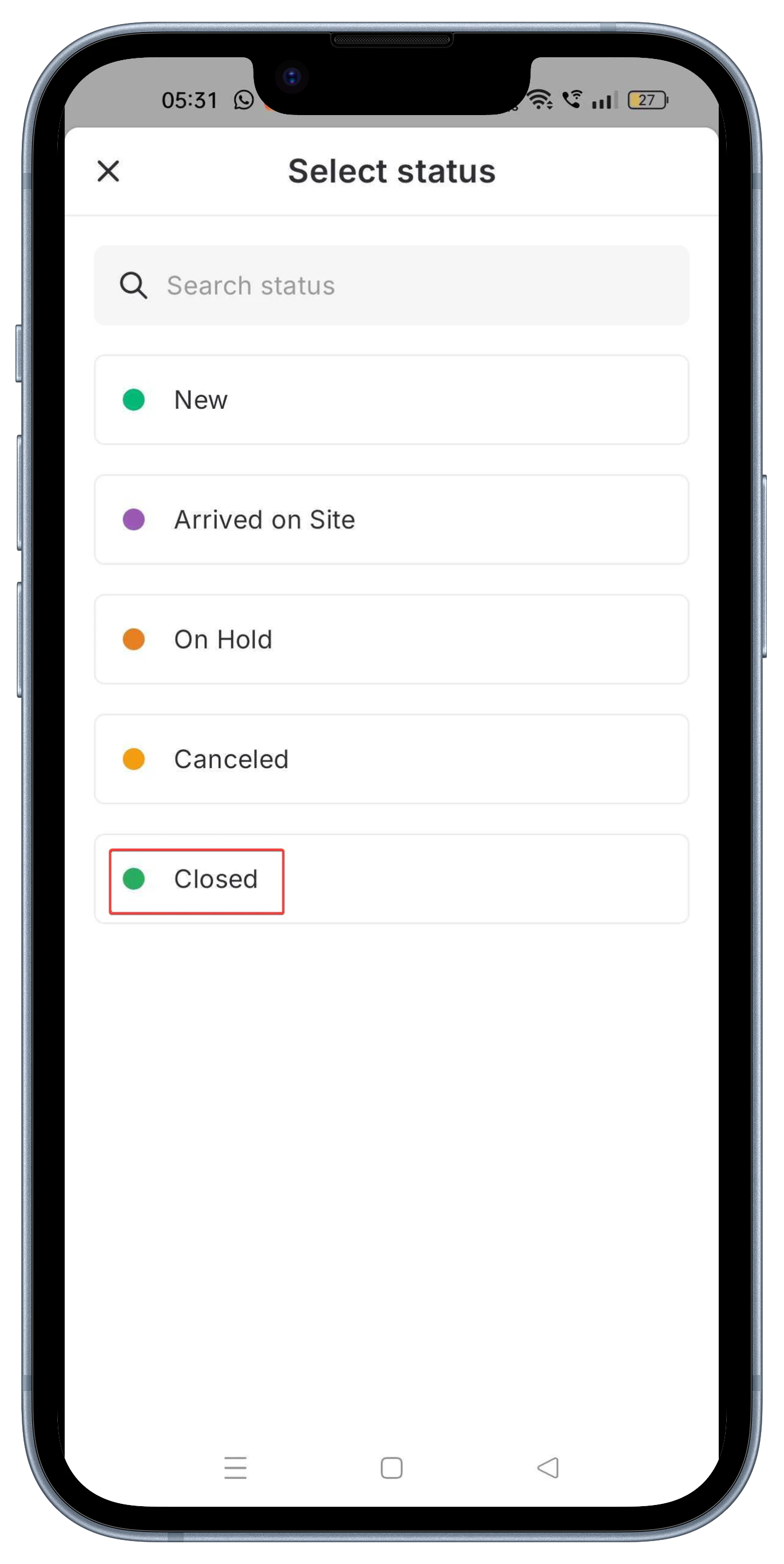
 Job status provides a high-level overview of progress. Update it as you arrive, pause, or complete the work.
6. Once all tasks are complete (e.g., "11/11 completed"), update the job status to **Closed**.
Job status provides a high-level overview of progress. Update it as you arrive, pause, or complete the work.
6. Once all tasks are complete (e.g., "11/11 completed"), update the job status to **Closed**.
 By consistently updating tasks in Zuper, you will streamline your process, reduce errors, and deliver top-notch roofing services. For more resources, visit Zuper's in-app help or the web portal. Happy roofing!