> ## Documentation Index
> Fetch the complete documentation index at: https://zuperinc-section23.mintlify.site/llms.txt
> Use this file to discover all available pages before exploring further.
# Create Your Installation Job
## **Overview**
This help article explains the process of creating a new roofing job in Zuper's job management system, based on an existing inspection and proposal.
Installation jobs allow you to:
* Organize work orders
* Assign teams and technicians
* Schedule tasks efficiently
* Track customers, properties, attachments, and service details
By leveraging inspection findings and proposals, Zuper ensures your installation workflow is **accurate, organized, and seamless**.
Follow these steps to set up a new roofing job efficiently.
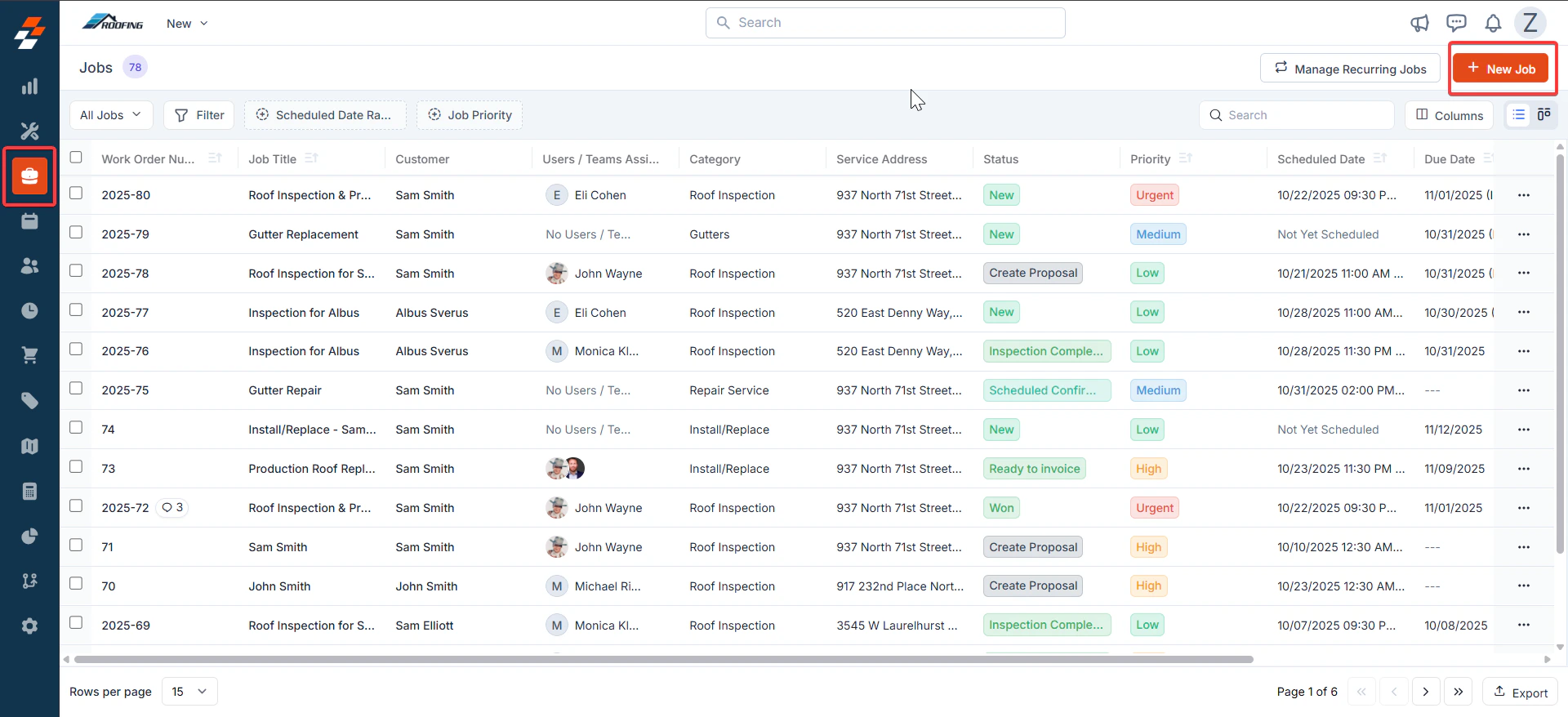
**Navigation**: Jobs --> + New Job
* Click the "**Jobs**" module from the left navigation menu.
* Click **+ New Job** in the top-right corner of the jobs listing page.
 ## **A. Job Details (Left Panel)**
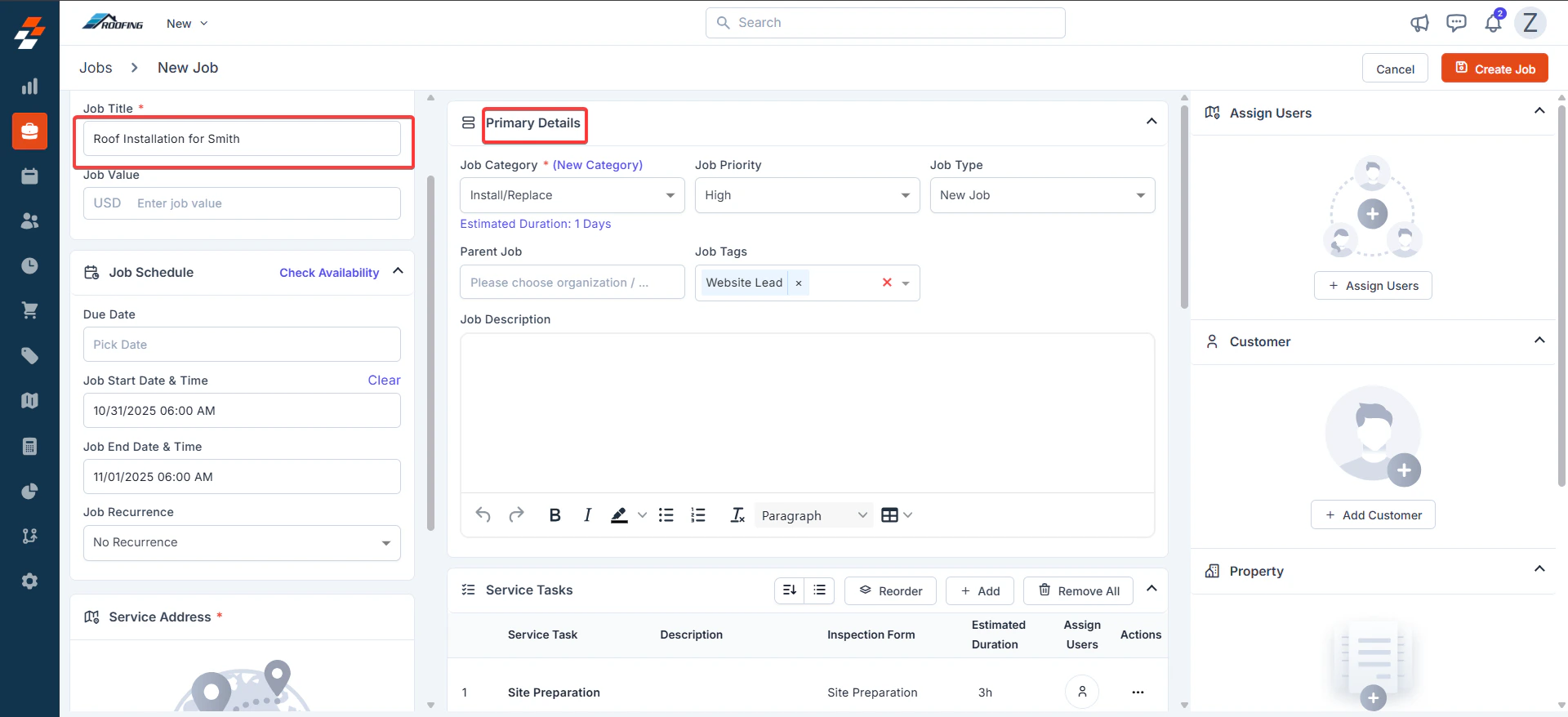
* **Prefix**: Enter the roofing installation job prefix.
* **Job Title**\* (Mandatory): Enter a roofing installation-specific descriptive title.
* **Job Value**: Enter the estimated value in USD.
## **B. Primary Details (Center Panel - Top Section)**
* **Job Category**\* (Mandatory): Select the roofing job category from the dropdown.
* **Estimated Job Duration**: Auto-fills based on category edit as needed.
* **Job Priority**: Select the priority level of the Job.
* **Job Type**: Choose the job type.
* **Job Description**: Enter job details.
## **A. Job Details (Left Panel)**
* **Prefix**: Enter the roofing installation job prefix.
* **Job Title**\* (Mandatory): Enter a roofing installation-specific descriptive title.
* **Job Value**: Enter the estimated value in USD.
## **B. Primary Details (Center Panel - Top Section)**
* **Job Category**\* (Mandatory): Select the roofing job category from the dropdown.
* **Estimated Job Duration**: Auto-fills based on category edit as needed.
* **Job Priority**: Select the priority level of the Job.
* **Job Type**: Choose the job type.
* **Job Description**: Enter job details.
 ## **C. Job Schedule (Left Panel - Bottom Section)**
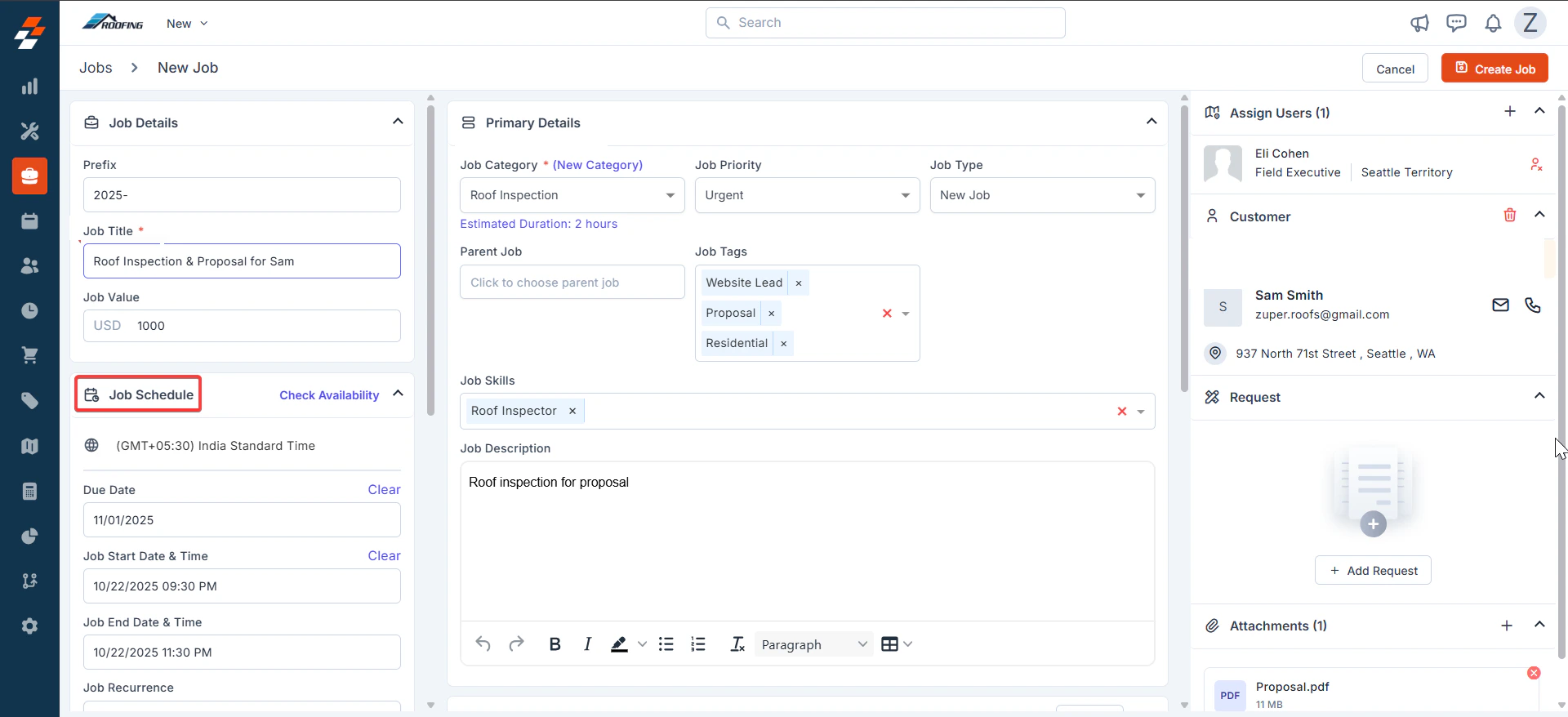
Schedule based on customer preferences. Either a **Due Date** or **Start/end dates are** mandatory.
* **Time Zone**: Defaults to your account setting, adjust if needed.
* **Due Date**: Set the inspection due date.
* **Job Start Date & Time**: Enter installation start date & time.
* **Job End Date & Time**: Enter installation end date & time
## **C. Job Schedule (Left Panel - Bottom Section)**
Schedule based on customer preferences. Either a **Due Date** or **Start/end dates are** mandatory.
* **Time Zone**: Defaults to your account setting, adjust if needed.
* **Due Date**: Set the inspection due date.
* **Job Start Date & Time**: Enter installation start date & time.
* **Job End Date & Time**: Enter installation end date & time
 ## **D. Service Tasks:**
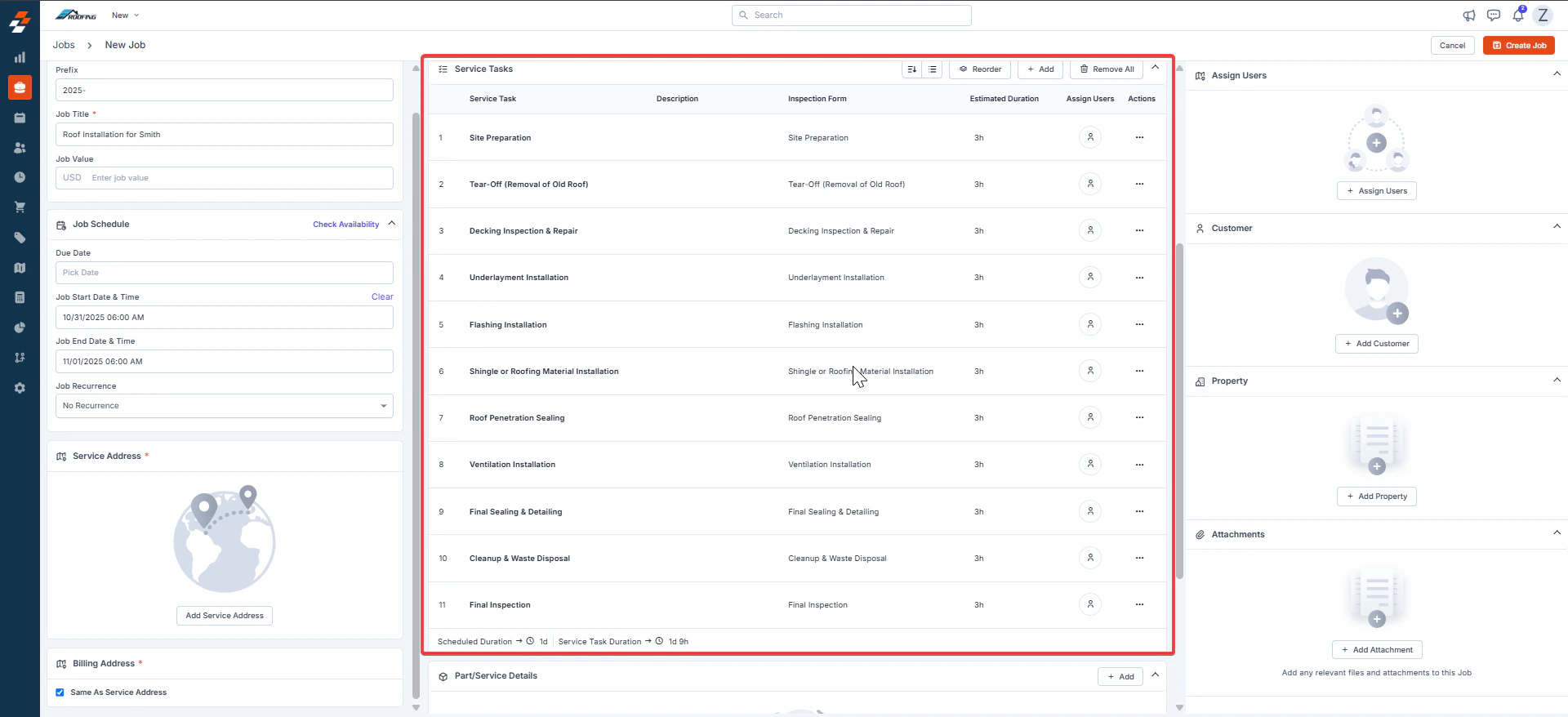
Based on the selected job category, the service tasks are automatically retrieved.
## **D. Service Tasks:**
Based on the selected job category, the service tasks are automatically retrieved.
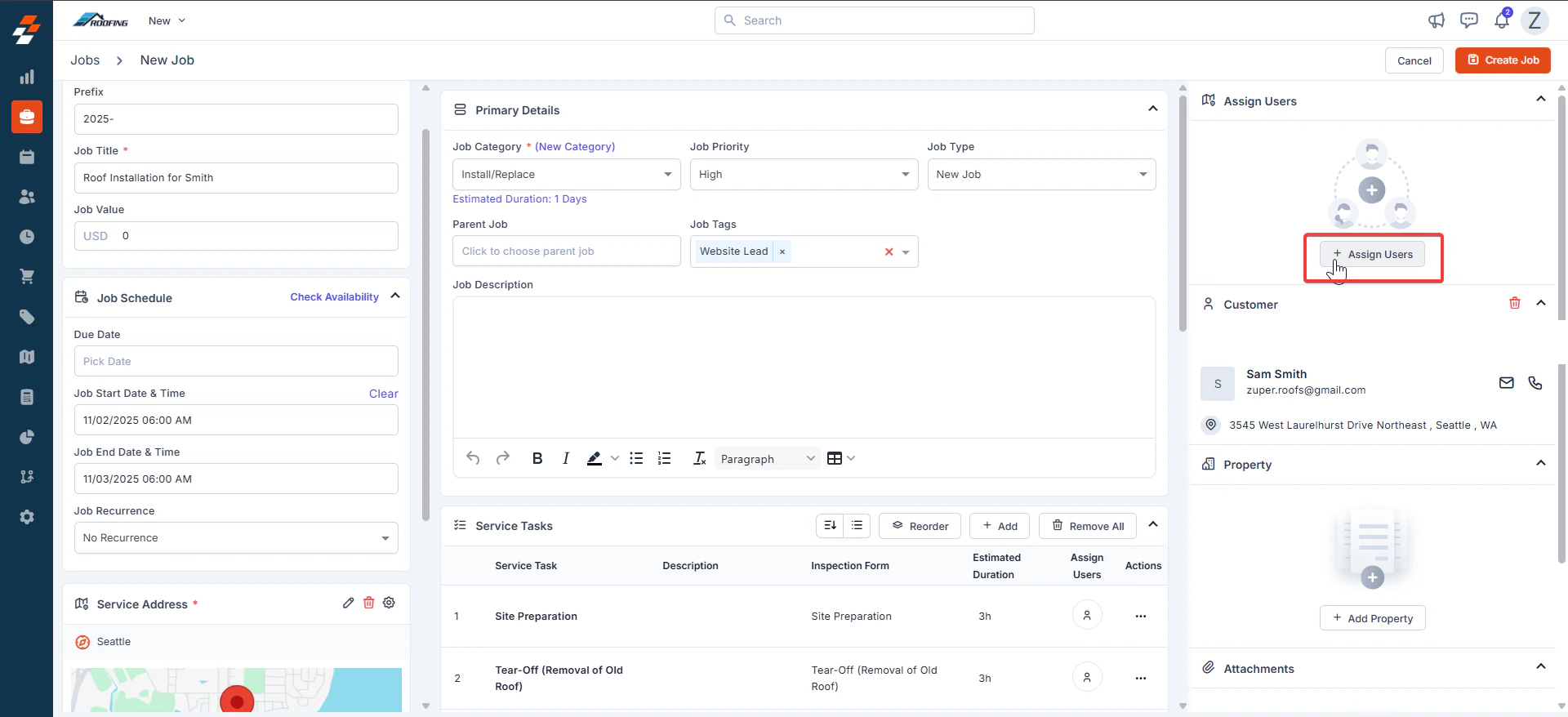
 ## E. Assign Users, Associations:
* **Assign Users/Teams**: Click **+** to add technicians.
* **+ Add Organization/Contact**: Click to search/add a customer.
* **Attachments**: Click **+** to upload files. Supports PDFs, images, and other file types for proposals, photos, or contracts.
## E. Assign Users, Associations:
* **Assign Users/Teams**: Click **+** to add technicians.
* **+ Add Organization/Contact**: Click to search/add a customer.
* **Attachments**: Click **+** to upload files. Supports PDFs, images, and other file types for proposals, photos, or contracts.
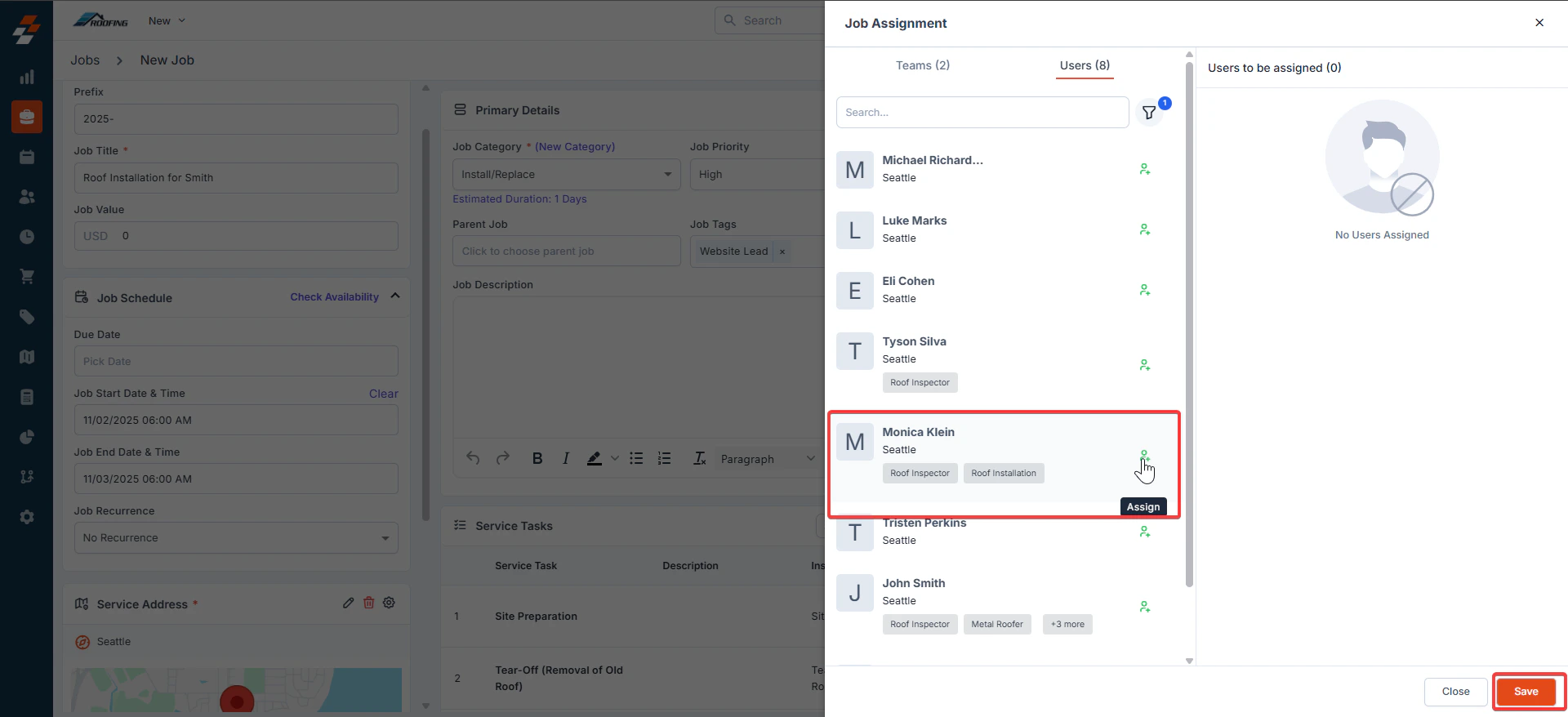 The user is assigned. Click "**Save**" to confirm.
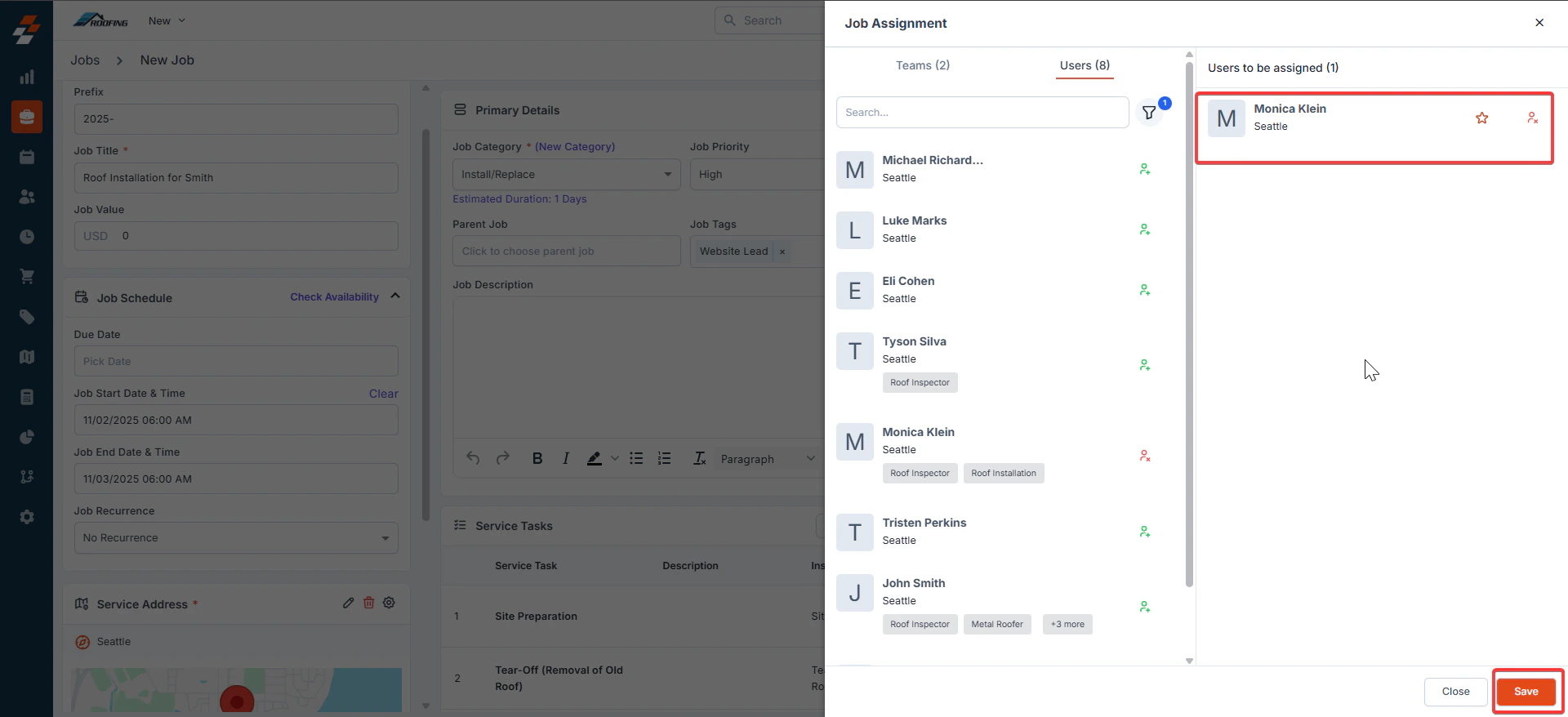 ## **F. Create the Job**
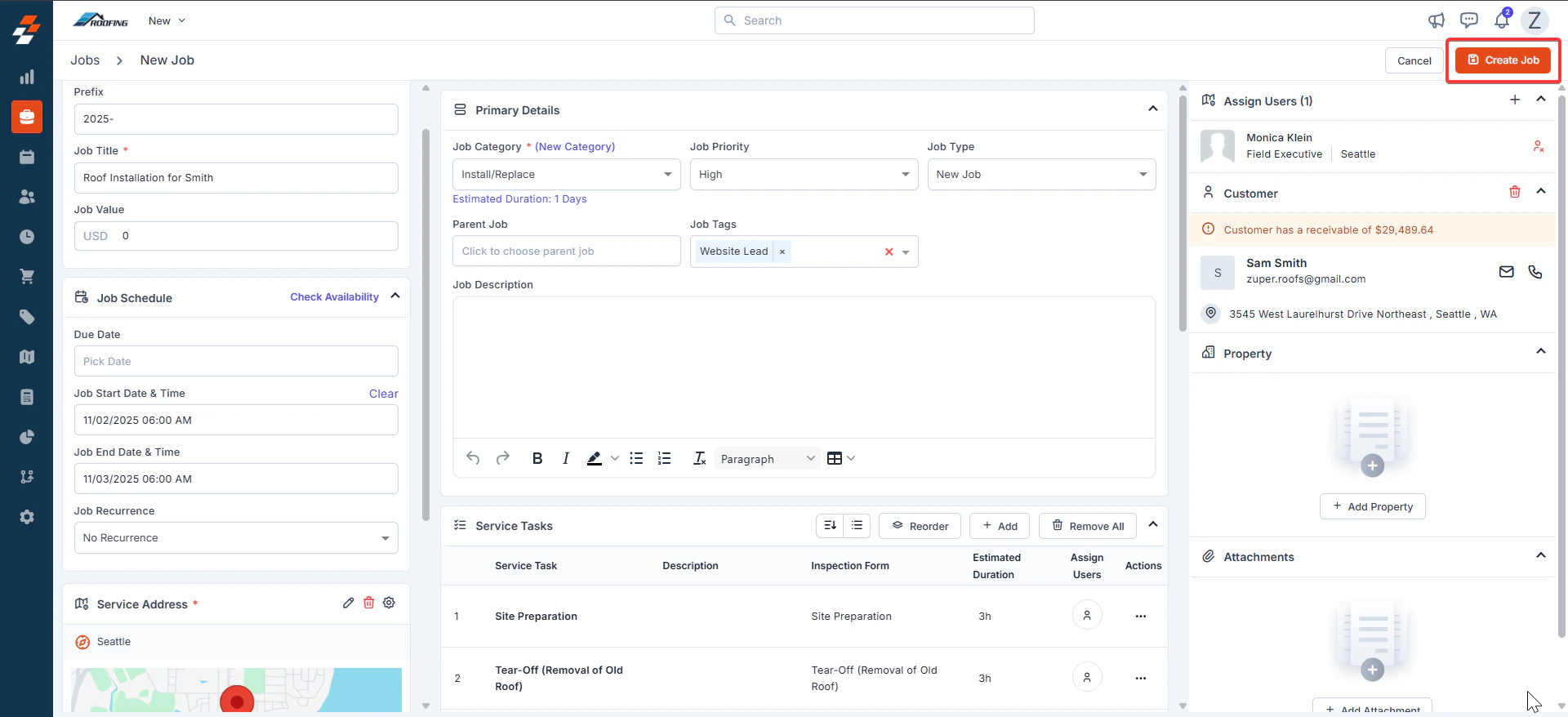
* Review all panels for completeness. Click **Create Job** (top-right).
* Confirm in the dialog box.
* Click **Create** to save.
## **F. Create the Job**
* Review all panels for completeness. Click **Create Job** (top-right).
* Confirm in the dialog box.
* Click **Create** to save.
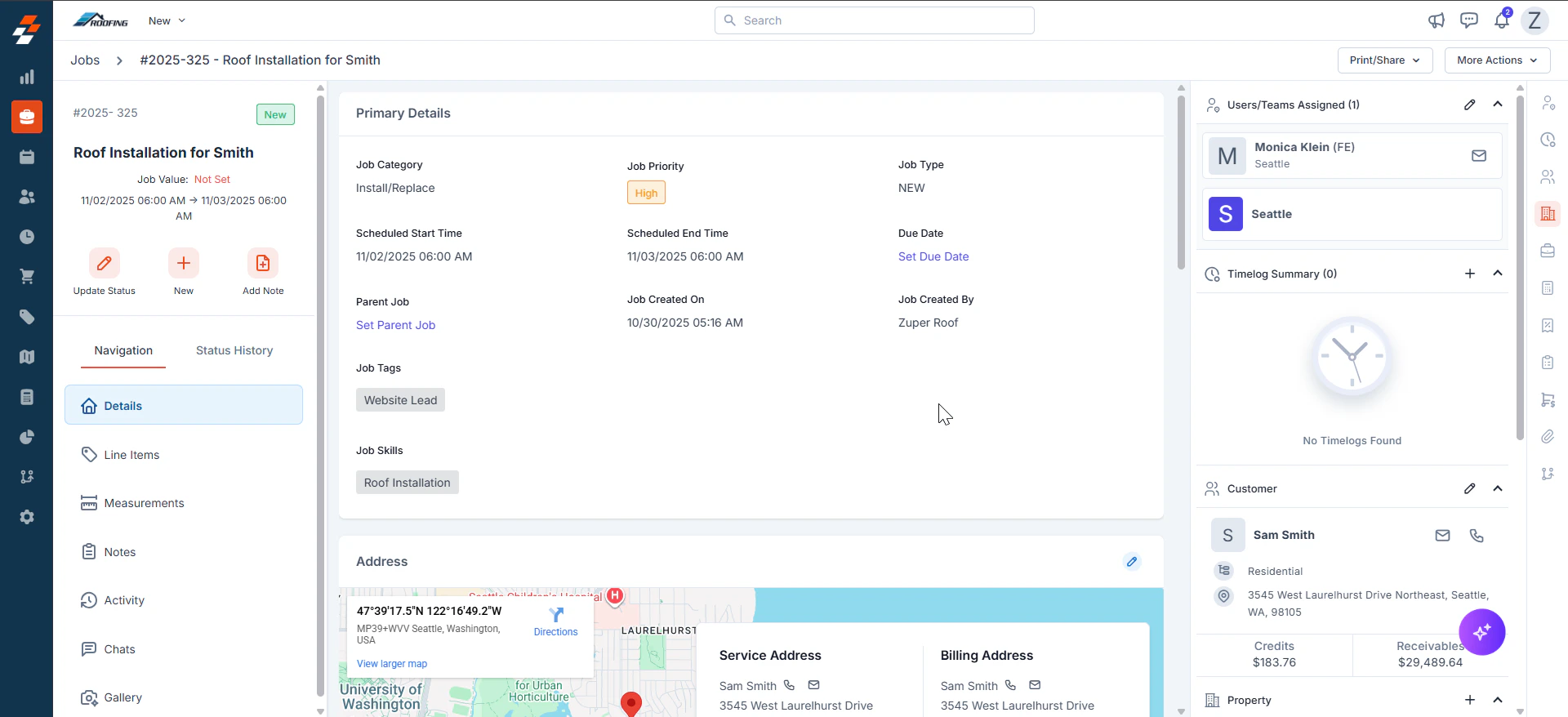 With organized work orders, real-time scheduling, and integrated details, the user can deliver projects faster, boost customer satisfaction, and keep your business thriving through every roof replacement or repair.