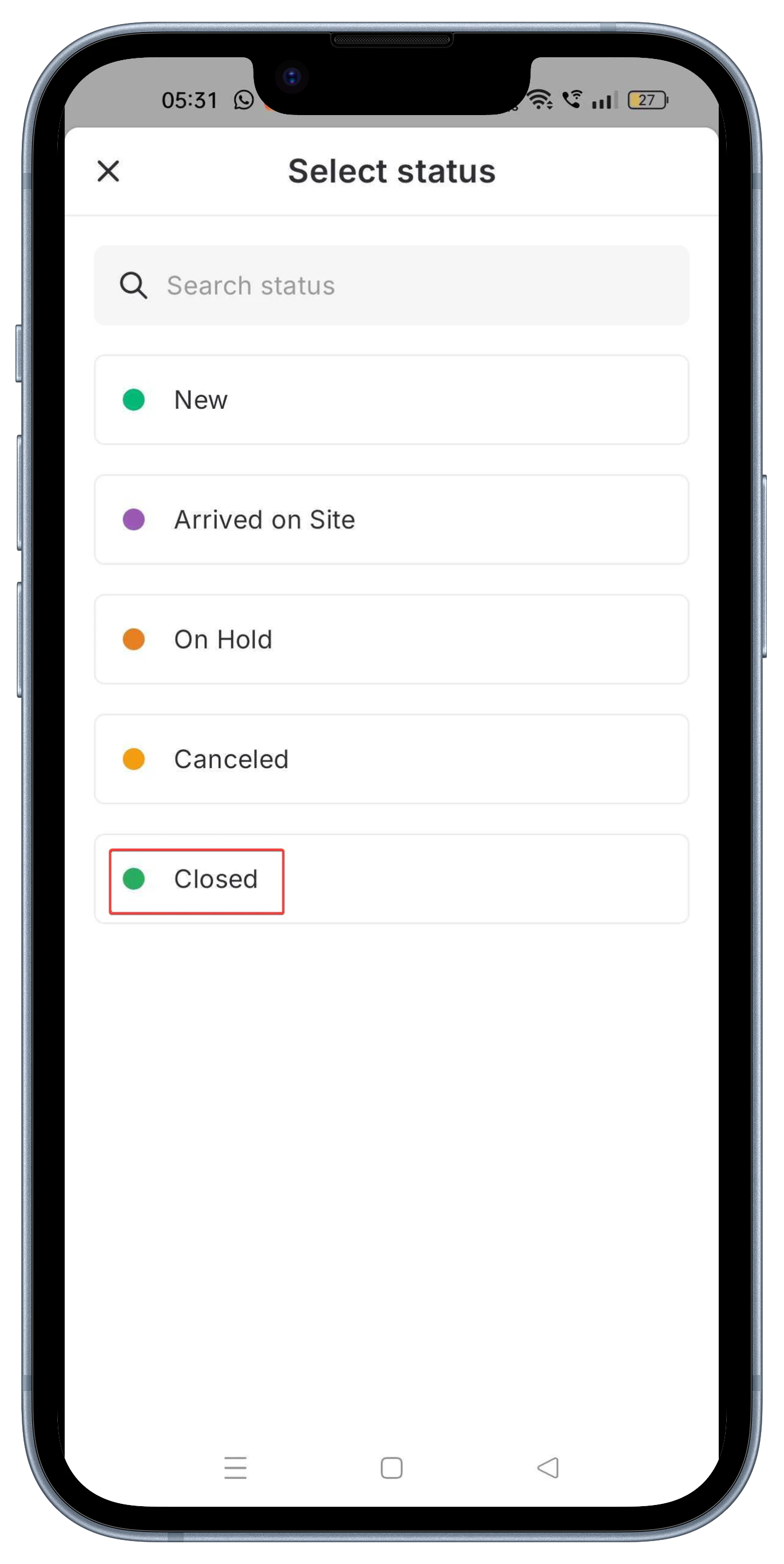
Navigation: Jobs —> Job —> Tasks
Update Service Tasks
- Open the Zuper app on your mobile device.
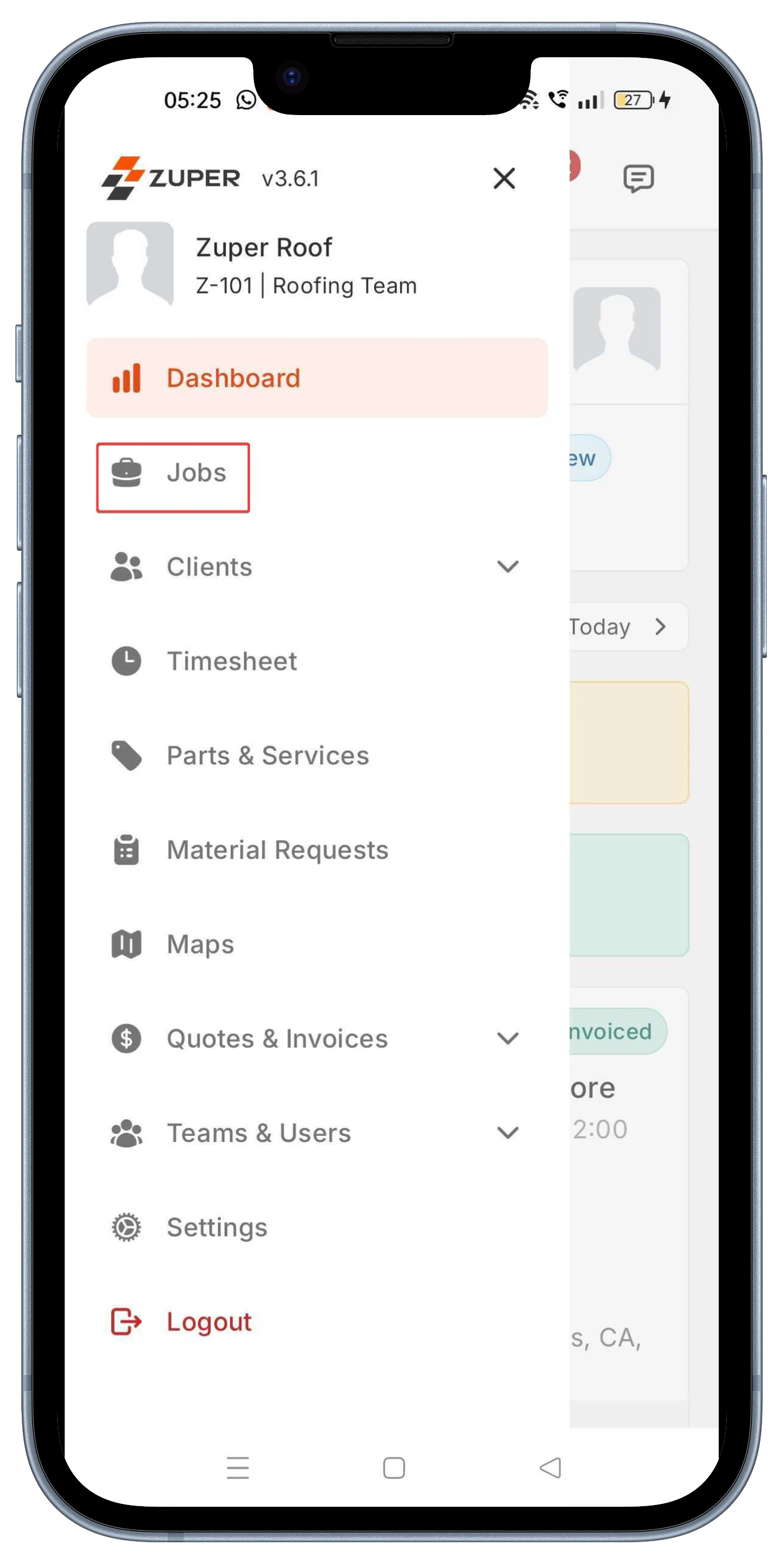
- From the main dashboard, select Jobs in the left-hand menu. This displays your active job queue.
- In the Job Details screen, tap “Tasks” at the top to expand the list.
- You will see:
- Progress indicator: A circular gauge showing completed tasks (“0/11 completed” at start, updating to “11/11 completed”).
- Task sequence: Tasks are listed in order, such as:
- Site Preparation
- Tear-Off (Removal of Old Roof)
- Decking Inspection & Repair
- Underlayment Installation
- Shingle or Roofing Material Installation
- Roof Penetration Sealing
- Ventilation Installation
- Final Sealing & Detailing
- Cleanup & Waste Disposal
- Final Inspection
- Each task may include attached inspection forms.
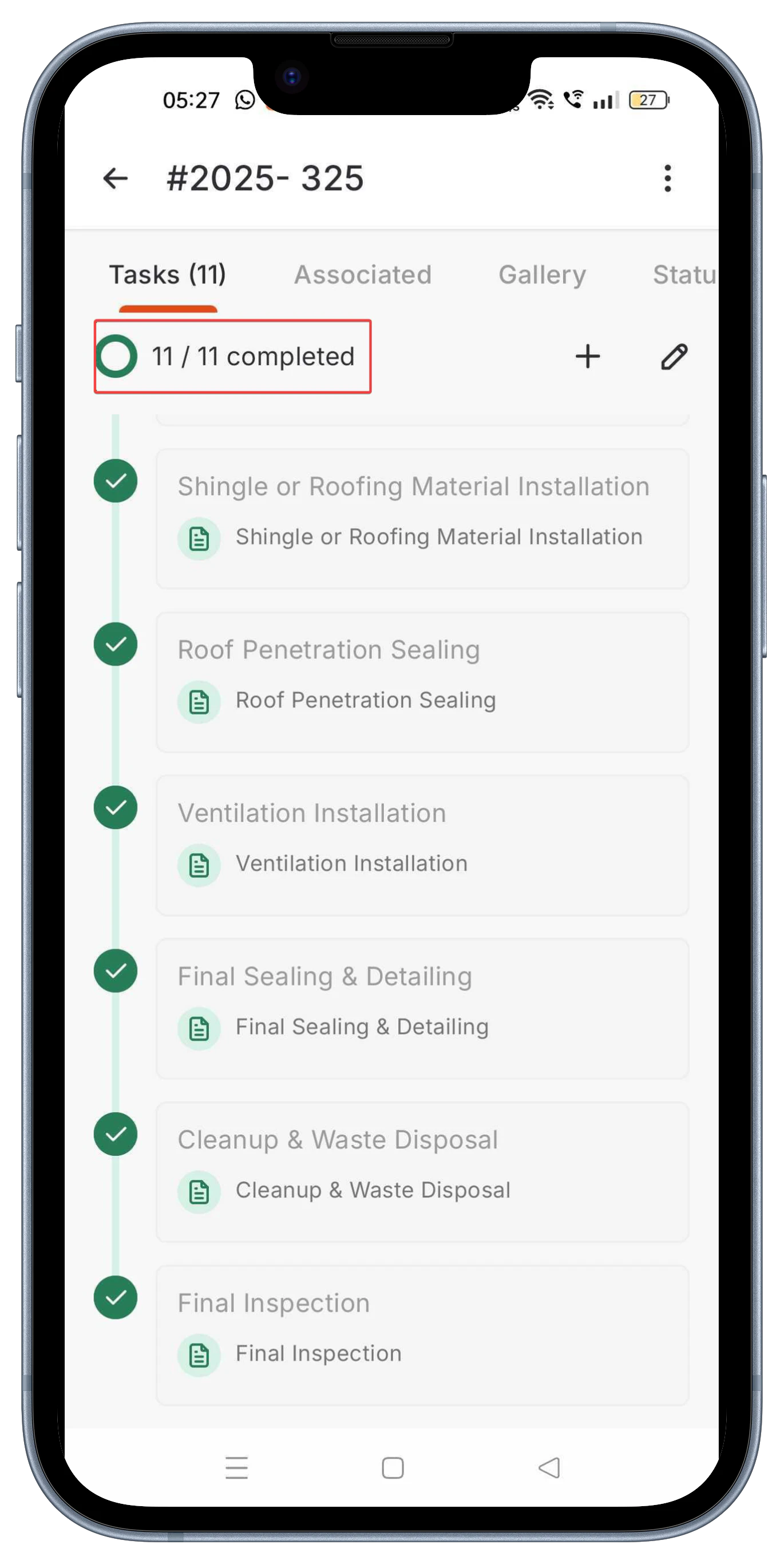
- Once all tasks are complete (e.g., “11/11 completed”), update the job status to Closed.