

Navigation: Jobs —> + New Job
- Click the “Jobs” module from the left navigation menu.
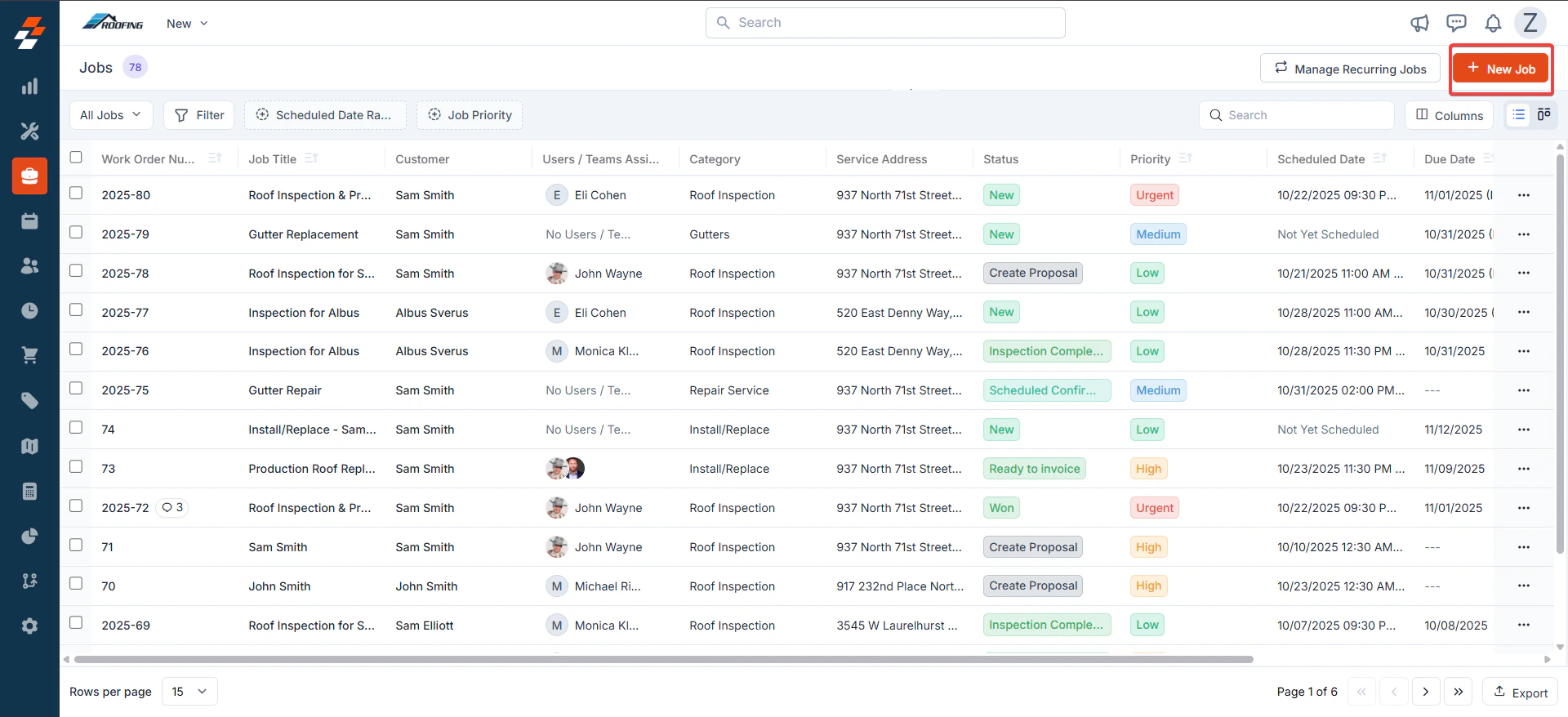
- Click + New Job in the top-right corner of the jobs listing page.
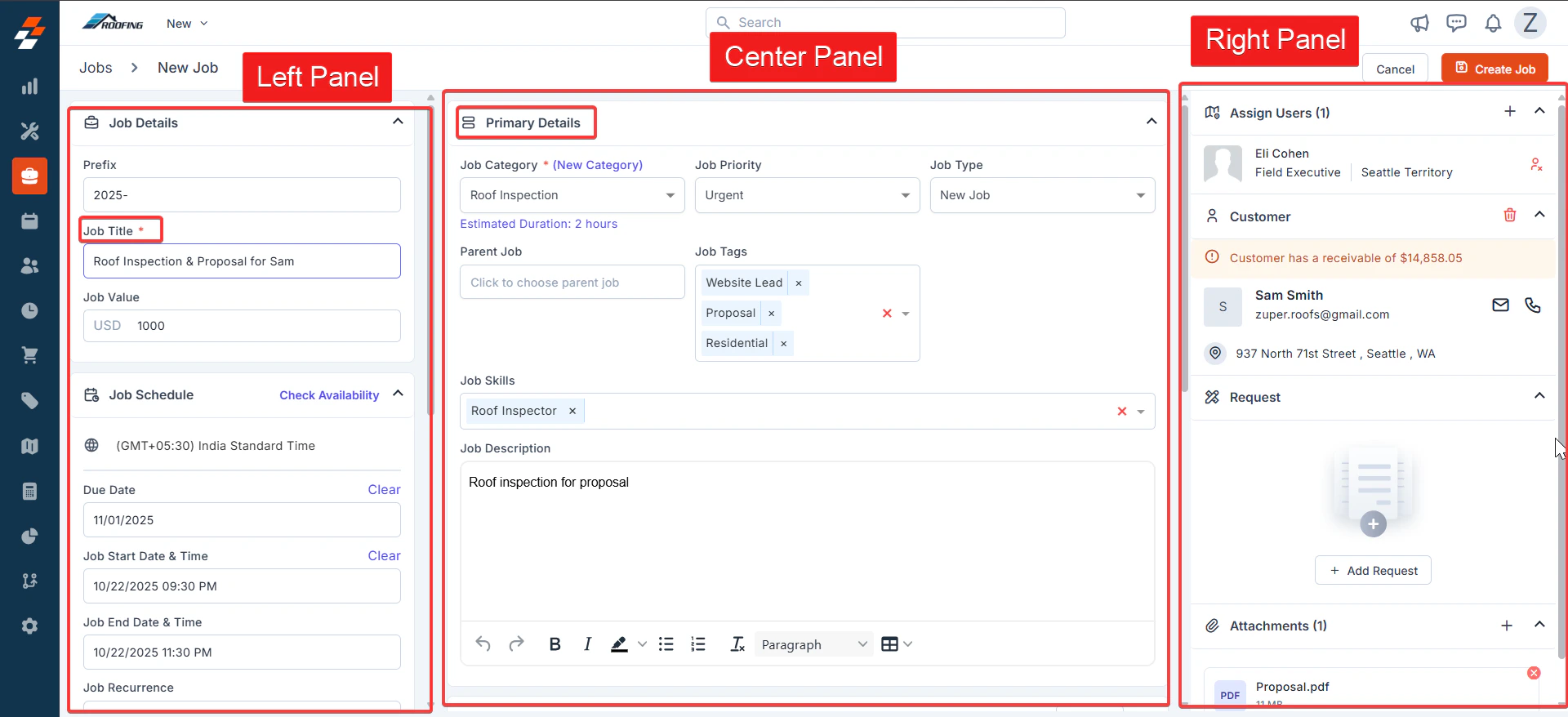
- Left Panel: Core job details, title, value, and scheduling.
- Center Panel: Category, priority, description, tasks, parts/services, and other details.
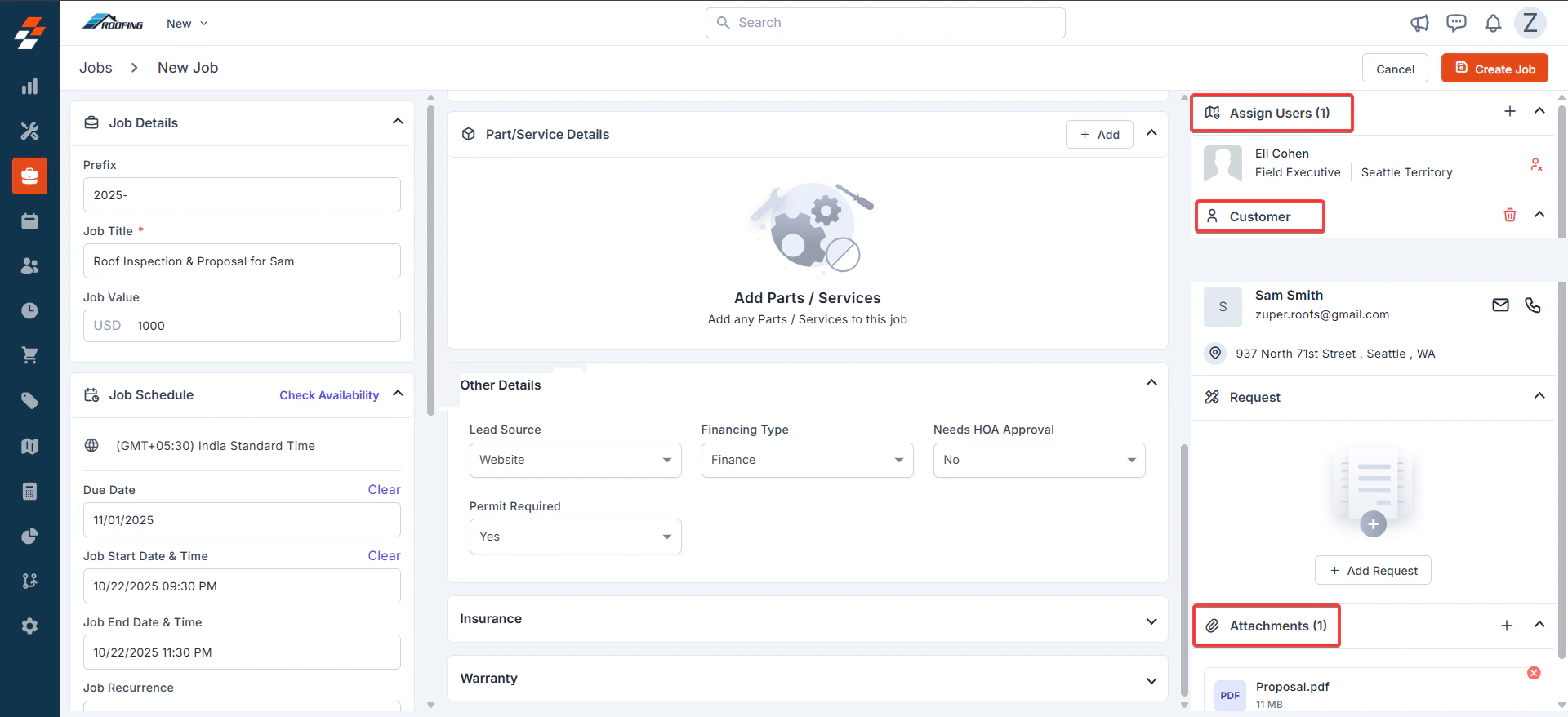
- Right Panel: Assignments, customer/organization association, requests, and attachments.
A. Job Details (Left Panel - Top Section)
- Prefix: Enter the roofing inspection job prefix.
- Job Title* (Mandatory): Enter a roofing inspection-specific descriptive title.
- Job Value: Enter the estimated value in USD.
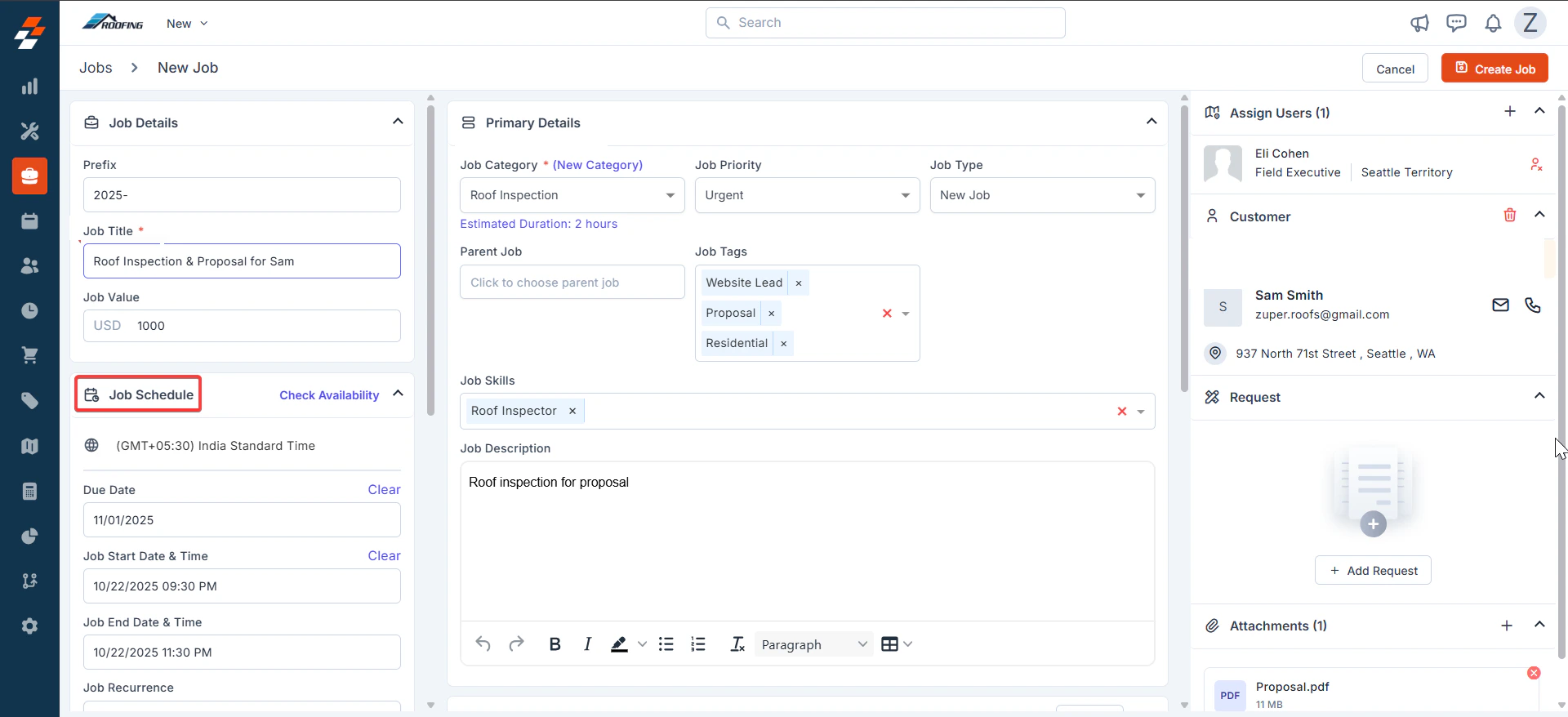
B. Job Schedule (Left Panel - Bottom Section)
Schedule based on customer preferences. Either a Due Date or Start/end dates are mandatory.- Time Zone: Defaults to your account setting, adjust if needed.
- Due Date: Mandatory if no start and end dates are set. Set the inspection due date.
- Job Start Date & Time: Enter inspection start date & time.
- Job End Date & Time: Enter the inspection end date & time.
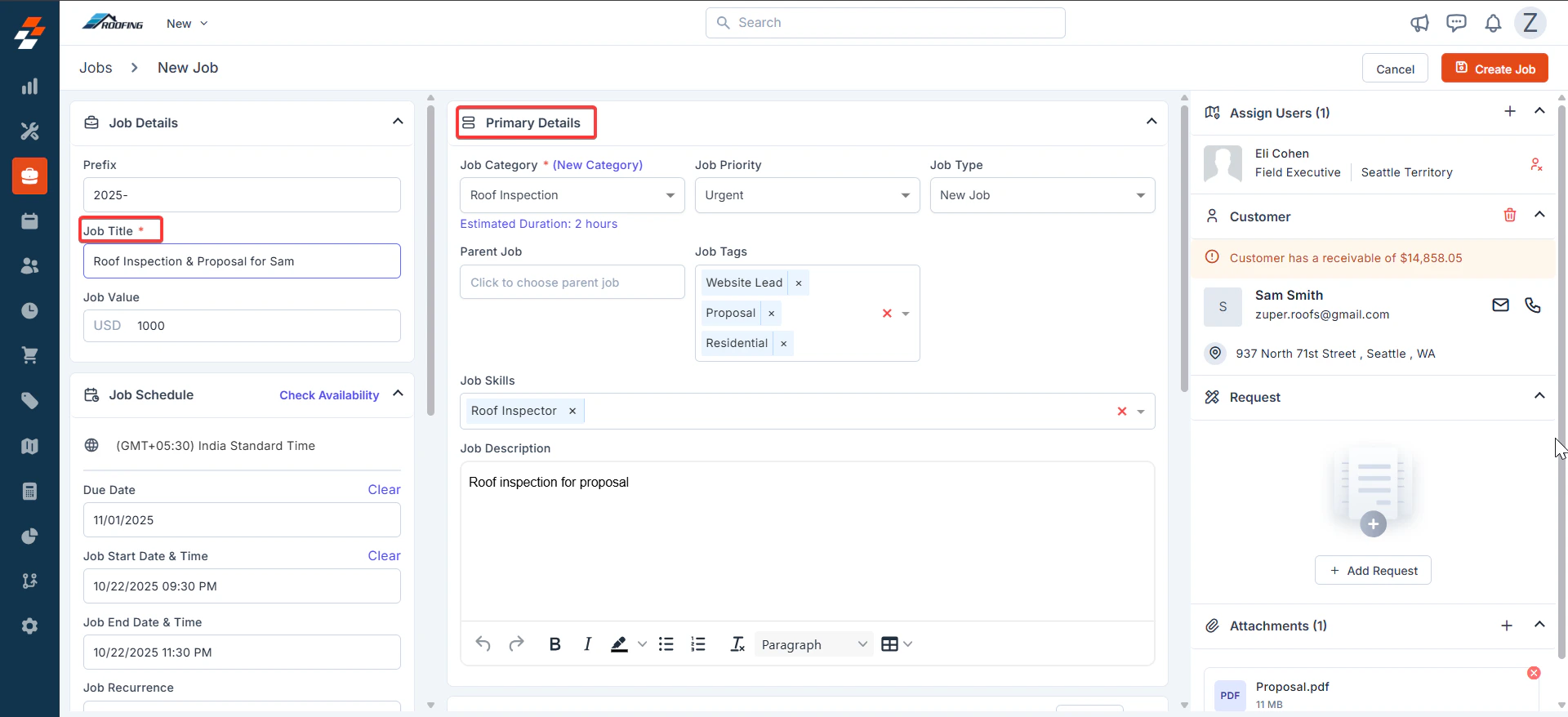
C. Primary Details (Center Panel - Top Section)
- Job Category* (Mandatory): Select the roofing job category from the dropdown.
- Estimated Job Duration: Auto-fills based on category edit as needed.
- Job Priority: Select the priority level of the job.
- Job Type: Choose the job type.
- Job Description: Enter job details.
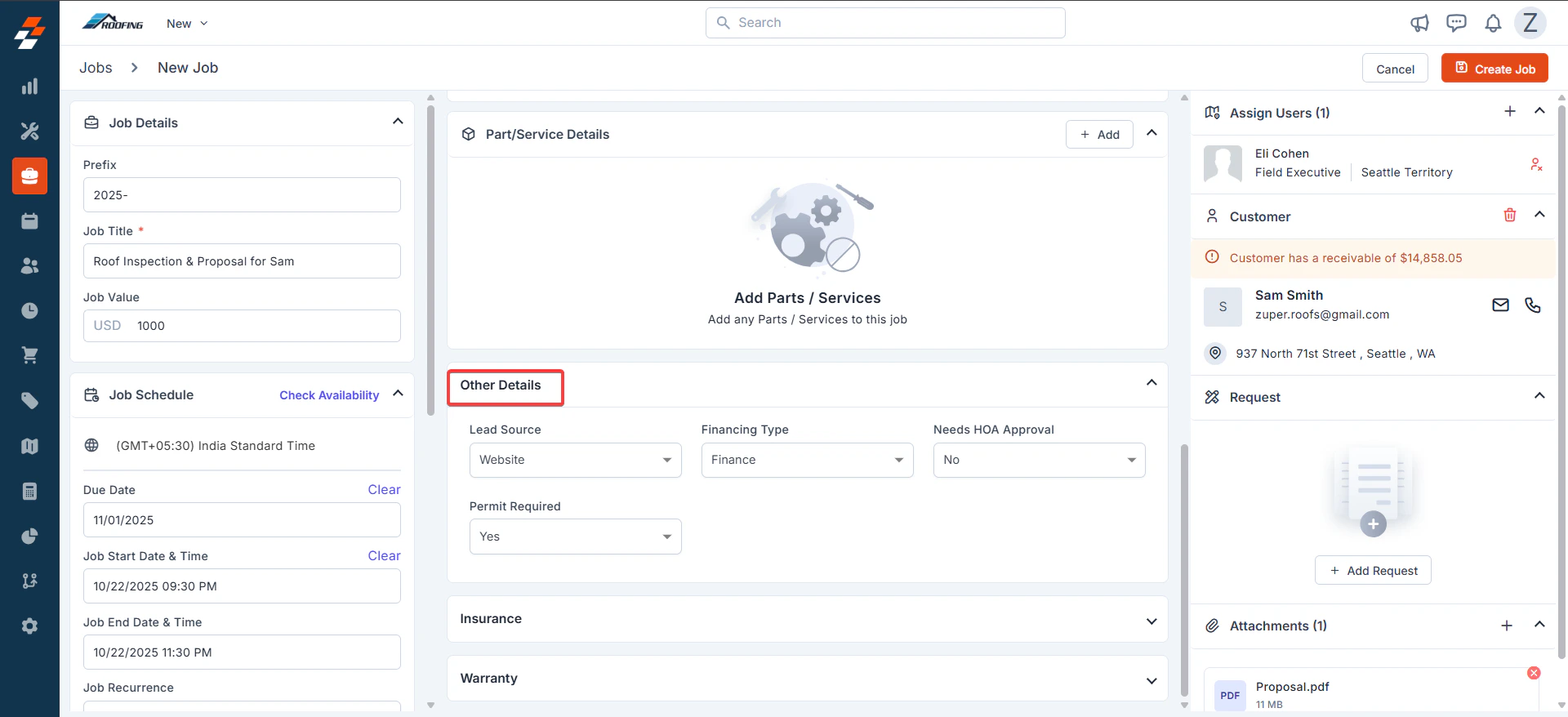
D. Other Details (Center Panel - Middle Section)
- Other Details:
- Lead Source: Select the lead source.
- Financing Type: Choose the applicable finance type.
- Needs HOA Approval: Choose Yes/No for Homeowner Association approval.
- Permit Required: Select ‘Yes’ or ‘No’ for permit approval.
- Insurance: Add policy details.
- Warranty: Select ‘Yes’ or ‘No’ to indicate the warranty requirement.
E. Assign Users and Associates (Right Panel)
- Assign Users/Teams: Click + to add technicians
- + Add Organization/Contact: Click to search/add customer
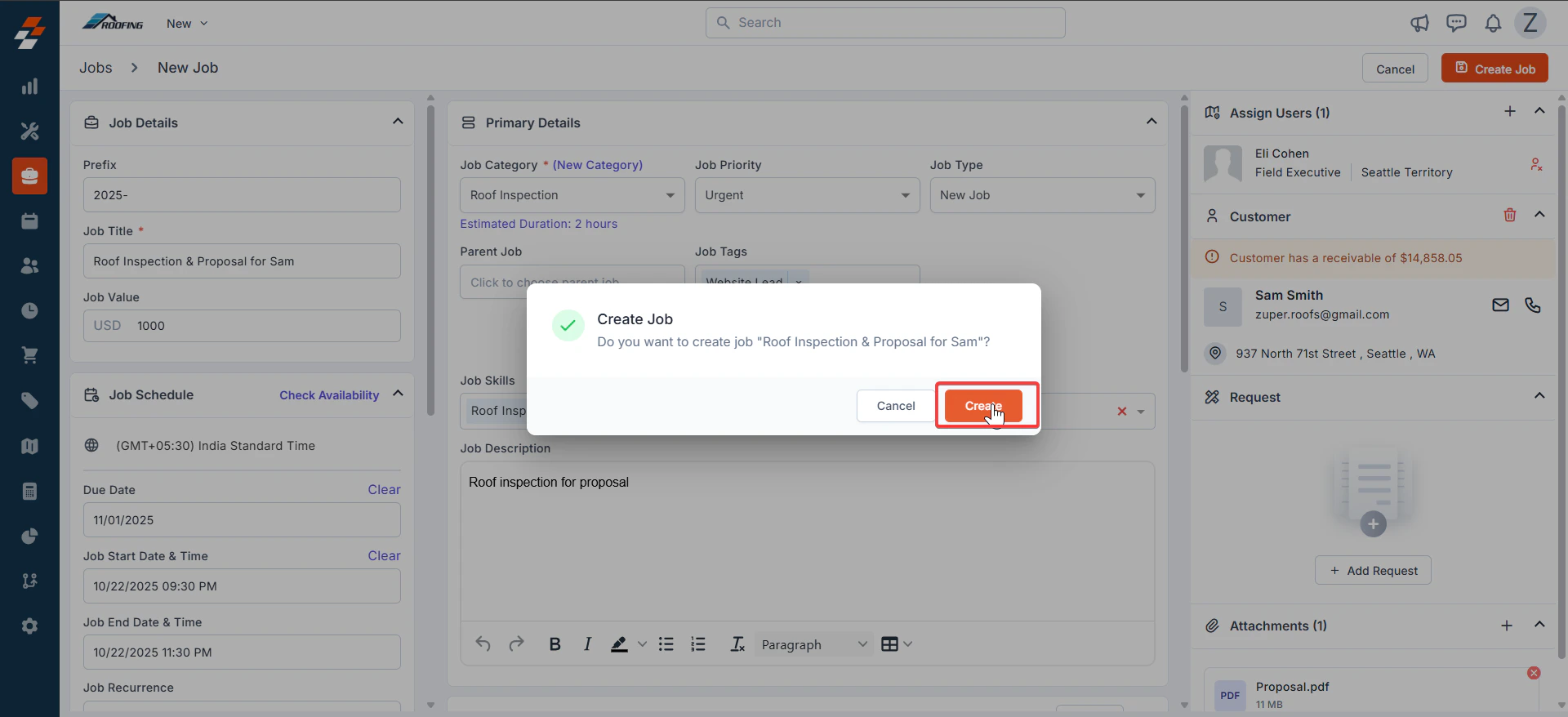
F. Create the Job
- Review all panels for completeness. Click Create Job (top-right).
- Confirm in the dialog box.
- Click Create to save.
- Customization: Admins can add custom fields (e.g., “Roof Type”) via settings for roofing-specific needs.
- Mobile Sync: Changes sync instantly to the Zuper mobile app for technicians.
- Permissions: Ensure users have “Create Job” rights.
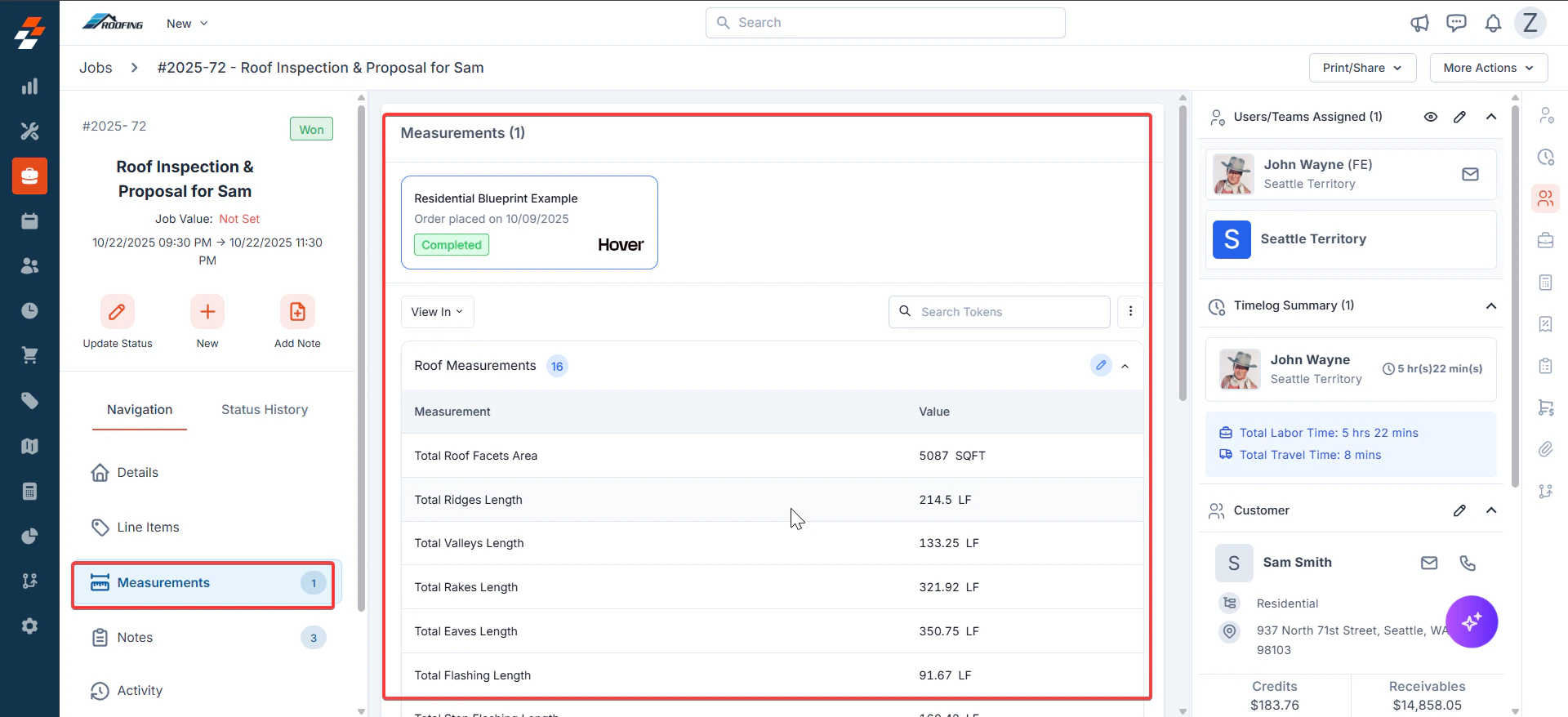
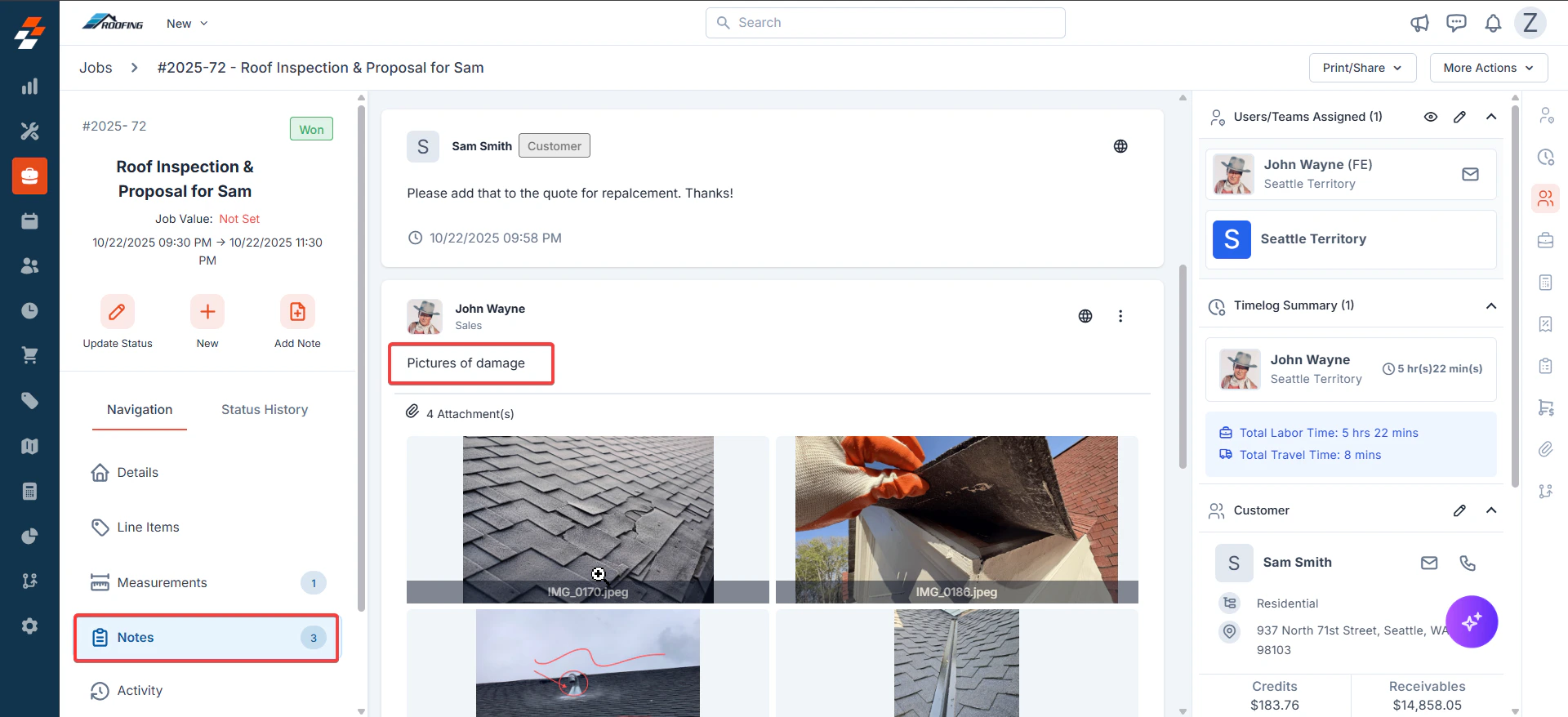
- Attachments: Use PDFs, images, or other files for proposals, permits, and reports.
- Common Errors: Missing mandatory fields, block creation; always set at least one of either the due date or the start and end date.