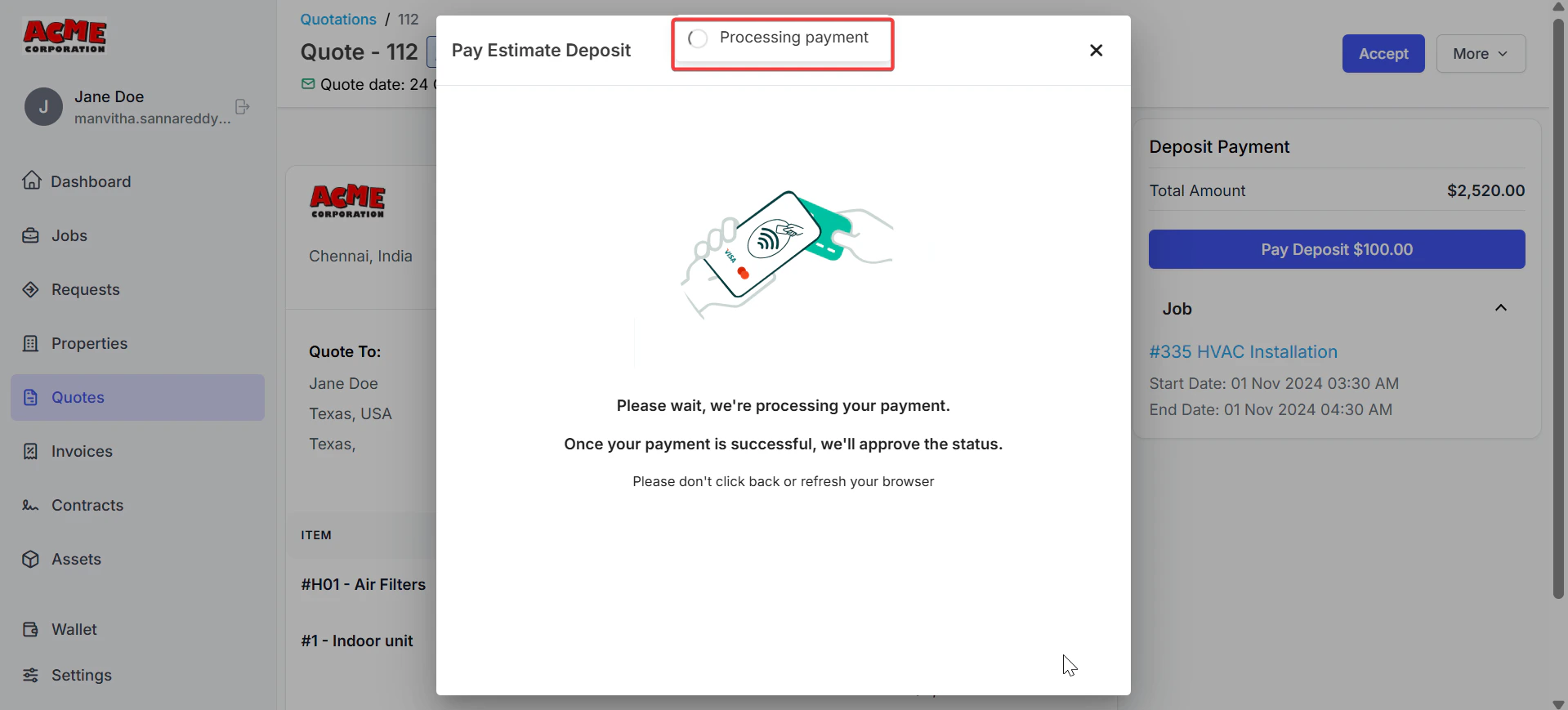
Navigation: Settings -> Customer/Contact Settings -> Allow Payment Card on File.
For Business:
Pre-requisites
- Select the “Settings” module from the left panel. Under the “Modules,” choose the “Customer/Contact.” Select the “Customer/Contact General Settings.”
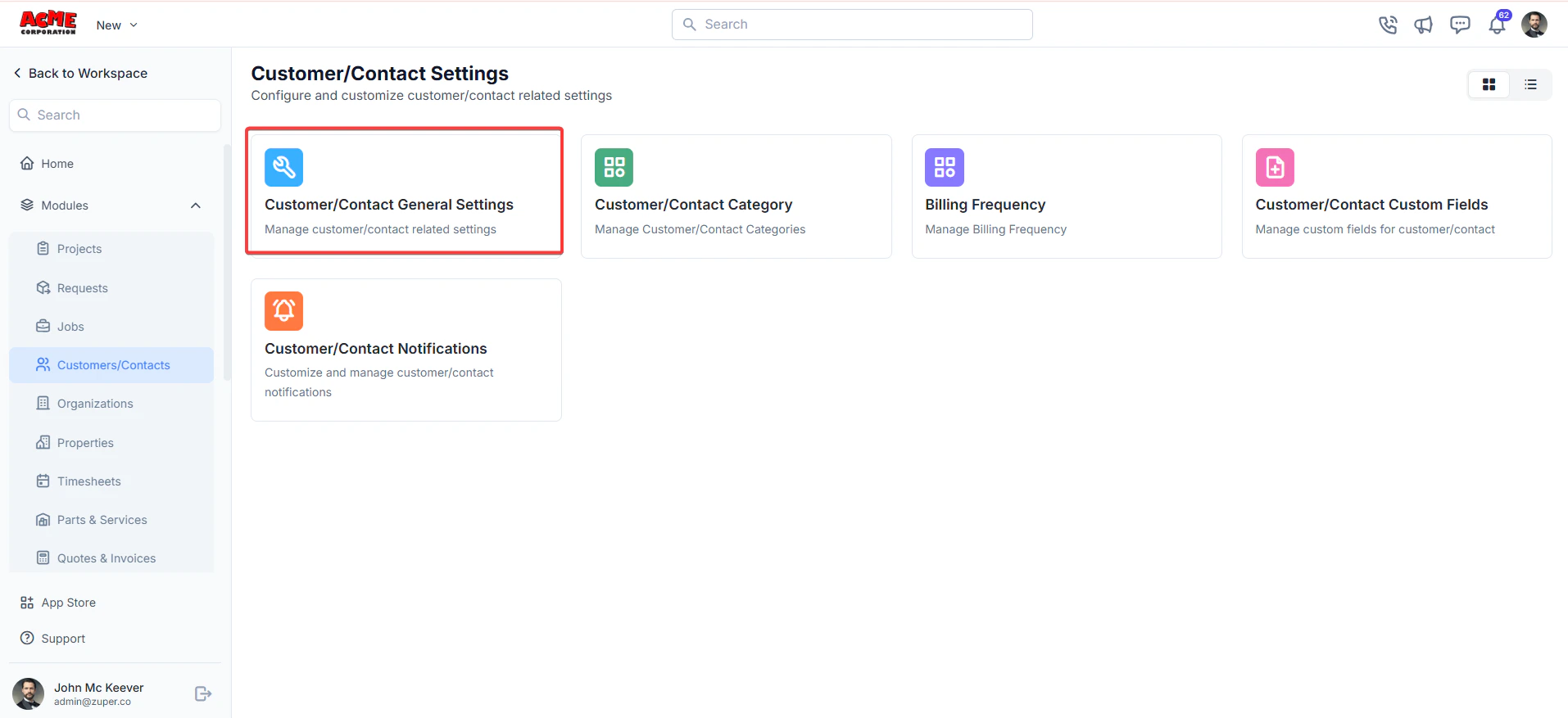
- Allow payment card on file?
For Customers:
Navigation: Customer Portal -> CardsAccessing the Wallet
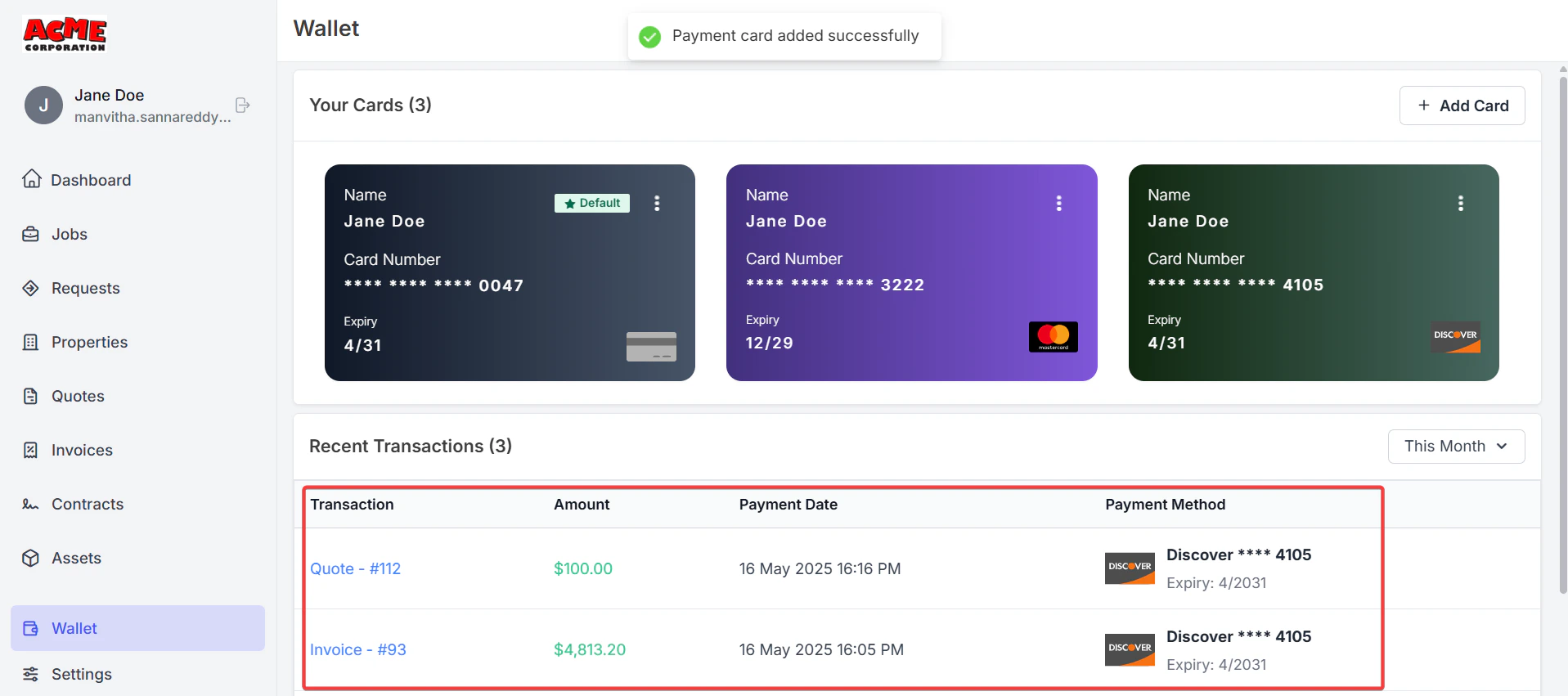
- Log in to the Customer Portal. If the business has enabled the card addition option, you’ll see a Wallet menu item in the navigation.
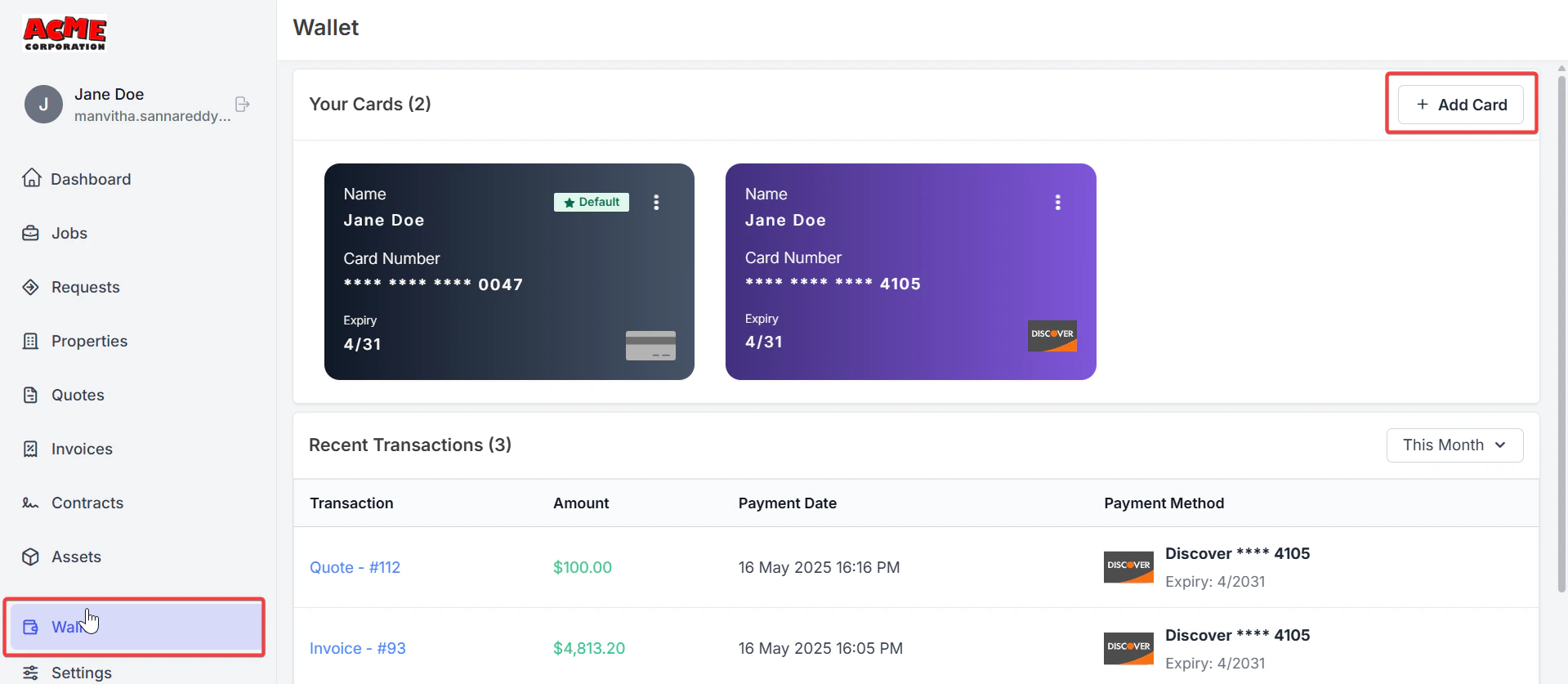
Adding a Card to Your Wallet
You can add up to five cards to your Wallet, including any cards added during previous transactions with the business. Follow these steps to add a card:- Navigate to the Wallet section in the Customer Portal.
- Click the Add Card button.
- Enter the card details in the provided fields, Card number
- Expiration date
- CVC code
- Country
- Zip code
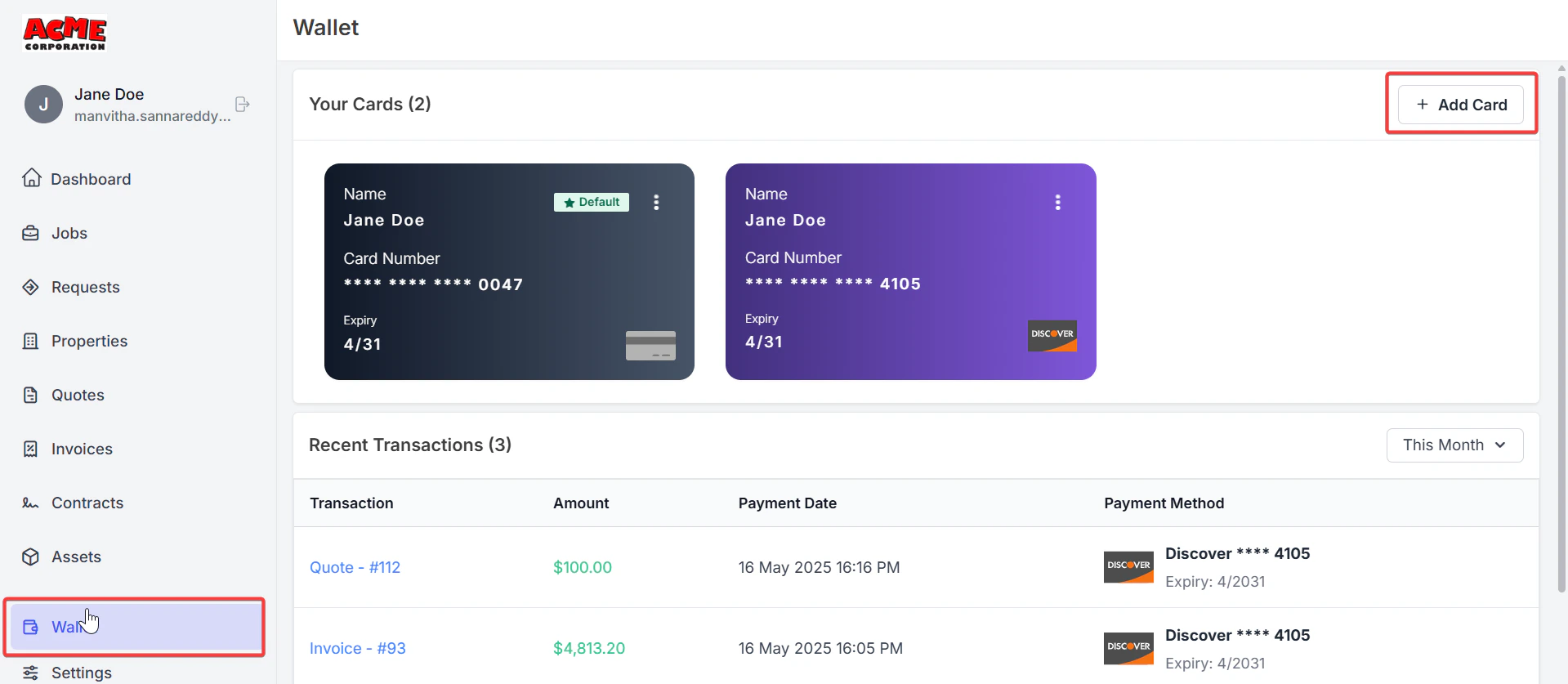
- If you want the new card to be your primary card, check the Set as primary card checkbox. (See the details of the “Setting a Primary Card” section below.) Click Save to add the card.
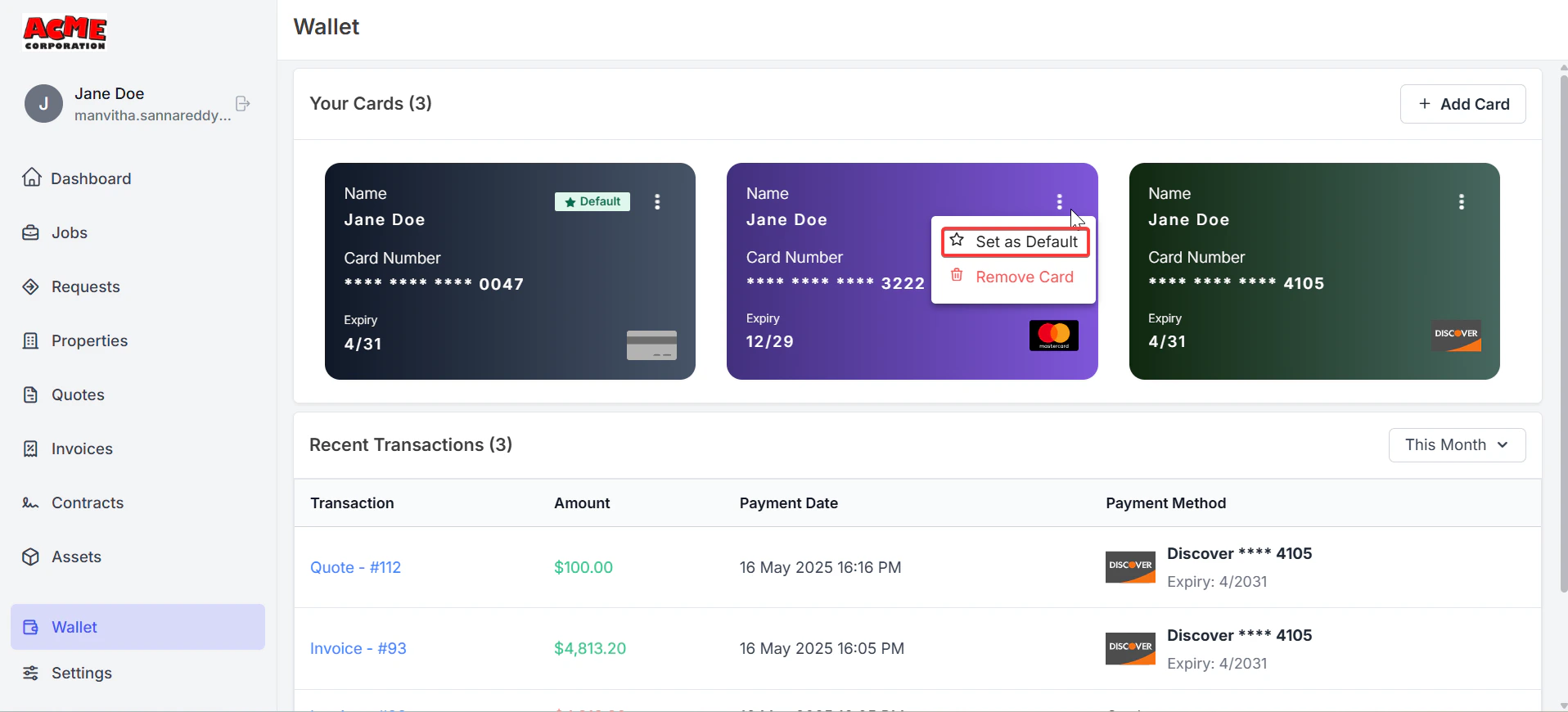
- Set as Default: Select a card and click Set as Default to make it the payment default.
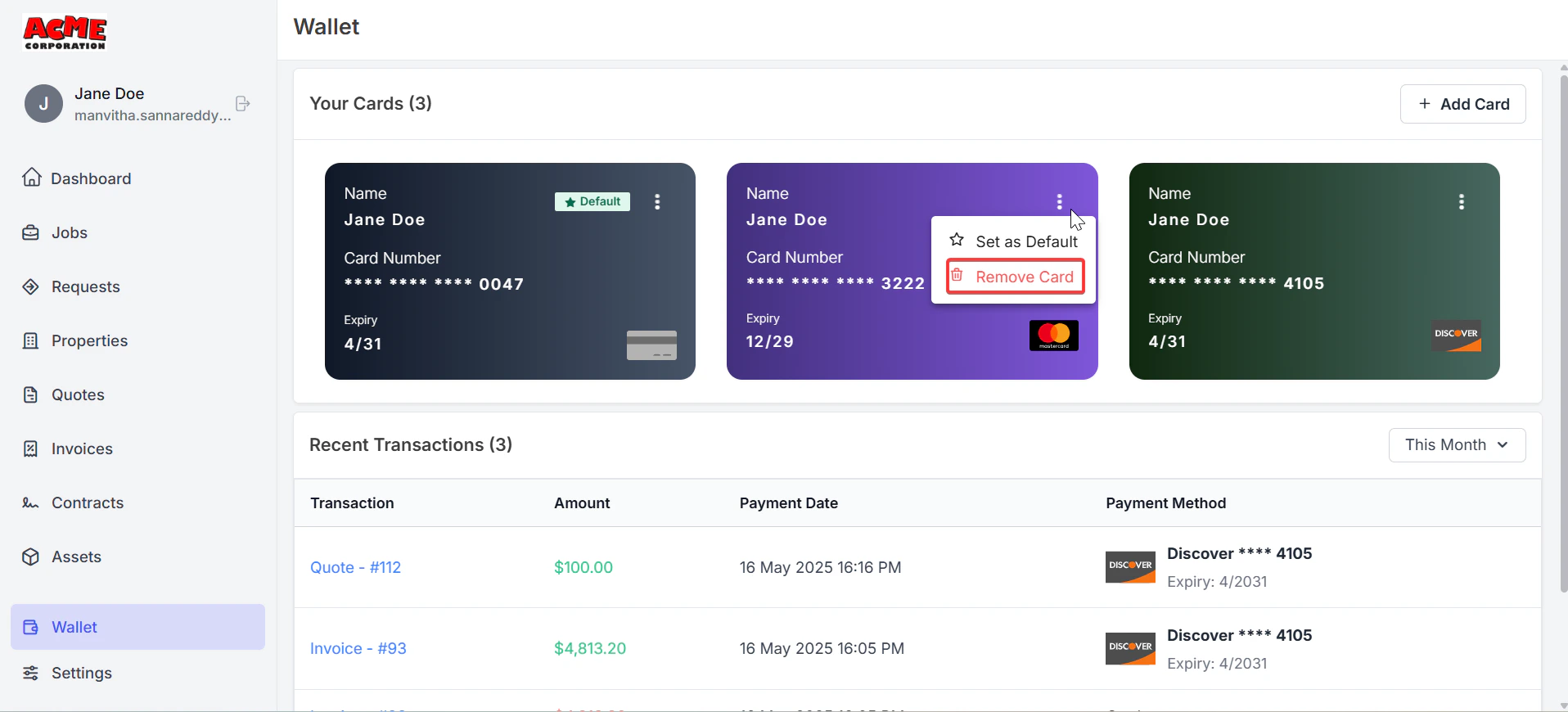
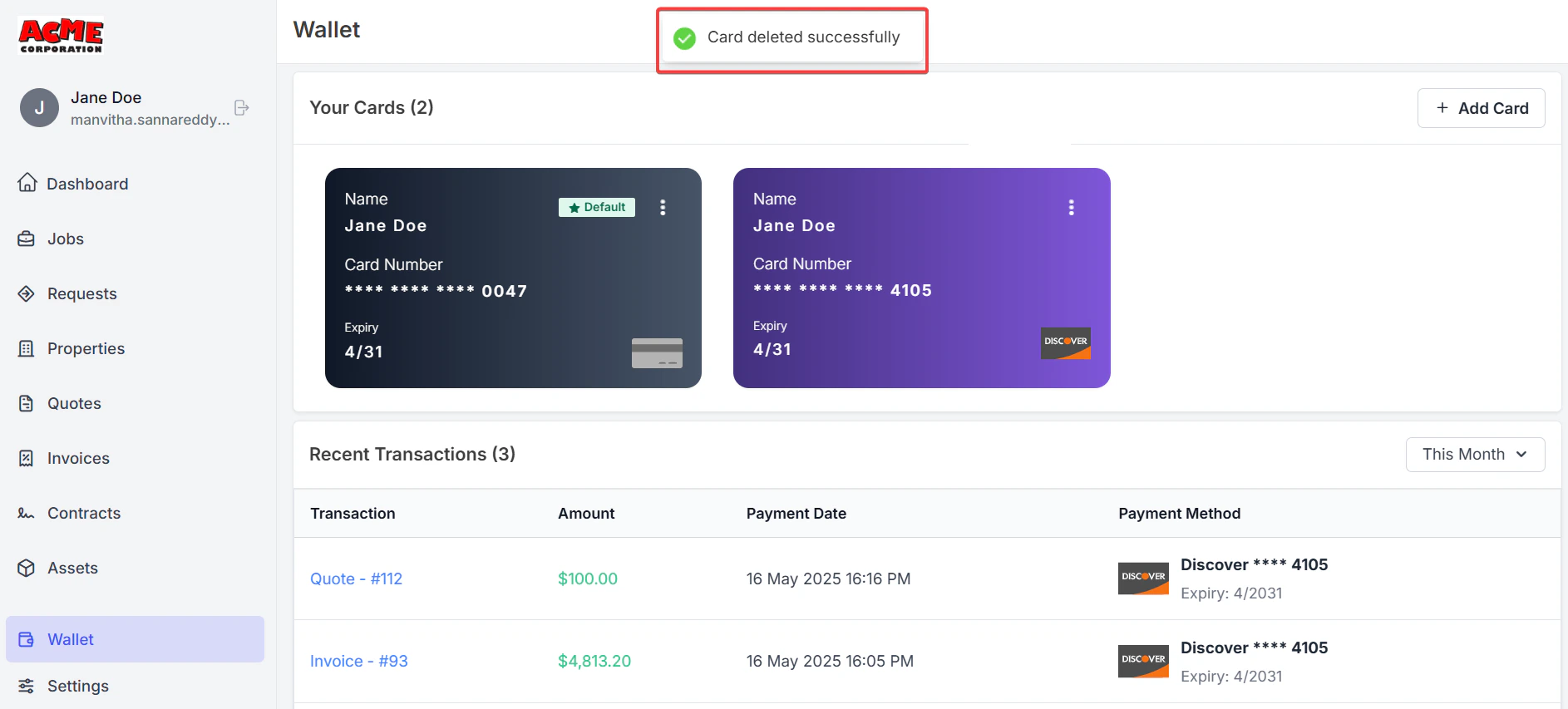
- Delete a Card: Select a card and click Delete. If it’s the Default card and you have other cards, you’ll be prompted to choose a new Default card.
- View Details: See card details like the brand and last four digits (full card numbers are never shown for security).
- One Default Card: Only one card can be set as Default.
- Mandatory Default Card: A Default card must be set if you have at least one card.
- If you have only one card, it is automatically set as the Default card.
- If you have multiple cards, the first added card is the default, but you can change it.
- Setting a Default Card:
- When adding a new card, check the Set as Default card checkbox to make it the Default card.
- To change the Default card, go to the Wallet, select a different card, and click Set as Default.
- During Checkout, when using a new card to pay, a Set as default card checkbox appears (unchecked by default). Check it to set the new card as the Default.
- Deleting a Default Card: If you delete the Default card and have two or more remaining cards, you’ll be prompted to select a new Default card.
- Card brand (e.g., Visa, Mastercard).
- Last four digits.
- Expiration date.
- Default card status (if applicable).
Using a Saved Card During Checkout
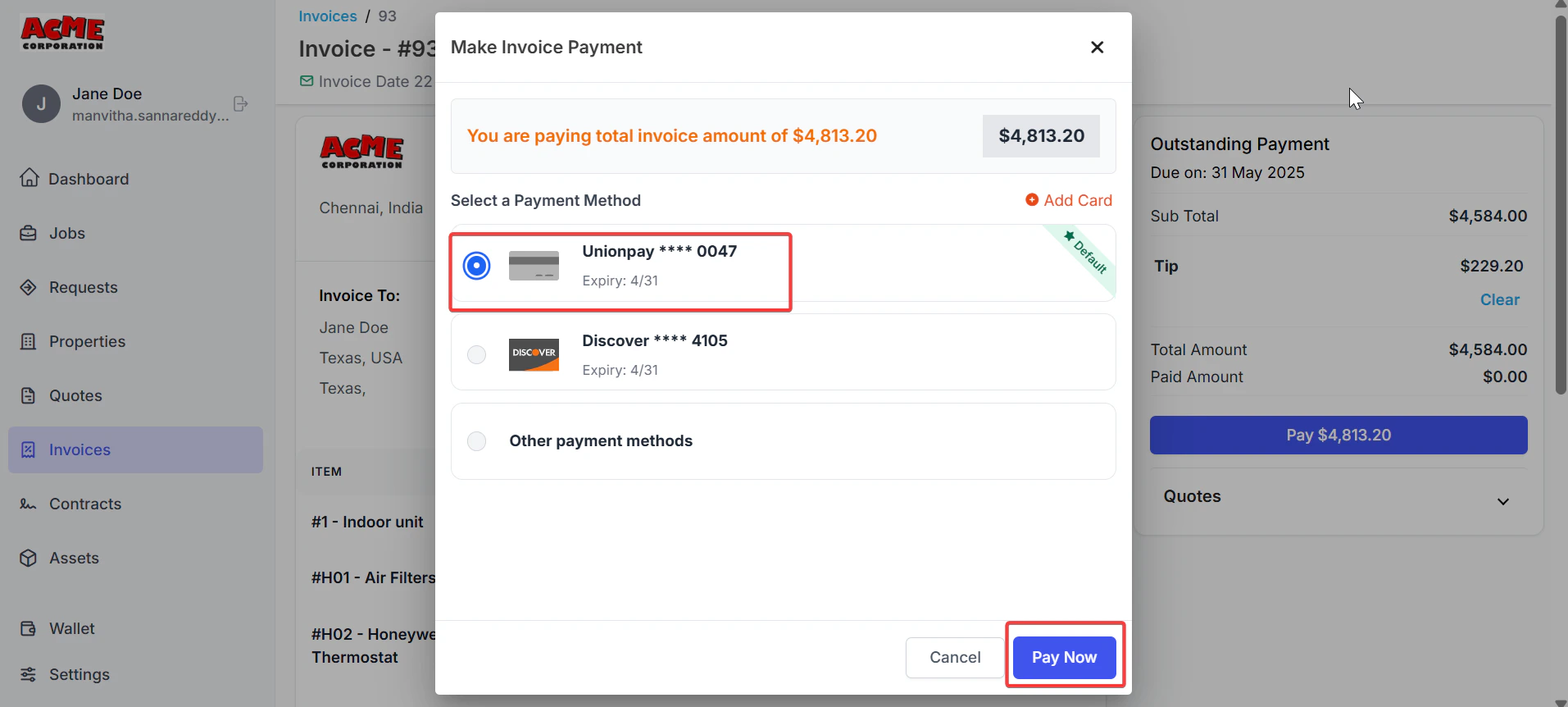
You can use saved cards to make payments quickly during checkout in the Customer Portal. Here’s how:- Proceed to the checkout page.
- Your default card is selected by default in the payment section.
- Select a different saved card from the list of saved cards to use.
- The selected card’s details (e.g., card number, expiration date) are pre-filled for convenience.
- Complete the payment.
- Disabled Card Types: You cannot select those cards during checkout if the business disables a card type or brand.
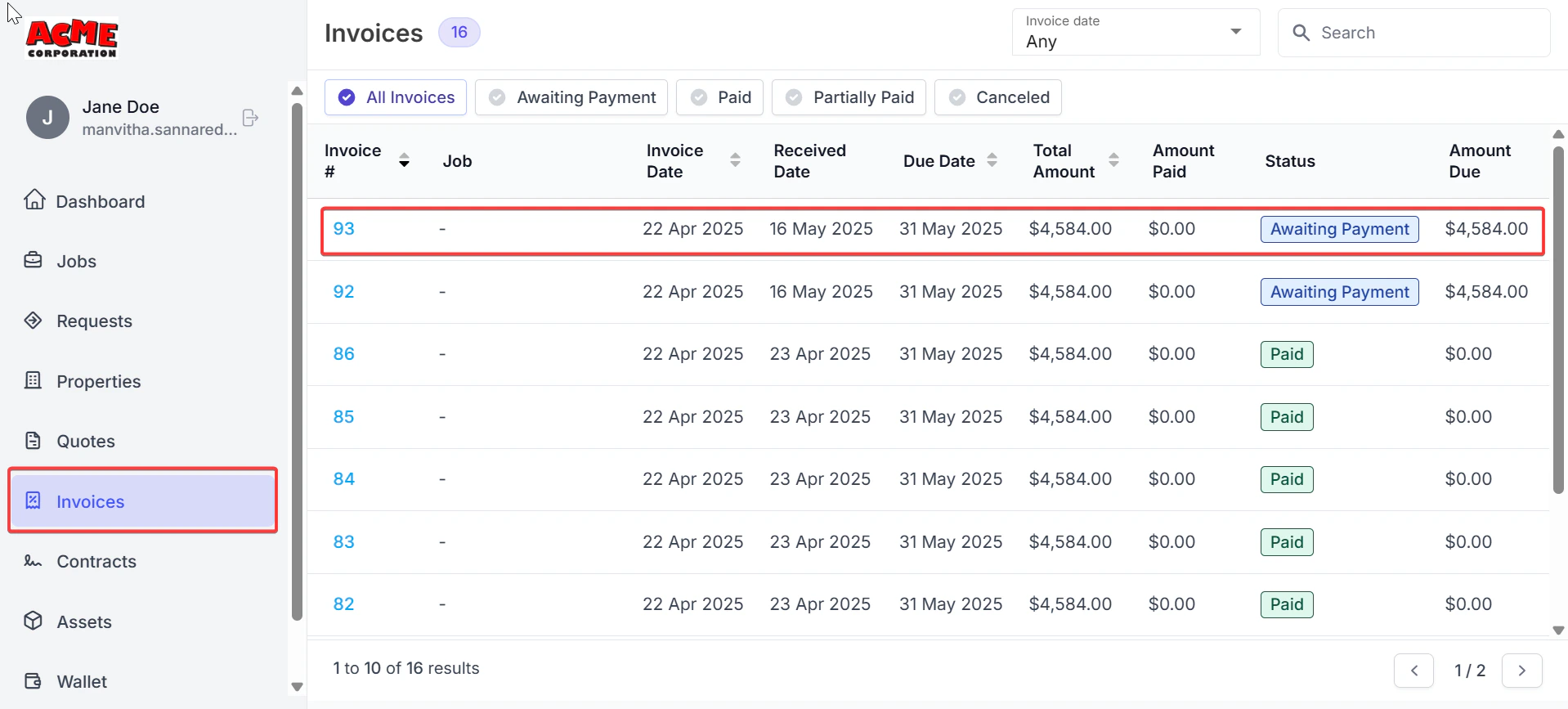
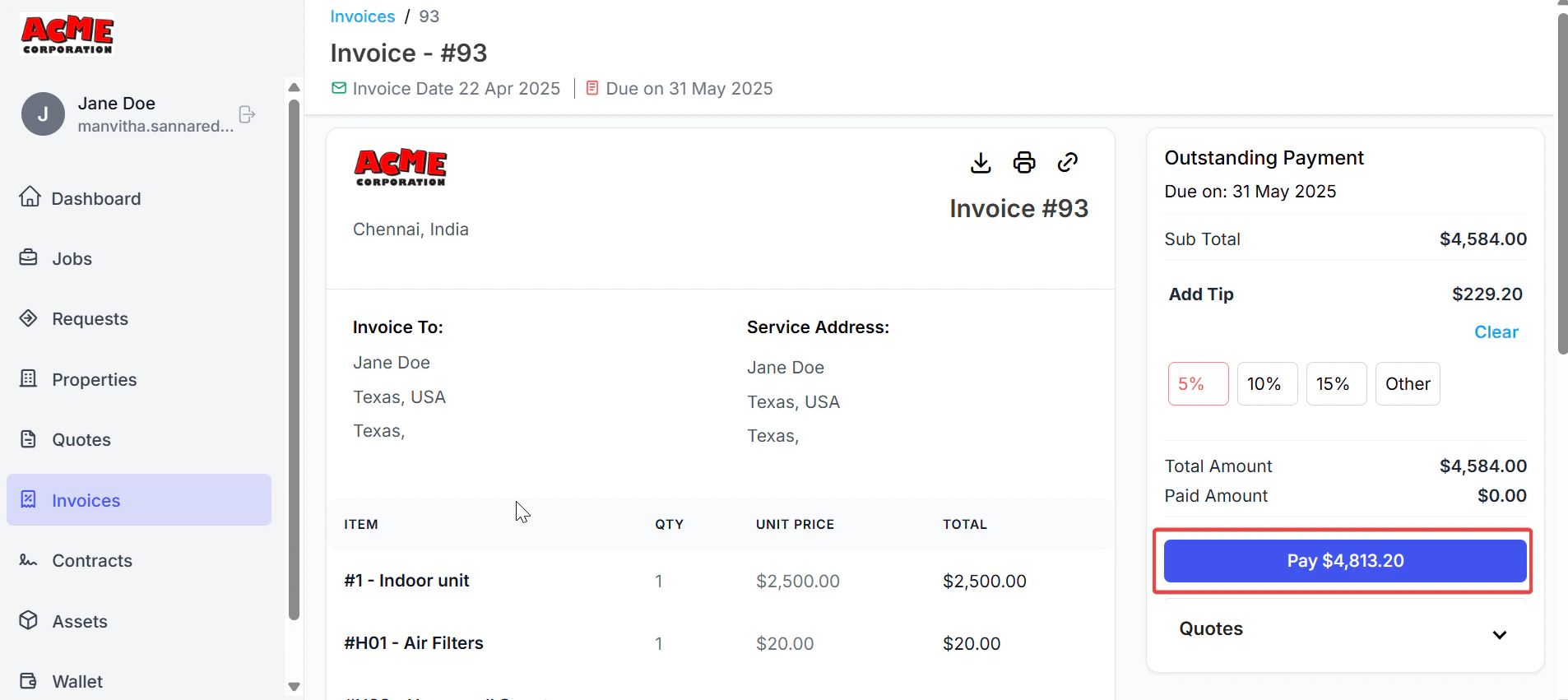
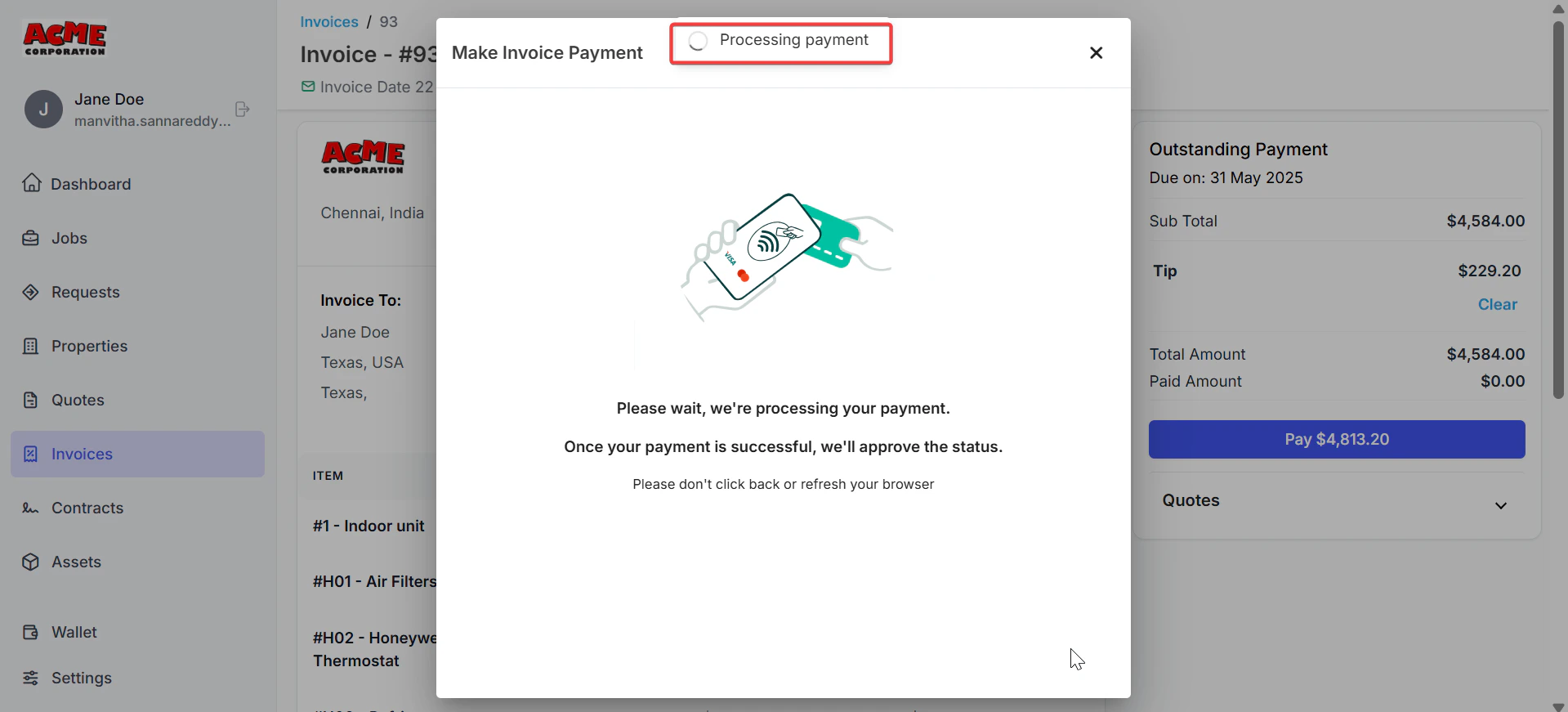
Invoice Payments: 1. Click any one of the invoices to view the details.
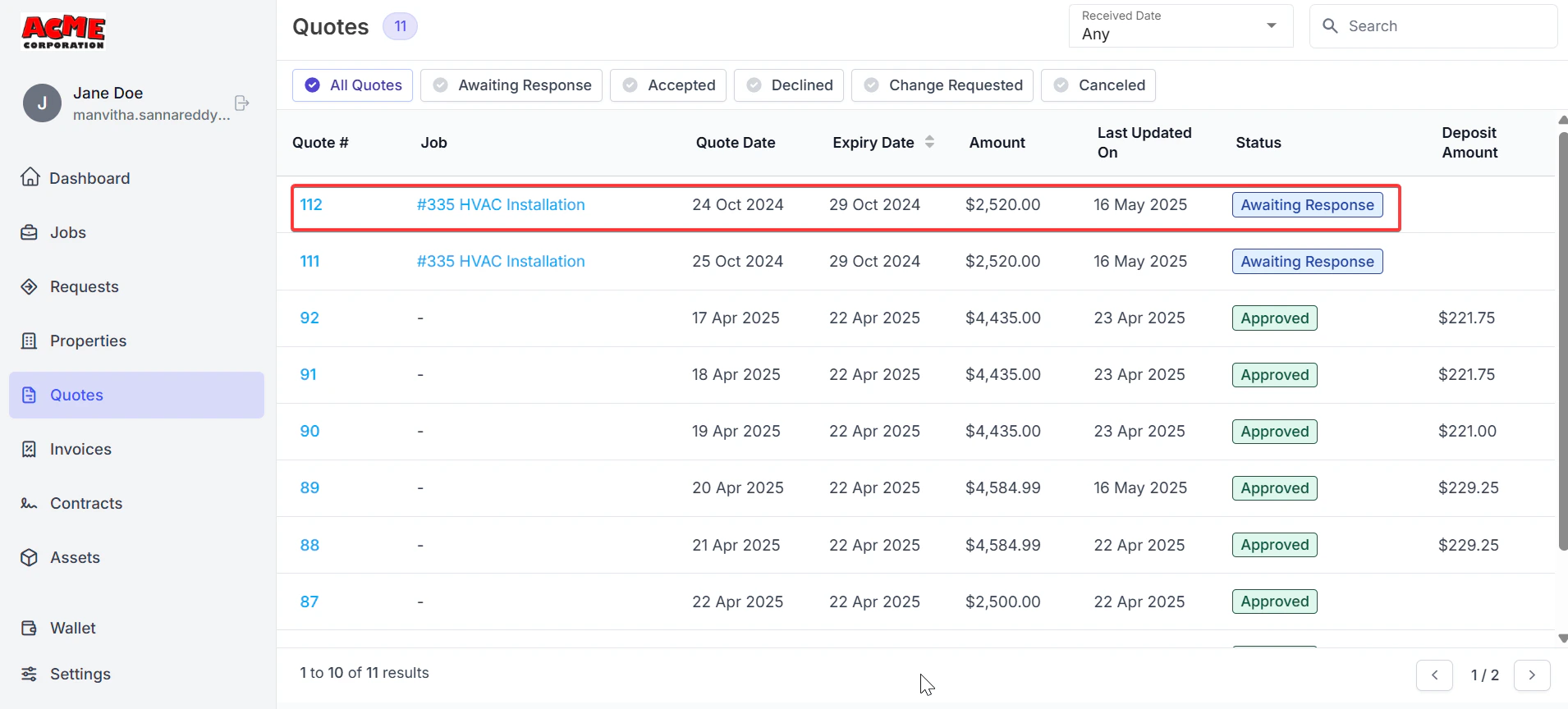
Quote Payments:
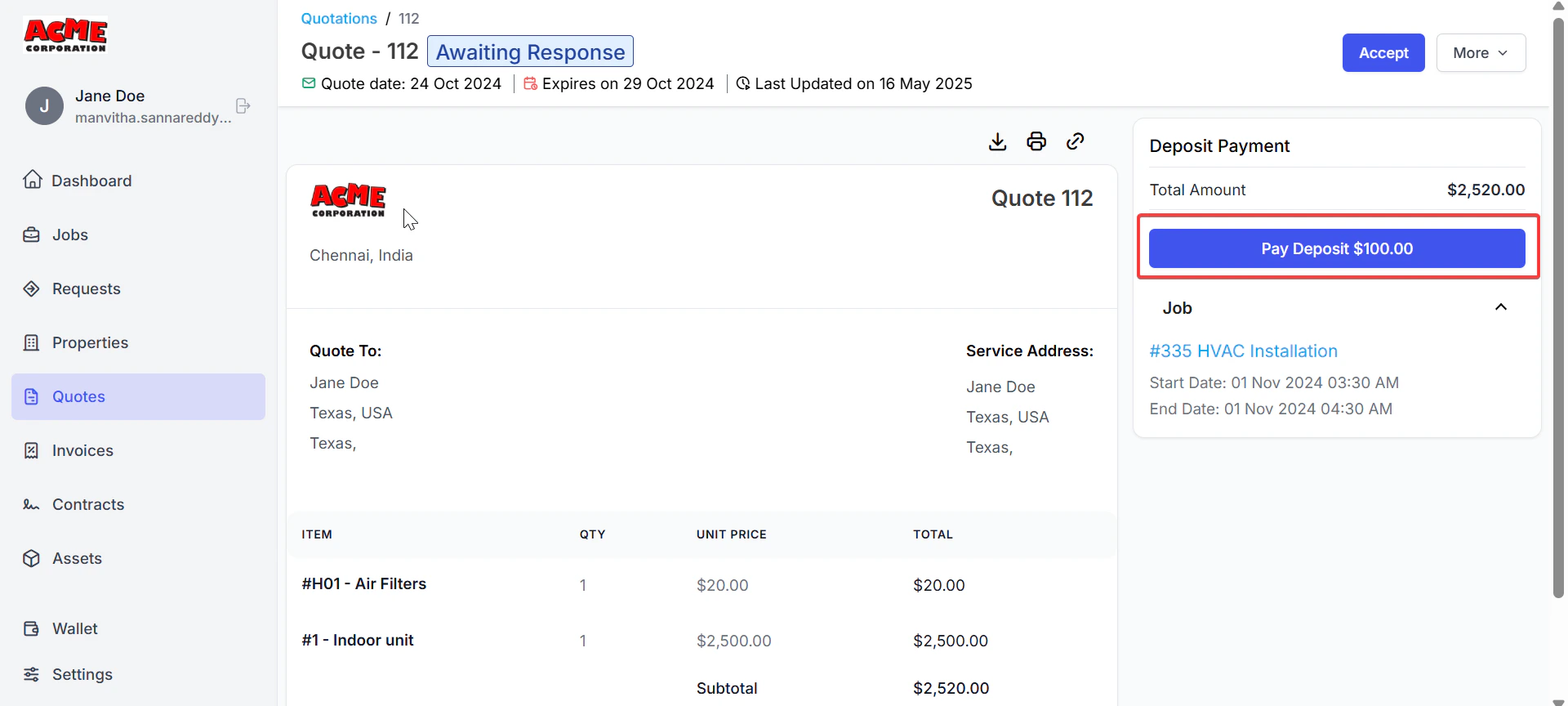
- Click any one of the quotes to view the details.
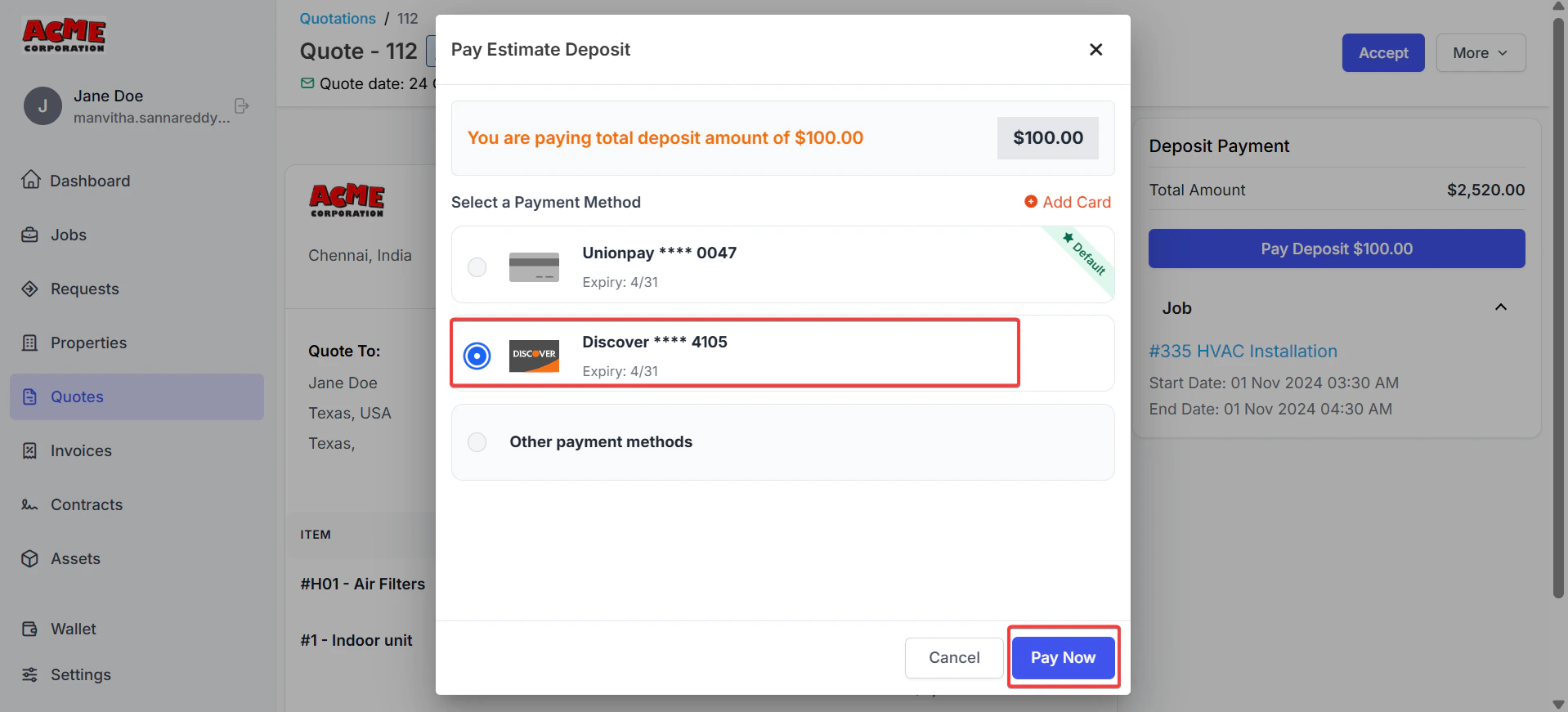
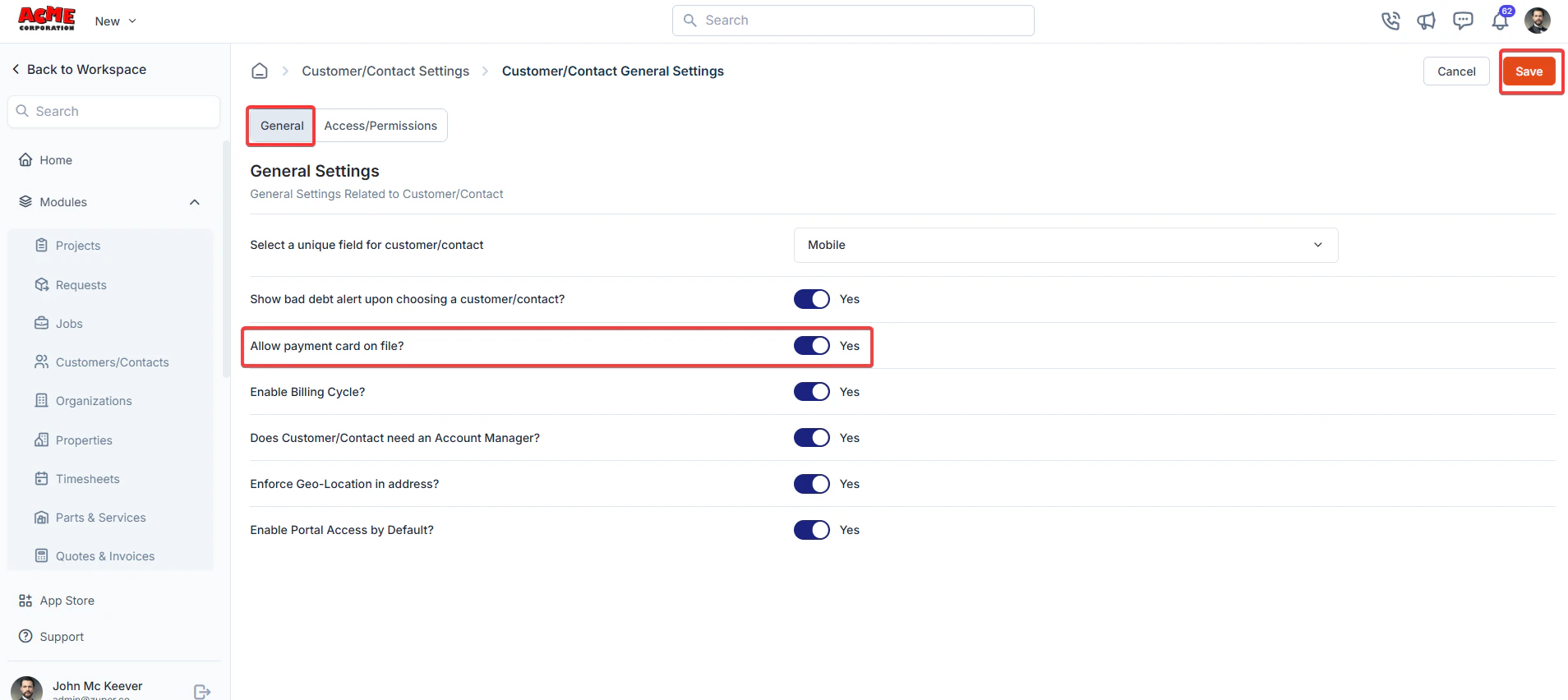
- The payment is successfully done.