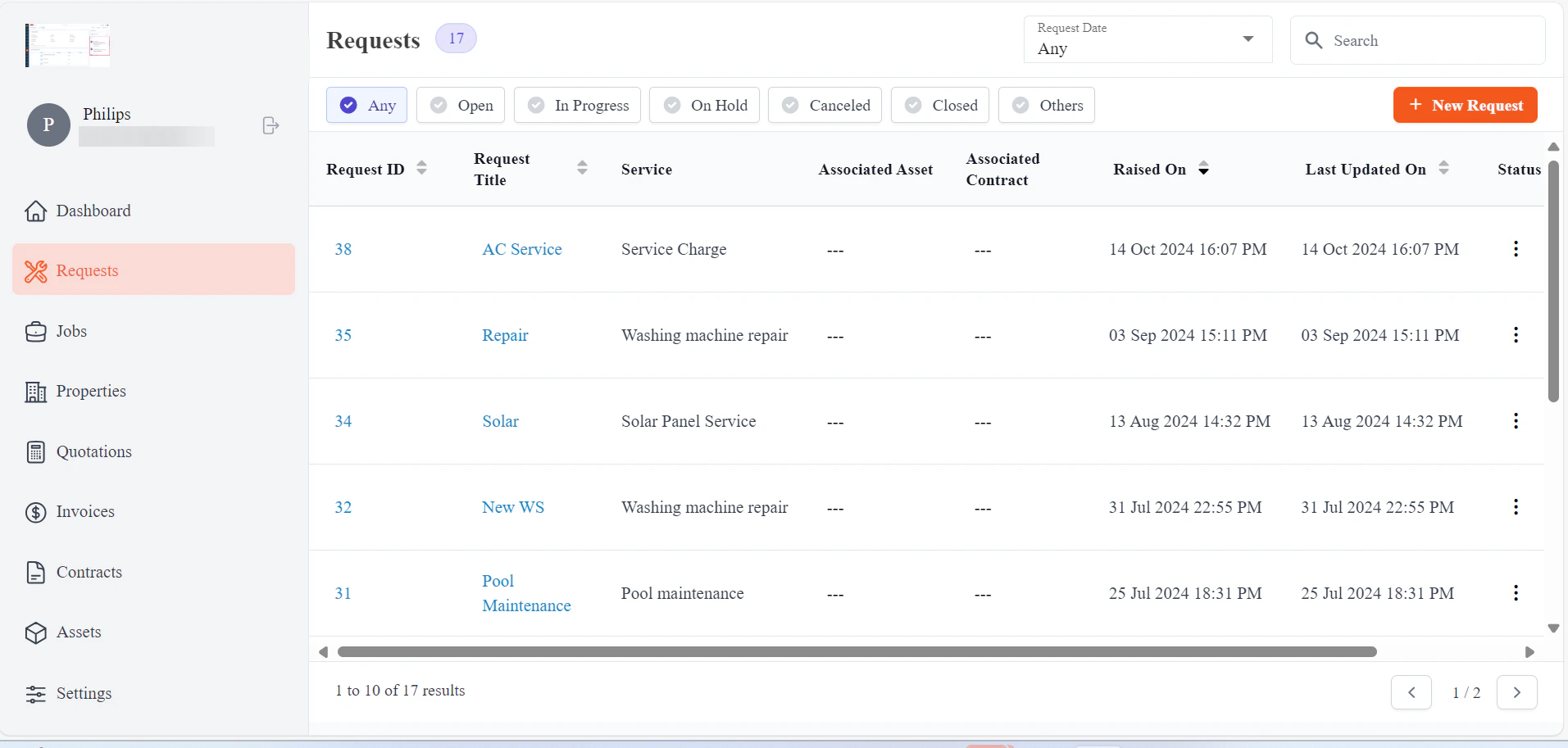
Pre-Requisites
To do the setup correctly, use the link below: Customer PortalLogin via Password
- Enter the URL:
{{company-login-name}}.stagingzuperhub.com -> Staging{{company-login-name}}.zuperhub.com -> Live
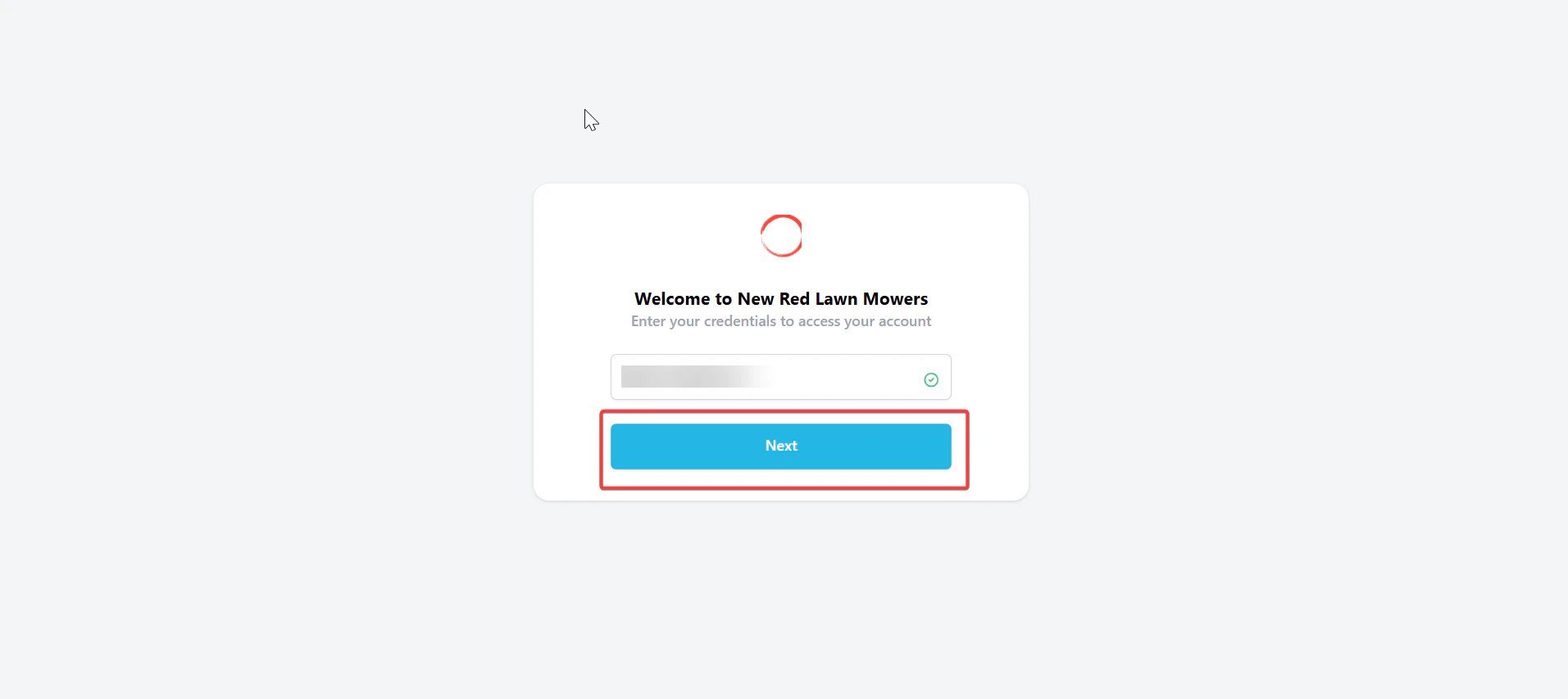
Login to Zuper customer portal account. Enter the “Email ID” and click next.
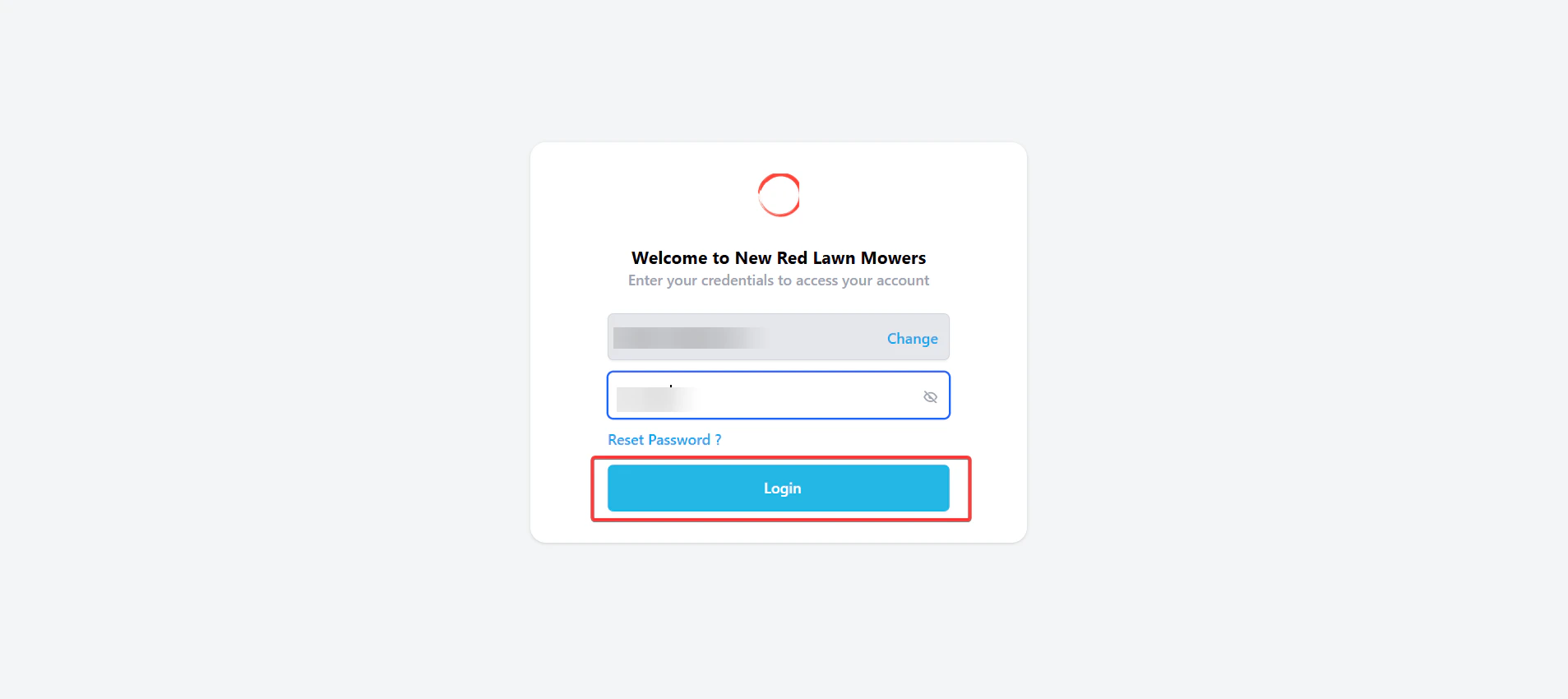
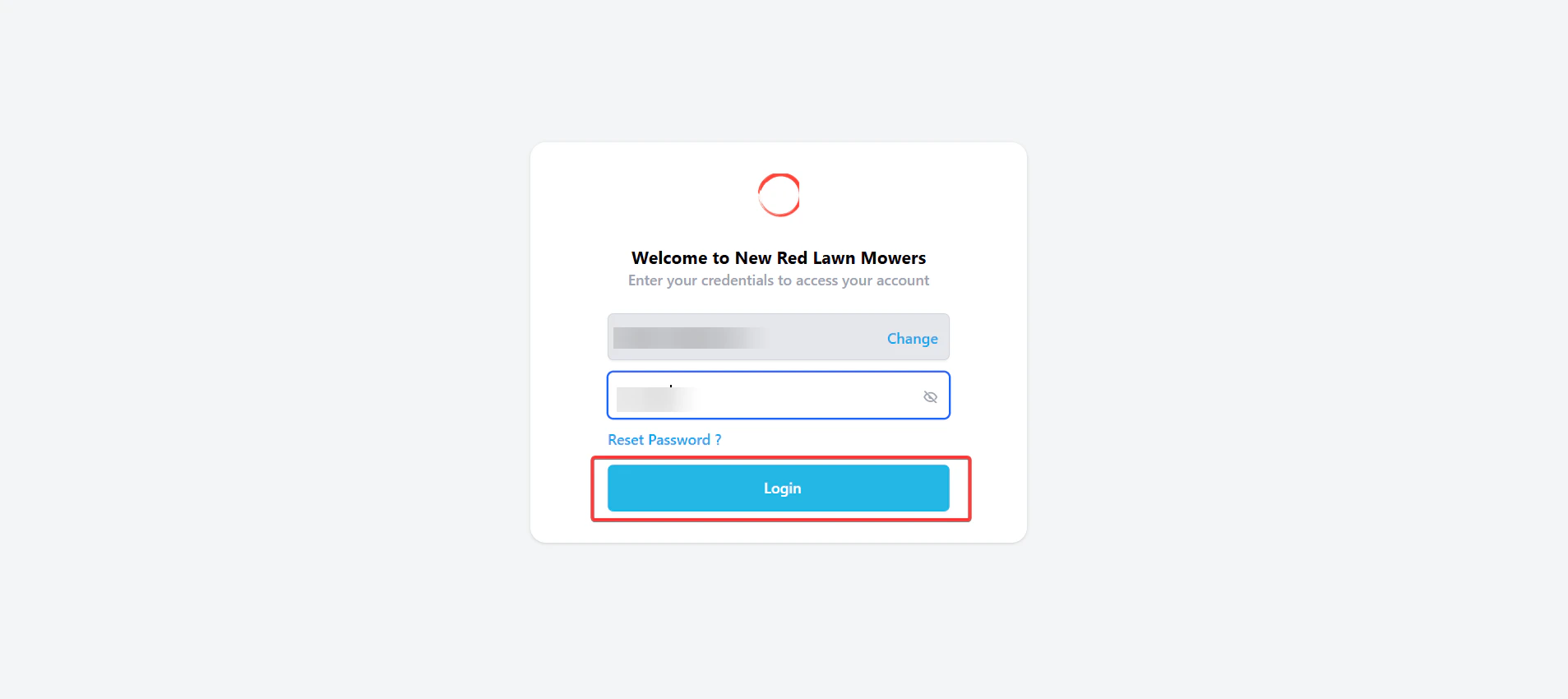
- Enter the email ID and password. (Note: this is applicable if you have opted for a user ID and a password.)
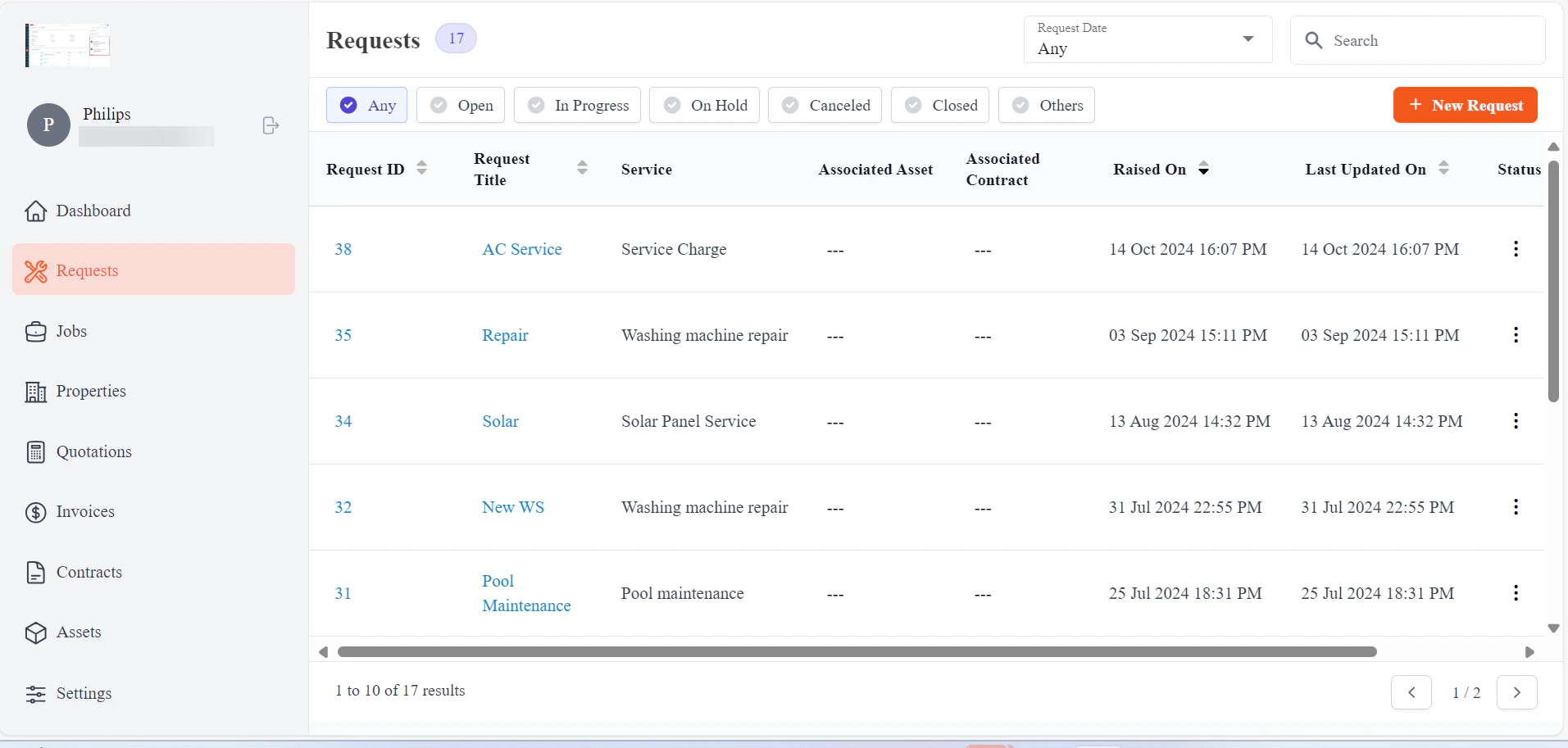
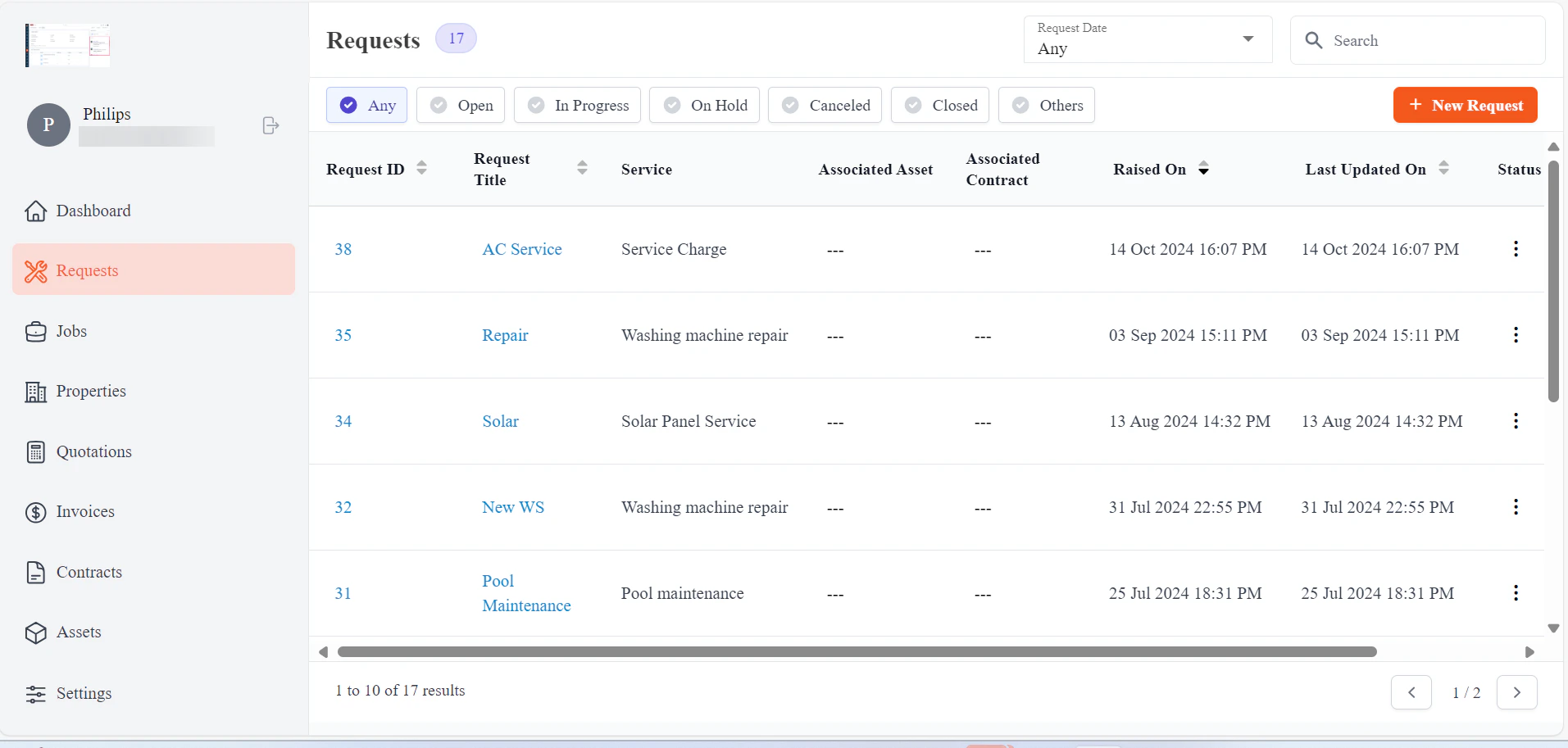
- The login is successful.
- To change your password, click the “Reset Password” button.
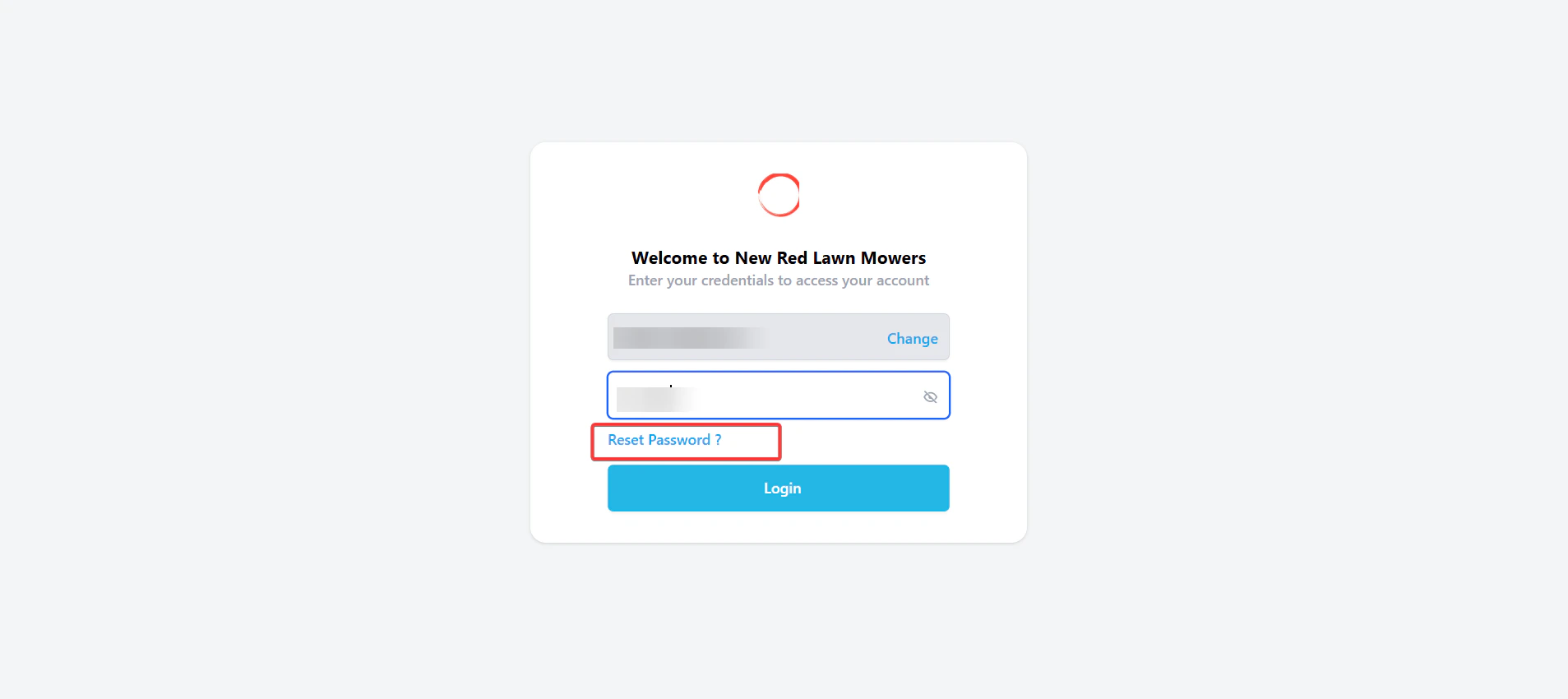
- The password reset email will be sent to the registered email ID.
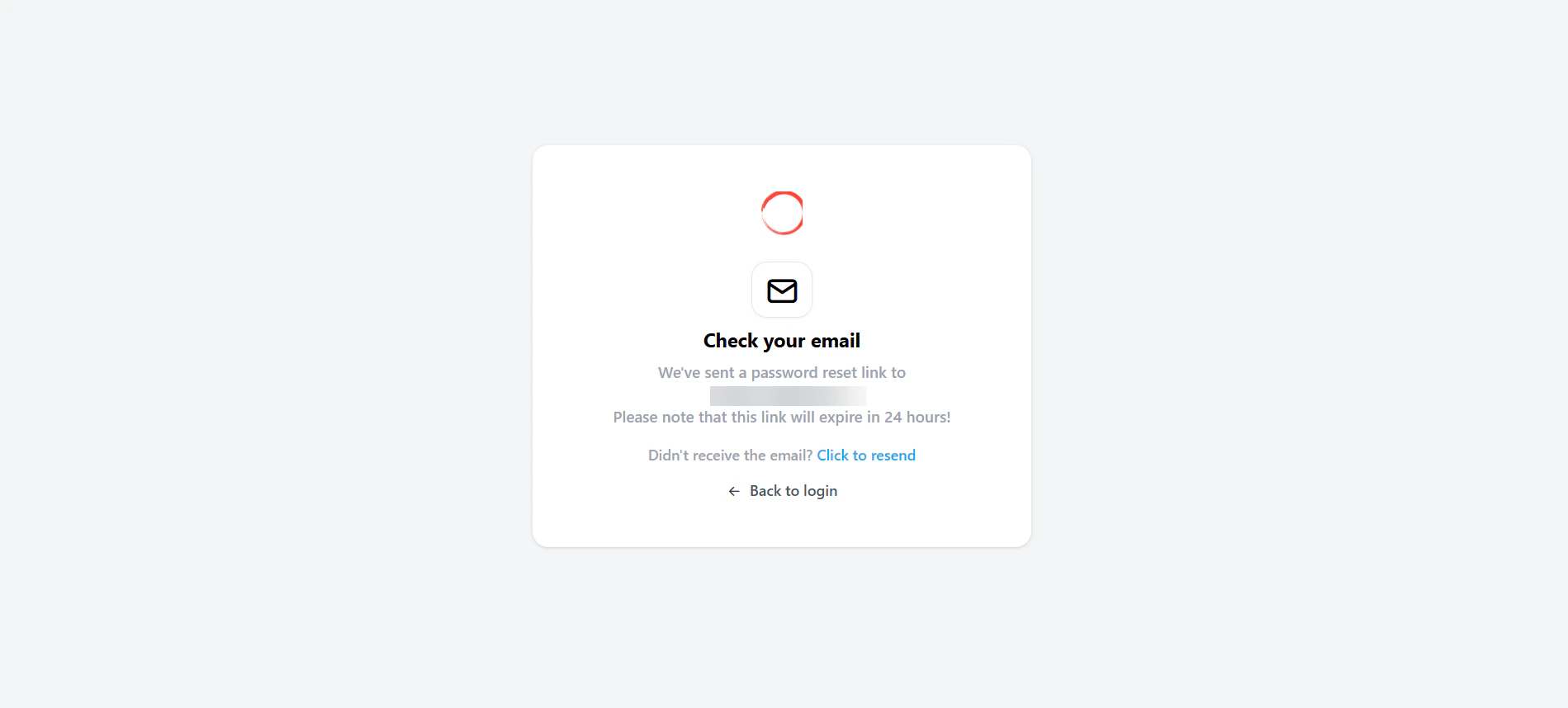
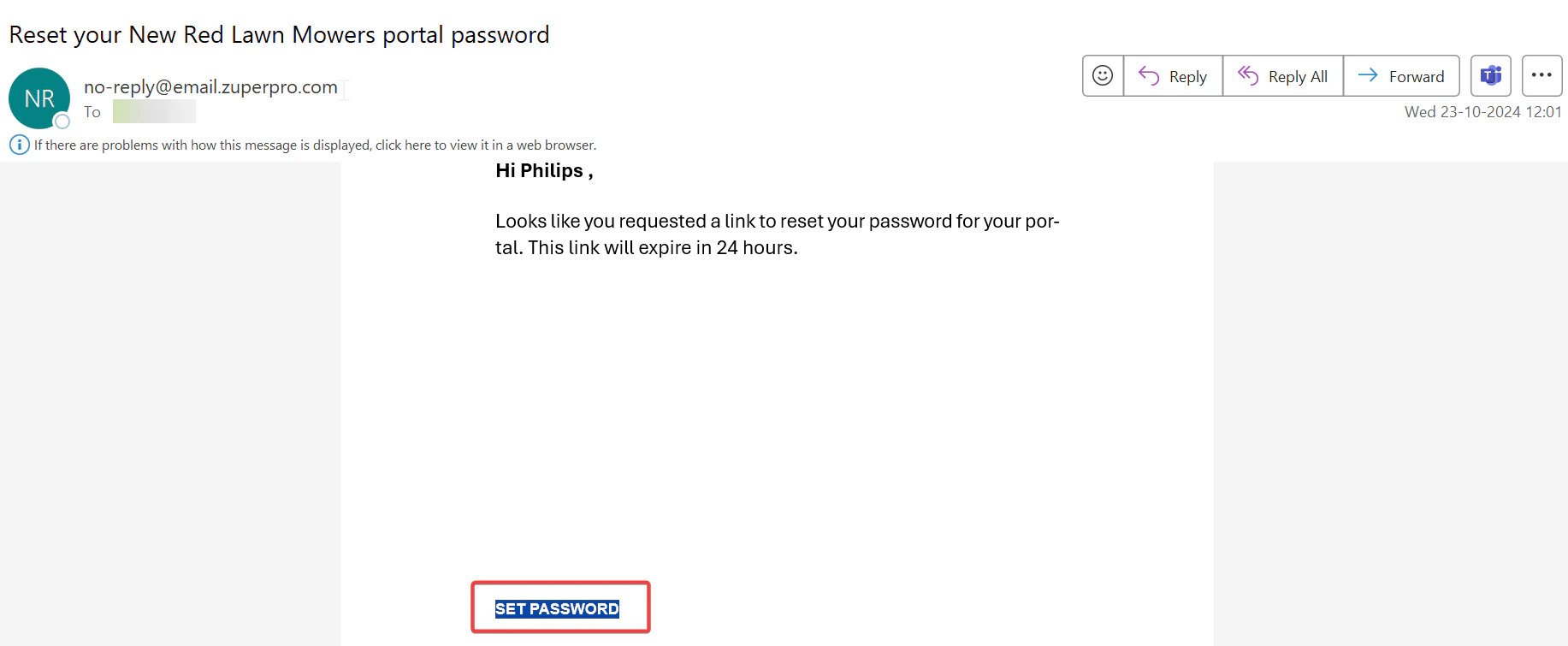
- Check the registered email. Click the “Set Password” button.
- Enter the password and reconfirm the password.
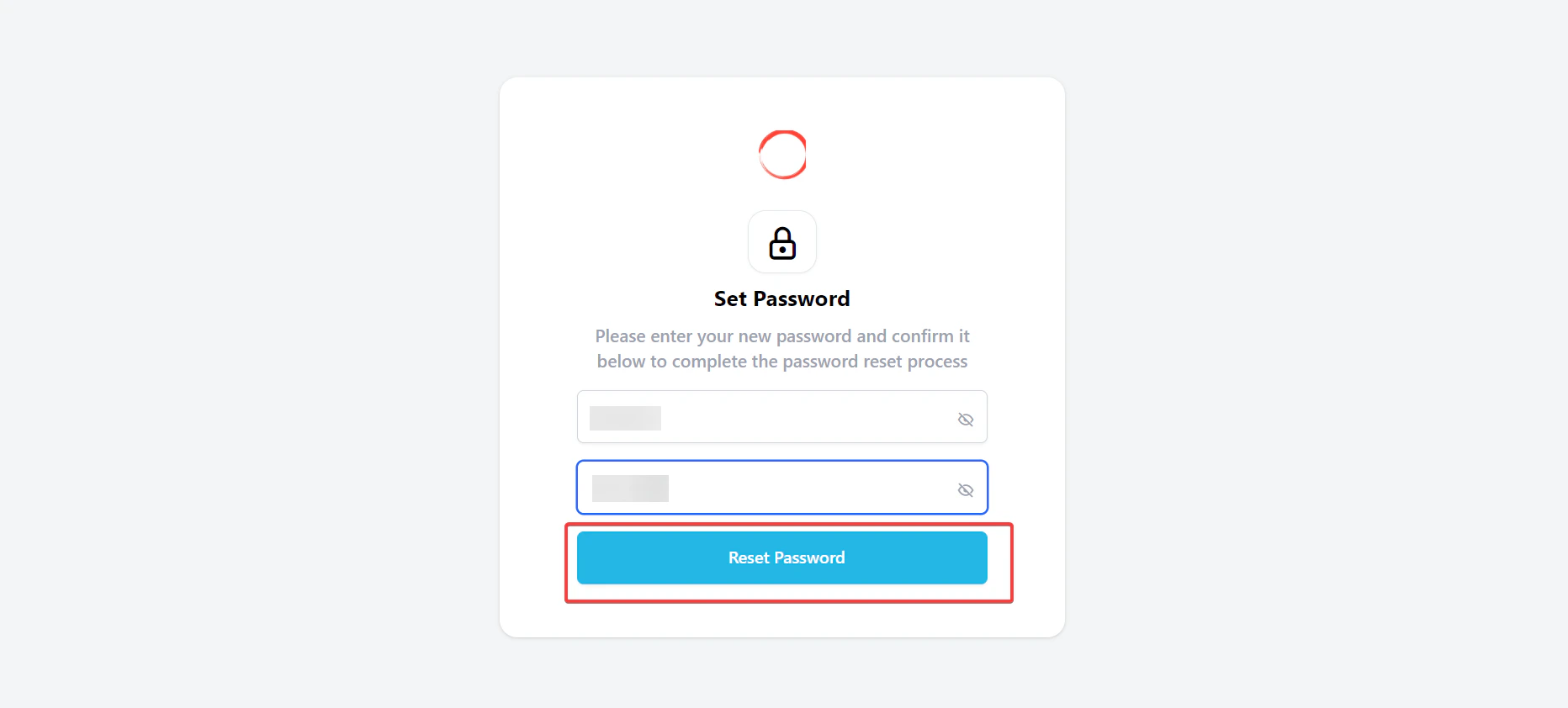
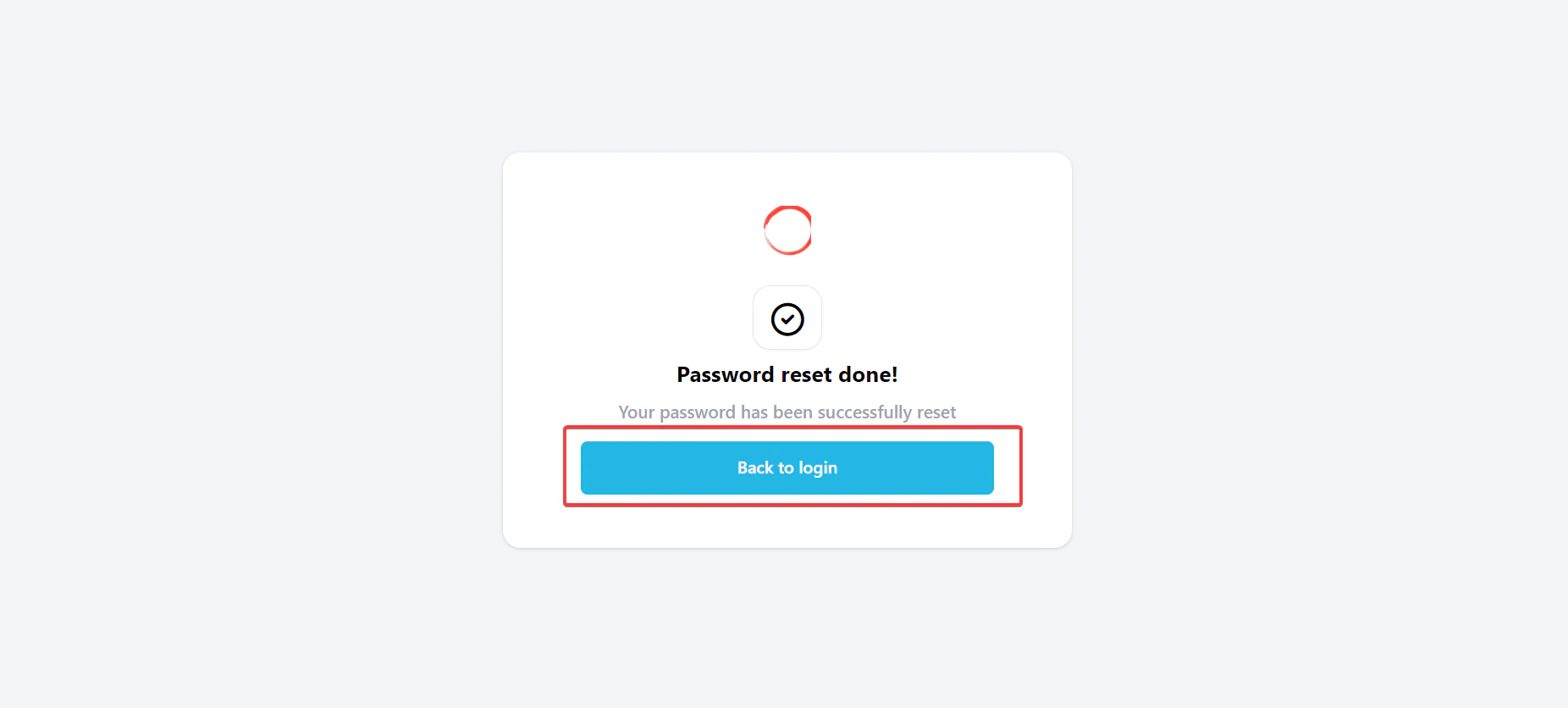
- The password is reset successfully.
- Enter the email ID and password. (Note: this is applicable if you have opted for a user ID and a password.)
- The login is successful.
Login via OTP
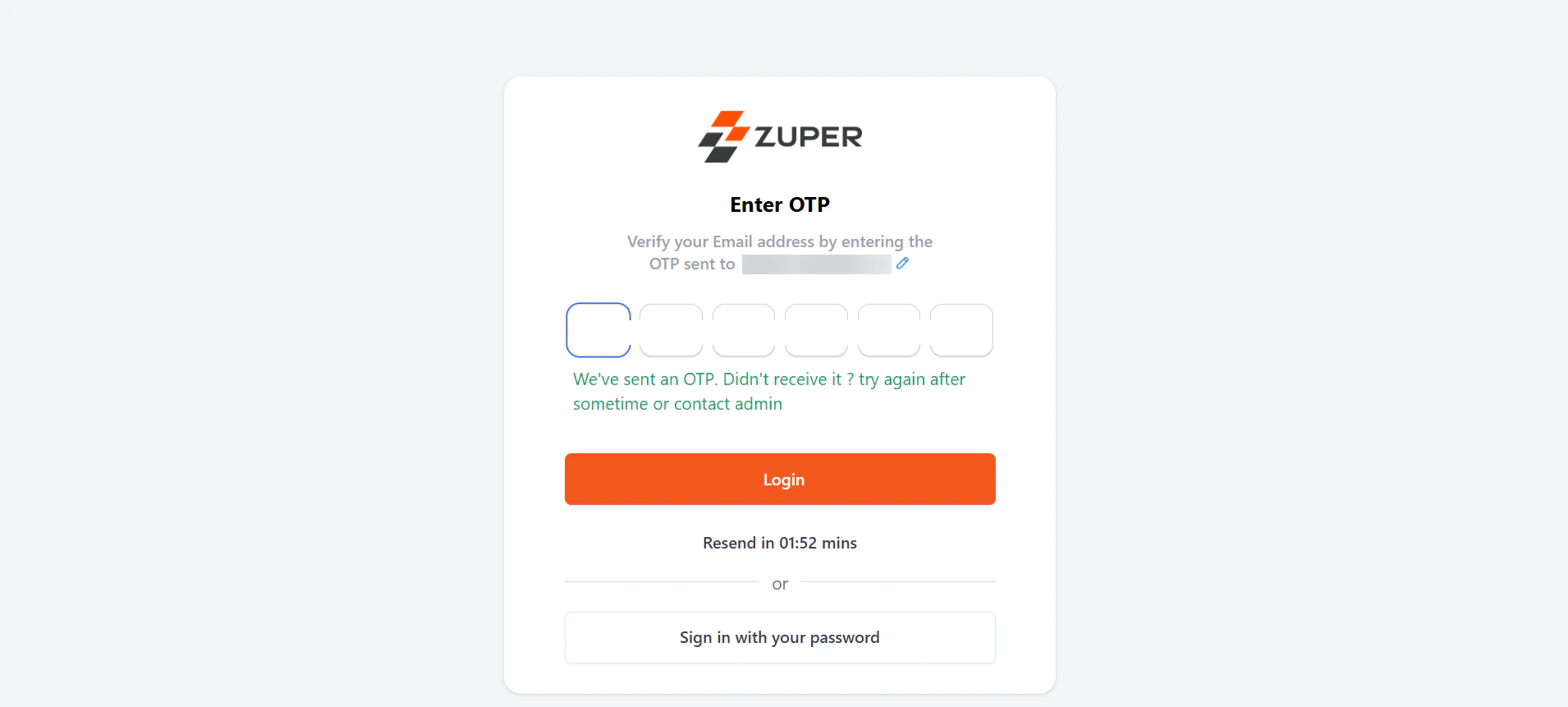
Alternatively, you can login using your email ID and the OTP received in your email ID. 1. Login to the Zuper customer portal account. Enter the “Email ID” and click “Send OTP.”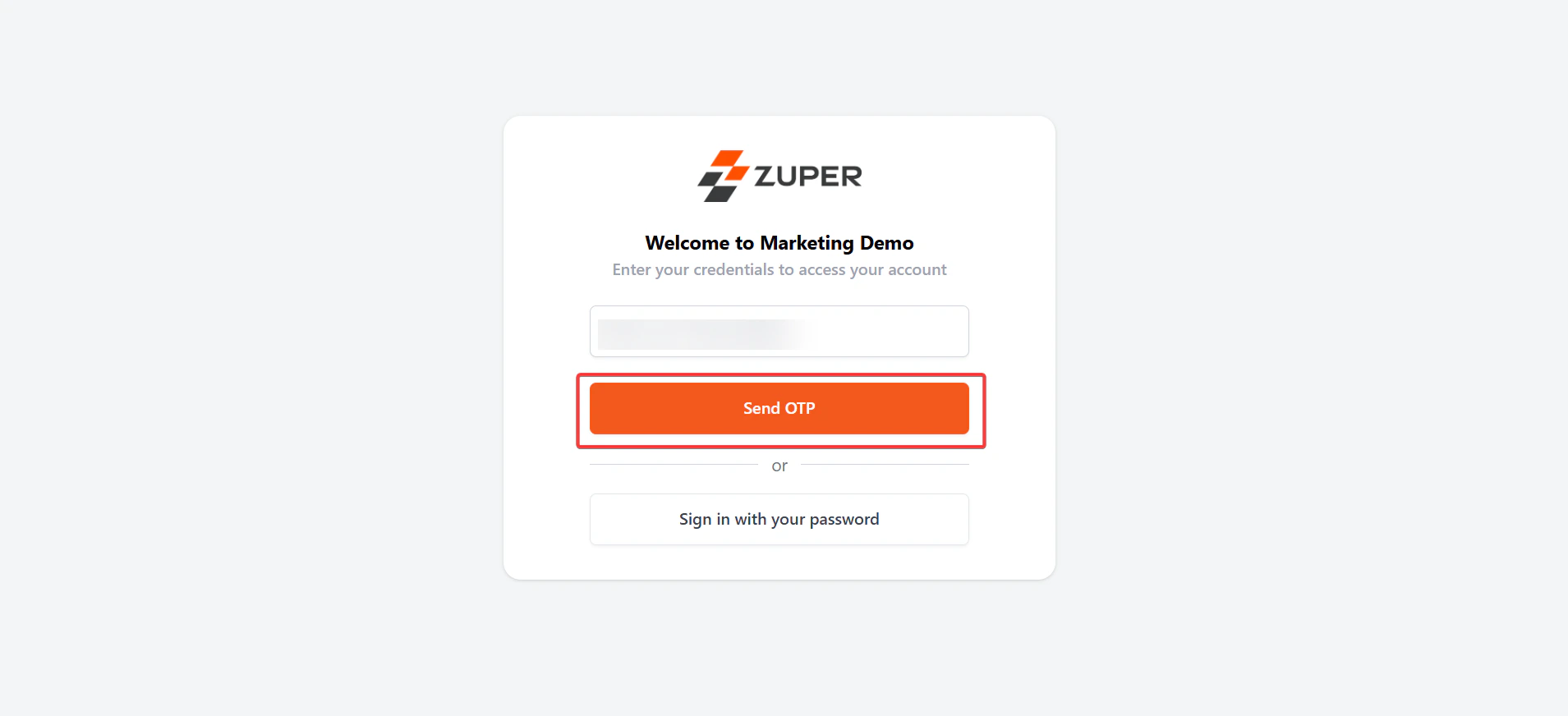
- Check the email to get the “OTP.”
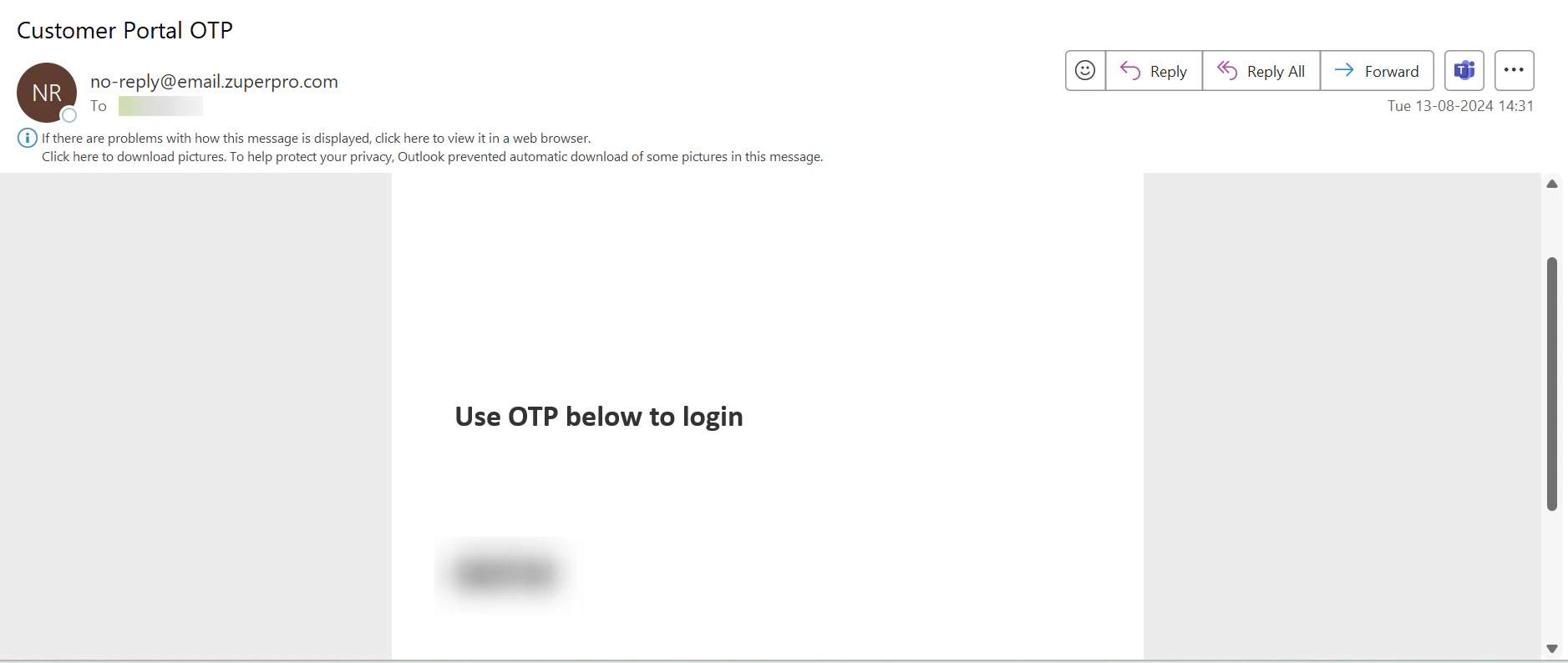
- Enter the OTP received and select the “Sign in” button.
- The login is successful.