

Key Highlights:
- Displays only jobs scheduled or due within the next 48 hours.
- Supports up to 500 jobs without compromising speed or responsiveness.
Prerequisite: Live View is available only when the Auto-Sync feature is enabled for your account. If Auto-Sync is active, Live View is automatically ready to use.
If you don’t see this feature in your Dispatch Board, contact support@zuper.co to get it enabled.
If you don’t see this feature in your Dispatch Board, contact support@zuper.co to get it enabled.
Accessing Live View
To open Live View:-
Click the Scheduling and Dispatching module from the left navigation menu and select Dispatch Board.
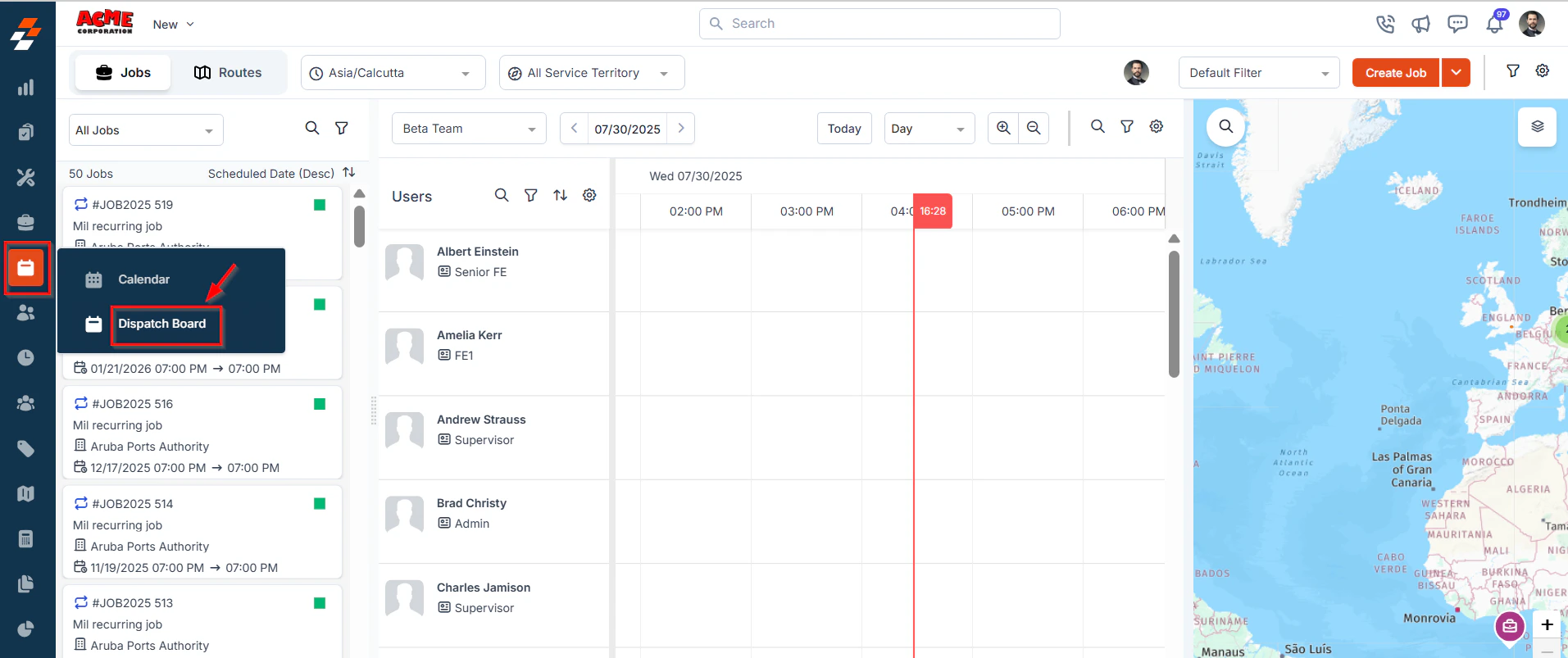
- Select the Jobs stream.
-
Click the Job Type dropdown and choose Live View.
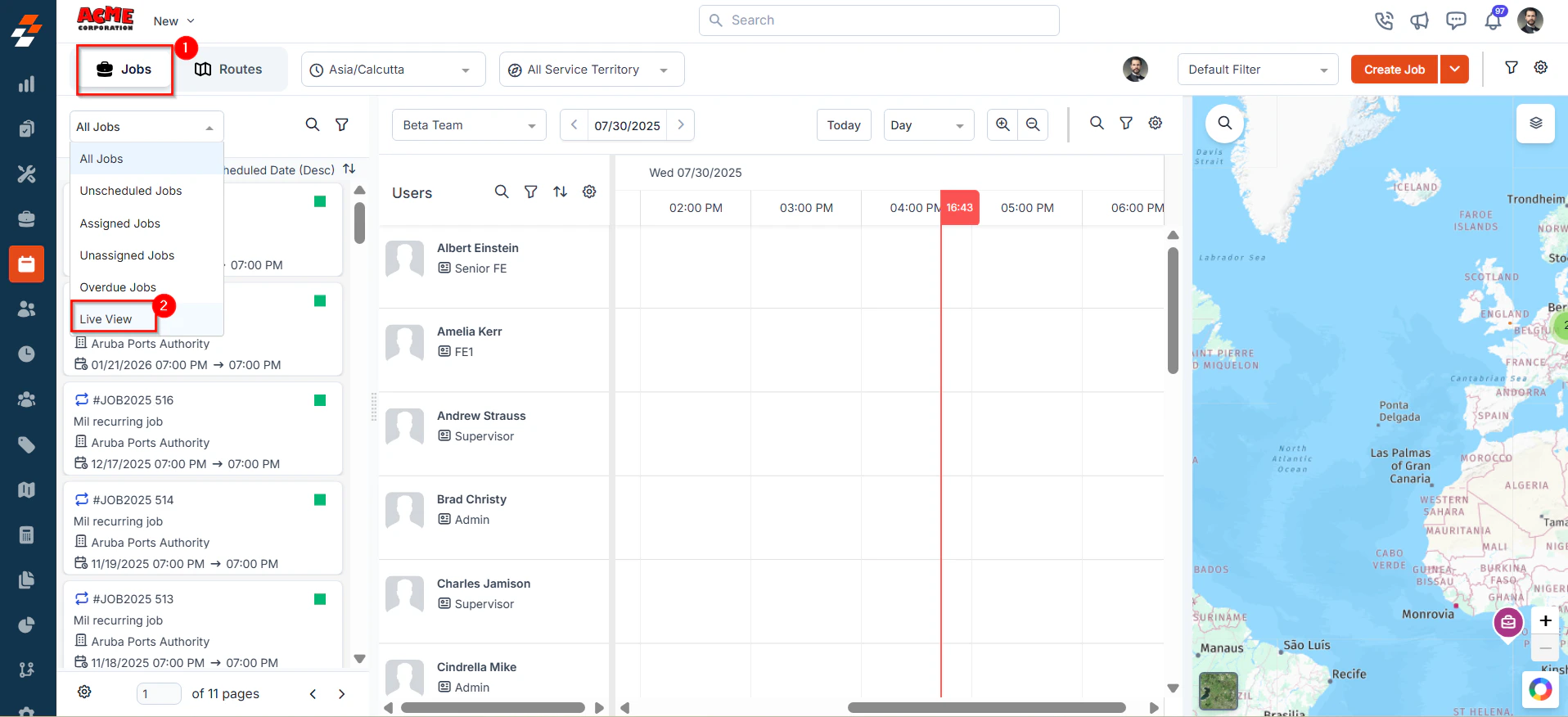
-
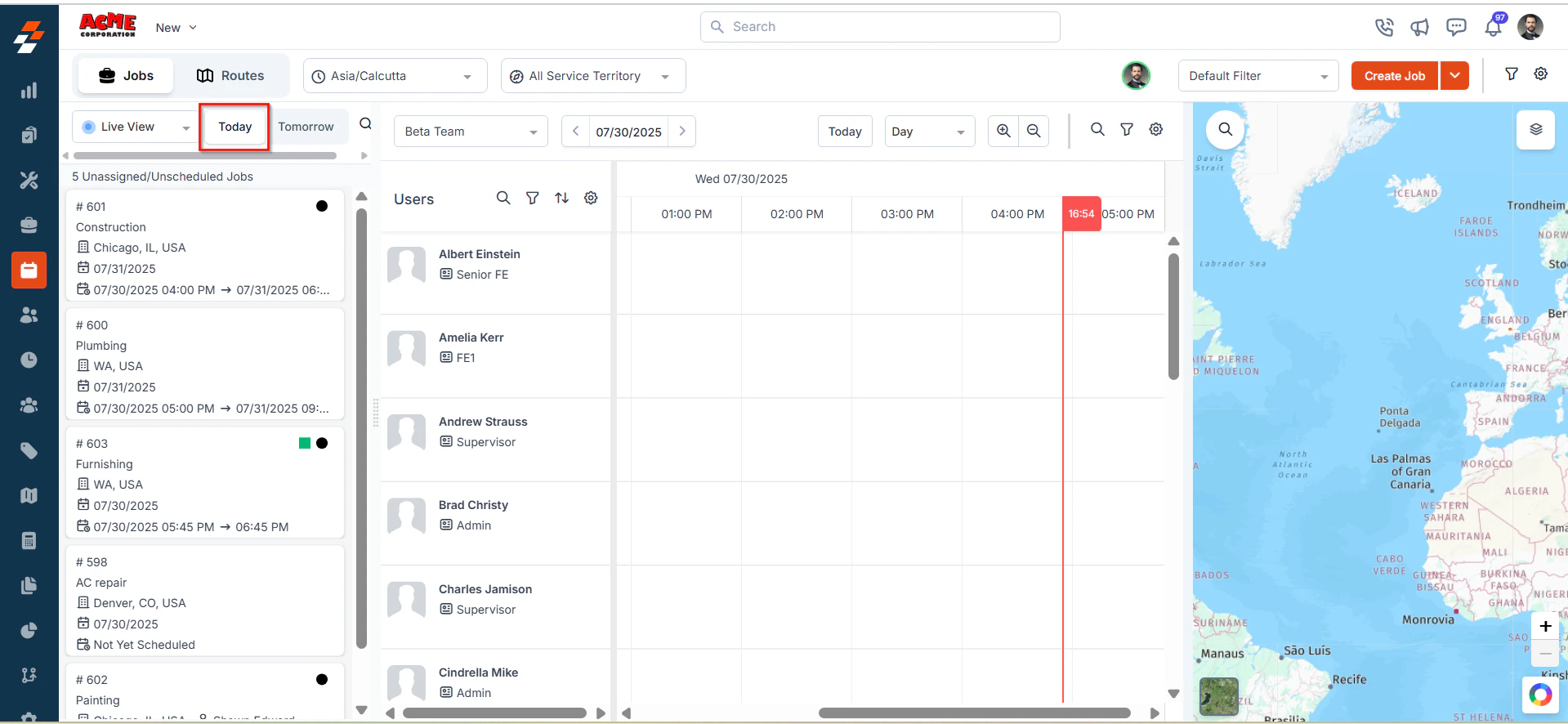
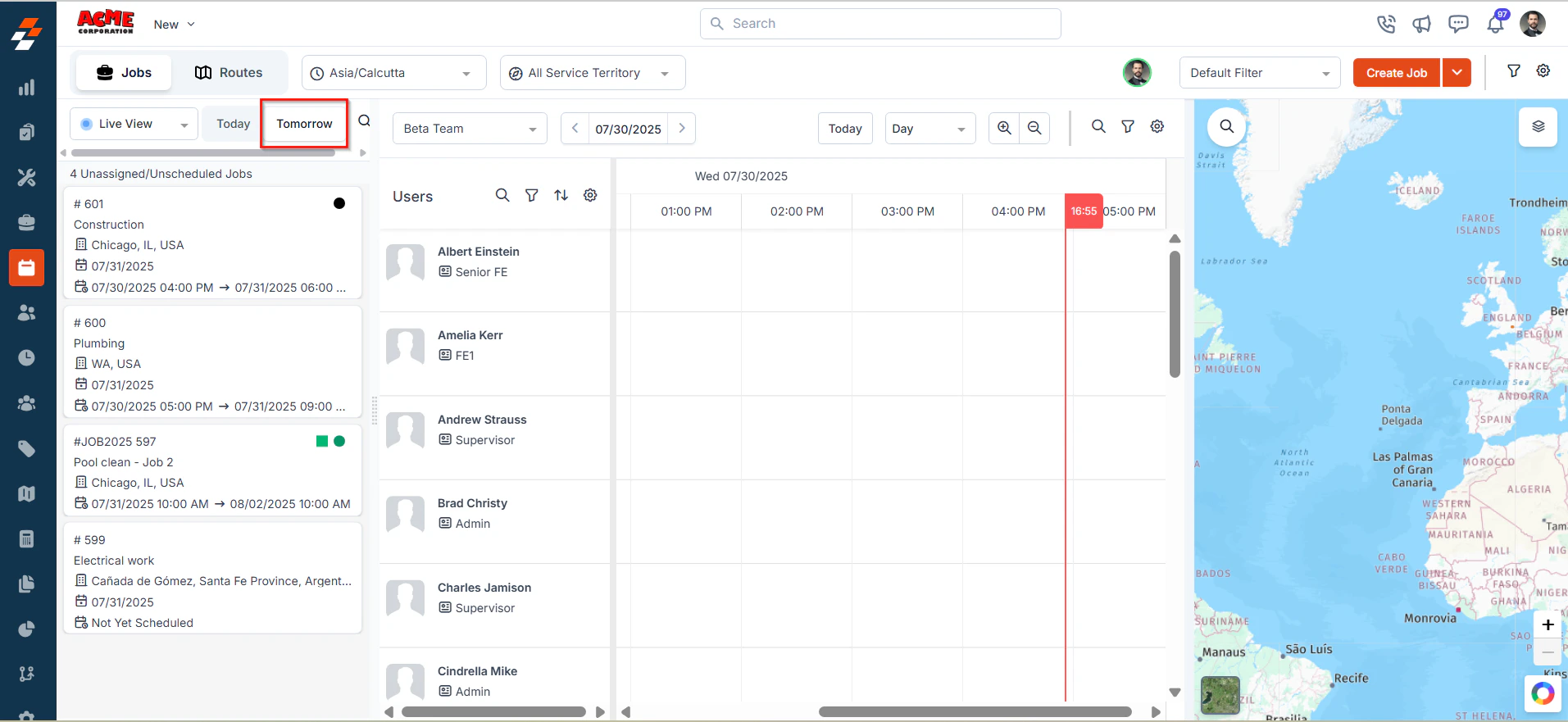
You’ll see two tabs- Today and Tomorrow.
-
The Today tab lists all jobs due/scheduled to be dispatched today.
-
The Tomorrow tab shows jobs that need attention for the next day.
-
The Today tab lists all jobs due/scheduled to be dispatched today.
Note: Jobs are sequenced in the following order:
- Scheduled Jobs are displayed first and sorted by start time.
- Unscheduled Jobs are listed next, sorted by due date.
Using Live View
Live View is designed for simplicity and speed. Once you’re in Live view, you can:- Search for Jobs: Type a keyword or job number in the search bar to quickly locate specific jobs.
- Assign Jobs Instantly: Drag a job card and drop it into a technician’s available slot in the Scheduler. Set the start and end times in the pop-up, then click Update.
- Find Nearby Technicians: Right-click a job card and select Find Live Technicians. Zuper highlights nearby technicians along with their distance from the job site, helping you assign the right person faster.
FAQs
Q: Can I apply filters or sorting in Live View Dispatcher Queue?A: No. Live View intentionally disables filters and custom sorts to ensure a pure, priority-driven real-time stream. Q: What job types are shown?
A: Only unscheduled and/or unassigned jobs that are due or scheduled within the next 48 hours. Will Live View affect my existing Dispatch Board view?
A: No, it runs as a separate dropdown view within the Jobs stream.