A. How to connect your Zoho CRM with Zuper?
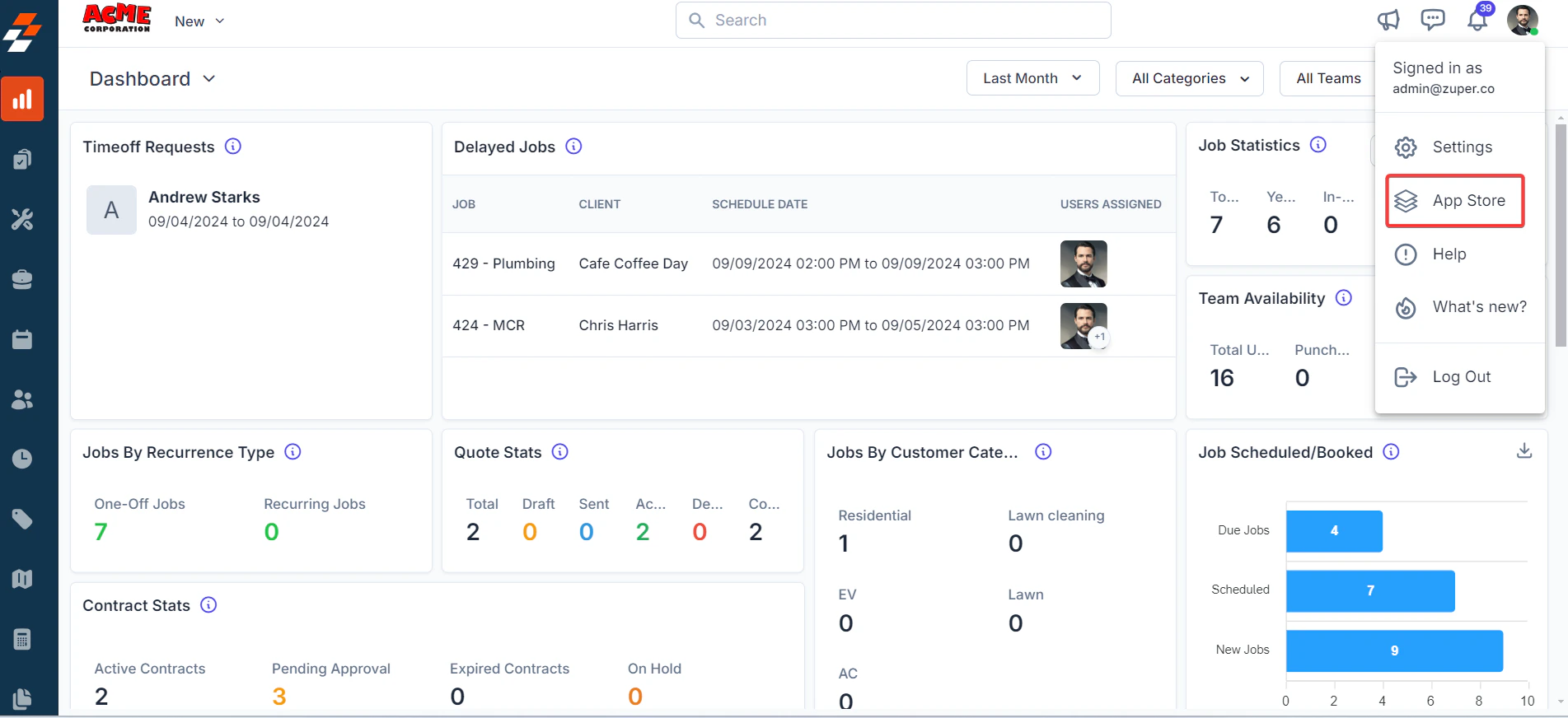
- Open a new tab in your browser after logging in to your Zuper Account. Click on your Profile Picture in the top right corner of the screen and select the “App Store.”
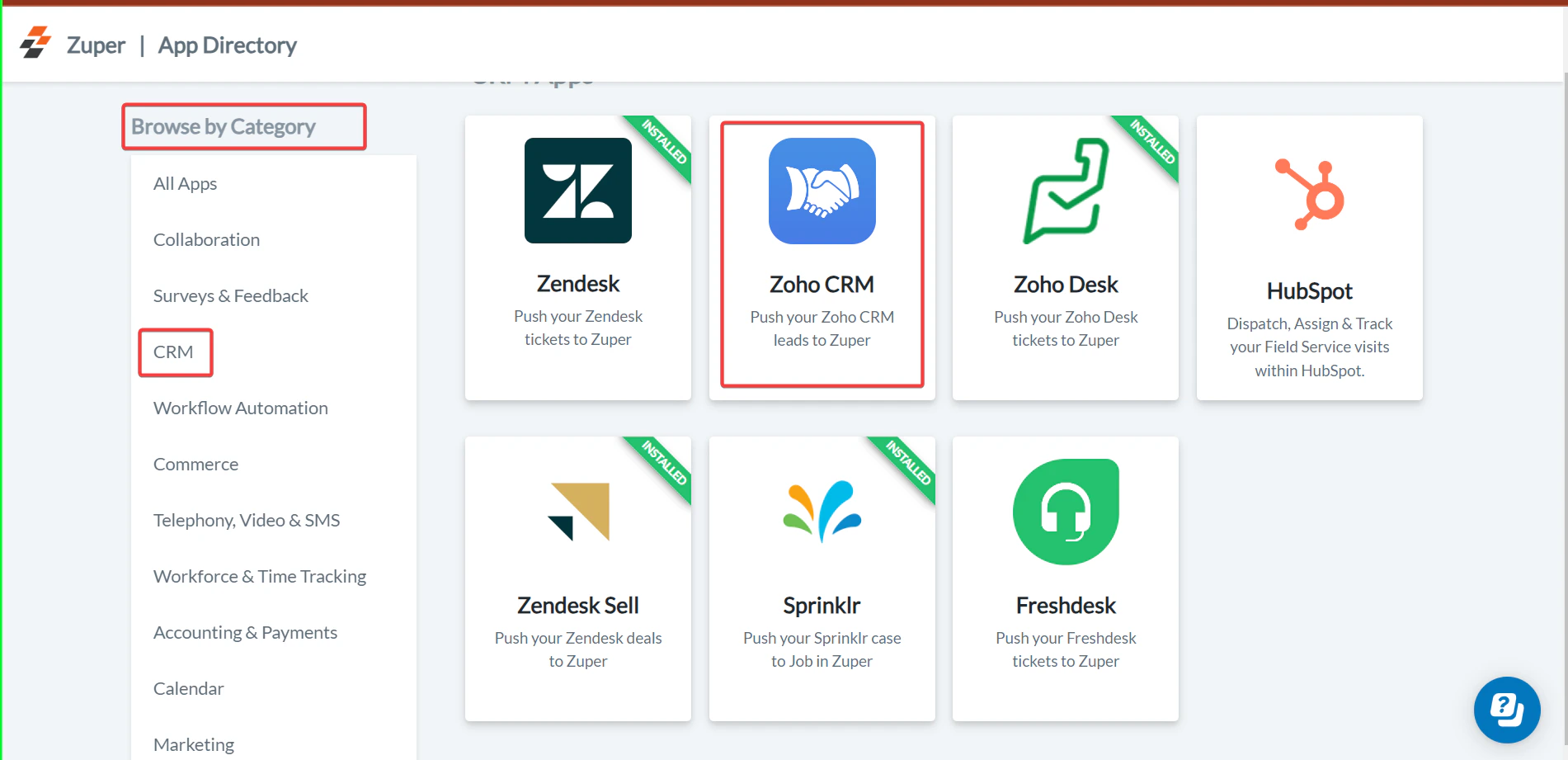
- Under the “Browse by Category,” select the “CRM” option and choose “Zoho CRM.”
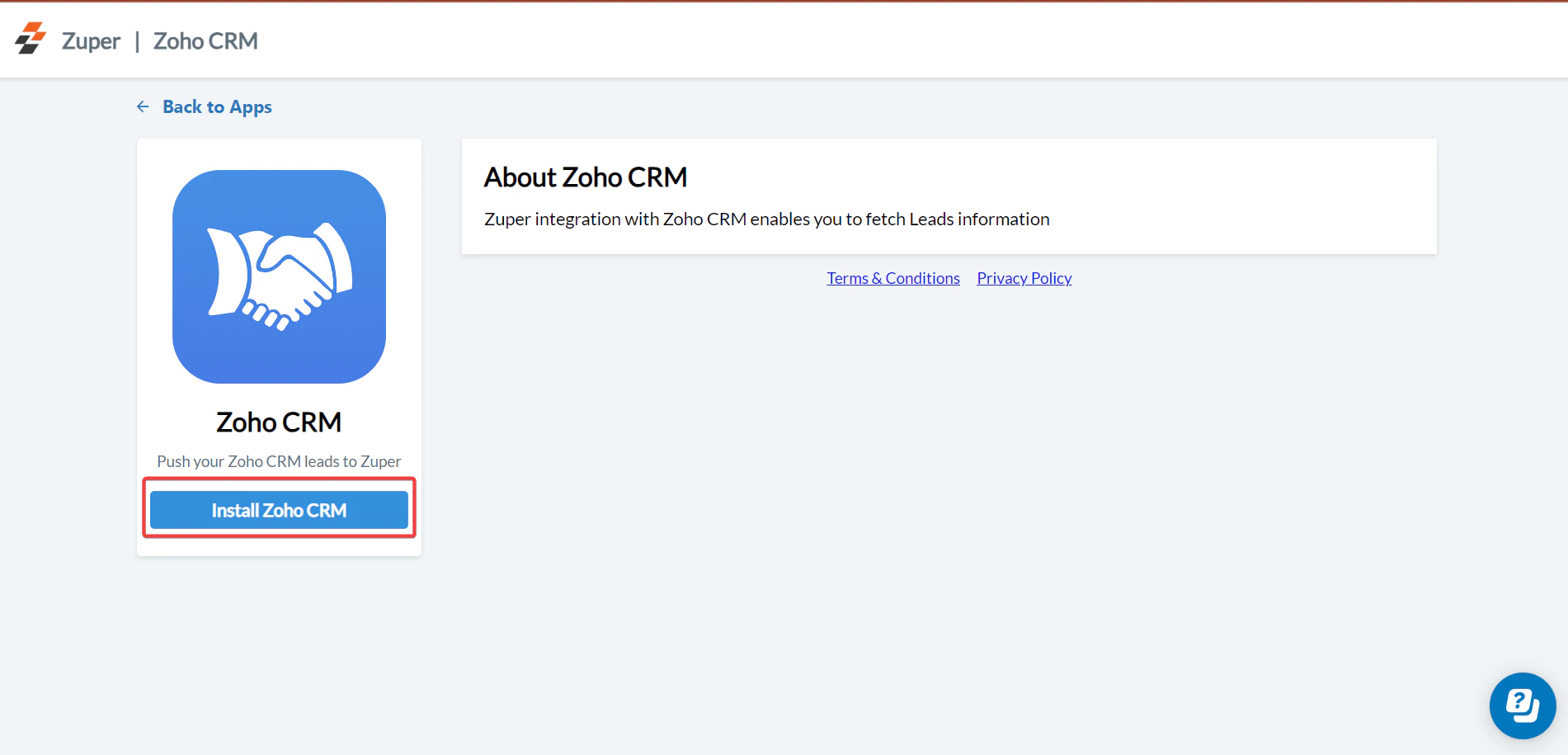
- Click the “Install Zoho CRM” button.
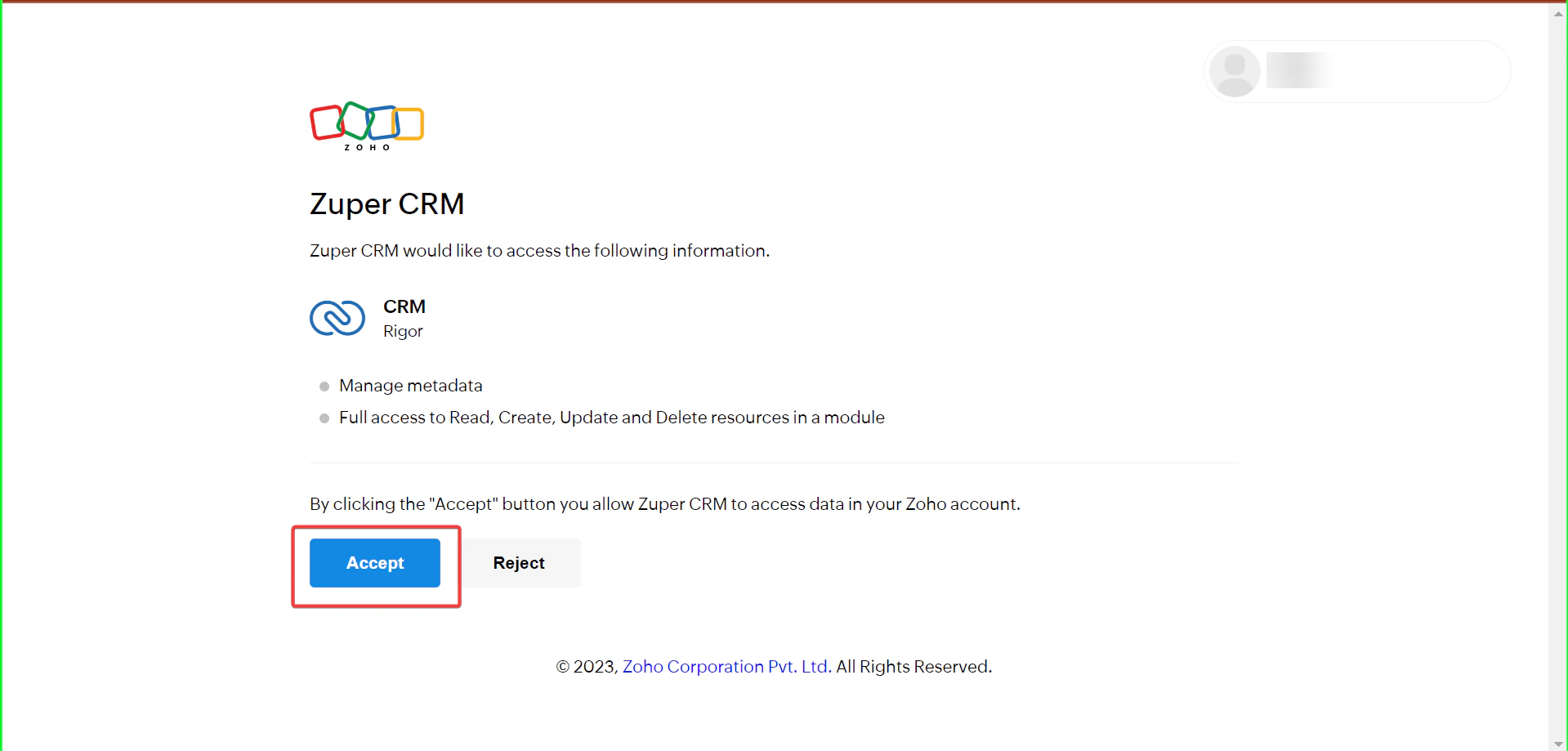
- Provide the necessary permission details for the Zoho CRM.
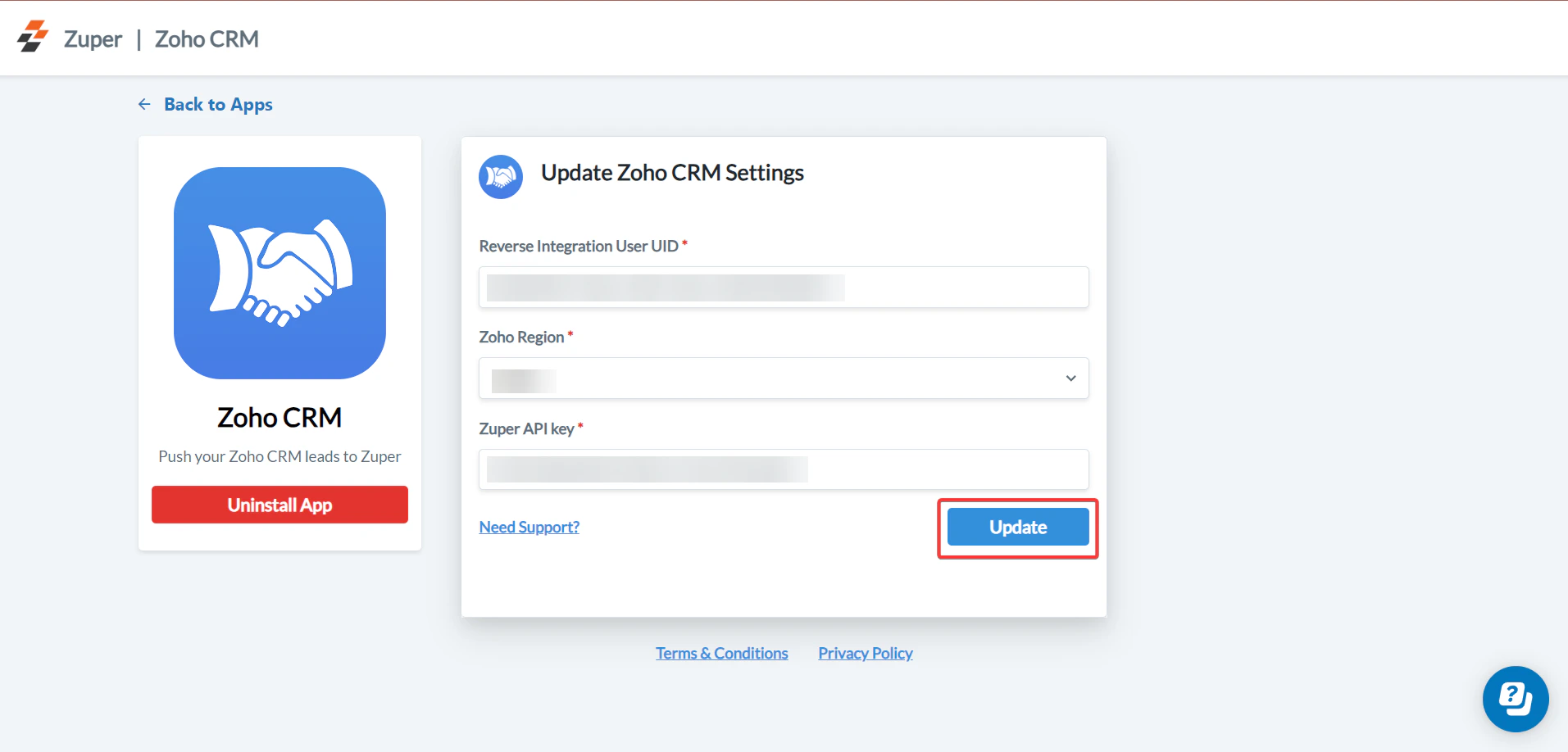
- Update Zuper Settings by configuring the following fields:
Note: The update should be auto-synced from Zoho to Zuper properly.
B. How does Zuper–Zoho Integration work?
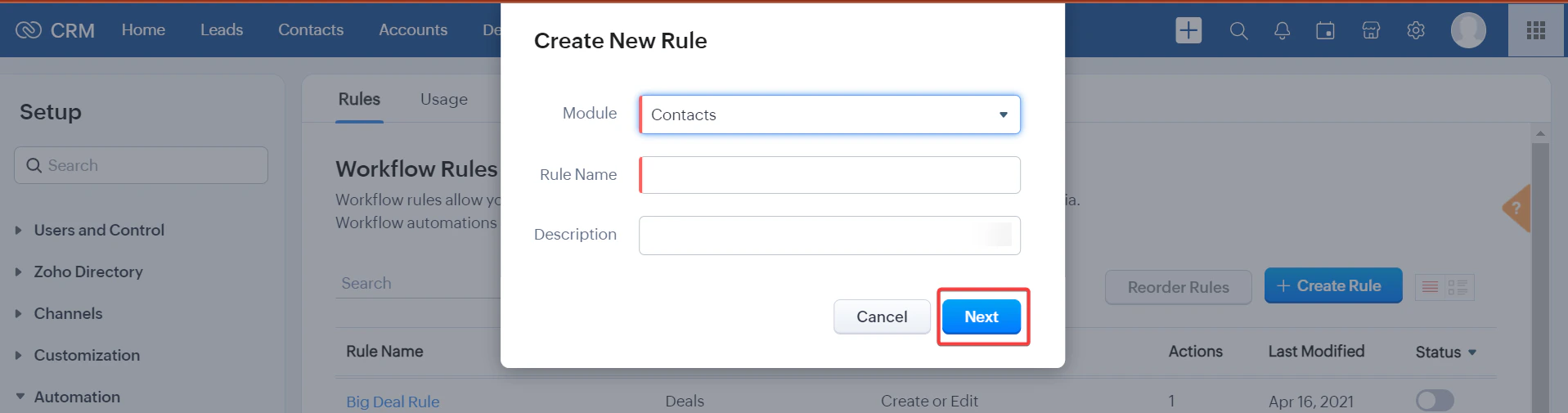
- Log in to your Zoho account and create a workflow from Zoho.
C. How to Uninstall Zoho CRM from Zuper?
- Click on your Profile Picture in the top right corner of the screen and select the “App Store.”
- Under the “Browse by Category,” select the “CRM” option and choose “Zoho CRM.”
- Click on the “Uninstall App” button.
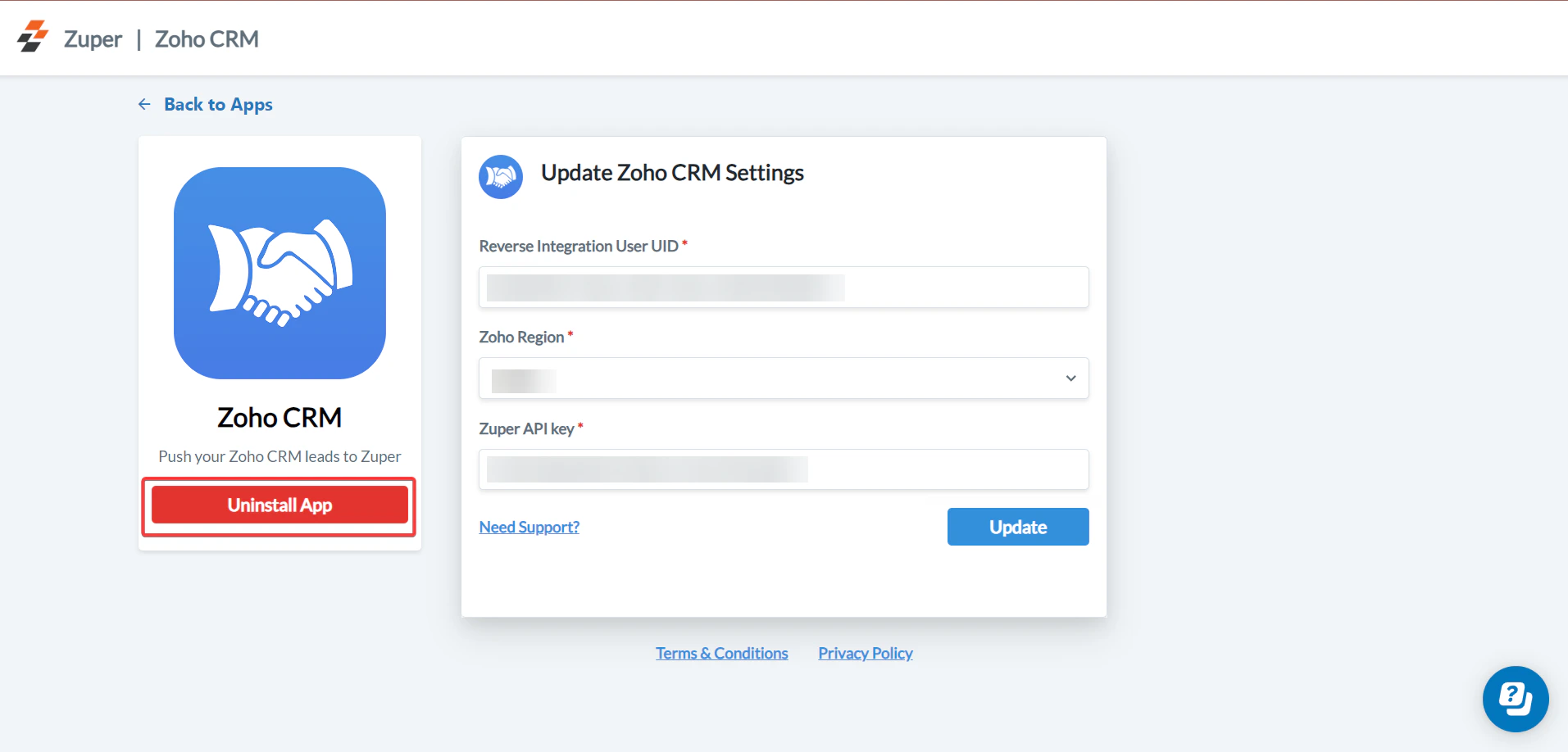
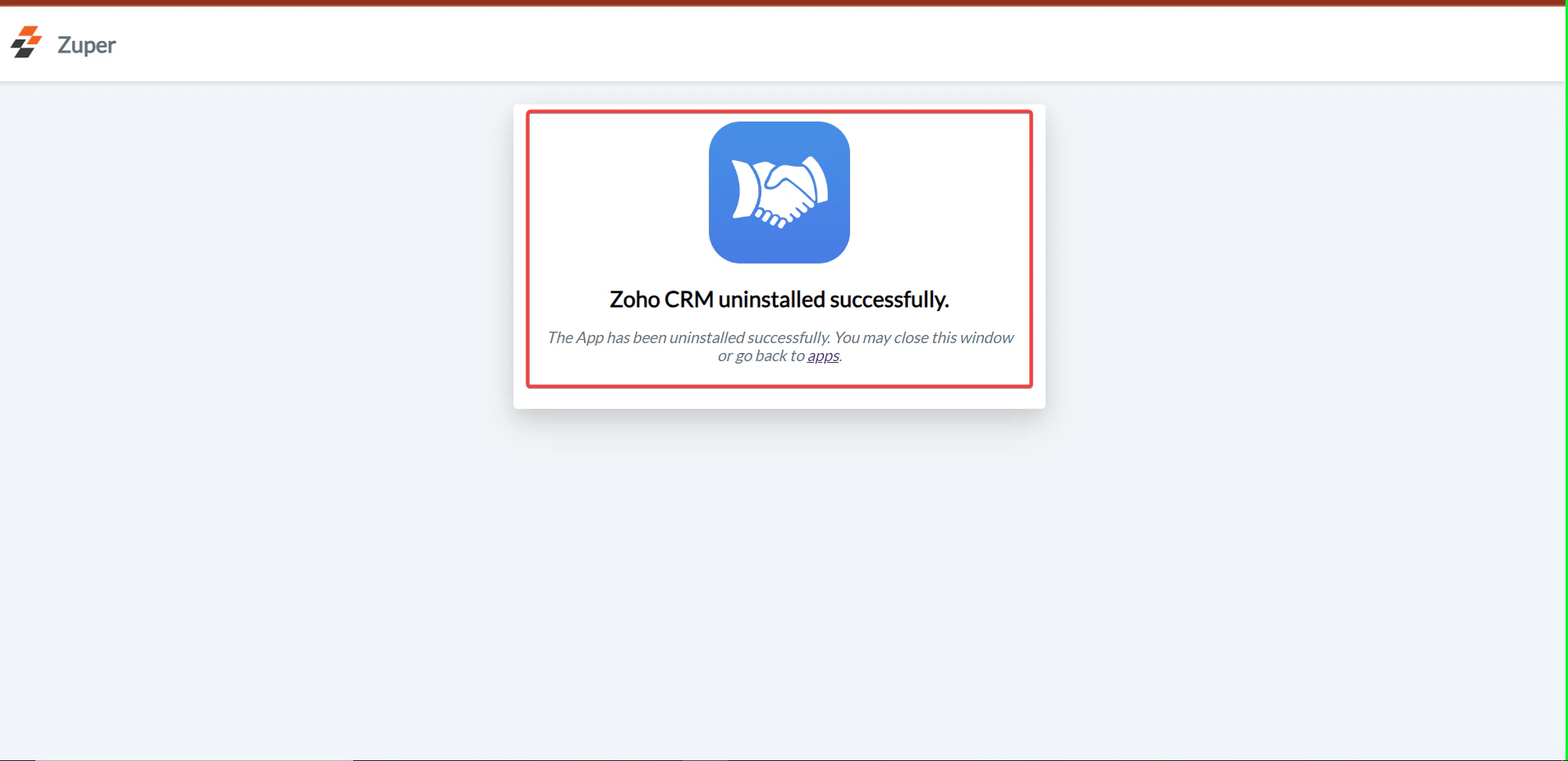
- The Zoho CRM app is uninstalled successfully.