

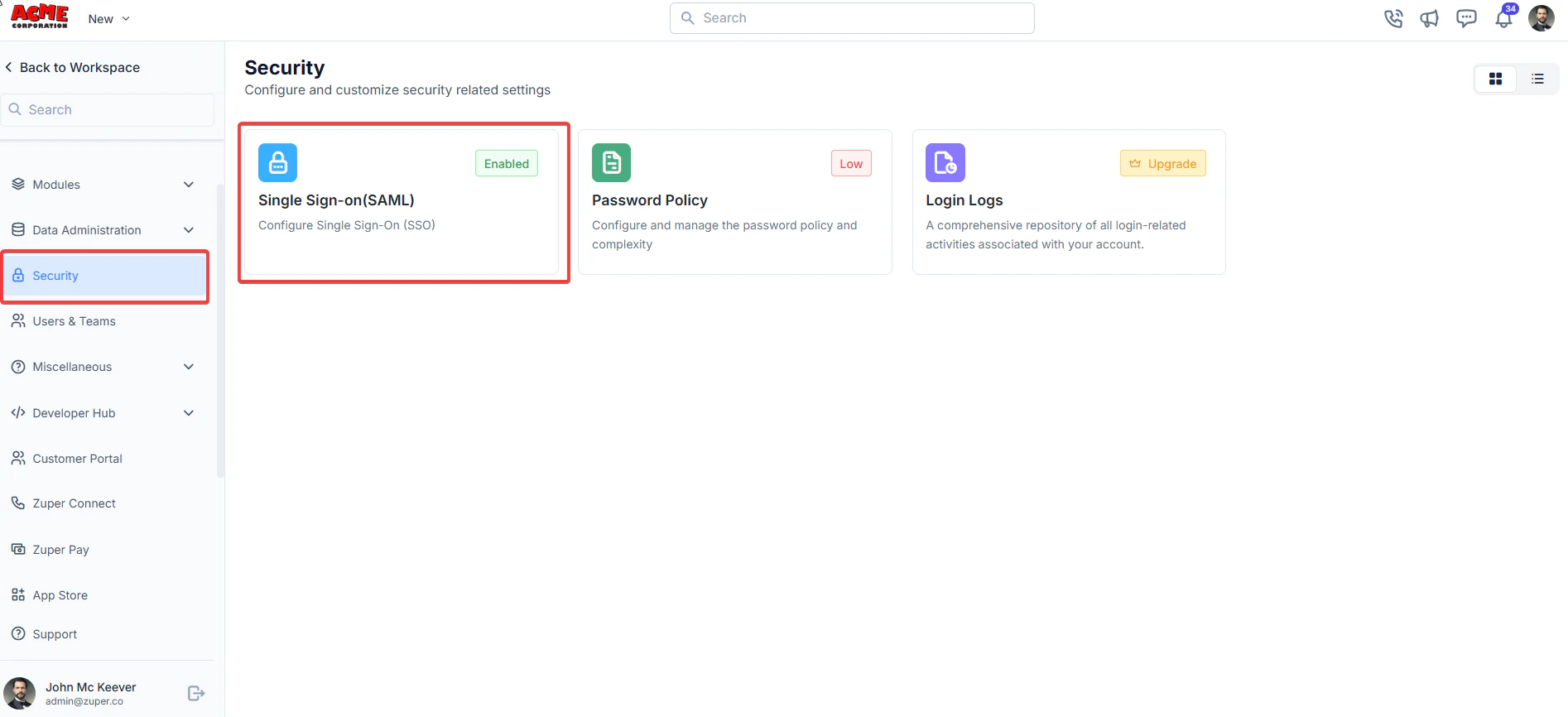
Navigation: Settings -> Security - > Single Sign On (SAML)
- Admin access to Zuper.
- Admin access to your Identity Provider (IdP), such as Okta, Azure AD, OneLogin, Auth0, or another SAML-compliant provider.
- The IdP’s SAML metadata or specific configuration details, including:
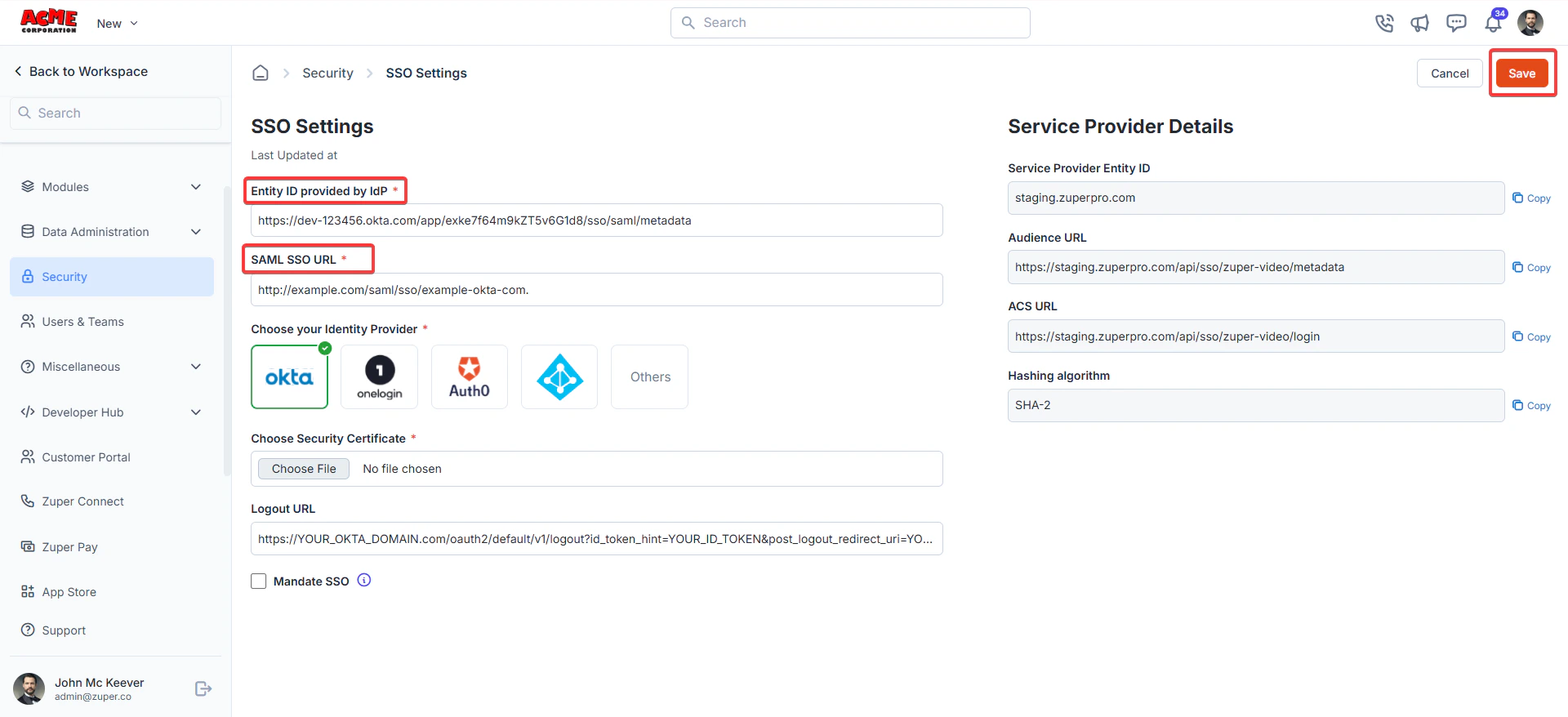
Navigation: Settings —> Security —>SSO Settings
- Azure AD: The Microsoft Entra Identifier is located in the Microsoft Entra ID portal under “Enterprise Applications” > [Your Zuper App] > “Single Sign-On” > “SAML. ”
- Okta: In the Okta admin dashboard, the Issuer URI is under the SAML app settings (e.g., https://your-org.okta.com).
- Other IdPs: Check the IdP’s SAML metadata XML for the EntityDescriptor entityID=”…” value.
- Azure AD: In the same SAML settings, it’s the Login URL (e.g.,https://login.microsoftonline.com/{tenant-id}/saml2).
- Okta: In the Okta SAML app settings, it’s the Single Sign-On URL.
- Other IdPs: In the SAML metadata XML, look for the SingleSignOnService element with a Location attribute (e.g., SingleSignOnService Binding=“urn:oasis:names:tc:SAML:2.0:bindings:HTTP-POST” Location=“https://idp.example.com/saml/sso”\\\\\\\\\\\\\\\\\\\\\\\\\\\\\\\>).
- Select your IdP from the list: Okta, OneLogin, Auth0, Others, or a custom provider.
- This helps Zuper optimize the SSO flow for your IdP.
- Upload the public key certificate (X.509 format) provided by your IdP. Where to find it:
- Download the certificate from your IdP’s SAML settings (often in the metadata or as a separate .cer file).
- In the metadata XML, it’s within the X509Certificate tag.
- Click Choose File and upload the certificate. Ensure it says “File chosen” after uploading.
- If your IdP supports Single Logout (SLO), enter the IdP’s logout URL here.
- This allows users to log out of both Zuper and the IdP simultaneously. Where to find it:
- In the IdP’s SAML metadata, look for the SingleLogoutService element (e.g., SingleLogoutService Binding=“urn:oasis:names:tc:SAML:2.0:bindings:HTTP-POST” Location=“https://idp.example.com/saml/logout”).
- Check this box to enforce SSO for all users. If unchecked, users can still log in with their Zuper credentials as a fallback.
Configure Zuper in your Identity provider:
- Create a SAML App: In your IdP, create a new SAML application for Zuper. o Example: In Okta, go to “Applications” “Create App Integration” “SAML 2.0.”
- Enter Zuper’s Details: o Single Sign-On URL (ACS URL): Enter the sign-on URL. o Audience URI (SP Entity ID): Enter the SP entity ID. o Default Relay State (optional): Leave blank unless specified by Zuper. o Name ID Format: Typically Email Address (check Zuper’s requirements). o Application Username: Map to the user’s email or a unique identifier.
- Attribute Statements (optional): o Map user attributes (e.g., email, first name, last name) as Zuper requires. Refer to Zuper’s documentation for specific attribute mappings.
- Download IdP Metadata: o After configuring, download the IdP’s SAML metadata or note the Entity ID, SSO URL, and certificate for use in Step 3.
Test the SSO Configuration
- Save your settings in Zuper by clicking the Save button.
- Log out of Zuper and attempt to log in using the SSO option. o You should be redirected to your IdP’s login page. o After successful authentication, you’ll be redirected back to Zuper and logged in.
Troubleshooting Tips
- Error: “Invalid SAML Response”: o Ensure the Entity ID and SSO URL match exactly between Zuper and the IdP. o Verify the certificate is correct and not expired.
- Users Not Redirected: o Check that the ACS URL in the IdP matches Zuper’s provided ACS URL.
- Login Fails After Redirect: o Confirm that the user’s email in the IdP matches their Zuper account email. o Check attribute mappings in the IdP.