- NFC-enabled Android device running Android 9 or later
- The latest version of the Zuper Field Service mobile app (download from the Google Play Store)
Note: You must input a location for the Tap to Pay functionality to work properly. Ensure a valid location is configured before accepting payments. For more details, refer to this article.
- Open the Zuper Field Service mobile app.
- Navigate to Invoices or Quotes, then select the transaction.
-
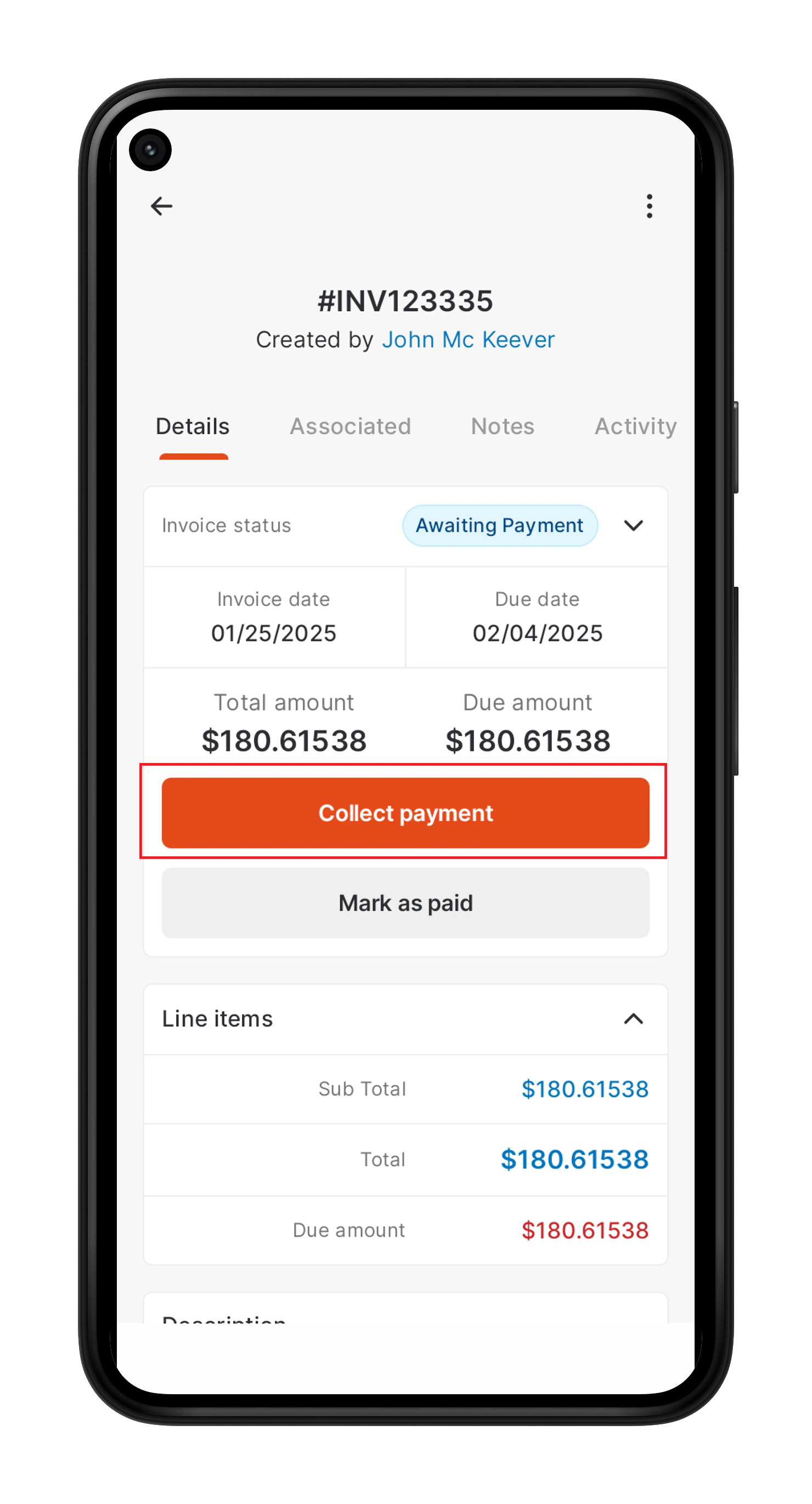
Tap Collect Payment / Collect Deposit.
-
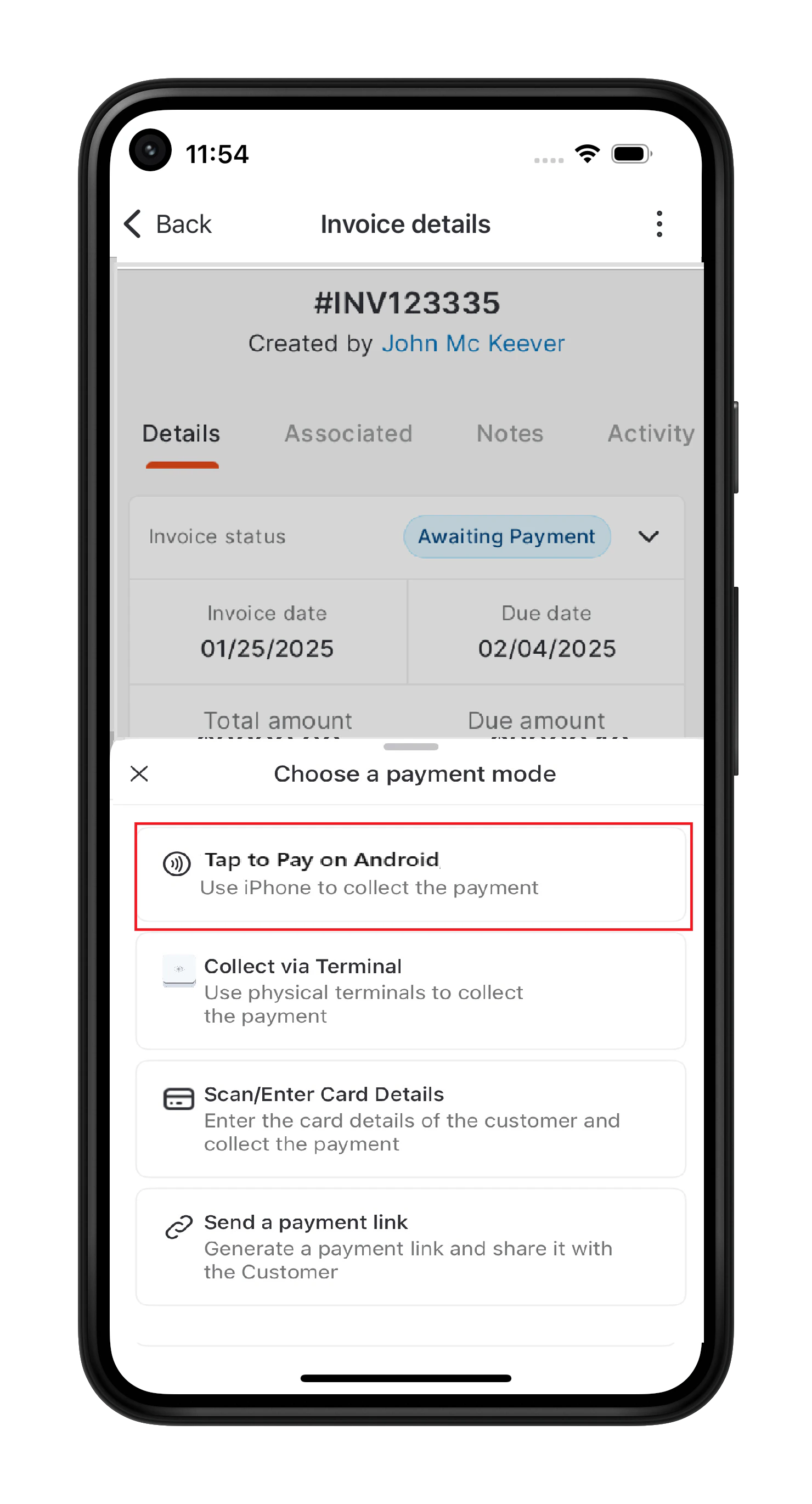
Select Tap to Pay on Android, then ask the customer to:

- Hold their contactless card, NFC device, or digital wallet (Apple Pay, Google Pay, Samsung Pay) over the contactless payment symbol on your mobile device.
- If using a smartwatch, ensure the watch is unlocked and placed close to the device.
-
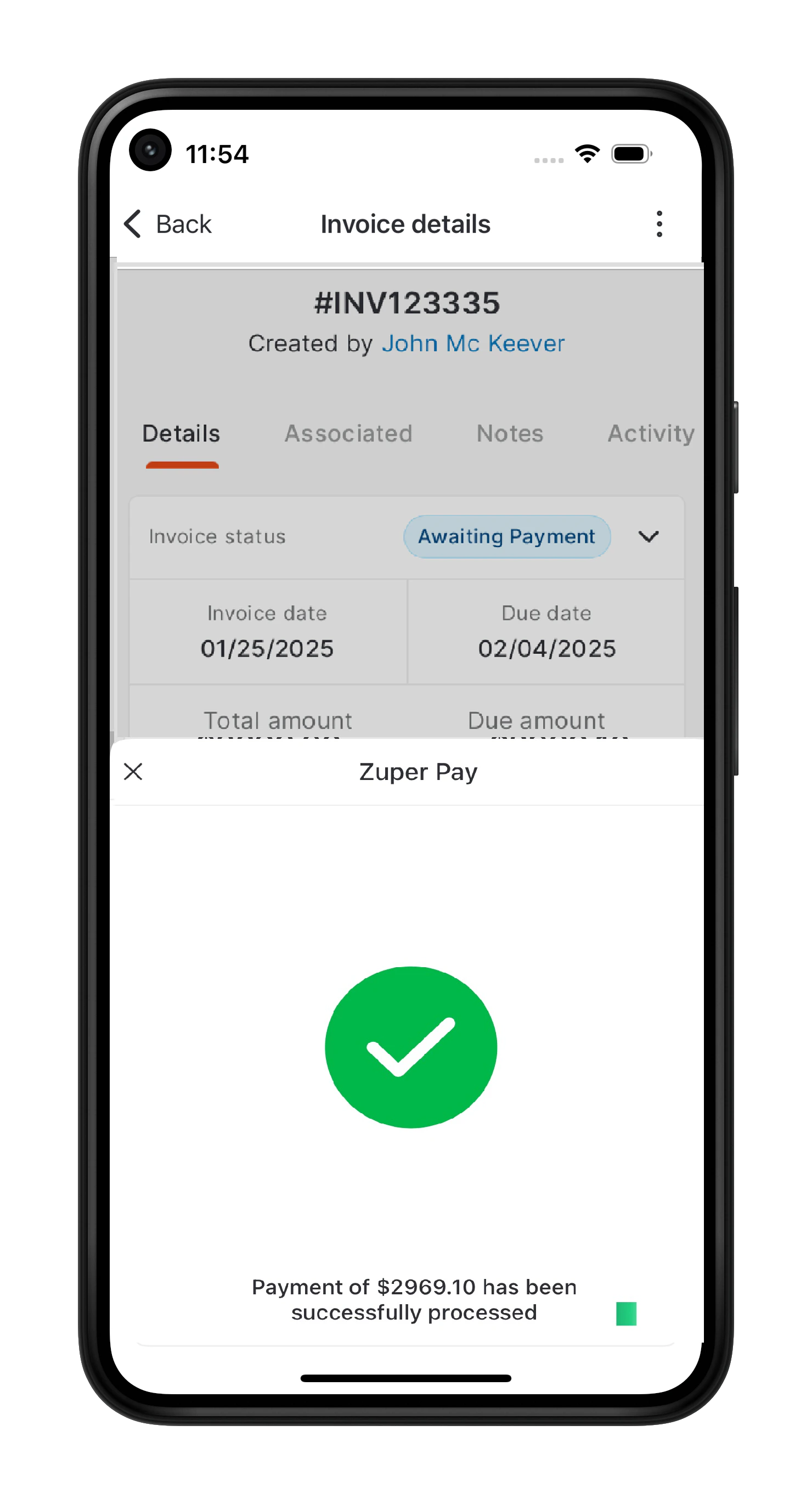
Once you see the “Done” screen, the transaction is complete!